
Agent Tester
The Agent Tester is a powerful feature that allows you to automatically test your AI agents using AI-driven conversations. Instead of manually testing your agent, the tester simulates realistic customer interactions and provides comprehensive analysis of your agent’s performance.The Agent Tester uses AI to generate realistic customer messages, simulating real-world interactions to thoroughly evaluate your agent’s capabilities.
Getting Started
Navigate to your agent’s Tester tab from the agent dashboard. You’ll see the test configuration panel on the left and the test results on the right.Test Configuration
Test Mode
Select the type of test you want to run based on what you want to evaluate: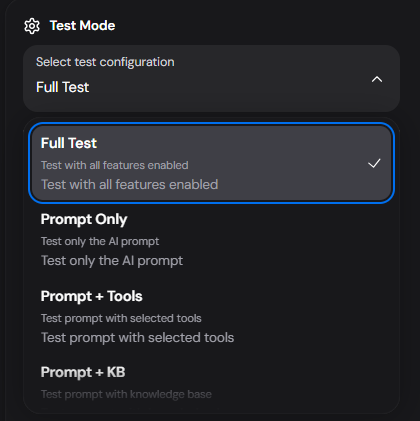
Tools Configuration
When testing with tools, you can select which tools to include in the test: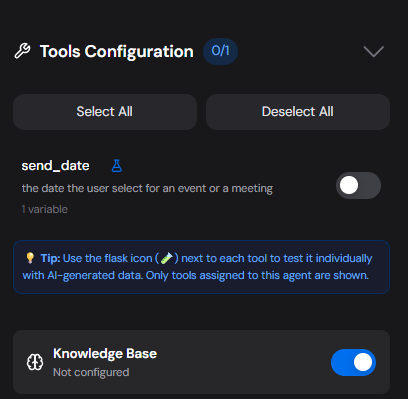
- Select All / Deselect All: Quickly toggle all tools
- Individual Tool Toggle: Enable/disable specific tools for targeted testing
- Flask Icon (🧪): Click to test a tool individually with AI-generated data
- Knowledge Base Toggle: Enable or disable KB access during the test
Test Scenarios
Provide context for what the test should focus on: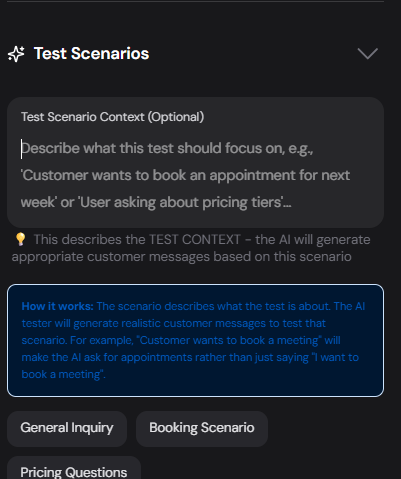
- “Customer wants to book an appointment for next week”
- “User asking about pricing tiers”
- “Customer needs help with a product return”
- General Inquiry: Basic questions about your service
- Booking Scenario: Test appointment/booking flows
- Pricing Questions: Test pricing-related conversations
The scenario describes what the test is about. For example, “Customer wants to book a meeting” will make the AI tester ask for appointments rather than just saying “I want to book a meeting”.
Conversation Length
Control how many exchanges the test will run: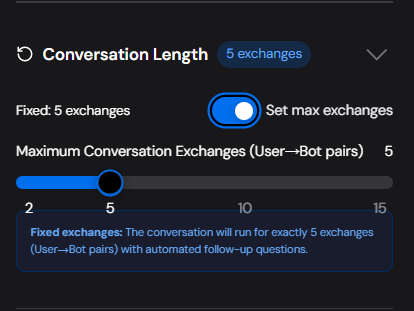
- Fixed exchanges toggle: When enabled, the conversation will run for exactly the specified number of exchanges
- Maximum Conversation Exchanges: Set between 2-15 exchanges (User→Bot pairs)
- Slider: Quickly adjust the conversation length
Running a Test
- Configure your test settings (mode, tools, scenario, length)
- Click the Run Test button
- Watch the conversation unfold in real-time in the logs
- Review the comprehensive analysis when complete
Test Results & Analysis
After the test completes, you’ll receive a detailed analysis: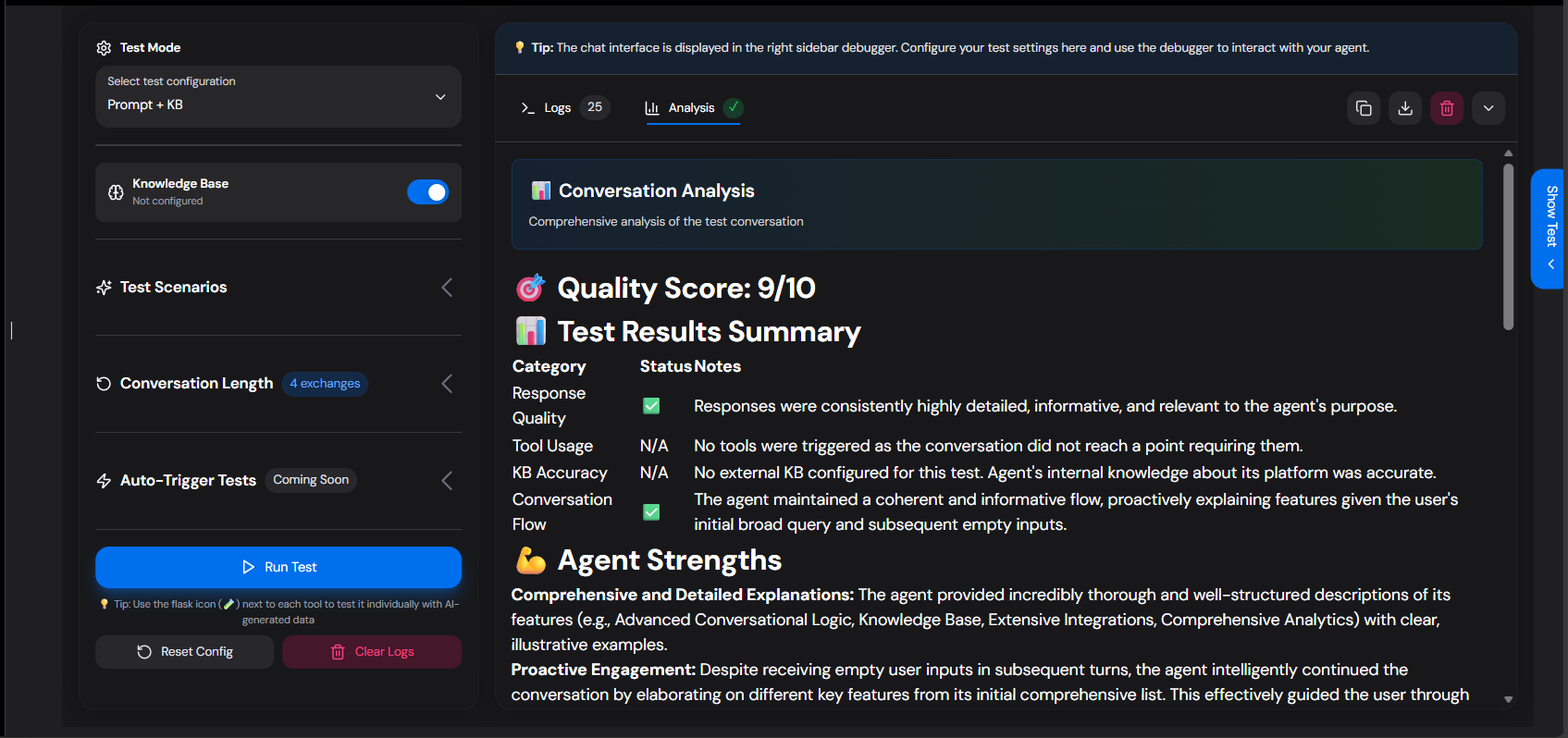
Quality Score
A score out of 10 indicating overall agent performance.Test Results Summary
Analysis Sections
- Agent Strengths: What your agent does well
- Areas for Improvement: Specific recommendations
- Tools/Capabilities Analysis: How tools were used
- Knowledge Base Analysis: KB retrieval performance
- Customer Journey: End-to-end experience assessment
- Recommendations: Actionable improvement suggestions
- Final Verdict: Executive summary
Viewing Logs
Click on Logs tab to see the detailed conversation:- Sent messages: What the AI tester sent to your agent
- Received messages: Your agent’s responses
- Info messages: System events and status updates
- Error messages: Any issues that occurred
Tips for Effective Testing
Use Specific Scenarios
The more specific your test scenario, the more realistic and useful the test will be.
Test Different Modes
Run multiple tests with different modes to isolate issues.
Check Tool Triggers
If testing tools, verify they were actually triggered in the logs.
Review the Journey
Pay attention to the Customer Journey section for UX insights.
Credit Usage
The Agent Tester consumes credits based on actual token usage, using the same pricing as the gemini-2.5-flash model. Credits are charged at the end of each test session.
- Tokens used for generating test prompts
- Tokens used for follow-up questions
- Tokens used for the final analysis
Troubleshooting
Test ends too early
Test ends too early
If your test ends before the configured number of exchanges, check if:
- Your agent’s response triggered a natural conversation end
- There was a timeout (agent didn’t respond within 30 seconds)
- An error occurred during the test
Tools not triggering
Tools not triggering
Ensure you’ve:
- Selected the tools in the Tools Configuration
- Used a test scenario that would naturally require the tool
- Configured the tool correctly in your agent
Low quality scores
Low quality scores
Review the analysis for specific recommendations. Common issues include:
- Vague or generic responses
- Not using available tools when appropriate
- Poor conversation flow or context retention
Related Features
Tools
Learn how to create and configure tools for your agents.
Knowledge Base
Set up a knowledge base for your agent.
Canvas
Build complex conversation flows with the visual canvas.
Analytics
Track your agent’s performance over time.