
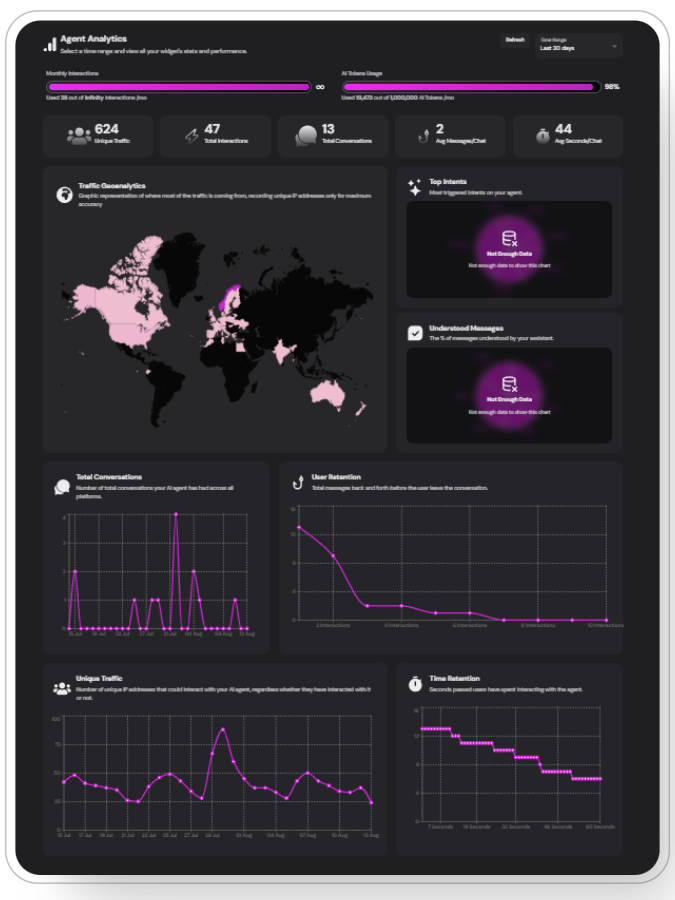
Key Metrics at a Glance
Monthly Interactions
Track the number of interactions your agent handles based on time filtering.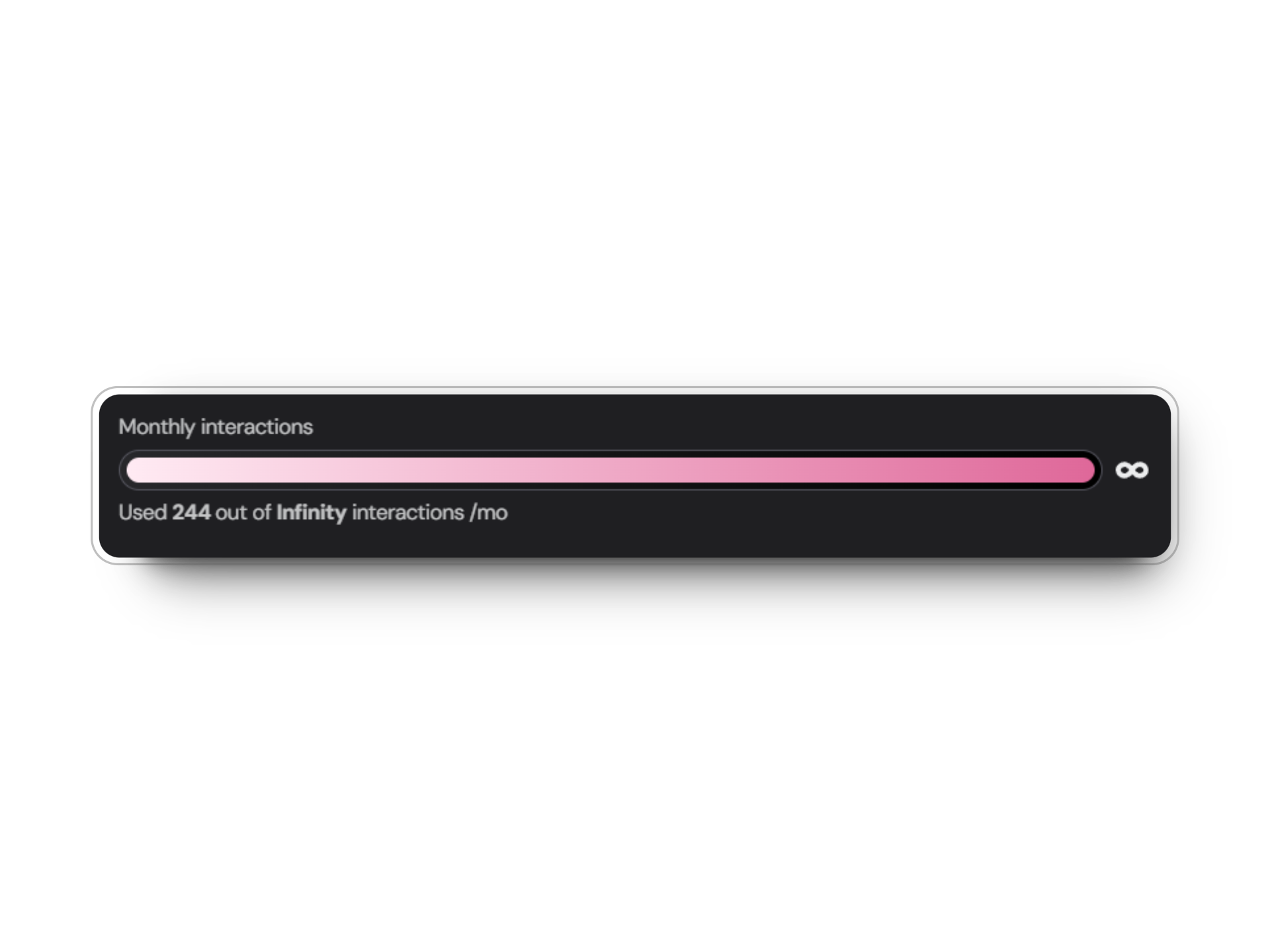
Custom limit can be set in the agent settings tab
AI Tokens Usage
Monitor the consumption of AI tokens to optimize costs and performance.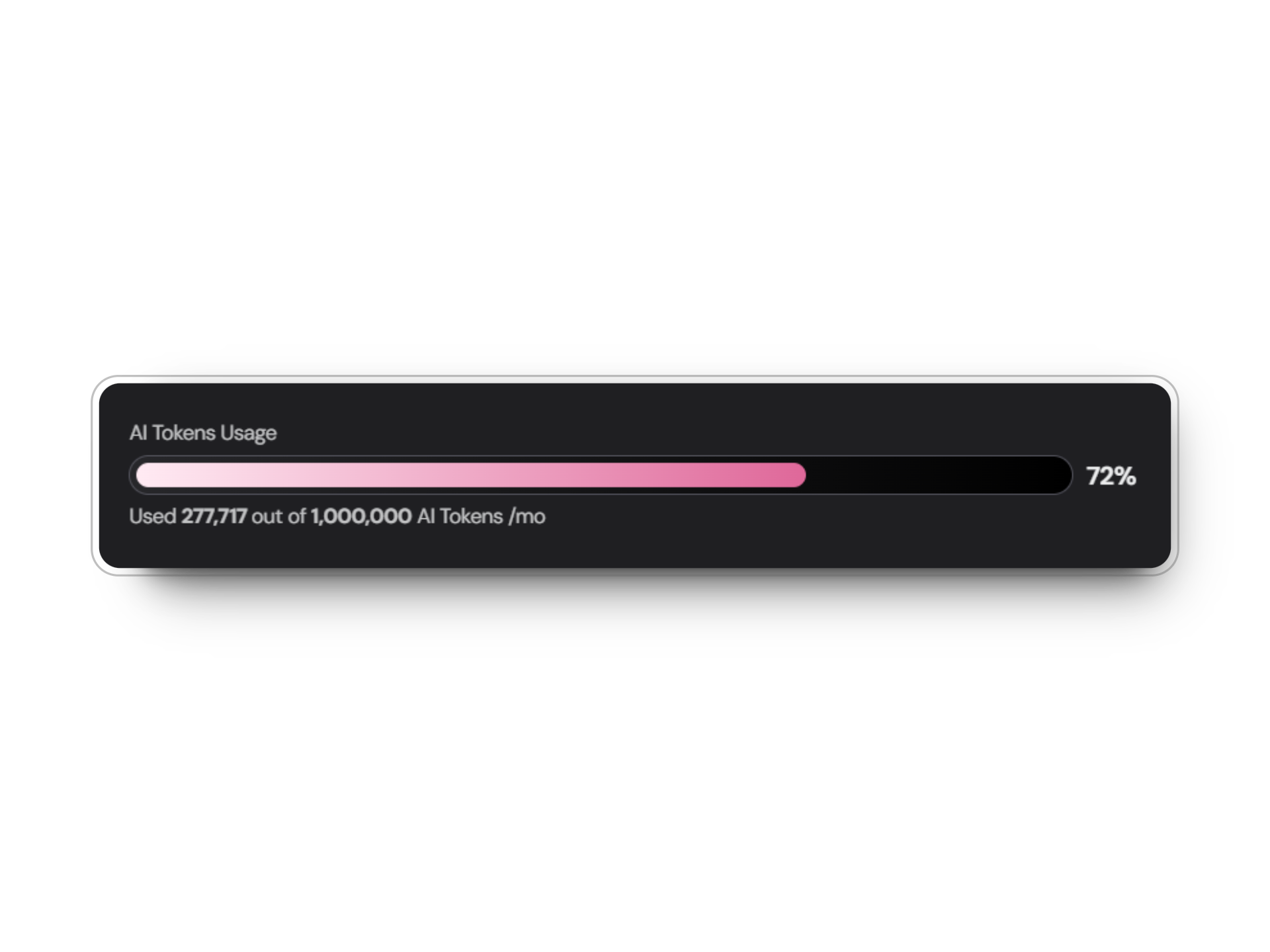
Custom limit can be set in the agent settings tab
Total Interactions
View the cumulative number of interactions over time.
Total Conversations
Keep track of the number of distinct conversations initiated with your agent.
Average Messages per Chat
Understand the average length and depth of conversations with your agent.
Average Seconds per Chat
Measure the efficiency of your agent by tracking the average duration of interactions.
Average Rating
For Voiceflow agents, see the average user satisfaction rating given to your agent.
The total interactions and total conversations are displayed as key metrics at the top of the Analytics tab and as graphs based on your selected time range.
Detailed Performance Metrics
User Retention
User Retention
Visualize user engagement with a graph showing the total messages exchanged before users leave the conversation. Measured by date and amount of interactions.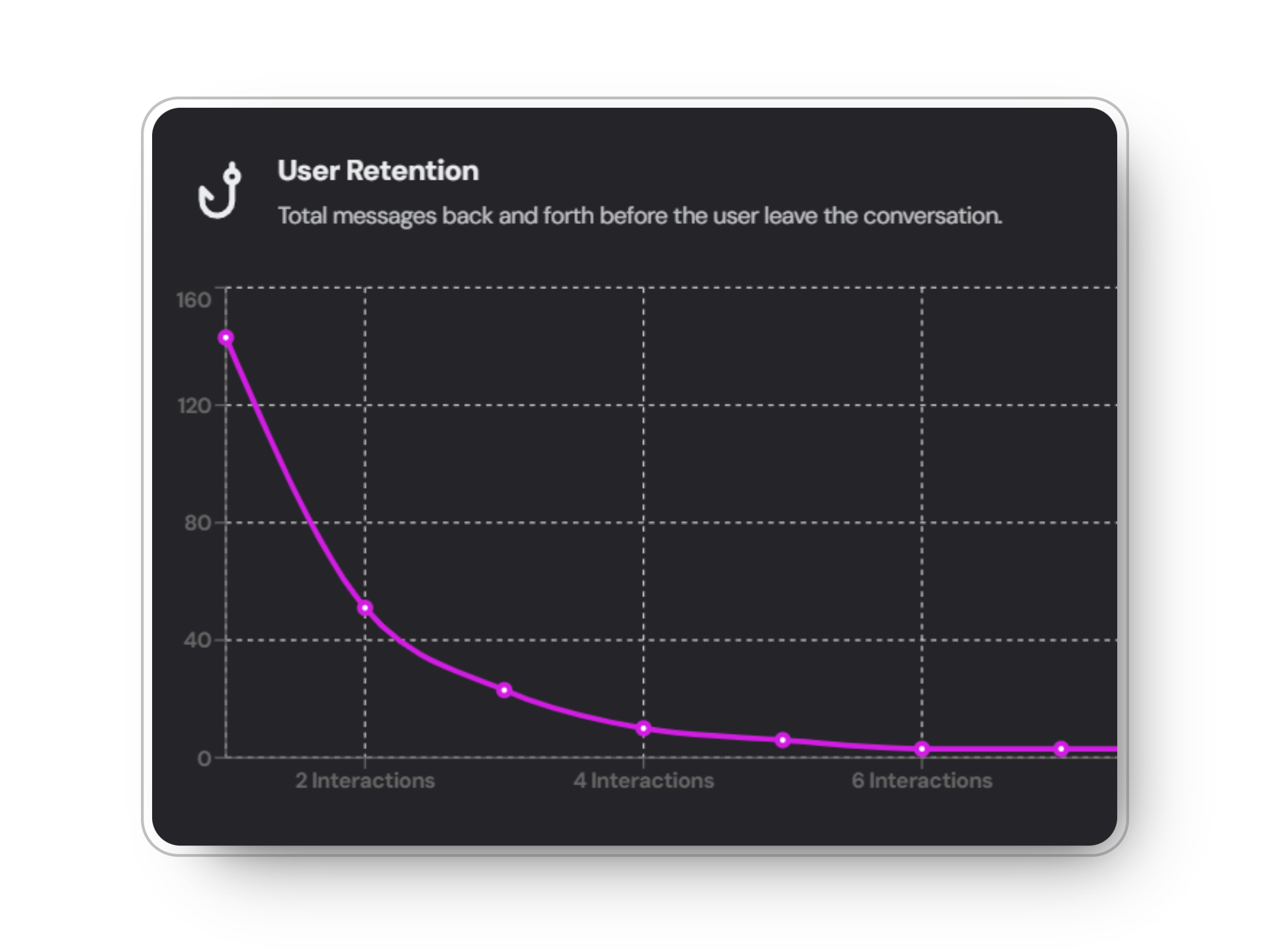
Time Retention
Time Retention
Analyze user engagement duration with a graph displaying the total seconds users spend interacting with your agent. Measured by amount of users and time spent.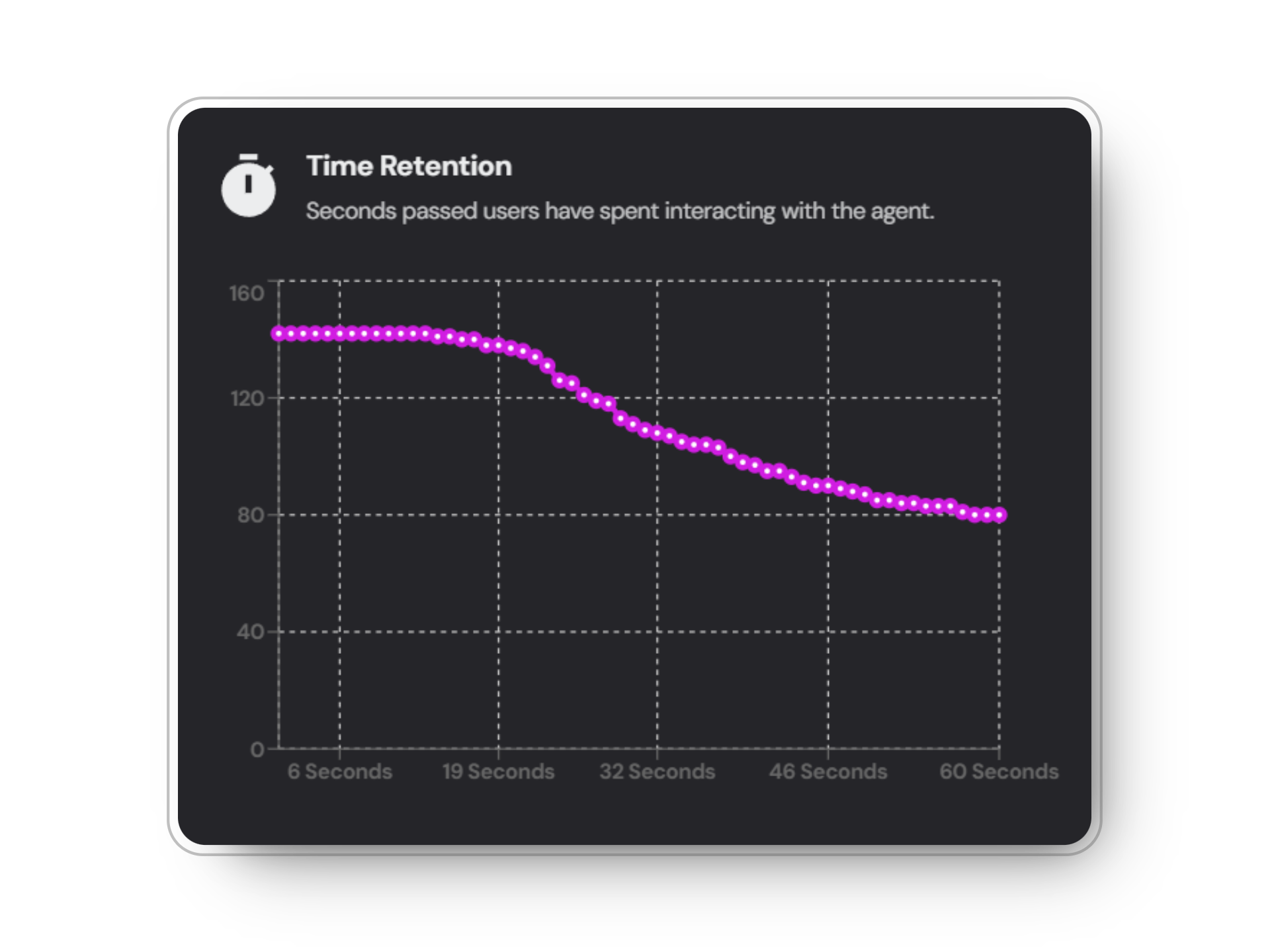
Total conversations over time
Total conversations over time
Analyze user conversations over time with your agent through a graph. Measure by amount of conversations and date based on your chosen time range.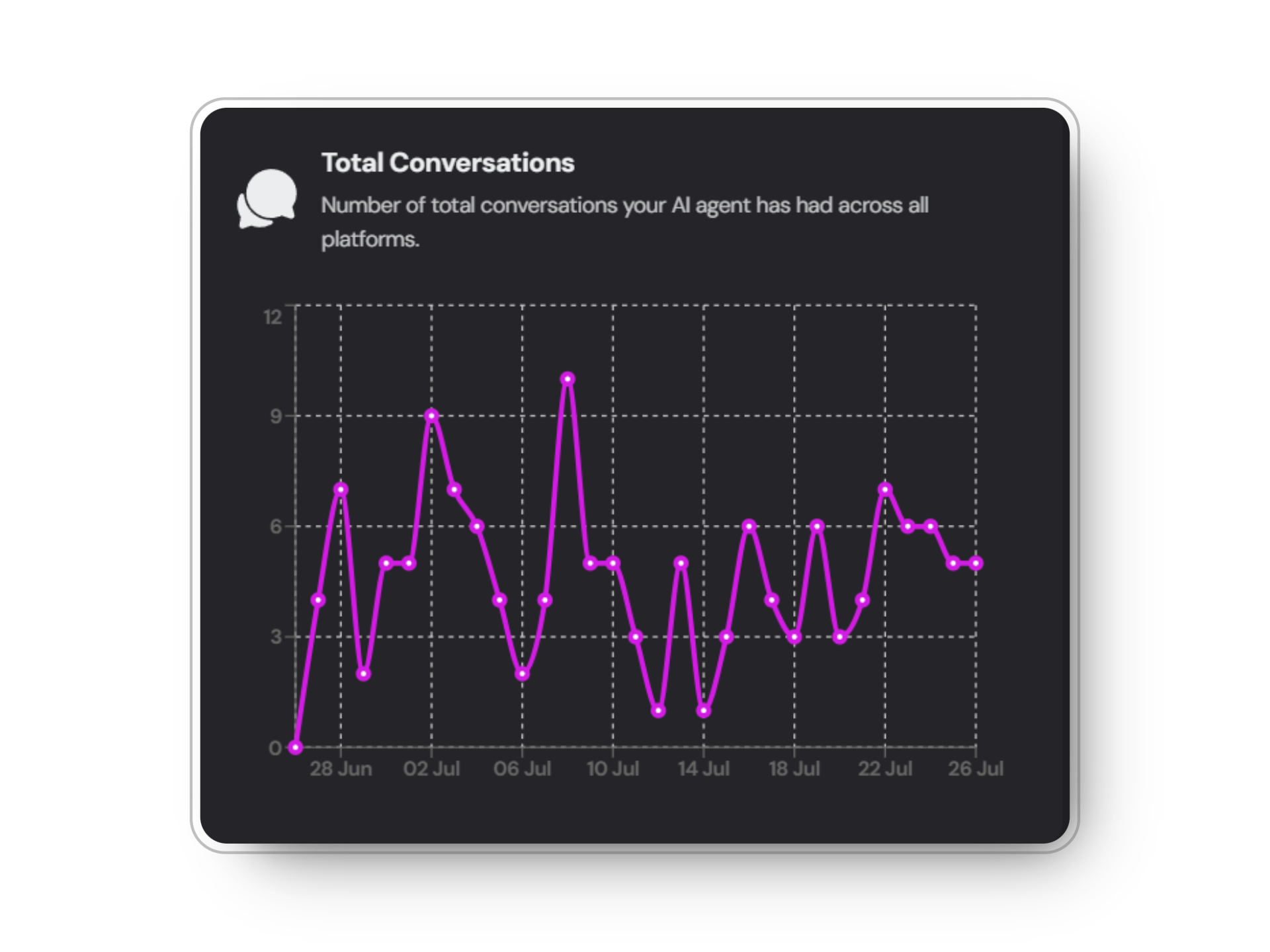
Time Range Selection
Analytics data can be filtered by time period to help you analyze trends and performance over specific intervals.Preset Time Ranges
Select from convenient preset time ranges:
- Last 1 Hour
- Last 24 Hours
- Last 7 Days
- Last 30 Days
- Last 90 Days
- Last Year
Custom Date Range
For more targeted analysis, select a custom date range using the date picker:
- Click the calendar icon to open the date picker
- Select your start and end dates
- The analytics will automatically update to show data from your selected period
Geographic Insights
Enable GeoAnalytics in the settings tab of your agent to gain insights into the geographical distribution of your users:GeoAnalytics is an
optional feature that provides valuable location-based data about users interacting with your agent.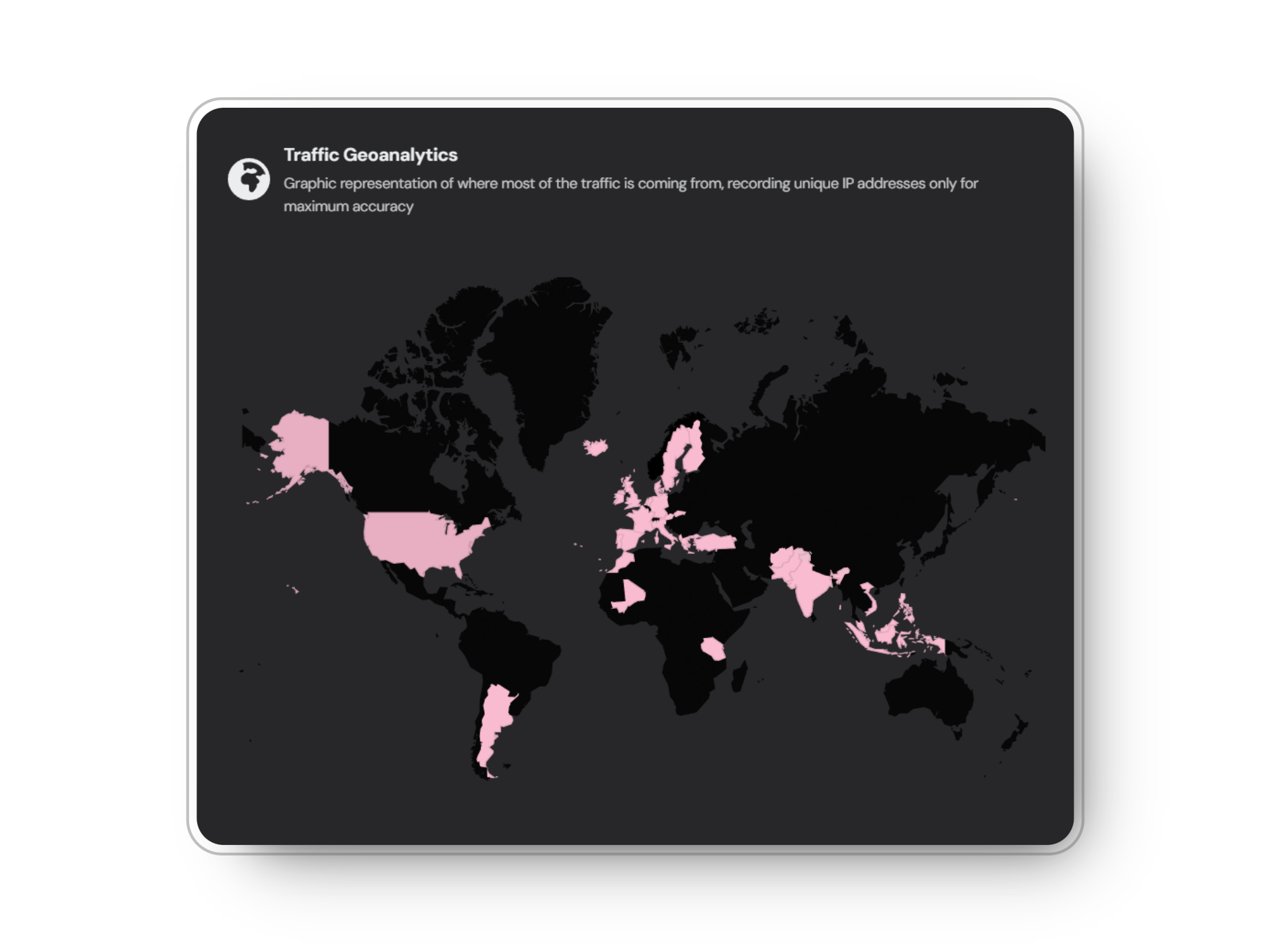
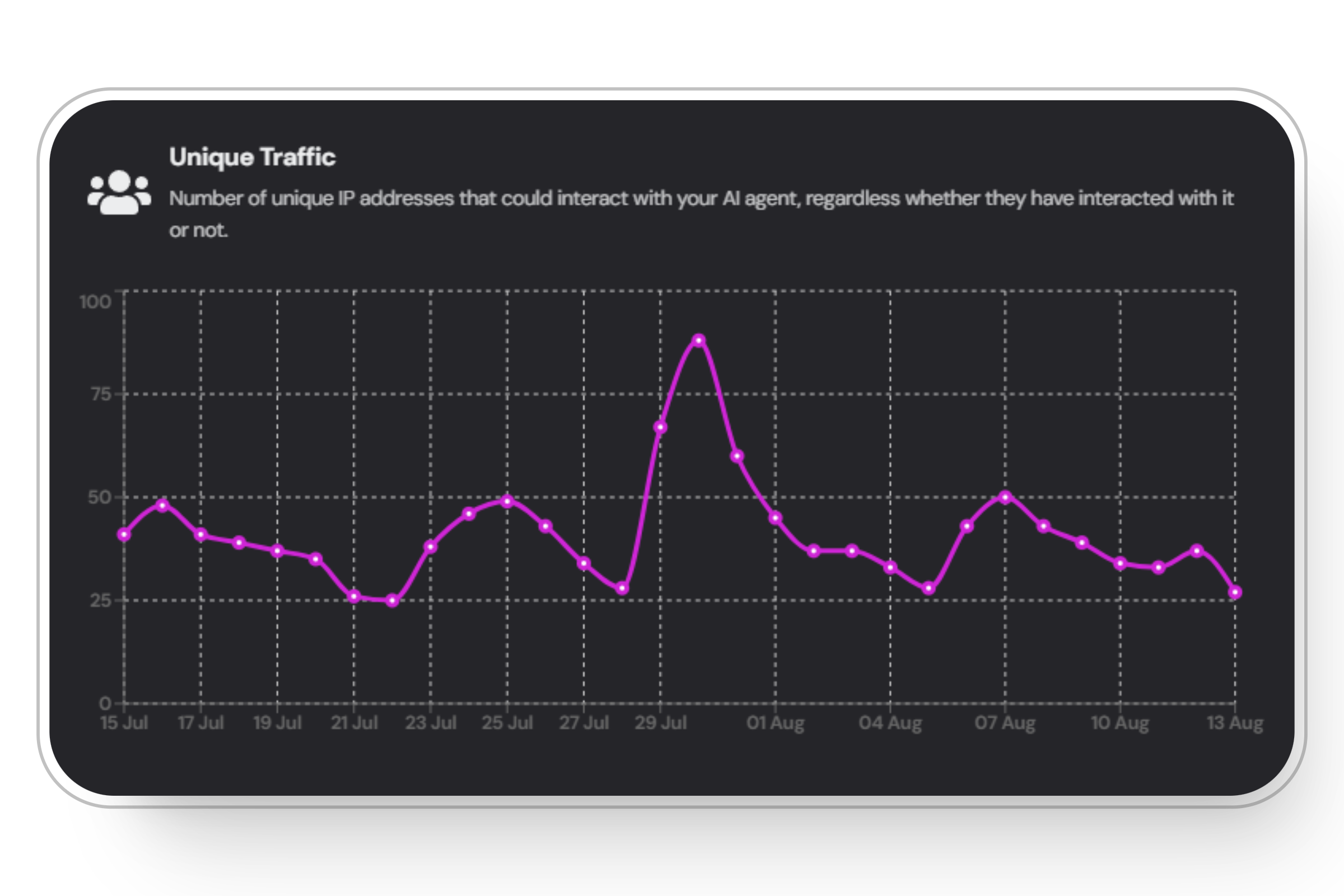
Unique traffic graph
Unique traffic graph
Voiceflow-Specific Analytics
If you’re using our Voiceflow integration, you’ll have access to additional analytics specific to the platform:Top Intents
Visualize the most frequently triggered intents in a pie chart. Hover over the specific pie pieces to see the intent name.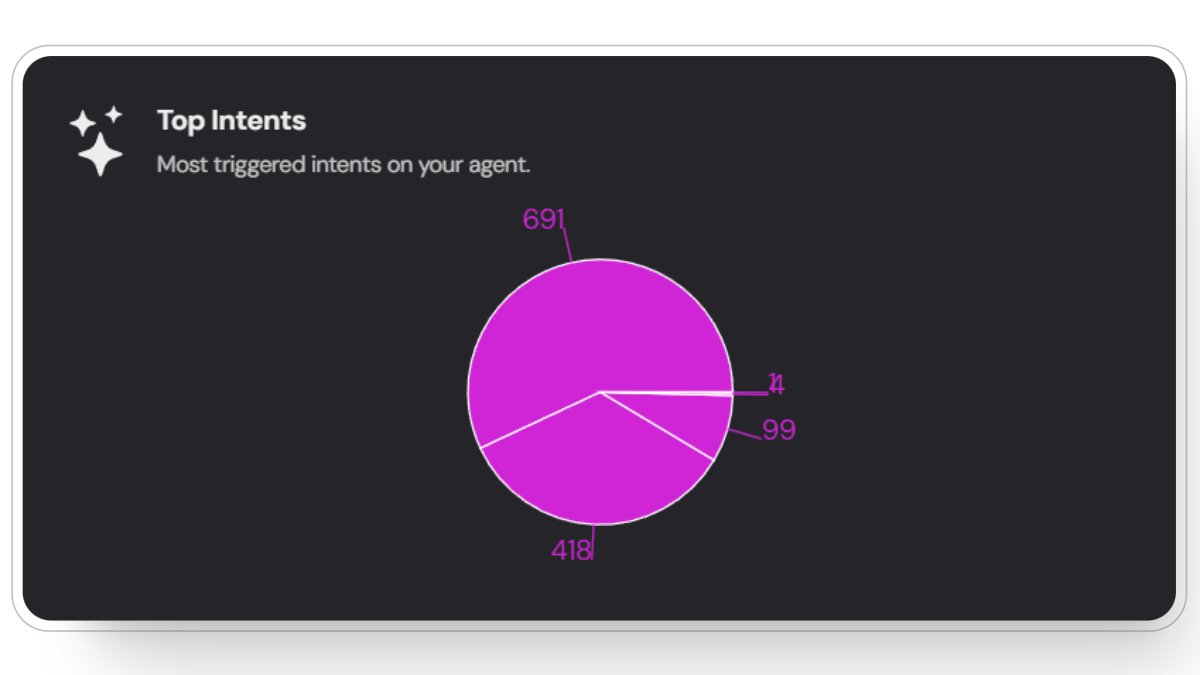
Understood Messages
See the percentage of messages successfully understood by your assistant. Green represents understood while red represents not understood messages by the voiceflow AI.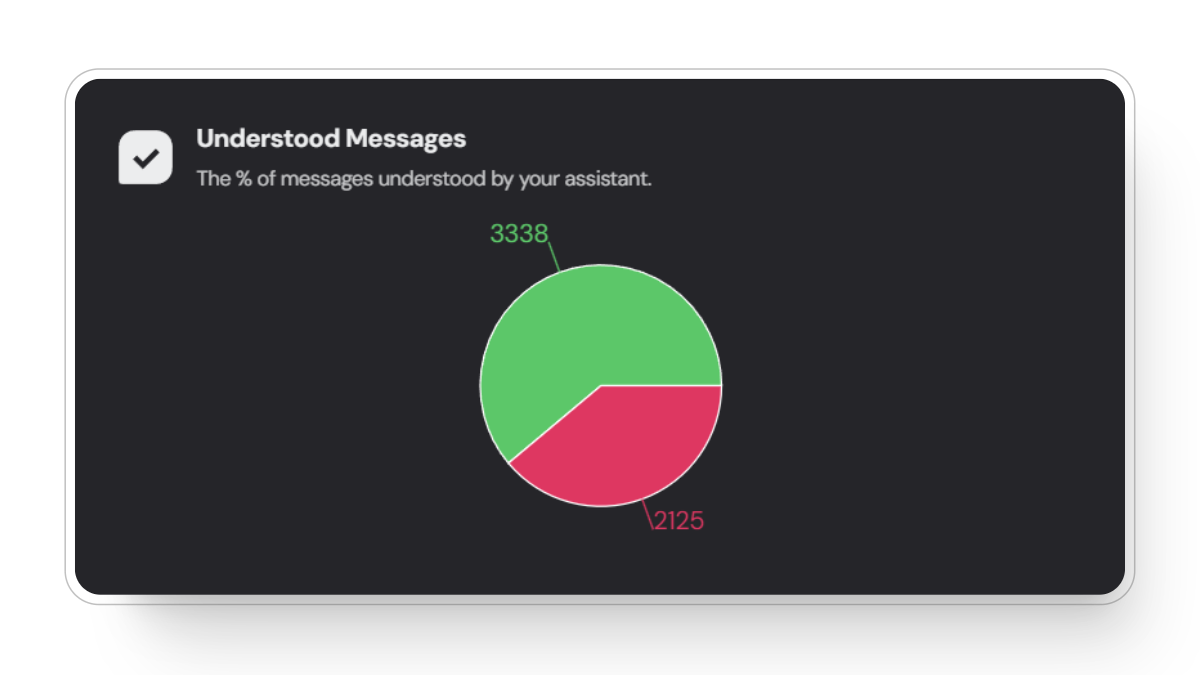
Custom Metric Charts
The custom metric charts feature allows you to create your own personalized charts to track exactly what matters most to your business. Think of it like building your own dashboard of important information!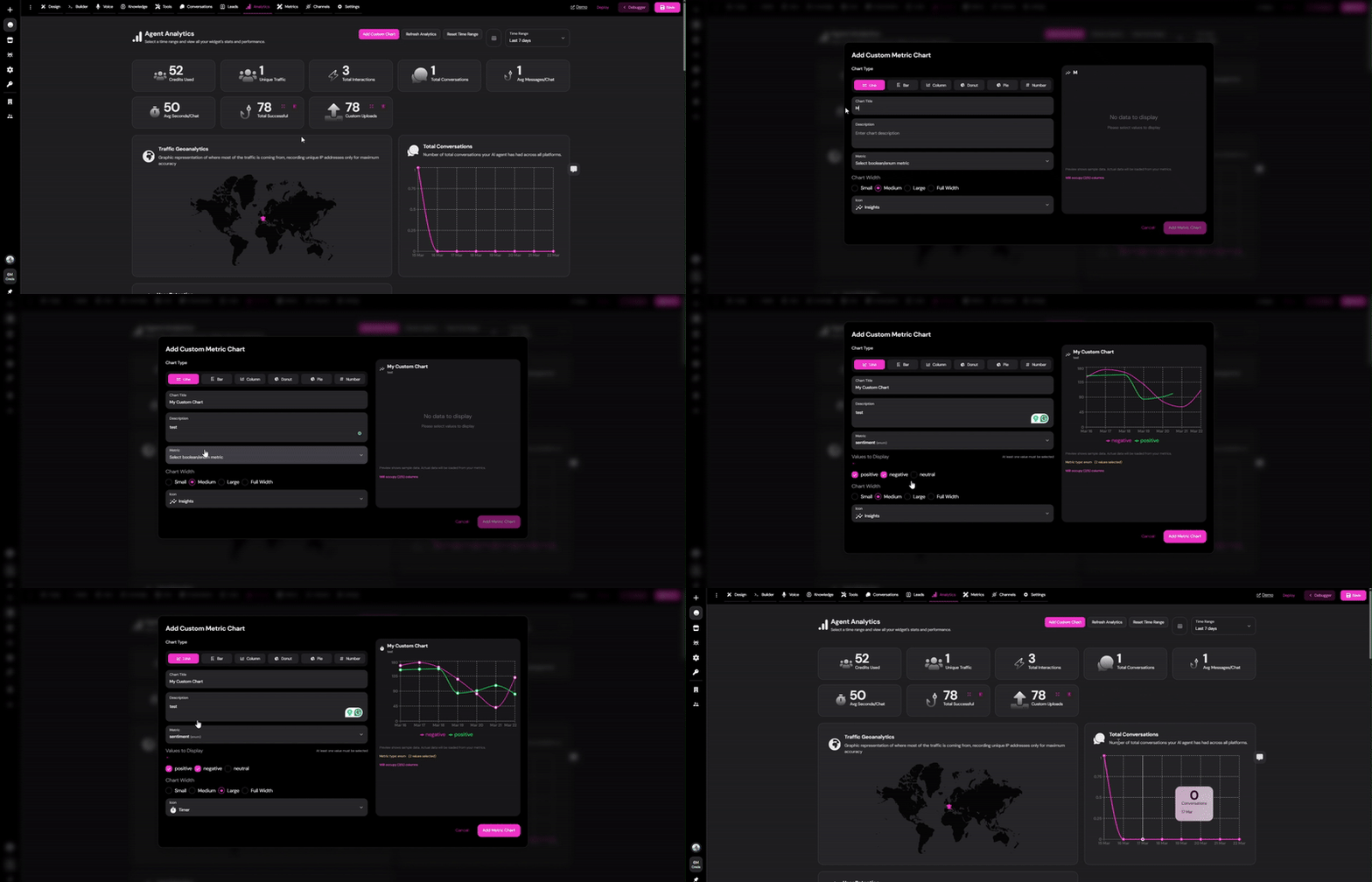
Adding Your First Custom Chart
Creating a custom chart is super easy! Just follow these simple steps:Click Add Custom Chart
Look for the “Add Custom Chart” button at the top of your Analytics page.
Choose a Chart Type
Select from different chart types based on what you want to show:
- Line Charts: Great for showing changes over time
- Bar/Column Charts: Perfect for comparing different values
- Pie/Donut Charts: Excellent for showing percentages or proportions
- Number Charts: Simple displays of important single values
Select Your Metric
Choose which piece of data you want to track from the dropdown menu of available metrics.
Customize Your Chart
Give your chart a title, description, choose an icon, and set its size on the dashboard.
Save Your Chart
Click “Add Metric Chart” to add it to your dashboard!
Types of Custom Charts
Line Charts
Show how values change over time. Great for tracking trends like conversation counts or user engagement over days or weeks.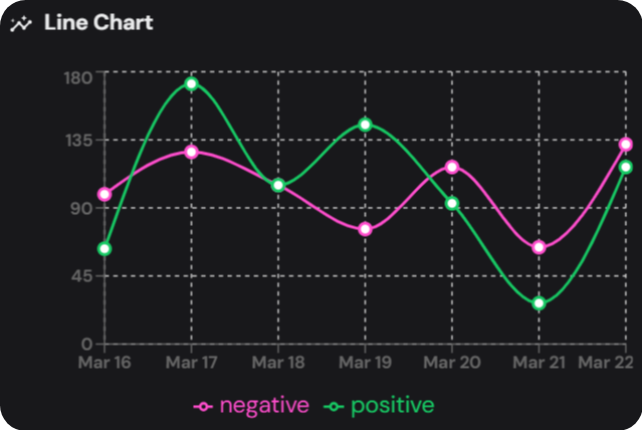
Bar & Column Charts
Compare different values side by side. Perfect for comparing metrics across different categories or time periods.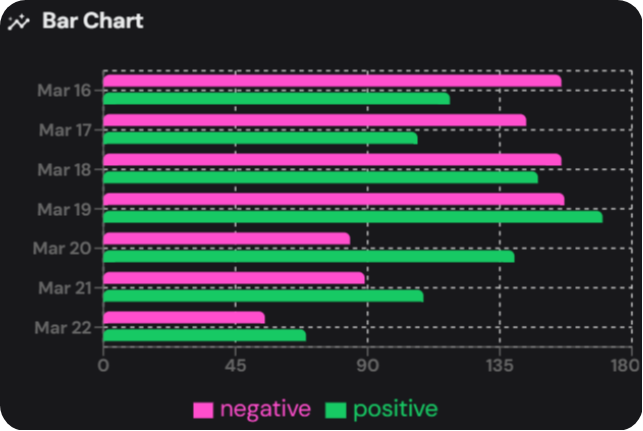
Pie & Donut Charts
Show proportions or percentages. Ideal for visualizing how different parts make up a whole, like the types of questions users ask.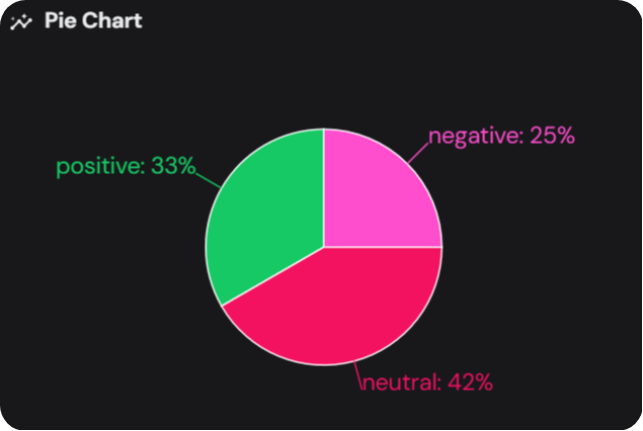
Number Charts
Display a single important value with a big, bold number. Great for key performance indicators (KPIs) that you want to see at a glance.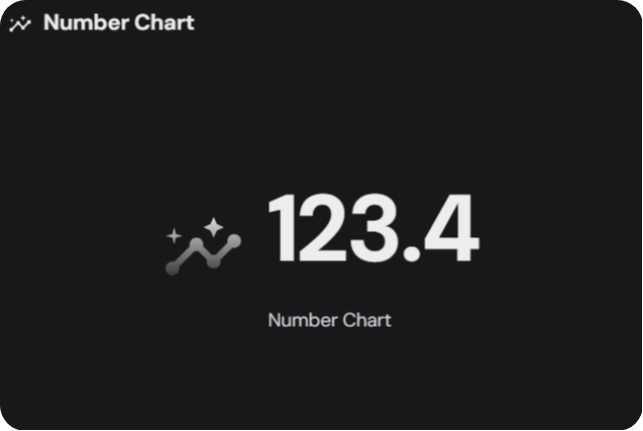
Customizing Your Charts
Make your charts truly yours with these customization options:Chart Size
Chart Size
Choose how much space your chart takes up on the dashboard:
- Small: Takes up 1/5 of the row width
- Medium: Takes up 2/5 of the row width
- Large: Takes up 3/5 of the row width
- Full Width: Spans the entire row
Chart Icons
Chart Icons
Pick an icon that represents your data best! Choose from preset icons like users, chat bubbles, timer, or even upload your own custom icon.
Value Filtering
Value Filtering
For boolean (true/false) or enum (category) metrics, you can choose which specific values to display in your chart.
Aggregation Options
Aggregation Options
For number charts, choose whether to display the total sum or the average of values.
Managing Your Custom Charts
Once you’ve added charts to your dashboard, you can easily manage them to keep your analytics view organized and relevant.
- Edit Charts: Click the edit icon on any custom chart to change its settings
- Delete Charts: Remove charts you no longer need by clicking the delete icon
- Expand Charts: Click the expand icon to see a larger view with more detailed data
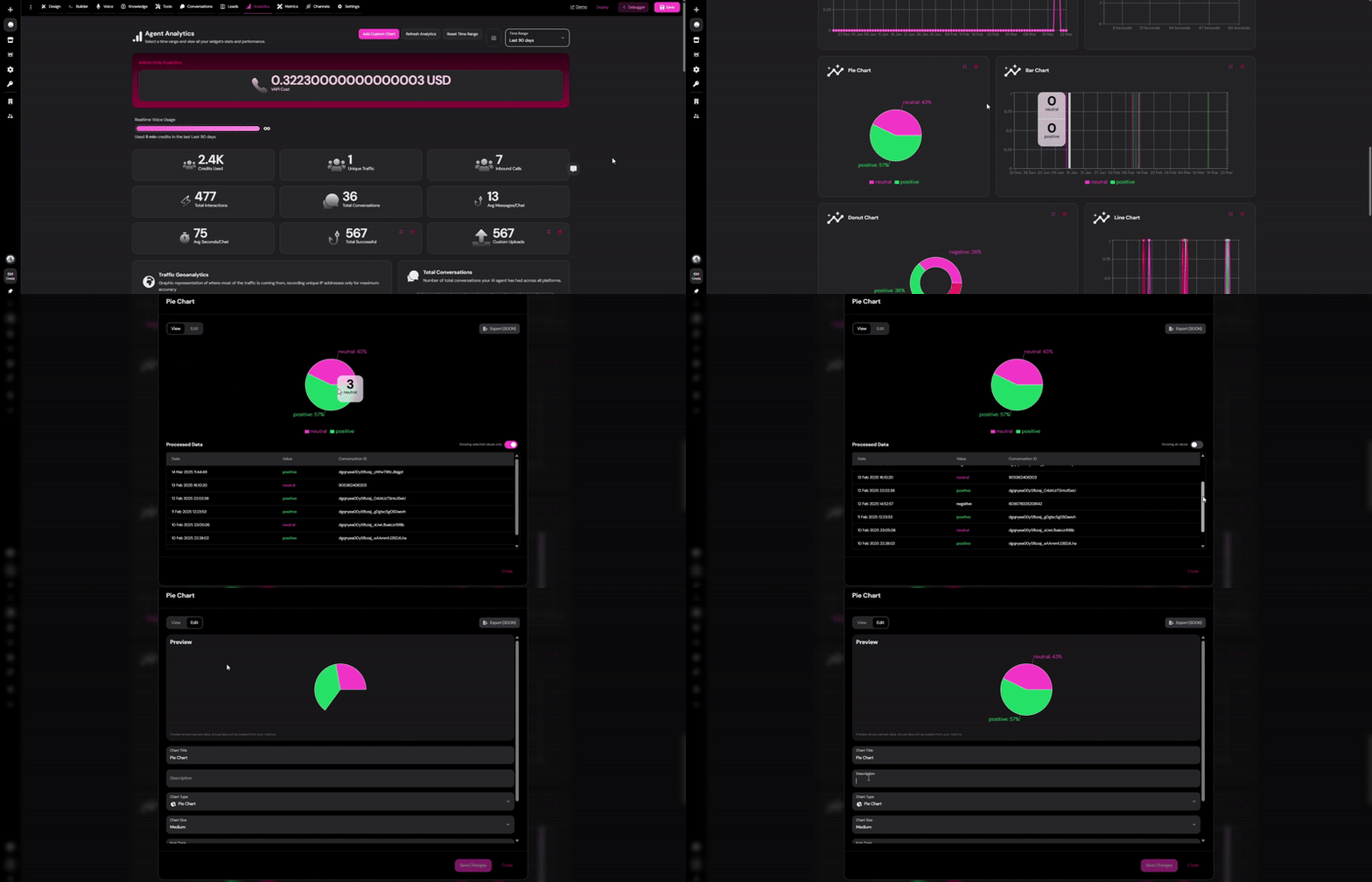
Chart Examples To Try
Here are some useful custom charts you might want to create:- Conversion Rate: Track how many chat visitors become customers
- Question Categories: See what types of questions users ask most often
- Support Issues: Monitor common support issues to improve your agent
- Regional Activity: Compare user engagement across different regions
- Time-to-Resolution: Measure how quickly your agent resolves user queries
Remember that the available metrics depend on what data your agent collects. Some metrics might need to be set up by your development team.
Handoff Analytics
Handoff Analytics provides detailed insights into how live agent handoffs are performing, helping you optimize human agent response times and handling efficiency.

Overview Metrics
Get a quick snapshot of handoff performance with three key metrics at the top of the section:Total Accepted Handovers
The total number of handoff requests that were accepted by live agents during the selected time period.
Average Response Time
The average time agents take to respond to customer messages during a handoff, calculated per customer message.
Average Handling Time (AHT)
The average duration from when an agent accepts a handoff until the conversation is completed or passed back to AI.
Per-Agent Handoff Analytics
View detailed performance metrics for each agent who has handled handoffs:Agent Column
Agent Column
Displays the agent’s profile picture, name, and unique agent ID. Each agent’s avatar is highlighted with a primary colored border.
Organization Column
Organization Column
Shows which organization the agent belongs to:
- Convocore: Main dashboard agents (your primary team)
- Organization Name: Agents from specific organizations (if using multi-org setup)
Accepted Handovers
Accepted Handovers
The number of handoff requests this specific agent has accepted during the time period.
Avg Response Time
Avg Response Time
How long this agent takes on average to respond to customer messages, calculated as total handling time divided by number of customer messages.
Avg Handling Time
Avg Handling Time
The average duration this agent takes to complete a handoff from acceptance to completion.
Agents are automatically sorted by the number of accepted handovers (highest to lowest) to highlight your most active team members.
Per-Organization Handoff Analytics
For teams with multiple organizations, view aggregated metrics by organization:Organization Performance
See which organizations are handling the most handoffs and how efficiently they’re responding to customers.
Cross-Organization Comparison
Compare performance metrics across different organizations to identify best practices and areas for improvement.
- Organization logo and name
- Total accepted handovers for that organization
- Average response time across all agents in that organization
- Average handling time for the organization
How Handoff Metrics Are Calculated
Accepted Handover Count
Counts all handoff requests that were accepted by live agents within your selected time range. Each handoff is tracked individually, even if the same conversation has multiple handoffs.
Average Response Time
For each handoff, we calculate:
- Count total customer messages during the handoff period
- Divide the total handling time by number of customer messages
- Average across all handoffs
Average Handling Time
Calculated as the duration from when the agent accepts the handoff to when:
- The conversation is passed back to the AI agent
- The chat is marked as complete
Multiple Handoffs Per Conversation
The system properly tracks multiple handoffs within the same conversation!
- Customer chats with AI
- Handoff to Agent A from Convocore → Tracked ✓
- Agent A passes back to AI
- Later, handoff to Agent B from Organization “ACME Corp” → Also tracked ✓
- Agent A: 1 accepted handover
- Agent B: 1 accepted handover
- Convocore: 1 handover
- Organization “ACME Corp”: 1 handover
Customizing Handoff Analytics Display
You can control whether handoff analytics are visible in your dashboard:Access Settings
Navigate to your agent’s Settings tab or Organization Client settings.
Find Analytics Options
Look for the “Hide Handoff Analytics” checkbox in the analytics configuration section.
Toggle Visibility
Check the box to hide handoff analytics from the Analytics tab, or uncheck to show them.
This setting is useful if you don’t use live agent handoffs or want to simplify your analytics dashboard.
Best Practices for Handoff Analytics
Monitor Response Times
Monitor Response Times
Keep an eye on average response times to ensure customers aren’t waiting too long. Set internal benchmarks and track improvements over time.
Identify Top Performers
Identify Top Performers
Use the per-agent analytics to recognize team members who handle handoffs efficiently and learn from their best practices.
Optimize Staffing
Optimize Staffing
Analyze handoff patterns across different time periods to understand when you need more live agents available.
Compare Organizations
Compare Organizations
If using multiple organizations, compare metrics to identify which teams need additional training or support.
Track Improvements
Track Improvements
After implementing changes to your handoff process, use different time ranges to measure the impact on response and handling times.
Interpreting Your Analytics
Understanding your analytics is crucial for optimizing your AI agent’s performance and enhancing user experience. By regularly reviewing these metrics, you can gain valuable insights into how users interact with your agent, identify areas for improvement, and make data-driven decisions to increase efficiency and engagement.Tips to use the analytics efficiently:
Select Time Range
Use the time range filter or custom date picker to view data for specific periods: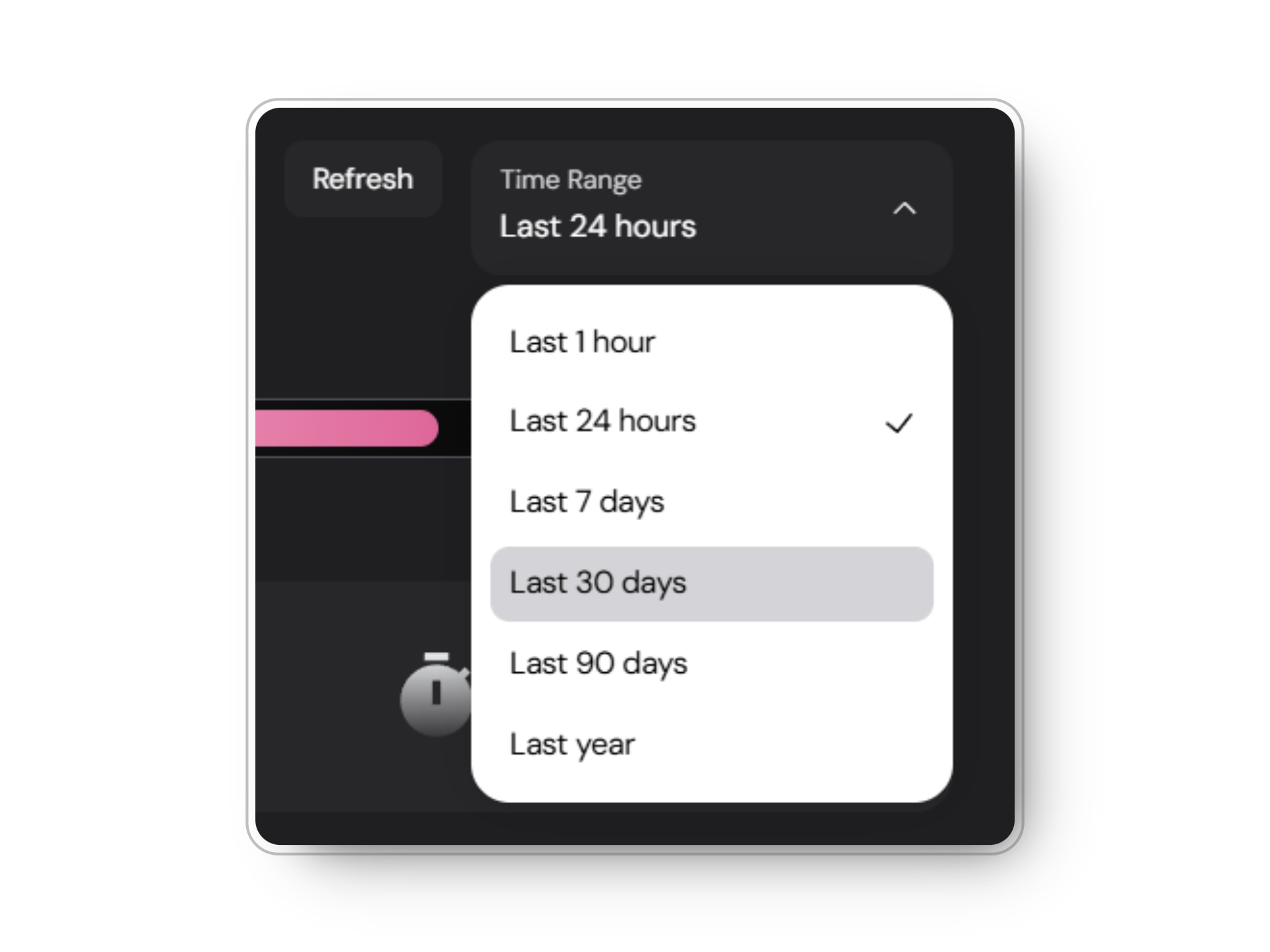
Compare Metrics
Analyze trends by comparing different metrics side by side. This allows you to identify correlations and patterns across various performance indicators.
Monitor Trends
Look for patterns in user interactions over time. This helps you understand peak usage times and general engagement patterns.
Optimize Performance
If average chat duration is high, consider ways to make your agent more efficient. This might involve refining responses or improving the knowledge base.
Enhance User Retention
Analyze the user retention graph to see where users tend to drop off and improve those areas. This can help increase overall engagement and satisfaction.
Identify Areas for Improvement
When using voiceflow, utilize metrics like “Understood Messages” to refine your agent’s comprehension. Focus on improving areas where the agent struggles to understand user inputs.