
🚀 What is Ultravox?
Ultravox is a speech-to-speech AI platform that processes audio directly without intermediate text-to-speech steps, resulting in:- Ultra-low latency responses (sub-second)
- Natural conversational flow with intelligent turn-taking
- Real-time interruption handling - users can interrupt the agent naturally
- Native tool execution - agents can use your configured tools during conversations
- Multi-language support - 25+ languages supported
🔧 How Ultravox Works in Convocore
Ultravox uses a server-to-server WebSocket architecture that enables ultra-low latency voice conversations. Unlike traditional voice systems that use separate transcription and speech generation steps, Ultravox processes audio directly for faster, more natural interactions.⚙️ Configuration Steps
Step 1: Add Your Ultravox API Key (Optional)
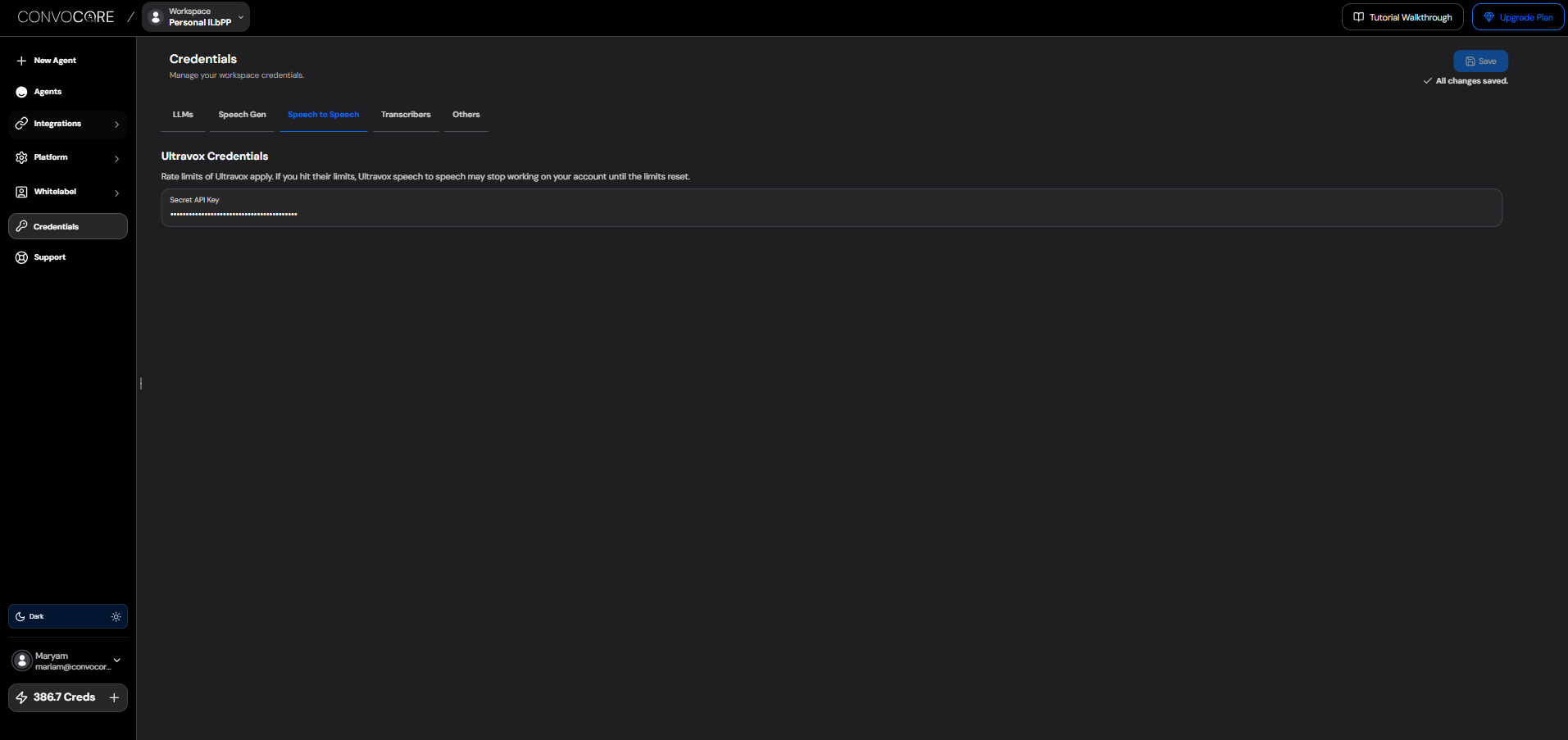
Adding your Ultravox API key is optional. When added, consumption and billing will be charged directly to your Ultravox account instead of using Convocore credits. If you don’t add an API key, usage will be billed through Convocore credits.
- Navigate to your Workspace Settings in Convocore
- Go to the Credentials tab
- In the Speech to Speech section
- Enter your Secret API Key
- Click Save
Step 2: Enable Ultravox for Your Agent
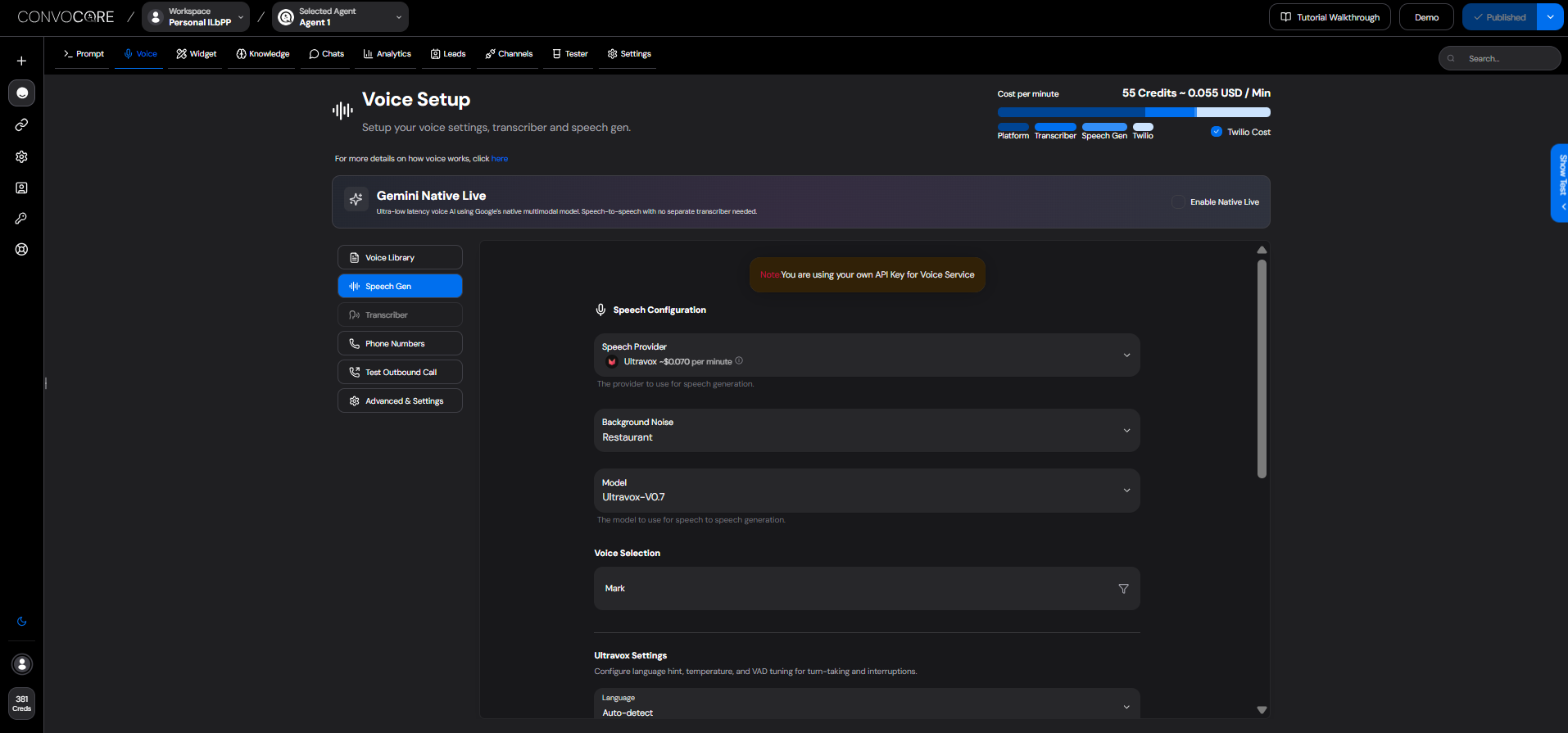
- Open your agent’s configuration
- Go to the Voice Setup page
- Click on the Speech Gen tab
- Select Ultravox from the provider dropdown
Step 3: Configure Voice Settings
Select a Voice
- Browse the available Ultravox voices in the Audio Library
- Preview voices using the play button
- Click Use Voice to select your preferred voice
Set Language
Configure the language for your agent:- Find the Language dropdown in Ultravox Settings
- Select your target language or leave as Auto-detect
Step 4: Advanced Settings (Optional)
Temperature
Control the creativity/randomness of responses:- Lower values (0.0-0.3): More focused, deterministic responses
- Higher values (0.7-1.0): More creative, varied responses
- Default: Recommended for most use cases
Voice Activity Detection Settings
Fine-tune turn-taking behavior for natural conversations:The default VAD settings are optimized for natural phone conversations. Only adjust if you experience specific issues with turn-taking.
🛠 Tool Integration
Ultravox seamlessly integrates with your agent’s configured tools:- Knowledge Base Search: Automatically enabled when KB is active on your agent
- Custom Tools: All tools configured on your agent’s current node are available
- Natural Execution: The agent naturally integrates tool results into the conversation
💰 Pricing
Ultravox pricing is usage-based and billed per minute of conversation. Below is a complete cost breakdown:| Component | Cost per min | Description |
|---|---|---|
| Ultravox | $0.007/min | All-in-one voice model (includes STT, TTS, and LLM) |
| Convocore Platform | Variable | Infrastructure, routing, and platform services |
| Twilio (Optional) | 0.02/min | Phone number and telephony costs (only if using phone calls) |
Calculate Your Costs
Use the Pricing Calculator in your dashboard to get accurate cost estimates based on your usage and plan.
🔍 Troubleshooting
No audio response from agent
No audio response from agent
- Verify your Ultravox API key is correct
- Check that you have sufficient Ultravox credits
- Ensure a voice is selected in the Speech Gen settings
Agent responds too slowly
Agent responds too slowly
- Check your network connection
- Reduce the Turn Endpoint Delay in VAD settings
- Ensure you’re using a region close to your users
Agent gets interrupted too easily
Agent gets interrupted too easily
- Increase the Minimum Interruption Duration (e.g., to 150ms)
- Increase the Activation Threshold (e.g., to 0.15)
Agent doesn't respond to interruptions
Agent doesn't respond to interruptions
- Decrease the Minimum Interruption Duration (e.g., to 50ms)
- Decrease the Activation Threshold (e.g., to 0.05)
Tools not being executed
Tools not being executed
- Ensure tools are enabled on the current node
- Check that the tool is not disabled in Tools settings
- Verify the tool has a clear description so the AI knows when to use it
🔗 Next Steps
Setup Twilio
Connect phone numbers to enable voice calling with Ultravox.
Web Calling
Enable voice interactions directly in your website widget.
Advanced Configuration
Explore call recording, webhooks, and other advanced settings.
Canvas & Tools
Configure conversation flows and tools for your Ultravox agent.
With Ultravox configured, your agents are ready for natural, low-latency voice conversations! 🎙️