
On v2-2026, Voice / phone starts on Business (2 Twilio slots included) or via the Voice add-on. Extra number slots are $3/mo. See Voice pricing.
🛠 Step 1: Access the Voice Setup Page
- Navigate to the Voice Setup page in the Convocore dashboard.
- Select the Phone Numbers tab.
📞 Step 2: Purchase or View Twilio Numbers
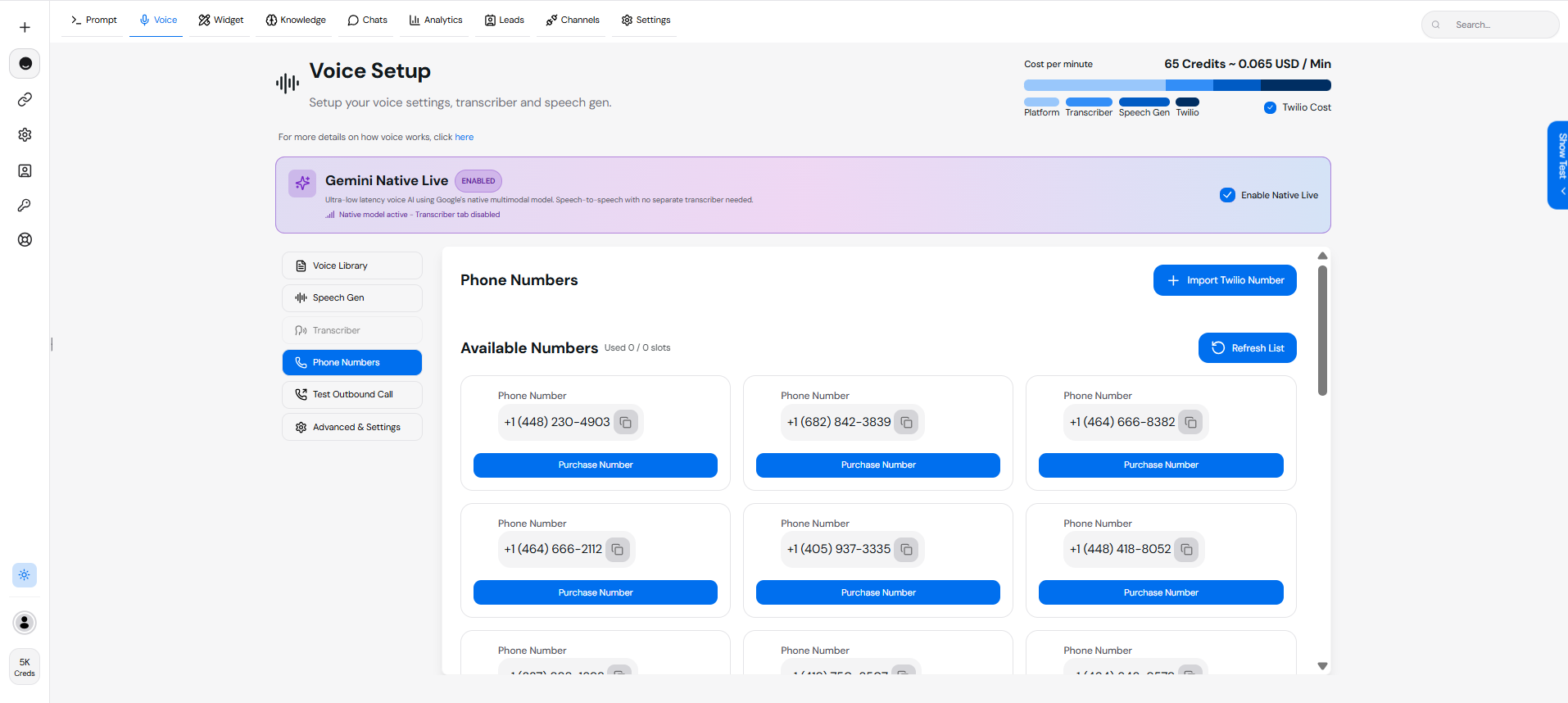
2.1 View Available Numbers
- Click on the Phone Numbers tab.
- A list of Available Numbers will appear.
- To refresh the list, click “Refresh List”.
2.2 Purchase a Number
- Click “Buy” next to a Twilio number to purchase it.
- Once purchased, the number will appear under Purchased Numbers.
🔑 Step 3: Assign a Number to Your Agent
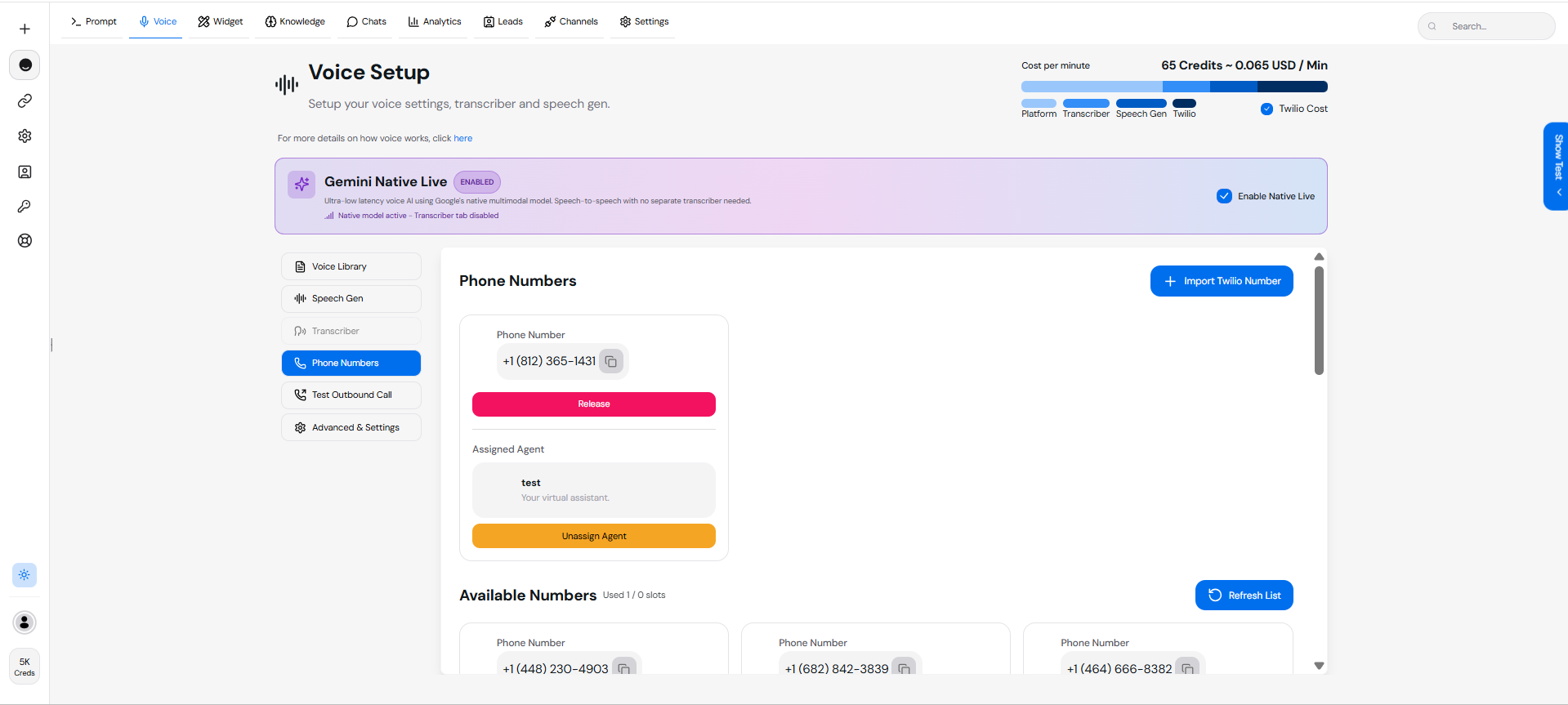
- Under Purchased Numbers, locate the number you wish to assign.
- Click the “Assign” button.
- Assign the number to your virtual agent (e.g., test).
Tip: You can Release or Unassign numbers if needed.
📥 Step 4: Import Your Own Twilio Number
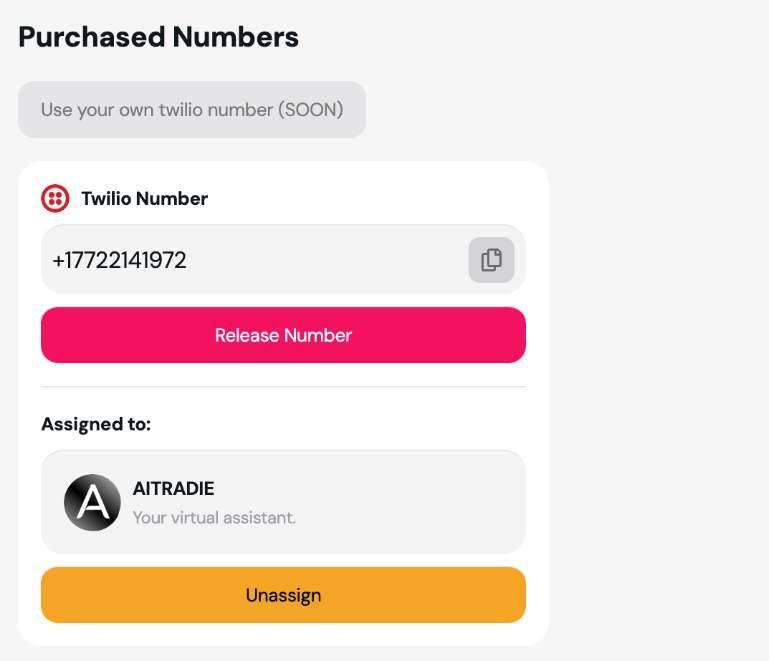
If you already own phone numbers in your Twilio account, you can import them instead of purchasing through Convocore.1
Open the agent Voice settings
In the dashboard, go to Agents → select your agent → Voice → Phone Numbers tab.
2
Start the import
Click Import Twilio Number in the top-right of the Phone Numbers section.
3
Enter Twilio credentials
Fill in:
- Phone Number — E.164 format (e.g.
+14155551234) - Account SID — from your Twilio Console dashboard
- Auth Token — from the same dashboard (stored encrypted by Convocore)
4
Select capabilities
Enable Voice, SMS, or both. At least one capability is required.
5
Import
Click Import Number. Convocore configures voice/SMS webhooks and assigns the number to the current agent.
The import is scoped to the agent whose Voice settings you opened. If you manage numbers for multiple agents, repeat the import from each agent’s Phone Numbers tab.
📊 Cost Breakdown
- Convocore Voice charges 10 credits per minute for Twilio calls.
- The cost per minute is displayed in the dashboard:
- 22 Credits ~ 0.083 USD/Min.
🚦 Troubleshooting
Issue: Twilio Numbers Not Showing Up
- Ensure your Twilio credentials are correct.
- Refresh the list under Available Numbers.
Issue: Calls Not Connecting
- Verify that your assigned Twilio number is active in the Twilio Console.
- Check network settings and webhook configurations.
Issue: Imported Number Not Working
Imported numbers have extra Twilio-side requirements (routing status, webhooks, emergency address). See the dedicated guide: Troubleshooting Imported Twilio Numbers. Common causes:- Inactive regional routing in the Twilio Console (must show Active)
- Missing or incorrect webhooks on the phone number
- Voice capability not enabled on the imported number
🔗 Next Steps
SetUp Web Calling
Enable browser-based calling.
Advanced Settings
Customize your voice settings for Twilio.
Imported Twilio Troubleshooting
Fix routing, webhook, and configuration issues for imported numbers.