
SIP Trunking Quick Start
This guide will walk you through setting up your first SIP trunk and connecting it to a Convocore AI agent in just a few steps.Prerequisites
Before you begin, make sure you have:- ✅ A Convocore account with an active workspace
- ✅ A SIP trunk provider account (e.g., Twilio or Peoplefone)
- ✅ At least one phone number from your SIP provider
- ✅ A voice-enabled AI agent configured in Convocore
- ✅ Access to the Convocore SIP server (provided by Convocore)
Step 1: Navigate to SIP Trunking
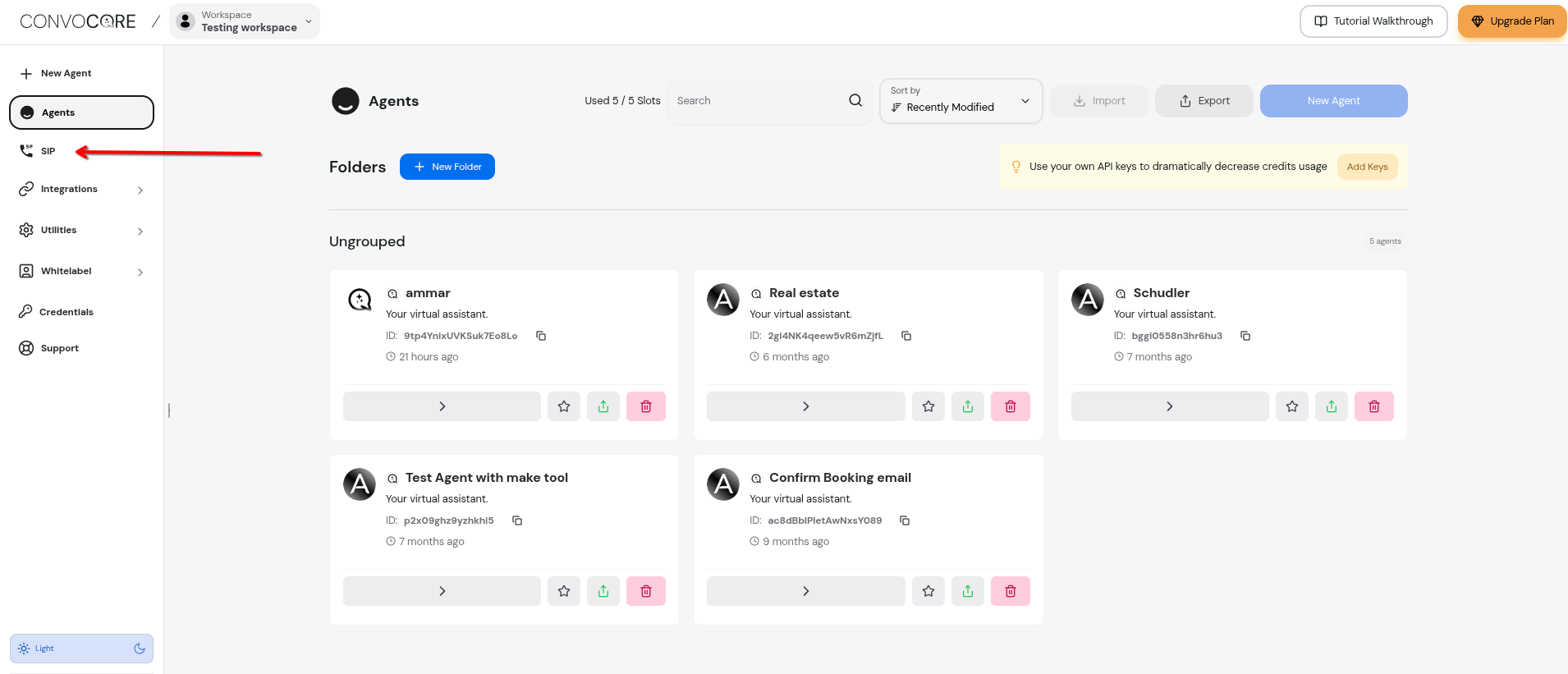
Log into your Convocore dashboard and navigate to the SIP section.1
Open the Dashboard
Go to your Convocore workspace dashboard at
https://convocore.ai/app/{region}2
Find the SIP Menu
Look for the “SIP” option in the left sidebar navigation menu
3
Open SIP Management
Click on the SIP icon to access the SIP trunking management page
Step 2: Add Your SIP Provider
Now you’ll configure your SIP trunk by adding your provider’s details.1
Click 'New SIP Provider'
On the SIP management page, click the ”+ New SIP Provider” button in the top right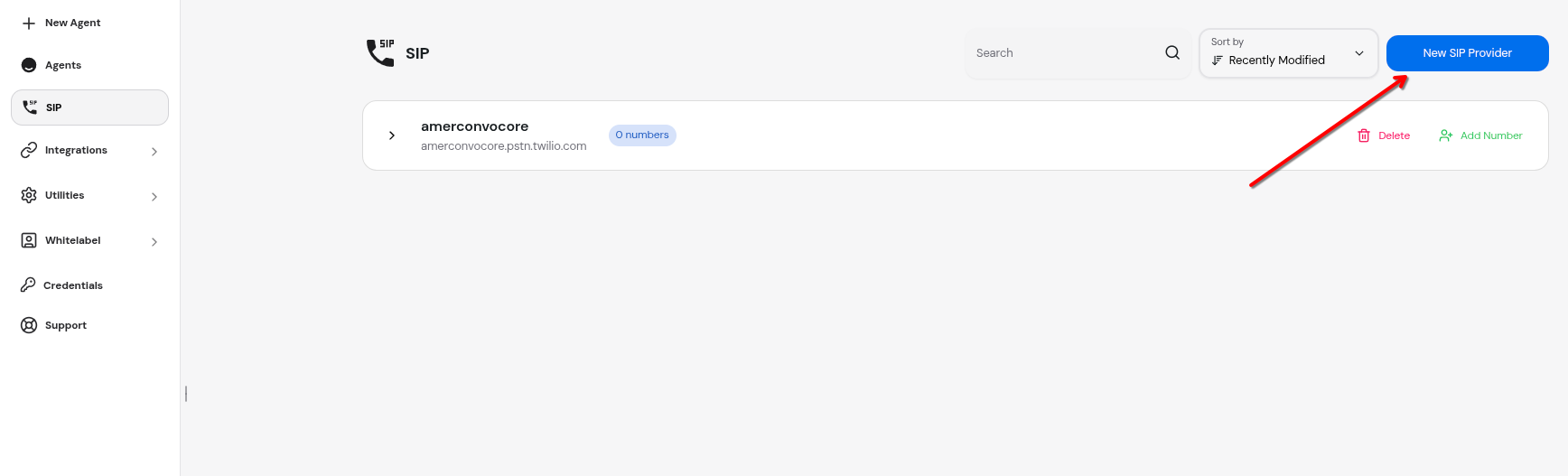
2
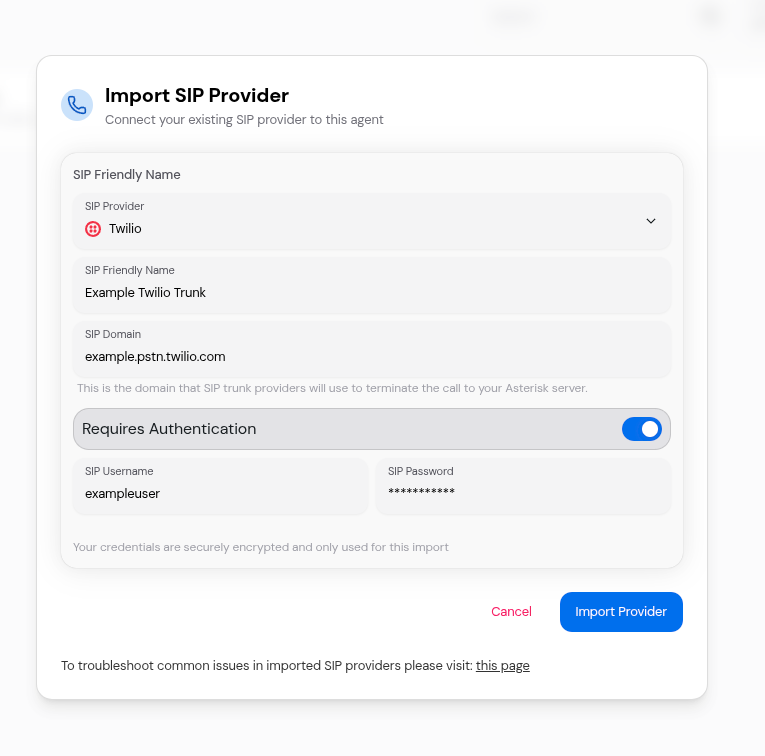
Enter Provider Details
Fill in your SIP provider information:
- Friendly Name: A descriptive name for your trunk (e.g., “Main Office Line”)
- SIP Domain: Your SIP provider’s domain (e.g.,
sip.yourprovider.com) - Requires Authentication: Toggle ON if your provider requires credentials
- SIP Username: Your SIP account username (if authentication is enabled)
- SIP Password: Your SIP account password (if authentication is enabled)
3
Save the Provider
Click “Import Provider” to save your SIP trunk configuration
Example Configuration
Here’s a sample configuration for a typical SIP provider:Your SIP credentials are securely encrypted and stored. They are only used to authenticate with your SIP provider.
Step 3: Add a Phone Number
Once your SIP provider is configured, you can add phone numbers and map them to AI agents.1
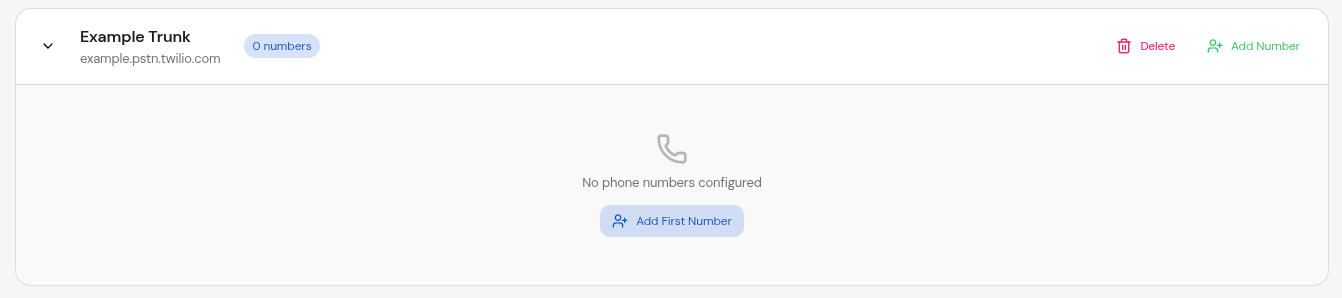
Locate Your Trunk
Find the SIP provider you just created in the list
2
Click 'Add Number'
Click the “Add Number” button next to your SIP provider
3
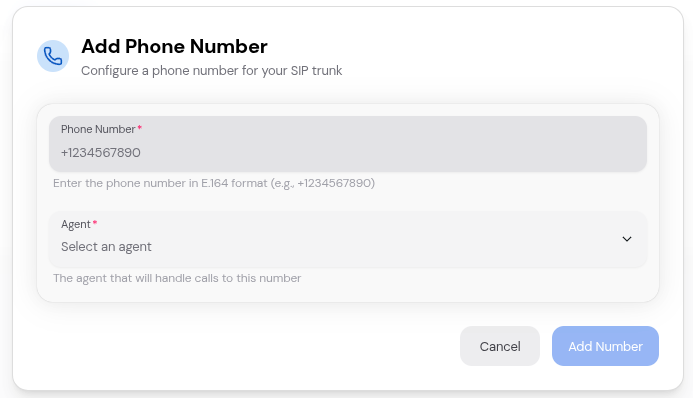
Configure the Phone Number
Fill in the phone number details:
- Phone Number: Enter in E.164 format (e.g.,
+15551234567) - Agent: Select the AI agent that will handle calls to this number
4
Save the Number
Click “Add Number” to save the configuration
Phone Number Format
Always use E.164 format for phone numbers:- ✅ Correct:
+15551234567(US) - ✅ Correct:
+442071234567(UK) - ✅ Correct:
+61212345678(Australia) - ❌ Incorrect:
555-123-4567 - ❌ Incorrect:
(555) 123-4567 - ❌ Incorrect:
5551234567(missing country code)
Step 4: Configure Your SIP Provider
Now you need to configure your SIP provider to route calls to Convocore’s SIP server.Convocore SIP Server Details
Point your SIP provider to route calls to:Configuration Example (Twilio or Peoplefone)
If you’re using Twilio, here’s how to configure trunk forwarding:1
Log into Twilio Console
Go to the Twilio Console at https://console.twilio.com
2
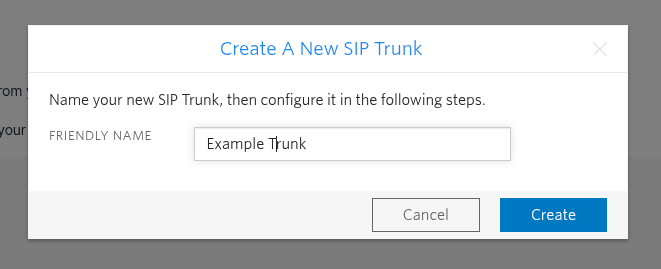
Create a SIP Trunk
Navigate to Elastic SIP Trunking → Trunks → Create new SIP Trunk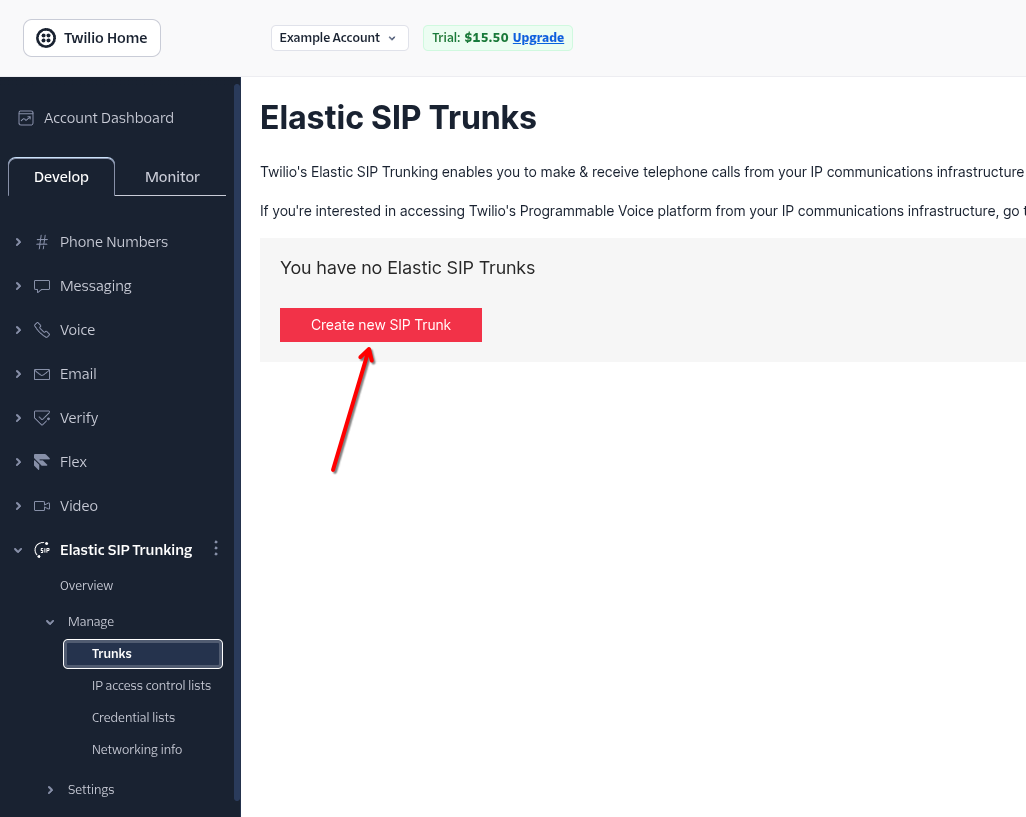
3
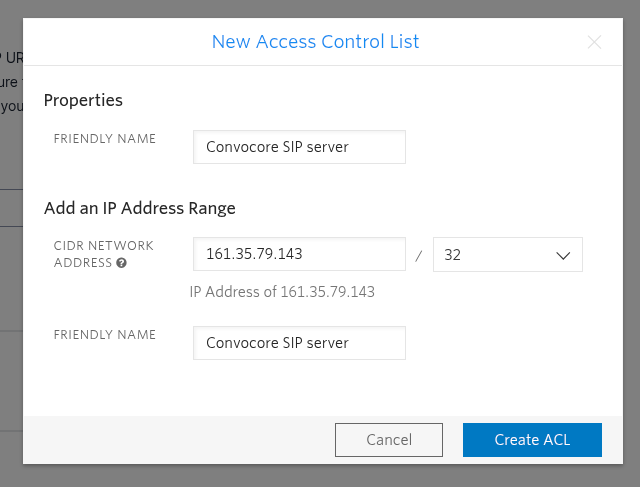
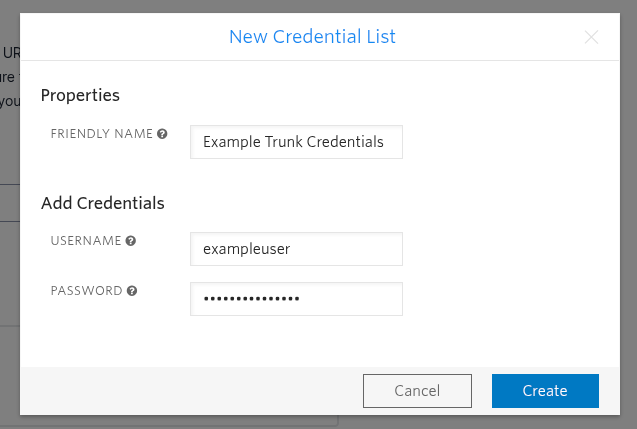
Configure Termination URI
Configure the termination URI as this will be used to route calls to the Convocore SIP server: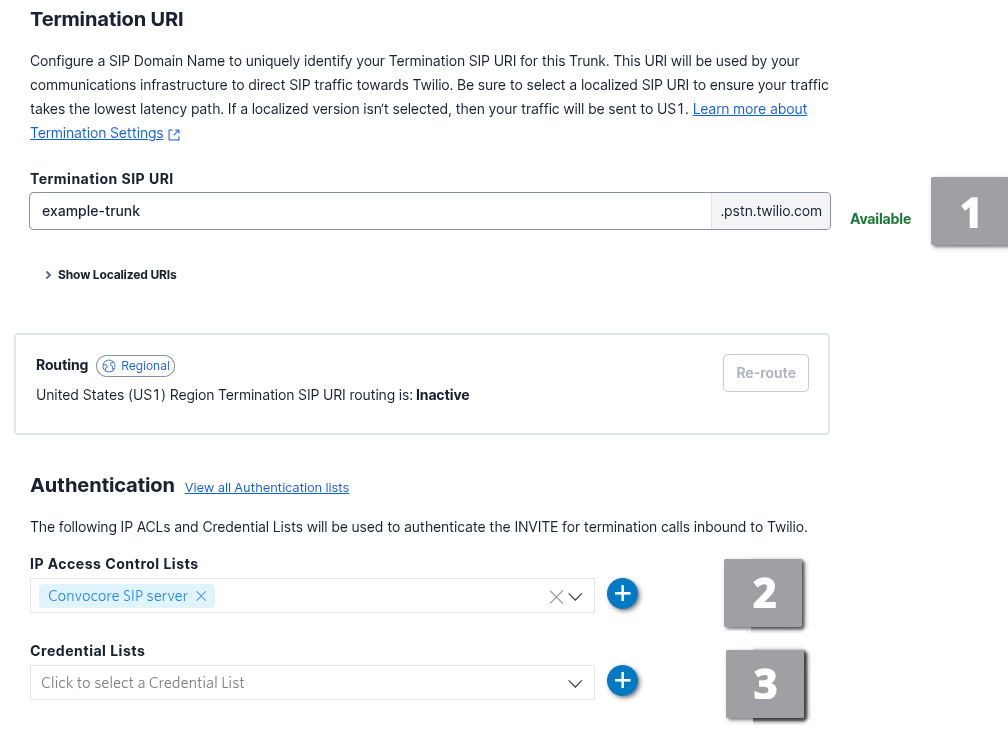
4
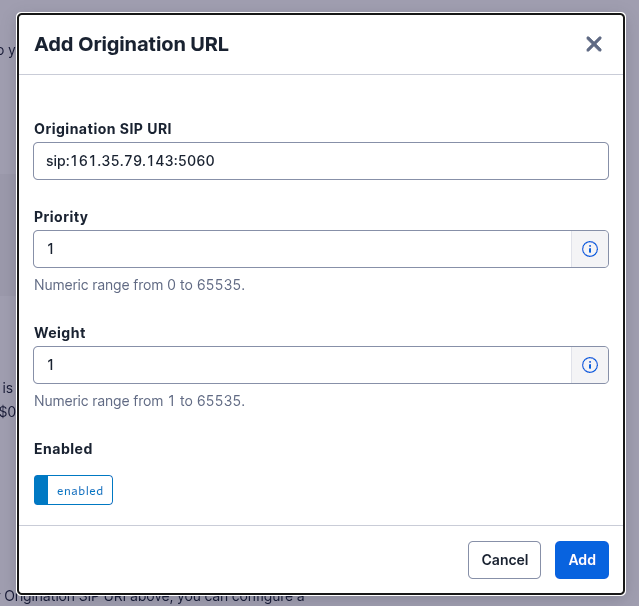
Configure Origination URI
Add the Convocore SIP server as an origination URI: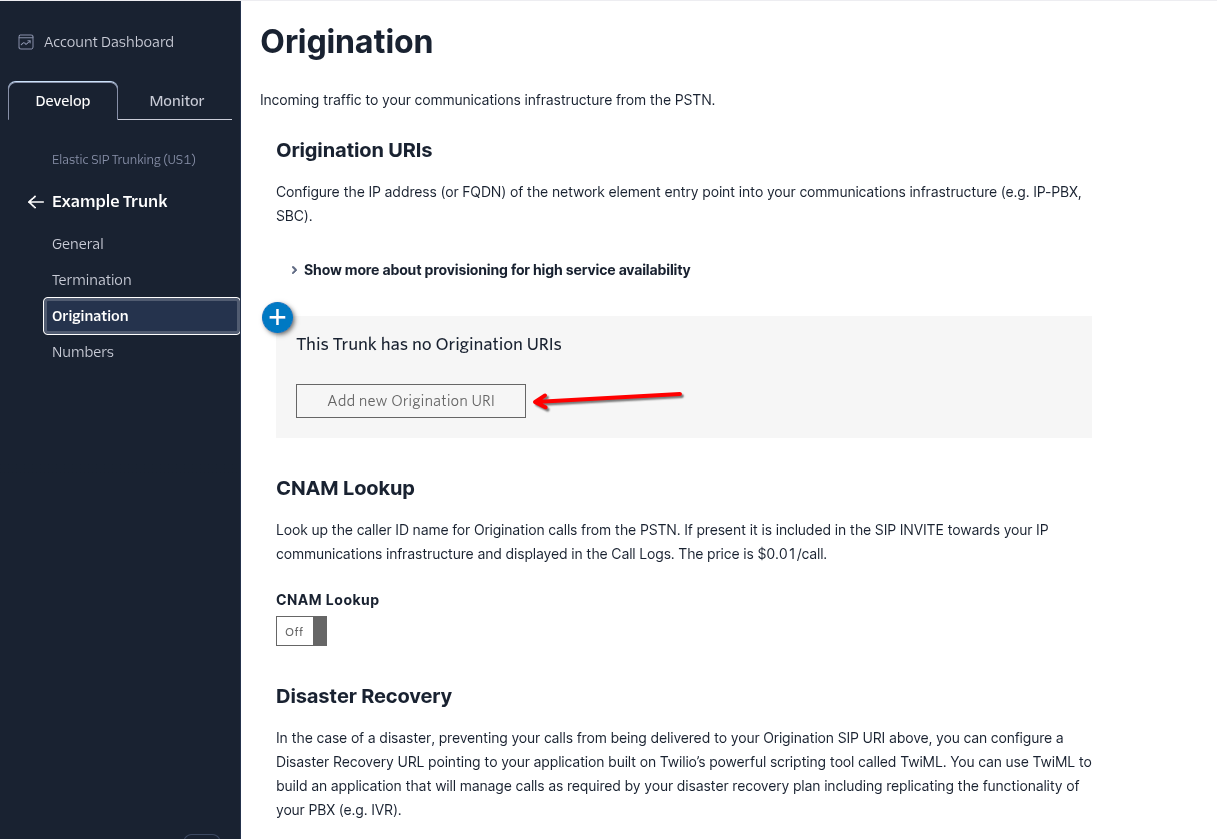
5
Assign Phone Numbers
Associate your phone numbers with this trunk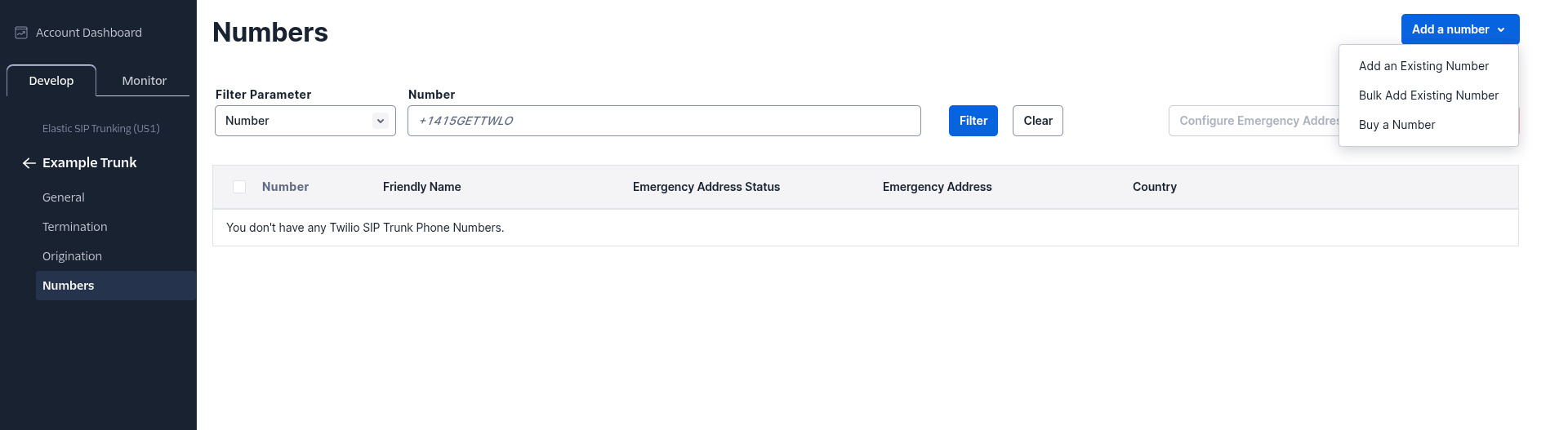
Step 5: Test Your Connection
Time to make your first test call!1
Verify Configuration
Double-check that your SIP provider, phone number, and agent are all configured correctly
2
Make a Test Call
Dial the phone number you configured from any phone
3
Listen for the Agent
Your Convocore AI agent should answer and begin the conversation
4
Check the Conversation Log
After the call, check your Convocore dashboard under Conversations to see the call transcript
Troubleshooting Connection Issues
If your test call doesn’t work, check these common issues:Call Not Connecting
Call Not Connecting
- Verify your SIP domain is correct
- Check that your SIP provider is routing to the correct Asterisk server
- Ensure your phone number is in E.164 format
No Audio
No Audio
- Check your SIP provider’s codec settings (should support PCMU/PCMA)
- Verify firewall rules allow SIP traffic (UDP 5060) and RTP traffic (UDP 10000-20000)
- Ensure NAT traversal is configured if your Asterisk server is behind NAT
Authentication Errors
Authentication Errors
- Double-check your SIP username and password
- Verify the “Requires Authentication” toggle is set correctly
- Check if your SIP provider requires IP whitelisting
Agent Not Responding
Agent Not Responding
- Ensure your agent is voice-enabled
- Check that the agent is assigned to the correct phone number
- Verify the region setting matches your deployment
Step 6: Monitor and Manage
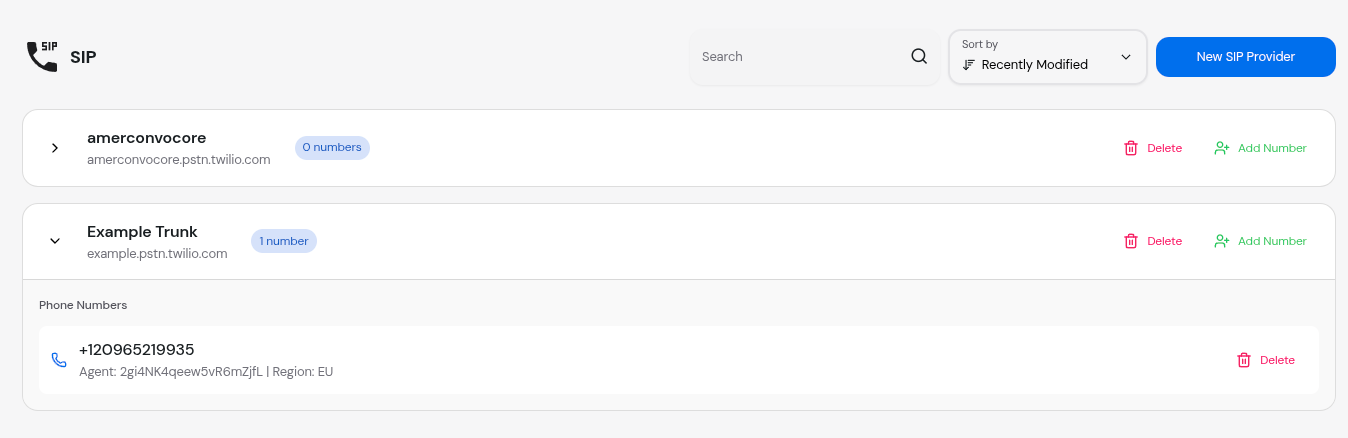
Your SIP trunk is now live! Here’s how to monitor and manage it:View Active Phone Numbers
On the SIP management page, you can:- See all configured SIP providers
- Expand each provider to view associated phone numbers
- See which agent is assigned to each number
- View call counts and statistics
Managing Your Trunk
Add More Numbers
Click “Add Number” on any provider to configure additional phone numbers
Delete Numbers
Click the delete button next to any phone number to remove it
Edit Provider
Update your SIP provider settings as needed (currently limited)
Delete Provider
Remove an entire SIP provider (deletes all associated numbers)
What’s Next?
Now that you have a working SIP trunk, explore these advanced features:Multiple Phone Numbers
Learn how to manage multiple phone numbers and route them to different agents
Call Analytics
Track call metrics, duration, and agent performance
Common Questions
How many phone numbers can I add?
How many phone numbers can I add?
On v2-2026: 2 on Business, 3 on White Label, 5 on White Label Elite. Extra Twilio number slots are $3/mo. Voice / SIP starts on Business (or the Voice / SIP add-ons).
Can I use multiple SIP providers?
Can I use multiple SIP providers?
Yes! You can add multiple SIP providers to your workspace and manage them all from the same interface.
What happens if my SIP provider goes down?
What happens if my SIP provider goes down?
If your SIP provider experiences downtime, calls to your phone numbers will fail at the provider level before reaching Convocore. Consider setting up failover with your provider.
Can I change which agent handles a phone number?
Can I change which agent handles a phone number?
Yes, you can delete and re-add the phone number with a different agent, or use the edit function if available.
Is there a limit on concurrent calls?
Is there a limit on concurrent calls?
Yes — Convocore limits concurrent calls by plan (3 Business, 10 White Label, 25 Elite; extra lines $5/mo), and your SIP provider may have its own cap.
Need Help?
If you encounter any issues during setup:- 💬 Join our Discord Community
- 📧 Email support at support@convocore.ai