
Overview
The Gmail integration allows your AI agent to:- Read incoming emails from your connected Gmail account.
- Determine if a reply is needed based on the email content.
- Automatically send a reply on your behalf.
Setup Guide
1. Connect your Gmail Account
First, you need to authorize the application to access your Gmail account.- Navigate to Integrations in the side menu.
- Select Functions.
- Click on Gmail.
- Follow the prompts to connect your Gmail account.
2. Enable Email Channel for your Agent
Once your account is connected, you need to enable the email channel for the specific agent you want to handle your emails.- Go to your Agent dashboard.
- Navigate to Channels.
- Select the Email channel.
- Toggle the switch to Enable.
- Click Add Email and select the Gmail account you connected earlier.
3. Configure Reply Settings
After adding the email, click Configure to customize how the agent handles emails.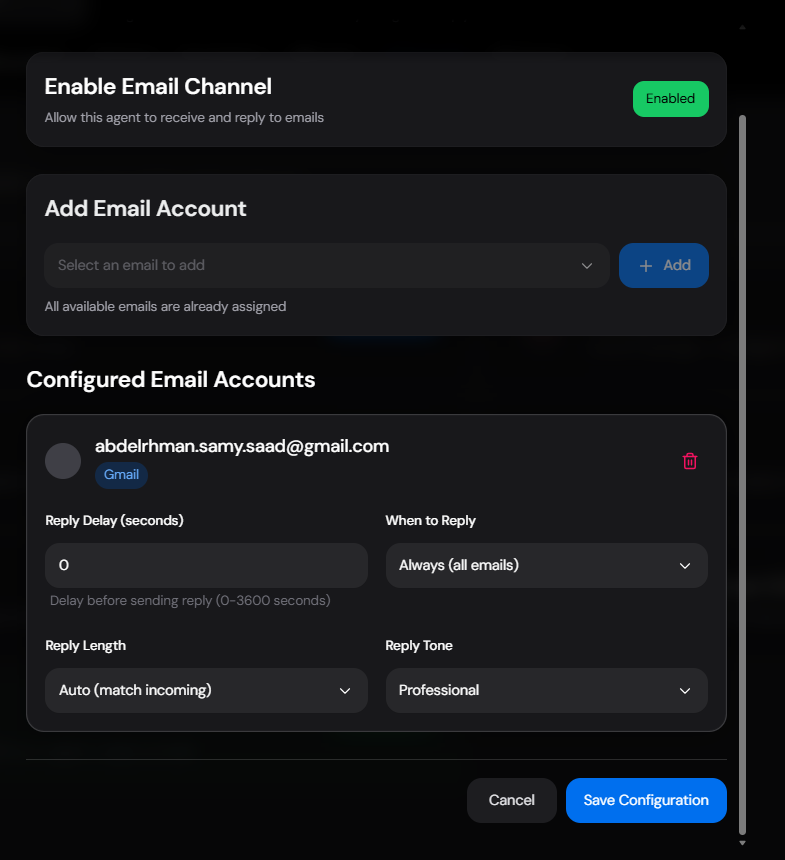
- Reply Delay: Set a delay (in seconds) before the agent sends a reply. This can make the response feel more natural.
- When to Reply: Choose which emails the agent should reply to (e.g., “Always”).
- Reply Length: Adjust the length of the generated response.
- Reply Tone: Set the tone of the response (e.g., “Professional”).