
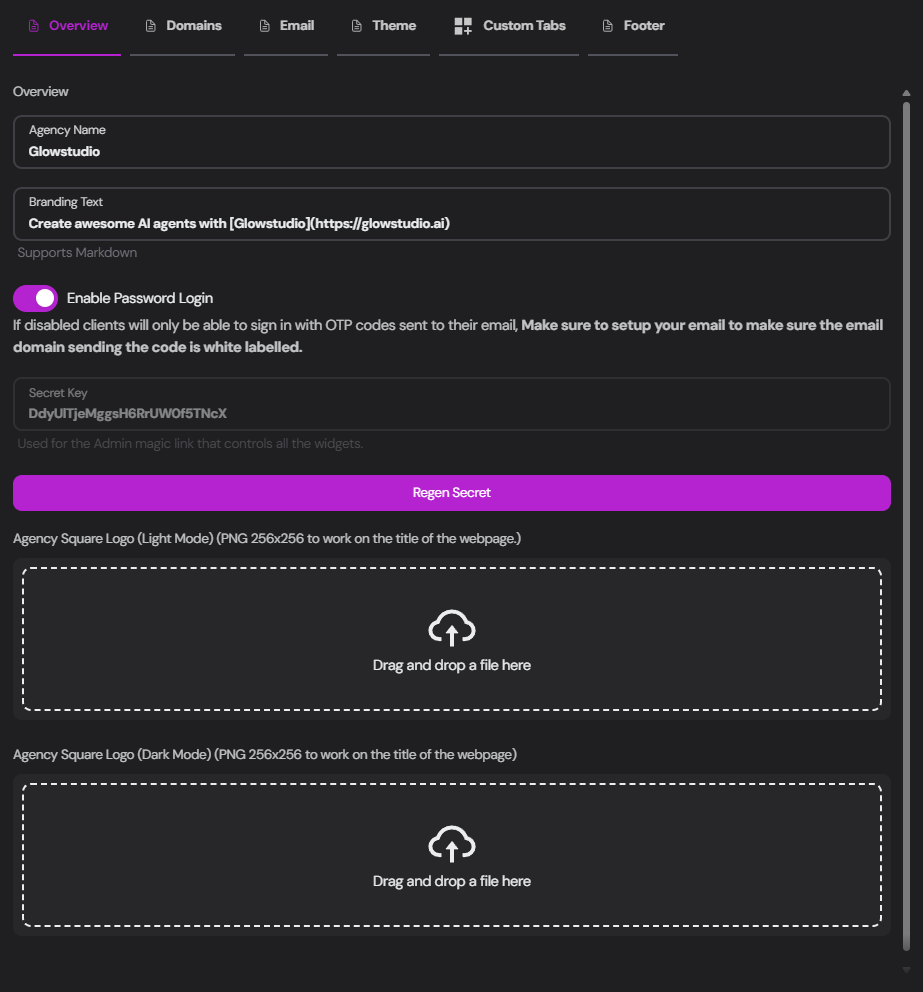
Configuring Your Agency Details
1
Agency Name
Enter your agency’s name in the
Agency Name field. This will be displayed in the top left corner of the dashboard.2
Branding Text
Input your agency’s slogan or a brief description in the
Branding Text field. This supports Markdown formatting.3
Login Settings
Toggle
Enable Password Login to determine how clients can access their dashboard:- Enabled: Clients can log in with a password
- Disabled: Clients can also log in using OTP codes sent to their email
4
Secret Key
This key is used for the Admin magic link that controls all widgets.
For security reasons, you can regenerate this secret by clicking the
Regen Secret button.5
Agency Logo Upload
Upload square logos (256x256 PNG) for both light and dark modes:
Light Mode Logo
Light Mode Logo
Drag and drop or select a file for your light mode logo. This will be used when the client’s dashboard is in light mode.
Dark Mode Logo
Dark Mode Logo
Drag and drop or select a file for your dark mode logo. This will be displayed when the client’s dashboard is in dark mode.