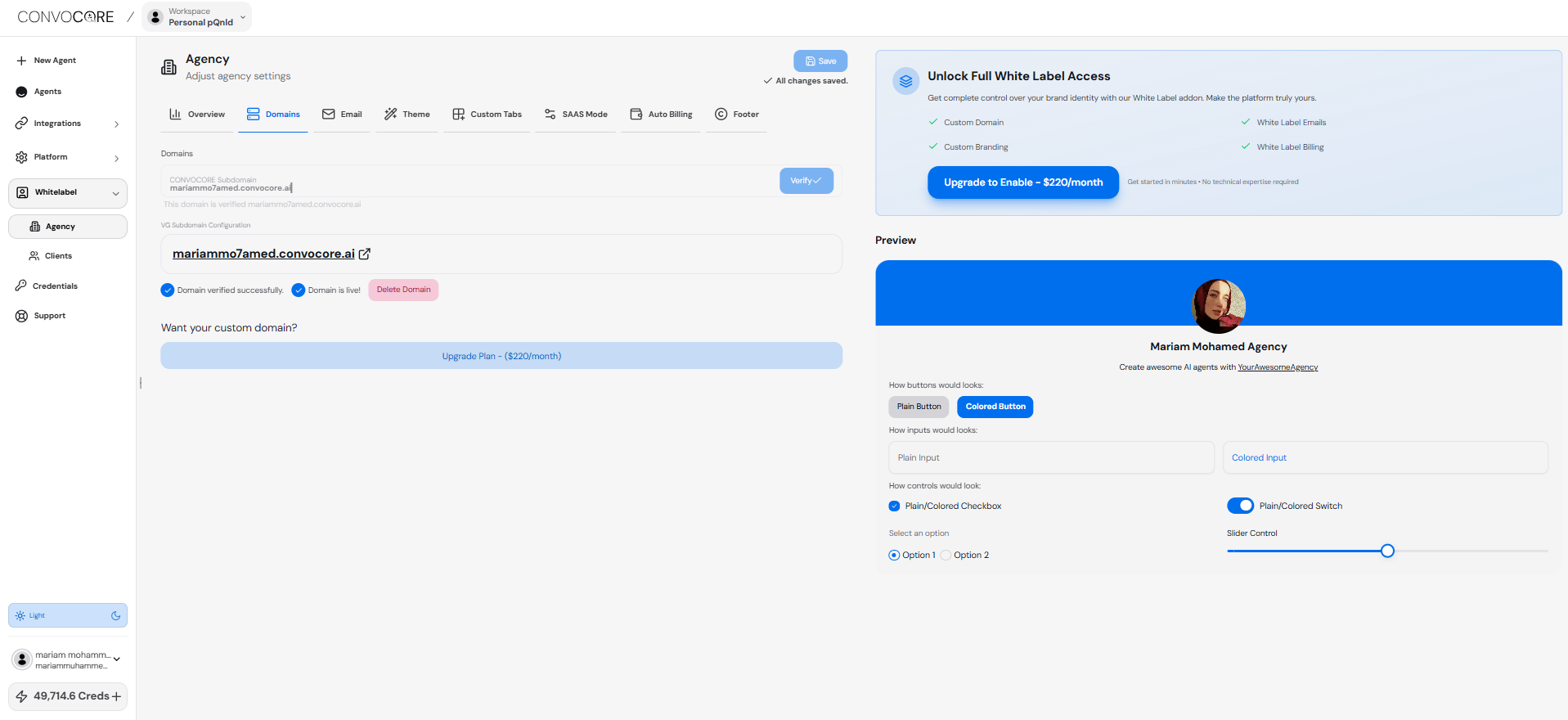
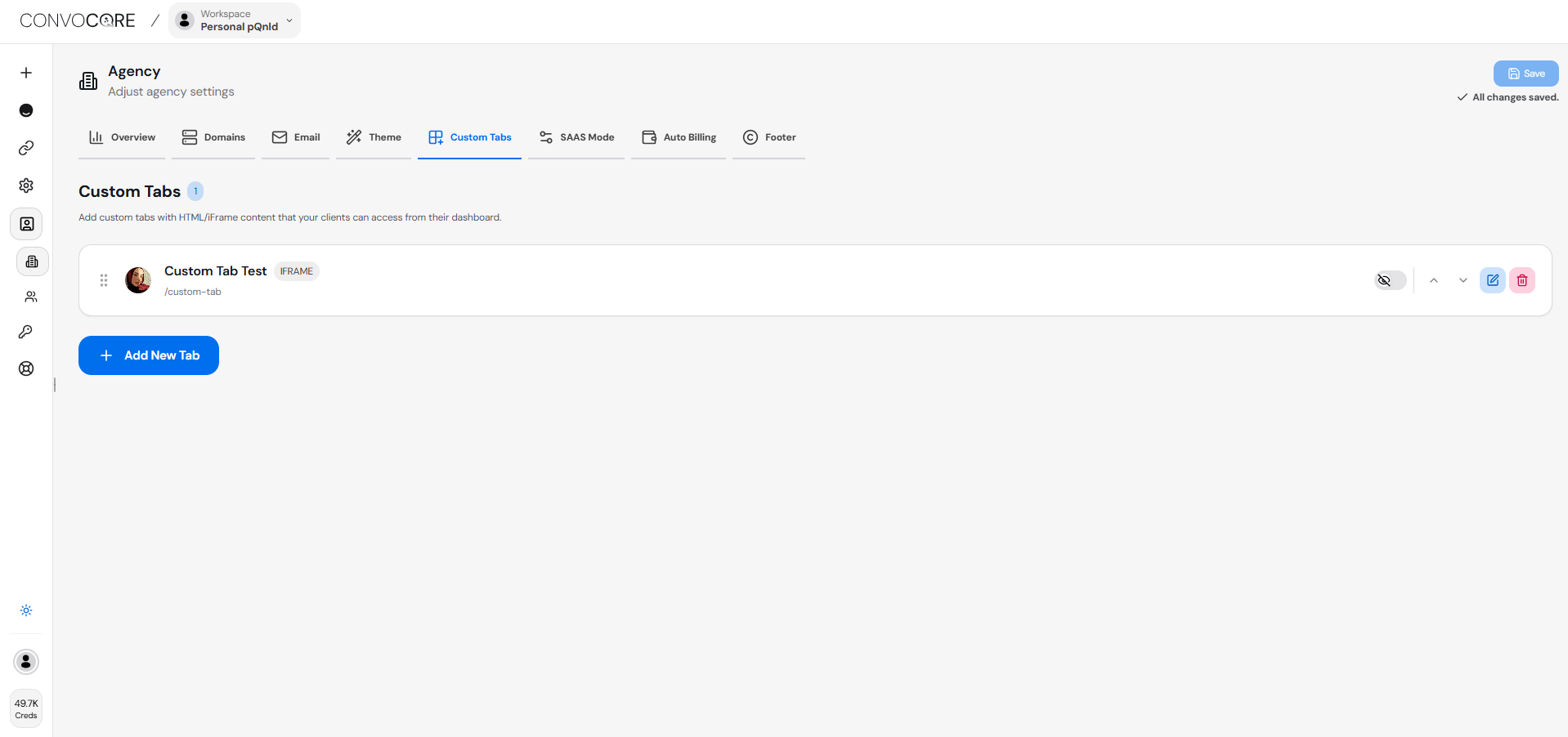
The Custom Tabs feature is a powerful tool that allows you to create fully customized tabs tailored to your agency’s unique offerings and client needs. This feature opens up a world of possibilities for enhancing your client’s dashboard experience. Custom Tabs Creator Interface

Creating Custom Tabs

1

Access Custom Tabs

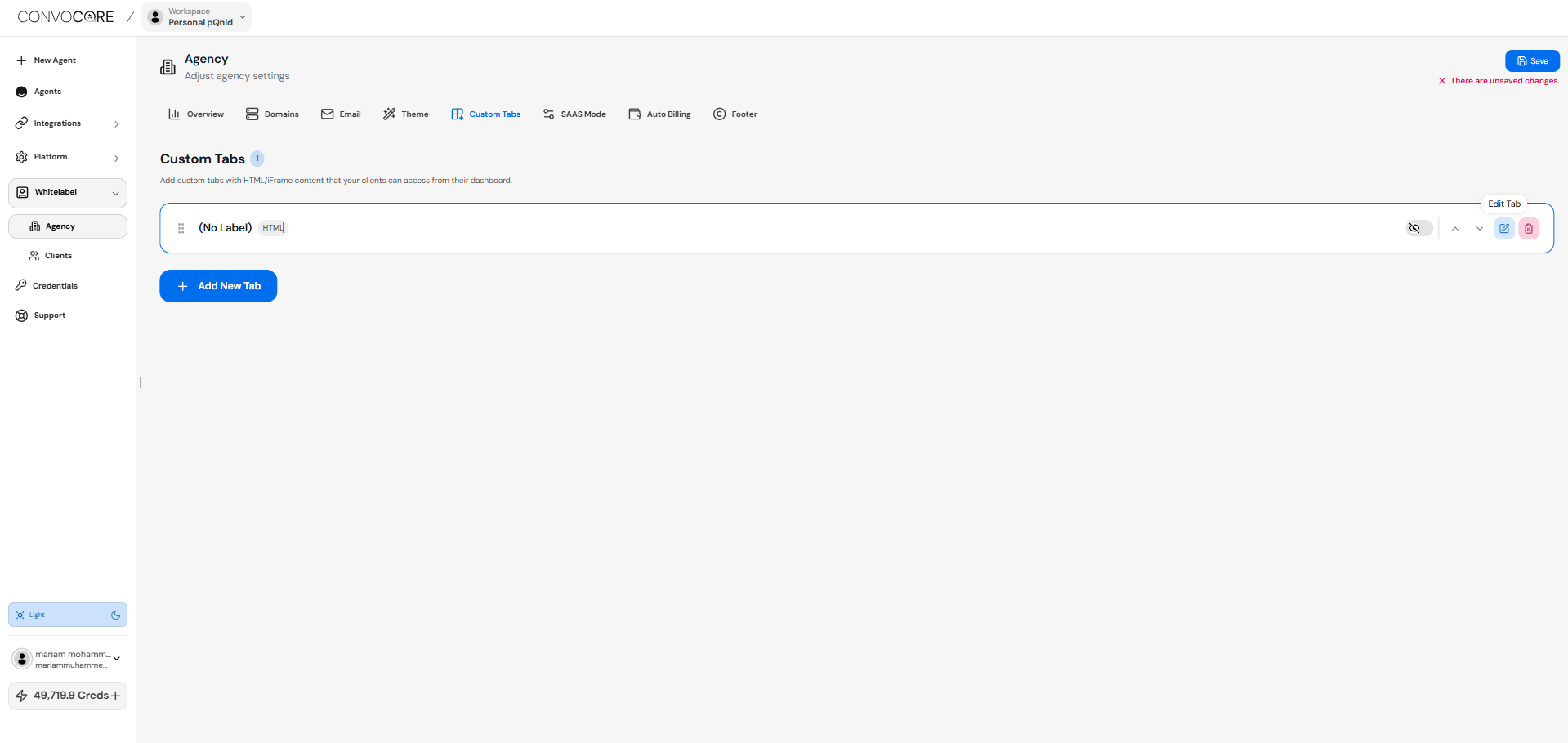
Navigate to the Agency from left nav then click Custom Tabs section.Custom Tab Page
2

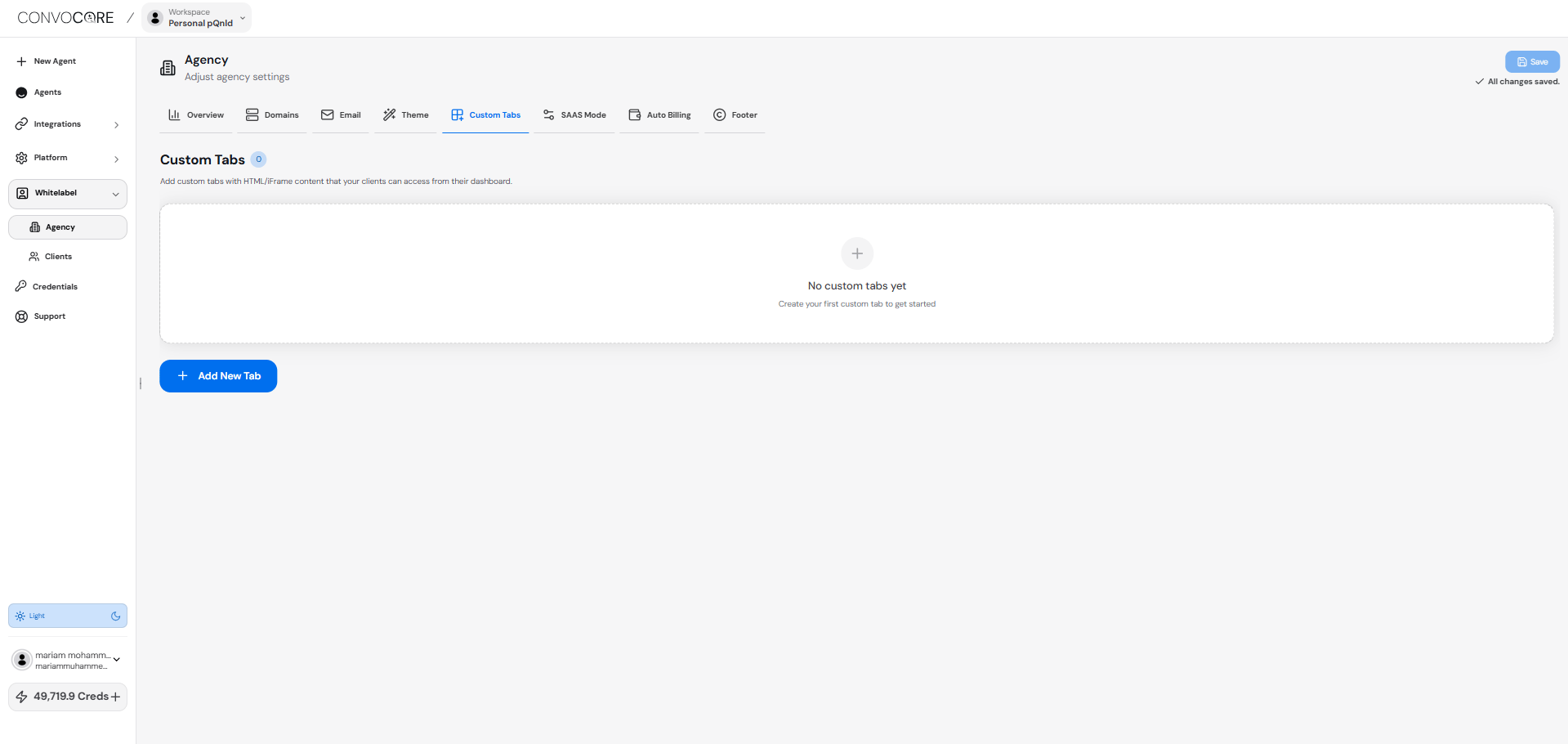
Add New Tab

Click the + Add Tab button to create a new custom tab.Custom Tab Page
3

Edit Tab

Click the Edit Icon button to edit on new custom tab created.Edit Custom Tab
4

Configure Tab Settings

Configure the following settings for each tab:
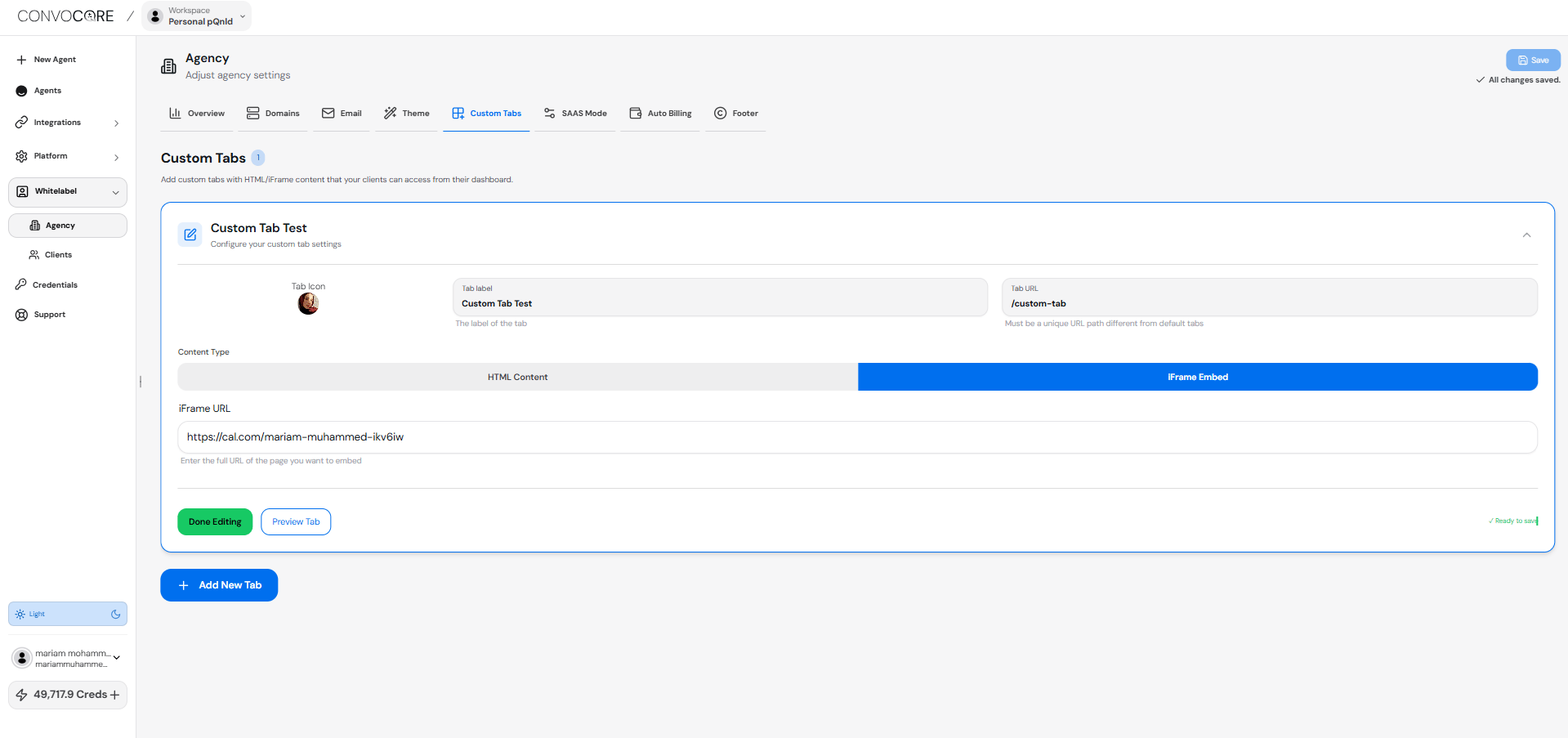
  • Icon: Select an icon to visually represent the tab
  • Name: Enter a descriptive name for the tab
  • Unique Identifier: Set a unique URL identifier for enabling client access
The unique identifier URL will be used internally to reference the tab and can be used when setting up permissions for different users’ access to the tab.
Tabs make for extremely good opportunities for up-selling to your clients. Everything from new services, extra agents to feedback loops. Be creative.
Edit Custom Tab
5

Choose Content Type

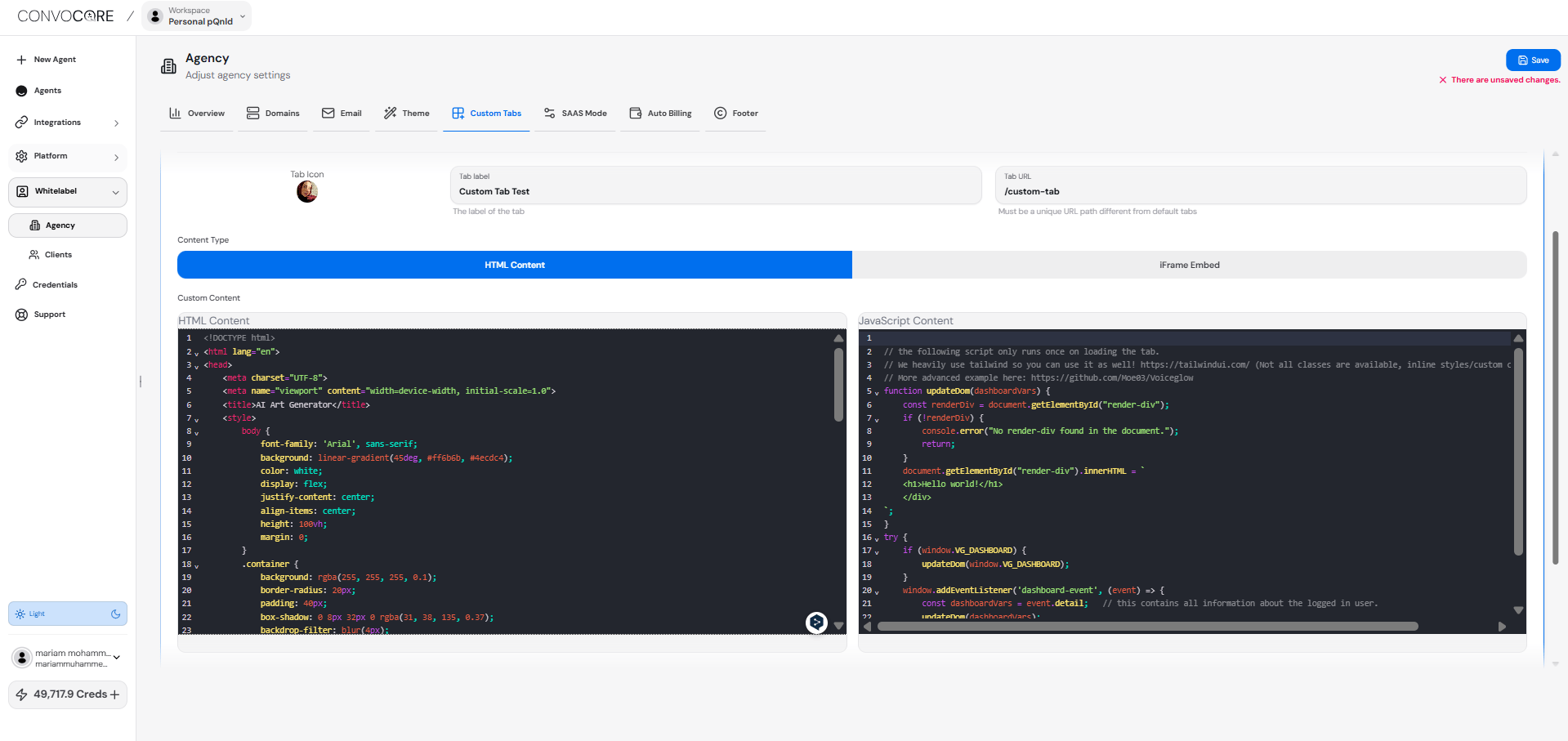
Select between HTML (with JavaScript) or iFrame:

HTML (with JavaScript)

Use this option to create custom content with HTML and JavaScript.
You can use examples from our Use Cases section below as a starting point for your HTML content.
Custom Tabs Code interface

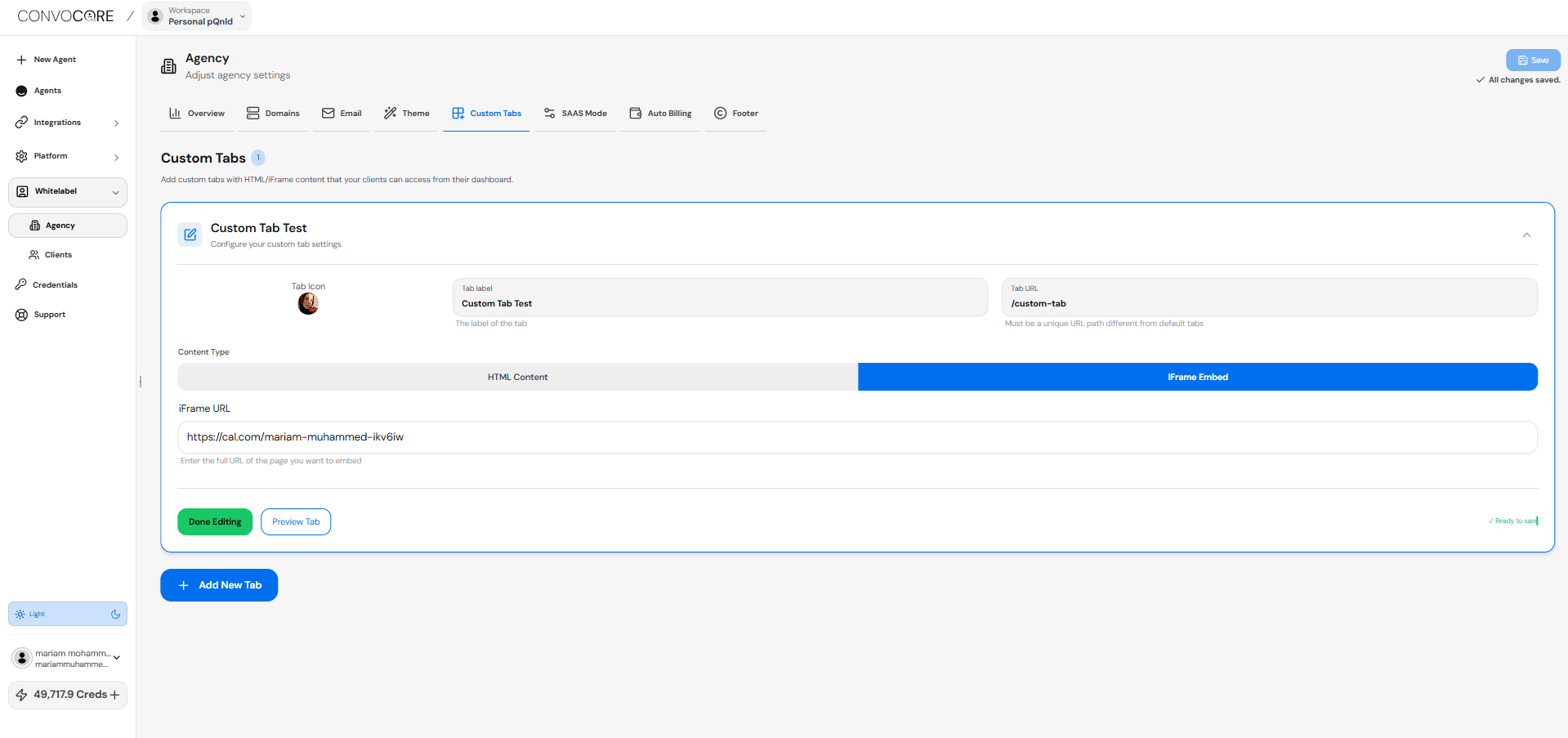
iFrame

Use this option to embed external websites or applications.
You must use URLs that work in iframes. Services like cal.com and most custom websites will work in iframes.
Some websites block iframe embedding. For example, https://apple.com will not work in iframes due to security restrictions. Always test your URLs to ensure they can be embedded before using them in custom tabs.
Custom Tabs Code interface
6

Preview and Save

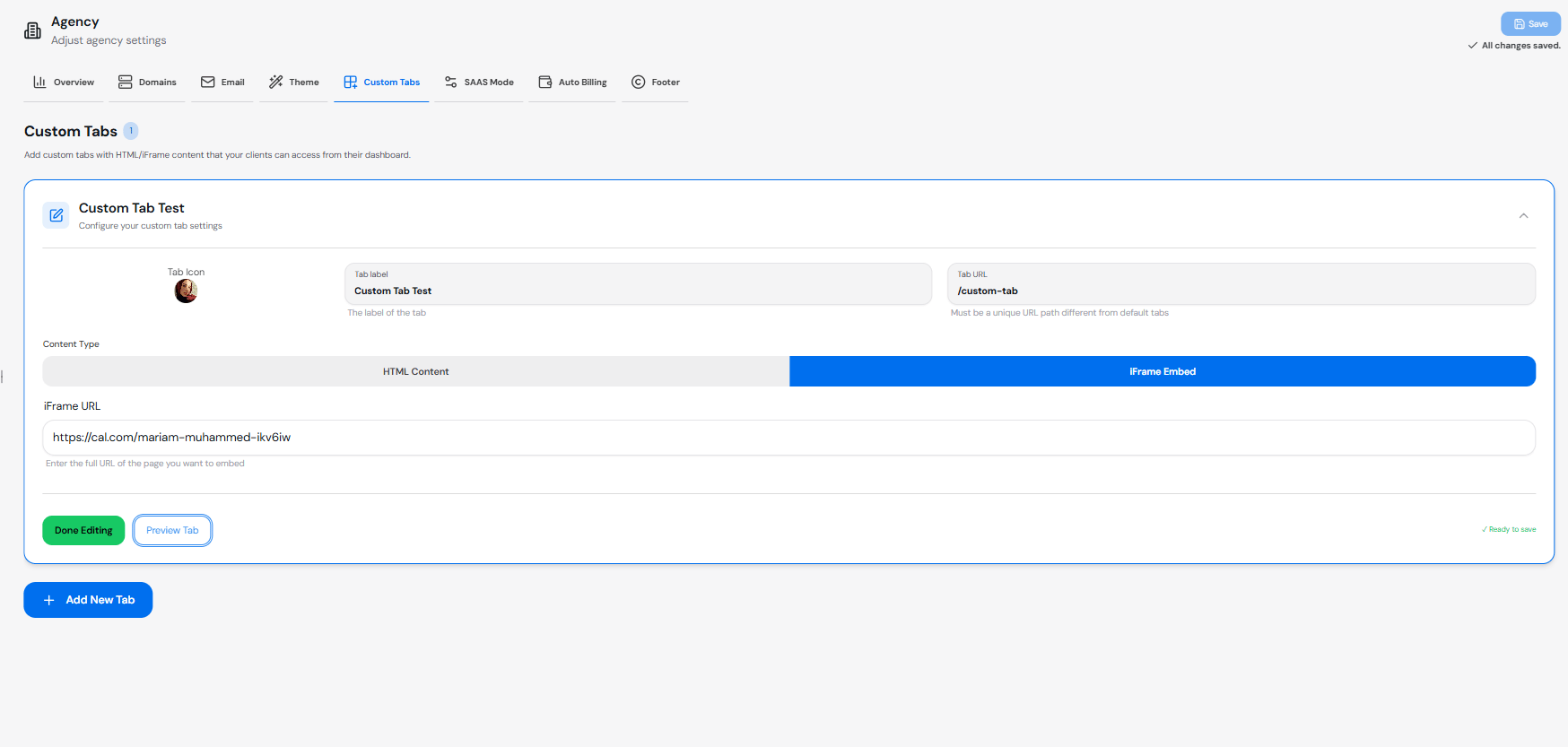
Use the Preview button to check your tab’s appearance, then click Save.save

Adding Custom Tab to Your Whitelabel

1

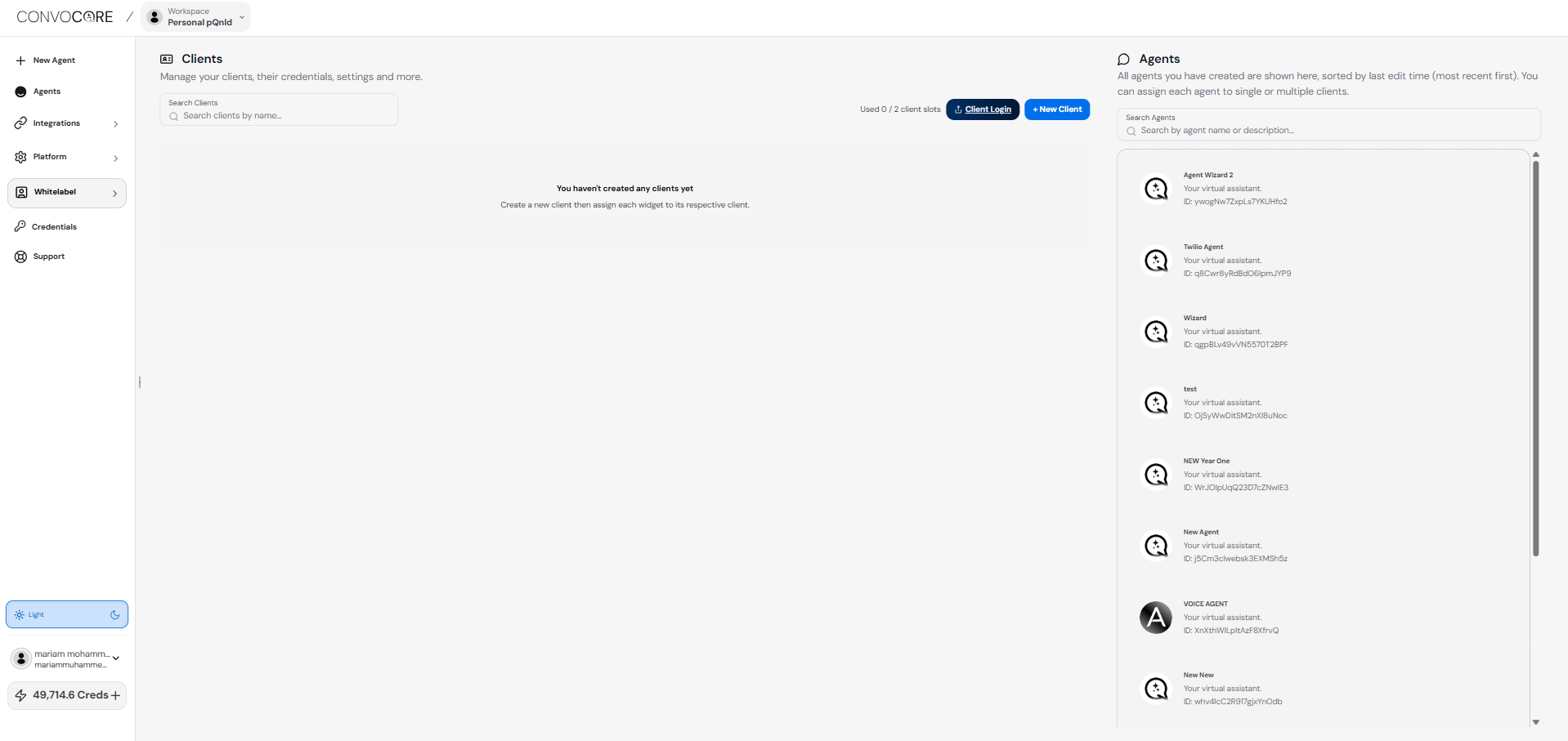
Add New Client

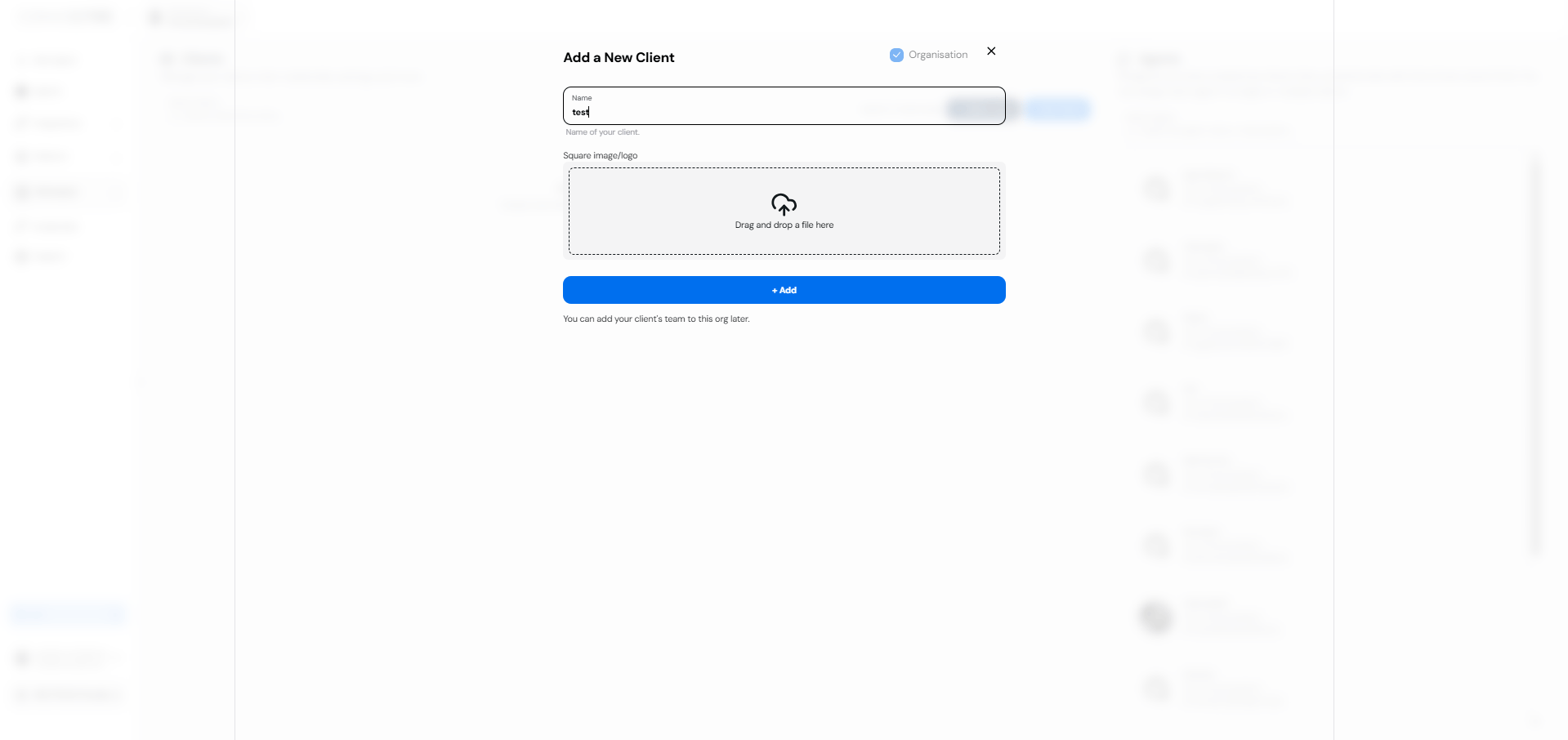
Navigate to Clients from the left navigation, click on + New Client, then enter the client name.Client pageAdd new client
2

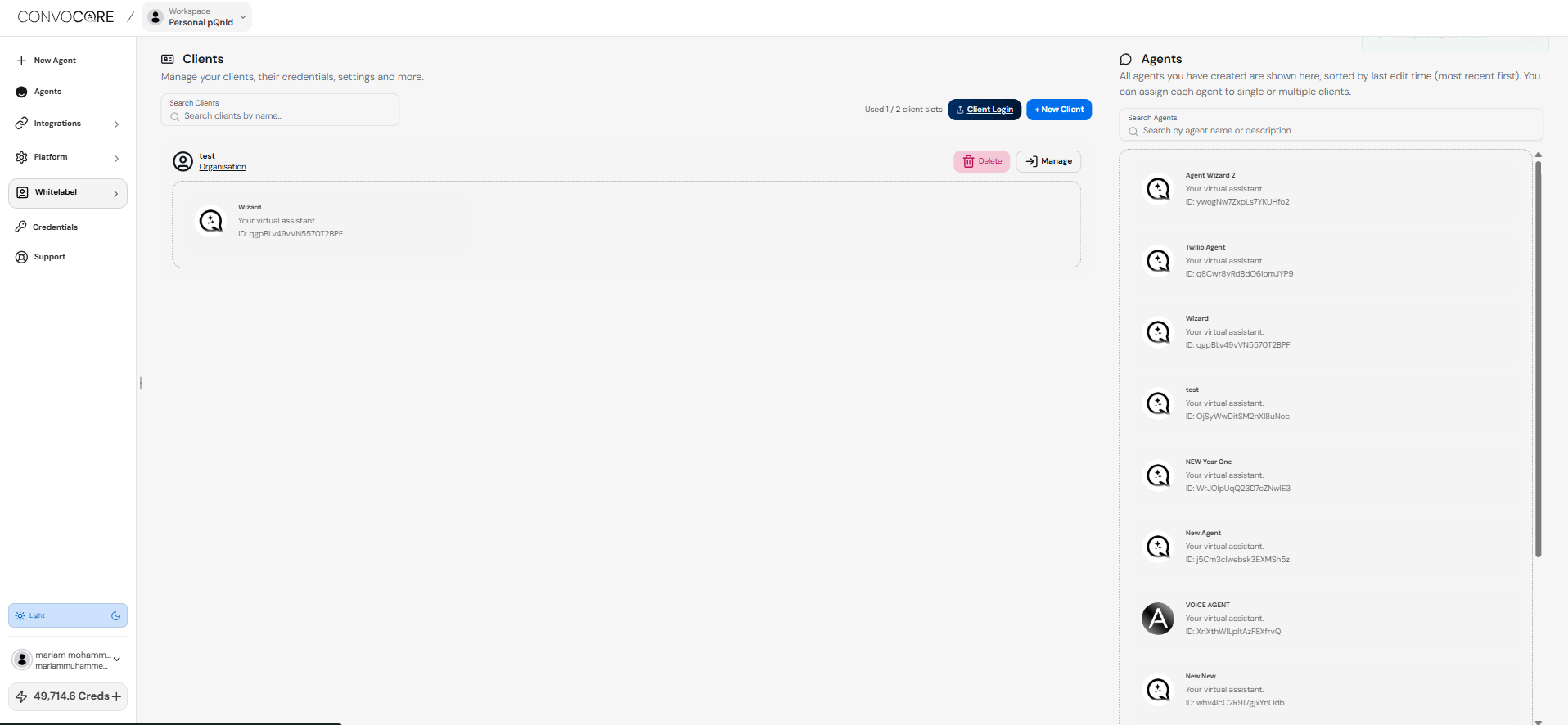
Assign Agent to Client

Drag the agent into the client you created, then click Manage.Assign agent to client
3

Add User

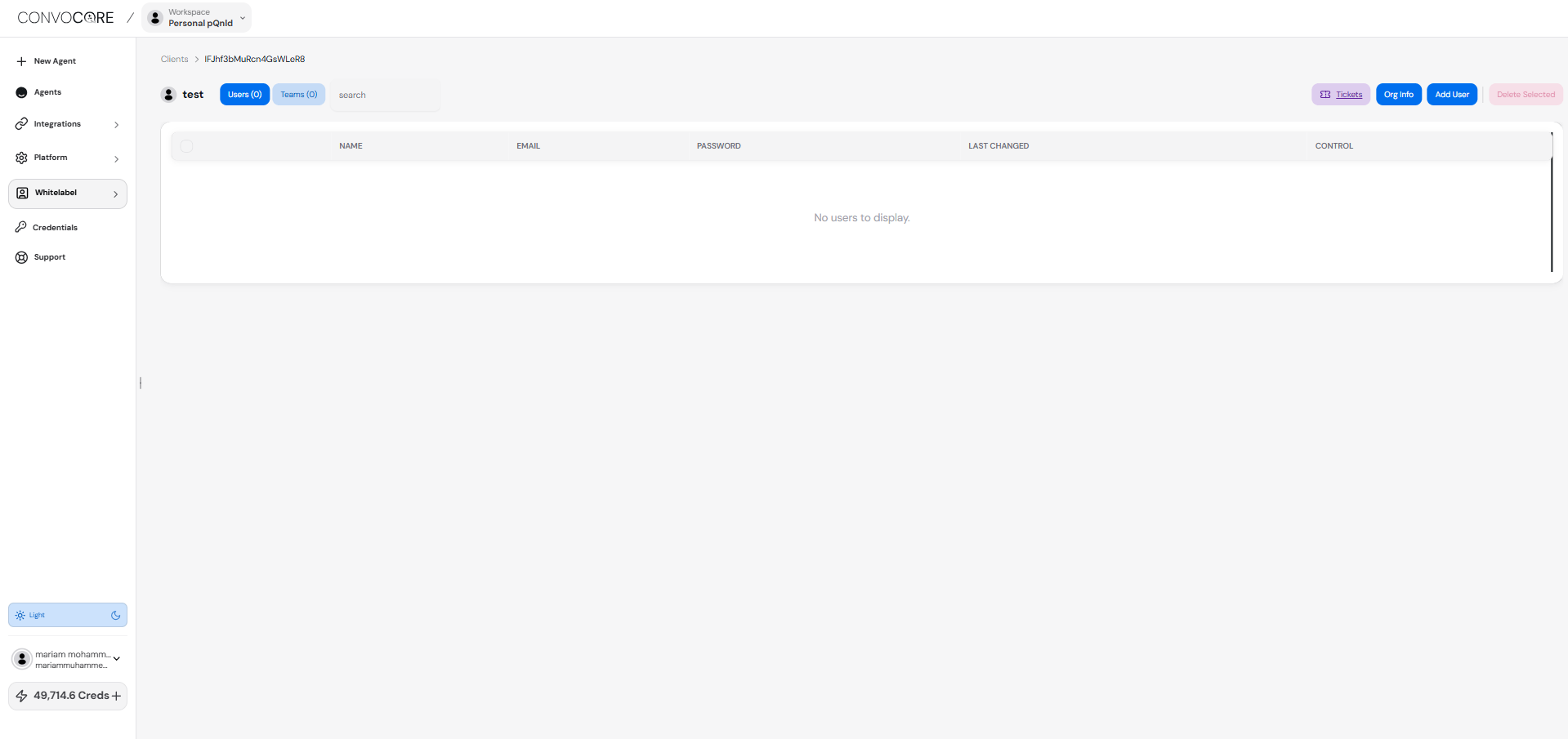
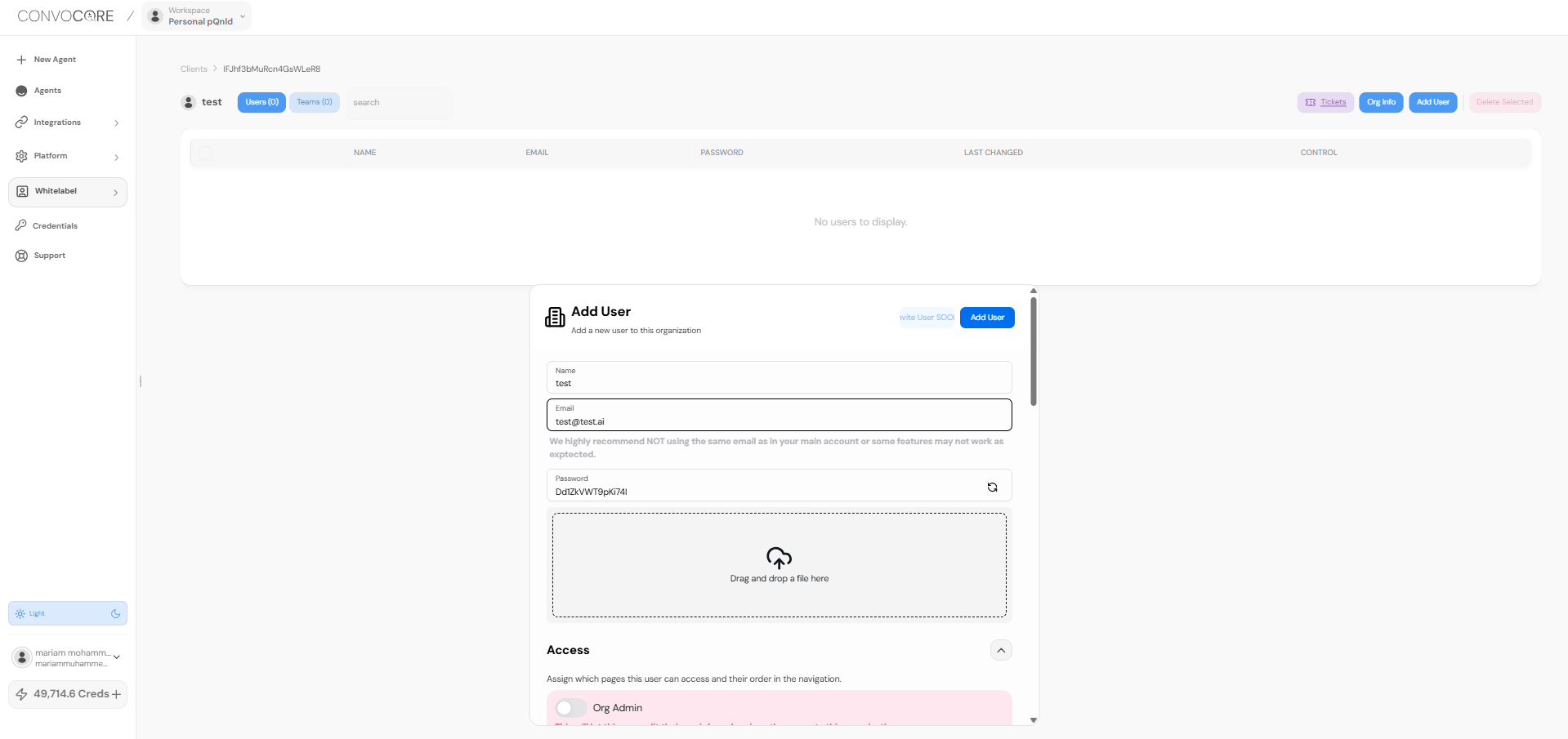
Click Add User and enter the user’s name and email.Add UserAdd User Data
4

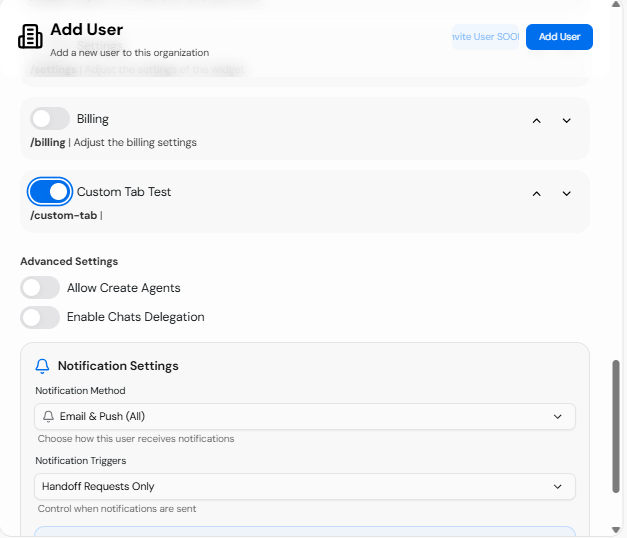
Enable Custom Tab

Enable the Custom Tab switch for the tab you created.Enable custom tab
5

Access Whitelabel Link

Navigate to AgencyDomain, then click on the whitelabel URL.Whitelabel URL
6

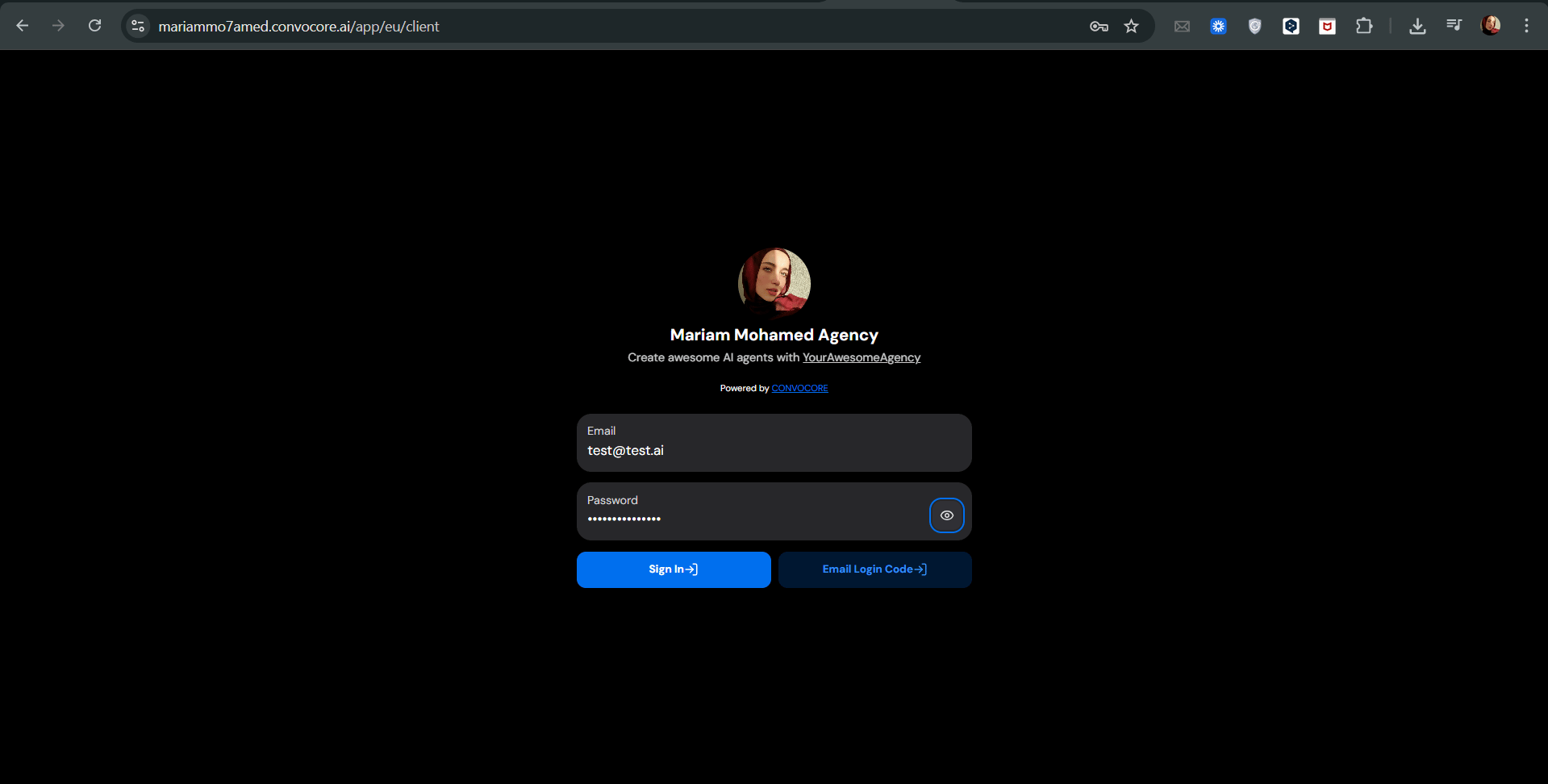
Login to Whitelabel

Log in with the email of the user you created that has access to the Custom Tab.Login to whitelabel
7

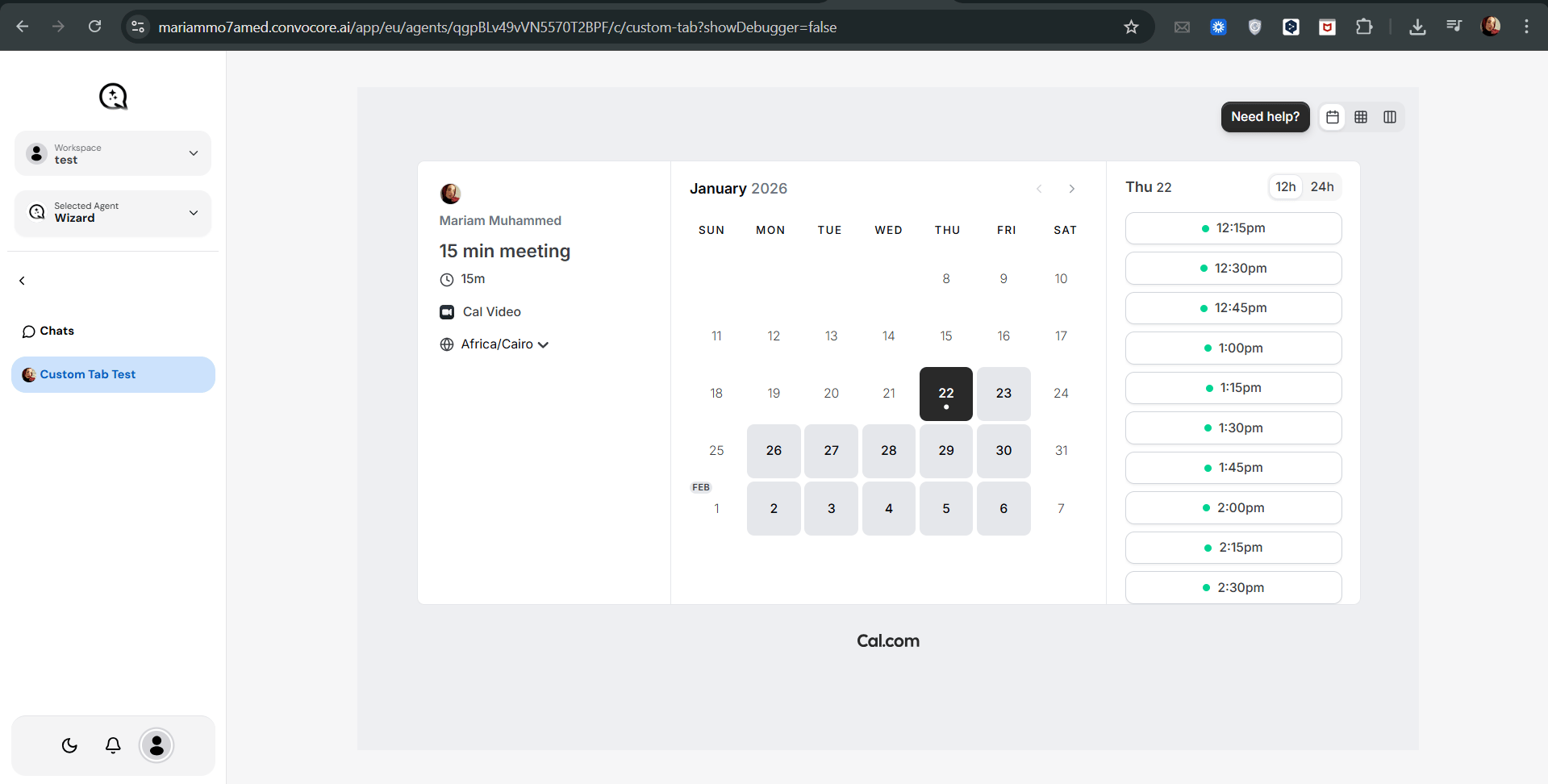
View Custom Tab

Finally, you will see the Custom Tab on your dashboard.Custom tab added to dashboard
Managing Custom Tabs

Visibility Toggle

Use the Always Visible switch to control tab visibility for all clients.

Reordering

Click the arrow buttons to change the tab’s position in the list.

Editing

Click the edit icon to modify an existing tab’s content or settings.

Deleting

Remove unwanted tabs using the delete button.

Use Cases and Ideas

Here are some advanced, colorful, and feature-rich examples you can copy and paste into your custom tabs to see the possibilities:
<!DOCTYPE html>
<html lang="en">
<head>
    <meta charset="UTF-8">
    <meta name="viewport" content="width=device-width, initial-scale=1.0">
    <title>AI Art Generator</title>
    <style>
        body {
            font-family: 'Arial', sans-serif;
            background: linear-gradient(45deg, #ff6b6b, #4ecdc4);
            color: white;
            display: flex;
            justify-content: center;
            align-items: center;
            height: 100vh;
            margin: 0;
        }
        .container {
            background: rgba(255, 255, 255, 0.1);
            border-radius: 20px;
            padding: 40px;
            box-shadow: 0 8px 32px 0 rgba(31, 38, 135, 0.37);
            backdrop-filter: blur(4px);
            border: 1px solid rgba(255, 255, 255, 0.18);
        }
        h1 {
            text-align: center;
            color: #fff;
            text-shadow: 2px 2px 4px rgba(0,0,0,0.5);
        }
        input, button {
            width: 100%;
            padding: 10px;
            margin: 10px 0;
            border-radius: 5px;
            border: none;
        }
        button {
            background-color: #6c5ce7;
            color: white;
            cursor: pointer;
            transition: background-color 0.3s ease;
        }
        button:hover {
            background-color: #5641e5;
        }
        #result {
            margin-top: 20px;
            text-align: center;
        }
        #generatedImage {
            max-width: 100%;
            border-radius: 10px;
            box-shadow: 0 4px 15px rgba(0,0,0,0.2);
        }
    </style>
</head>
<body>
    <div class="container">
        <h1>🎨 AI Art Generator</h1>
        <input type="text" id="prompt" placeholder="Enter your art prompt">
        <button onclick="generateArt()">Generate Art</button>
        <div id="result"></div>
    </div>

    <script>
        function generateArt() {
            const prompt = document.getElementById('prompt').value;
            const result = document.getElementById('result');
            result.innerHTML = 'Generating your masterpiece...';
            
            // Simulating API call to an AI art generation service
            setTimeout(() => {
                const imageUrl = `https://picsum.photos/800/600?random=${Math.random()}`;
                result.innerHTML = `
                    <h3>Your AI-generated art:</h3>
                    <img id="generatedImage" src="${imageUrl}" alt="AI-generated art">
                `;
            }, 2000);
        }
    </script>
</body>
</html>
<!DOCTYPE html>
<html lang="en">
<head>
    <meta charset="UTF-8">
    <meta name="viewport" content="width=device-width, initial-scale=1.0">
    <title>Dynamic Dashboard Analytics</title>
    <script src="https://cdn.jsdelivr.net/npm/chart.js"></script>
    <style>
        body {
            font-family: 'Roboto', sans-serif;
            background: linear-gradient(120deg, #84fab0 0%, #8fd3f4 100%);
            margin: 0;
            padding: 20px;
            box-sizing: border-box;
            min-height: 100vh;
        }
        .dashboard {
            display: grid;
            grid-template-columns: repeat(auto-fit, minmax(300px, 1fr));
            gap: 20px;
        }
        .card {
            background: rgba(255, 255, 255, 0.9);
            border-radius: 15px;
            padding: 20px;
            box-shadow: 0 8px 32px rgba(31, 38, 135, 0.15);
        }
        h2 {
            color: #333;
            margin-top: 0;
        }
        .metric {
            font-size: 2em;
            font-weight: bold;
            color: #4a4a4a;
        }
        canvas {
            max-width: 100%;
        }
    </style>
</head>
<body>
    <div class="dashboard">
        <div class="card">
            <h2>Total Users</h2>
            <div class="metric" id="totalUsers">Loading...</div>
        </div>
        <div class="card">
            <h2>Revenue</h2>
            <div class="metric" id="revenue">Loading...</div>
        </div>
        <div class="card">
            <h2>User Growth</h2>
            <canvas id="userGrowthChart"></canvas>
        </div>
        <div class="card">
            <h2>Platform Usage</h2>
            <canvas id="platformUsageChart"></canvas>
        </div>
    </div>

    <script>
        // Simulated data fetching and chart rendering
        setTimeout(() => {
            document.getElementById('totalUsers').textContent = '1,234,567';
            document.getElementById('revenue').textContent = '$9,876,543';

            new Chart(document.getElementById('userGrowthChart'), {
                type: 'line',
                data: {
                    labels: ['Jan', 'Feb', 'Mar', 'Apr', 'May', 'Jun'],
                    datasets: [{
                        label: 'User Growth',
                        data: [1000, 1500, 2000, 3000, 4000, 5000],
                        borderColor: 'rgb(75, 192, 192)',
                        tension: 0.1
                    }]
                }
            });

            new Chart(document.getElementById('platformUsageChart'), {
                type: 'doughnut',
                data: {
                    labels: ['Web', 'Mobile', 'Tablet'],
                    datasets: [{
                        data: [300, 50, 100],
                        backgroundColor: ['#FF6384', '#36A2EB', '#FFCE56']
                    }]
                }
            });
        }, 1000);
    </script>
</body>
</html>
<!DOCTYPE html>
<html lang="en">
<head>
    <meta charset="UTF-8">
    <meta name="viewport" content="width=device-width, initial-scale=1.0">
    <title>AI Feedback Analyzer</title>
    <style>
        body {
            font-family: 'Segoe UI', Tahoma, Geneva, Verdana, sans-serif;
            background: linear-gradient(135deg, #667eea 0%, #764ba2 100%);
            color: #ffffff;
            display: flex;
            justify-content: center;
            align-items: center;
            height: 100vh;
            margin: 0;
            padding: 20px;
            box-sizing: border-box;
        }
        .container {
            background: rgba(255, 255, 255, 0.1);
            border-radius: 20px;
            padding: 40px;
            width: 80%;
            max-width: 800px;
            box-shadow: 0 8px 32px 0 rgba(31, 38, 135, 0.37);
            backdrop-filter: blur(4px);
            border: 1px solid rgba(255, 255, 255, 0.18);
        }
        h1 {
            text-align: center;
            color: #fff;
            margin-bottom: 30px;
        }
        textarea {
            width: 100%;
            height: 150px;
            padding: 15px;
            border-radius: 10px;
            border: none;
            margin-bottom: 20px;
            font-size: 16px;
        }
        button {
            width: 100%;
            padding: 15px;
            background-color: #4CAF50;
            color: white;
            border: none;
            border-radius: 10px;
            cursor: pointer;
            font-size: 18px;
            transition: background-color 0.3s ease;
        }
        button:hover {
            background-color: #45a049;
        }
        #result {
            margin-top: 30px;
            background: rgba(255, 255, 255, 0.2);
            padding: 20px;
            border-radius: 10px;
        }
        .sentiment {
            font-size: 24px;
            font-weight: bold;
            text-align: center;
            margin-bottom: 20px;
        }
        .keywords {
            display: flex;
            flex-wrap: wrap;
            justify-content: center;
            gap: 10px;
        }
        .keyword {
            background: rgba(255, 255, 255, 0.3);
            padding: 5px 10px;
            border-radius: 20px;
            font-size: 14px;
        }
    </style>
</head>
<body>
    <div class="container">
        <h1>🤖 AI Feedback Analyzer</h1>
        <textarea id="feedbackInput" placeholder="Paste customer feedback here..."></textarea>
        <button onclick="analyzeFeedback()">Analyze Feedback</button>
        <div id="result"></div>
    </div>

    <script>
        function analyzeFeedback() {
            const feedback = document.getElementById('feedbackInput').value;
            const result = document.getElementById('result');
            result.innerHTML = '<p>Analyzing feedback...</p>';
            
            // Simulating AI analysis
            setTimeout(() => {
                const sentiments = ['😃 Positive', '😐 Neutral', '😞 Negative'];
                const sentiment = sentiments[Math.floor(Math.random() * sentiments.length)];
                const keywords = ['Product', 'Service', 'Quality', 'Price', 'Support', 'User Experience']
                    .sort(() => 0.5 - Math.random())
                    .slice(0, 4);
                
                result.innerHTML = `
                    <div class="sentiment">${sentiment}</div>
                    <h3>Key Insights:</h3>
                    <div class="keywords">
                        ${keywords.map(keyword => `<span class="keyword">${keyword}</span>`).join('')}
                    </div>
                    <p>The feedback primarily focuses on ${keywords.join(', ')}. 
                    Overall sentiment appears to be ${sentiment.toLowerCase()}. 
                    Consider addressing these key areas to improve customer satisfaction.</p>
                `;
            }, 2000);
        }
    </script>
</body>
</html>
Remember to adapt these examples to fit your specific use case and branding. They serve as a starting point to inspire your own creative and functional custom tabs.