
Live handoff is closely integrated with the client dashboard, where it’s operated when a client is logged in and available to manage conversations. Read more in the whitelabel docs.
Setting Up Live Handoff
Before you can use live handoff, ensure that your agent is properly configured:1
Agent settings tab
Navigate to your agent’s settings tab.
2
Enable handoff
Enable the handoff functionality by clicking
Enable handoff popup to allow the agent to display the handoff UI.3
Handoff enabled
You can now access the live handoff from the agents conversation tab or by logging in to your client dashboard.
Fixed handoff popup
If you want the agent to always show the handoff at the top of the agents UI. Enable
Fixed handoff popup for a persistent handoff UI.Set up handoff for client
1
Create and Assign Agent to an Organization
For the handoff to work and to ensure your client has the ability to use it, the agent must be assigned to an organization.
2
Create User Access
Ensure the organization has a user who can log in to the client dashboard and that their widget is assigned to it.
If you haven’t granted your client access to settings, they won’t be able to enable handoff themselves. Consider this when setting up client permissions.
Using Live Handoff
Once set up, you can manage live handoffs through the Convocore platform or the client dashboard:Handling Incoming Handoff Requests
Handling Incoming Handoff Requests
From the client dashboard:
1
Receive Notification
When a user requests a live handoff, you’ll hear a distinct ringing sound and see a notification in the corner.
2
Access Conversation
Click the notification to open the conversation screen or navigate to the tab on the left side. The live oncversation will be marked with a ”!”.
3
Take Over Chat
On the right side of the conversation UI, click
Handle chat to begin interacting with the user.Initiating Handoff from AI to Human
Initiating Handoff from AI to Human
If you’re monitoring a live chat either from the dashboard or from your agents conversation tab and want to intervene:
1
Active Conversation
To take over, it has to be an active conversation. These have a
! beside them and a distinct red writing on them saying a few seconds ago.2
Initiate Handoff
When you have located an active conversations, Click 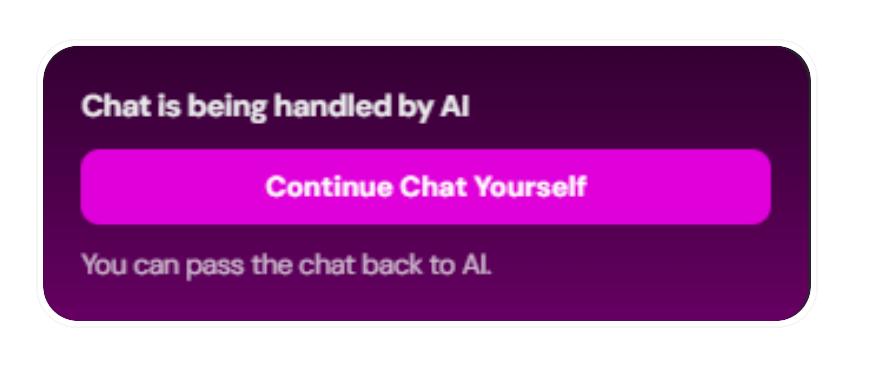
Continue chat yourself to take over from the AI.Returning Control to AI
Returning Control to AI
When finished with a live handoff, you might want to pass the conversation back to the AI agent:
Transfer to AI
When engaging with a user you can Click the 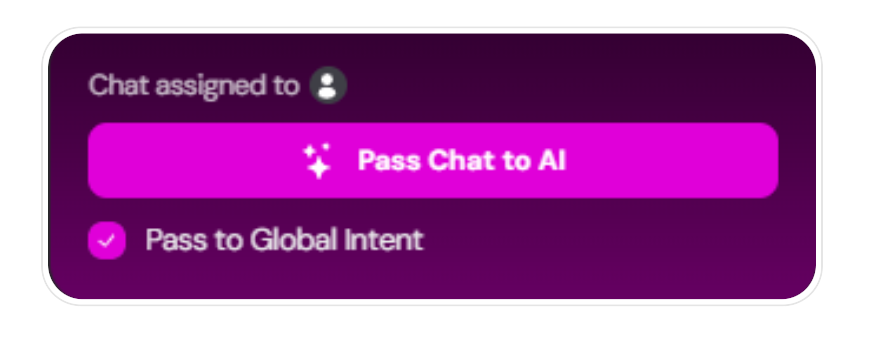
Pass Chat to AI button to return control to the AI agent.Handling Unanswered Requests
To ensure no user query goes unanswered, Convocore offers a fallback option for users to submit a query directly in the chat:Submitting query:
Submitting query:
If there are no answers from the team, the user will be able click
send email. Its possible to attach files and the user will be required to provide their email and a message.Answering query:
Answering query:
When a form submission is received, it appears in the respective conversation thread and triggers a notification in the dashboard. You must manually check the conversation and respond using the provided email address.
Managing Notifications
Notifications are accessed from the client dashboard and can be sent to your email or as a browser push notification:Access Notification Settings
To find the notification tab, log in to the client dashboard and click the bell in the top-right corner.
Customize Alerts
You can adjust notification preferences by clicking the gear in the right corner.— Notify through: Which channel you want to be notified (email or push notification)— Events to notify: Which events that should send a notification (all messages or requests only)
Best Practices for Live Handoff
To make the most of the live handoff feature:Quick Response
Aim to respond to handoff requests promptly to maintain user engagement.
Clear Communication
Inform users when you’re taking over from the AI and when you’re handing back control.
Team Coordination
Establish clear protocols for who handles handoffs during different shifts or for various types of queries.
Regular Monitoring
Periodically check the conversation tab, even without active handoff requests, to identify potential intervention points.