> ## Documentation Index
> Fetch the complete documentation index at: https://docs.convocore.ai/llms.txt
> Use this file to discover all available pages before exploring further.
# Managing Client Organizations
> Create organizations, assign agents, and control the client dashboard experience.
Client organizations are the core container for your customers inside the whitelabel system. Each organization can have its own users, assigned agents, dashboard settings, permissions, and billing state.
 ## Create an organization
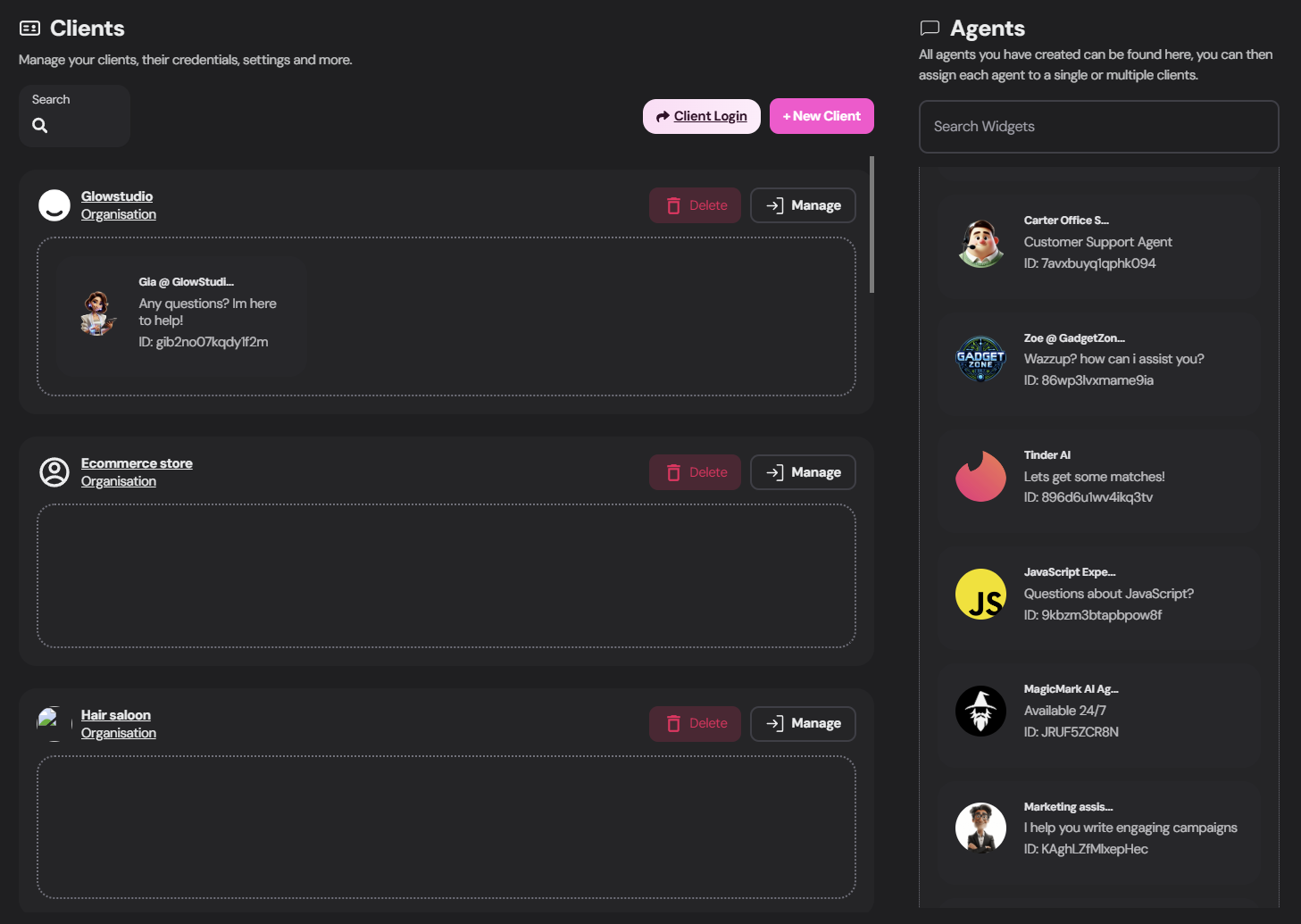
Navigate to the `Clients` area of your whitelabel dashboard.
Click `+ New Client`.
Enter the organization name and optionally upload a logo or image.
## Create an organization
Navigate to the `Clients` area of your whitelabel dashboard.
Click `+ New Client`.
Enter the organization name and optionally upload a logo or image.
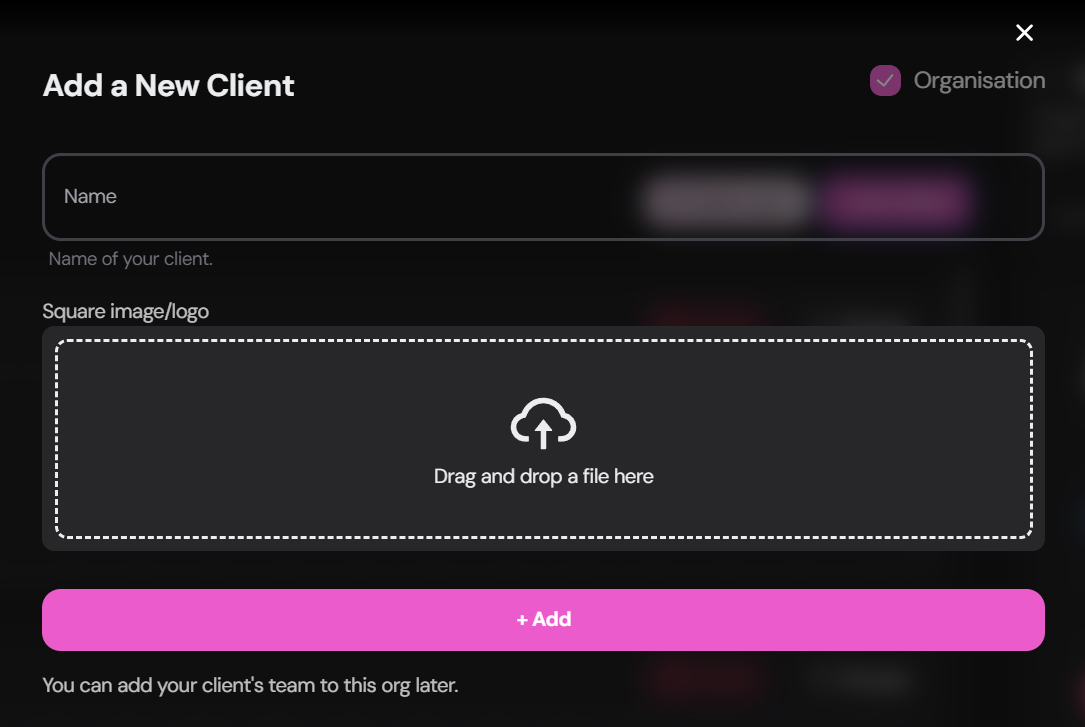 Click `+ Add` to create the organization.
## Assign agents
After the organization exists, assign the agents that client should be able to use.
Use the agent list shown on the right side of the Clients view.
Use the search bar to quickly find the right agent.
Drag the selected agent onto the target organization.
One organization can have multiple assigned agents. This works well for clients with separate use cases such as support, sales, onboarding, or voice.
## Configure organization settings
Open `Manage` on an organization, then open `Org Info` to adjust the client-facing experience.
Choose the language used by the client dashboard interface. This affects the dashboard UI, not the content inside the agent itself.
Select the navigation layout used in the client dashboard, such as vertical or horizontal navigation.
Control whether the client experience supports human handoff, whether smart handoff is enabled, and whether handoff-related UI messages should be shown.
Enable saved responses if your client teams need faster handling during conversations and handoff workflows.
If your agency uses client billing, organization-level billing options determine whether the customer can access billing and subscription flows in their dashboard.
Remember to save the organization after editing settings so the changes are applied to the client dashboard.
Click `+ Add` to create the organization.
## Assign agents
After the organization exists, assign the agents that client should be able to use.
Use the agent list shown on the right side of the Clients view.
Use the search bar to quickly find the right agent.
Drag the selected agent onto the target organization.
One organization can have multiple assigned agents. This works well for clients with separate use cases such as support, sales, onboarding, or voice.
## Configure organization settings
Open `Manage` on an organization, then open `Org Info` to adjust the client-facing experience.
Choose the language used by the client dashboard interface. This affects the dashboard UI, not the content inside the agent itself.
Select the navigation layout used in the client dashboard, such as vertical or horizontal navigation.
Control whether the client experience supports human handoff, whether smart handoff is enabled, and whether handoff-related UI messages should be shown.
Enable saved responses if your client teams need faster handling during conversations and handoff workflows.
If your agency uses client billing, organization-level billing options determine whether the customer can access billing and subscription flows in their dashboard.
Remember to save the organization after editing settings so the changes are applied to the client dashboard.
 ## Recommended setup order
1. Create the organization.
2. Assign the correct agents.
3. Add client users.
4. Review dashboard layout and handoff settings.
5. Enable billing only if the client should manage subscription or payment activity in the dashboard.
## Related documentation
Add users and define who can access the client dashboard.
Organize client-side staff for collaboration and handoff workflows.
See what the client experience looks like after setup.
Learn when and how to enable billing for an organization.
## Recommended setup order
1. Create the organization.
2. Assign the correct agents.
3. Add client users.
4. Review dashboard layout and handoff settings.
5. Enable billing only if the client should manage subscription or payment activity in the dashboard.
## Related documentation
Add users and define who can access the client dashboard.
Organize client-side staff for collaboration and handoff workflows.
See what the client experience looks like after setup.
Learn when and how to enable billing for an organization.