> ## Documentation Index
> Fetch the complete documentation index at: https://docs.convocore.ai/llms.txt
> Use this file to discover all available pages before exploring further.
# Whitelabel Stripe Billing
> Set up billing with Stripe for seamless customer transactions in Convocore.
Easily manage client billing through our new **Stripe Integration** feature, designed for whitelabeling. This enables agencies and businesses to connect their Stripe account to charge customers directly while maintaining a seamless and professional experience.
 ## Why Use Stripe Integration?
Connecting Stripe simplifies billing for your clients, saves time, and ensures
accurate, secure payments.
With this feature, you can:
* Enable **automated billing** for your customers.
* Customize credit pricing to match your business model.
* View real-time payout and connection statuses.
* Provide a fully **whitelabeled experience** under your brand.
## Setting Up Stripe Integration
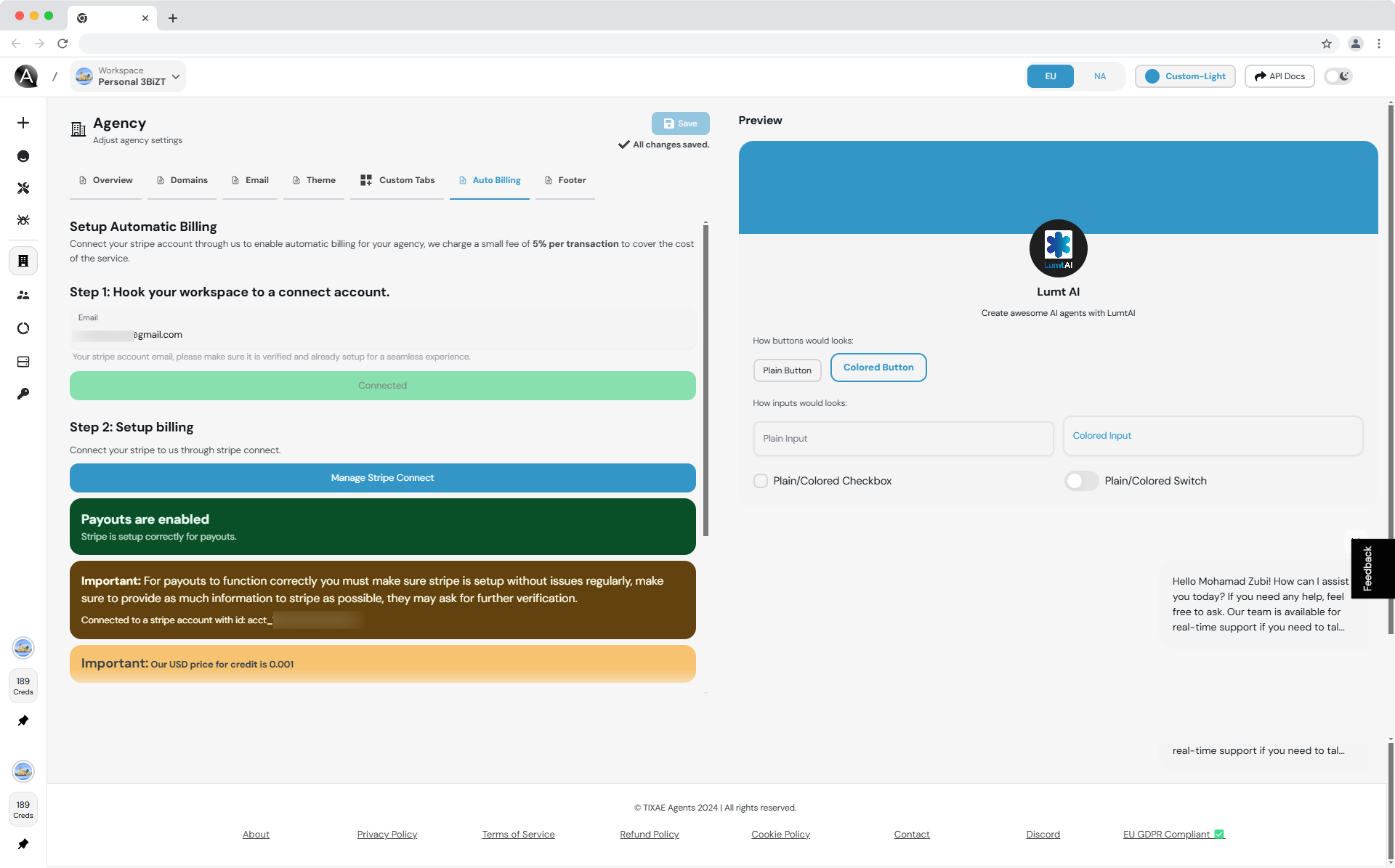
1. Go to the **Auto Billing** tab in your workspace/agency.
2. Enter the email linked to your Stripe account.
3. Click `Manage Stripe Connect` to securely link your account.
## Why Use Stripe Integration?
Connecting Stripe simplifies billing for your clients, saves time, and ensures
accurate, secure payments.
With this feature, you can:
* Enable **automated billing** for your customers.
* Customize credit pricing to match your business model.
* View real-time payout and connection statuses.
* Provide a fully **whitelabeled experience** under your brand.
## Setting Up Stripe Integration
1. Go to the **Auto Billing** tab in your workspace/agency.
2. Enter the email linked to your Stripe account.
3. Click `Manage Stripe Connect` to securely link your account.
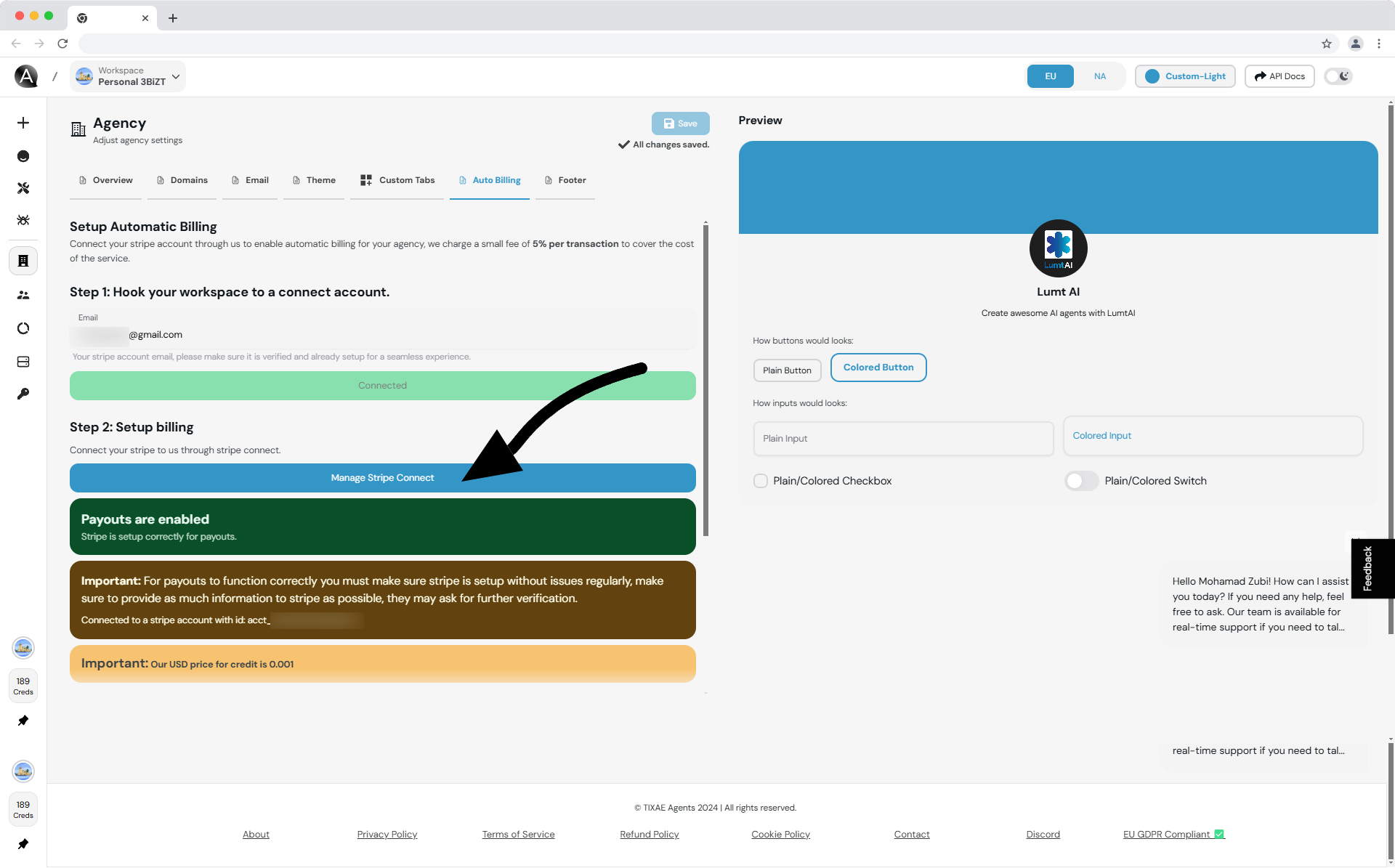 Make sure your Stripe account is verified and active to avoid interruptions in payouts.
Ensure your Stripe account supports payouts. Stripe may require additional
verification.
Payouts will be disabled if your Stripe account is not set up correctly.
Contact Stripe support if necessary.
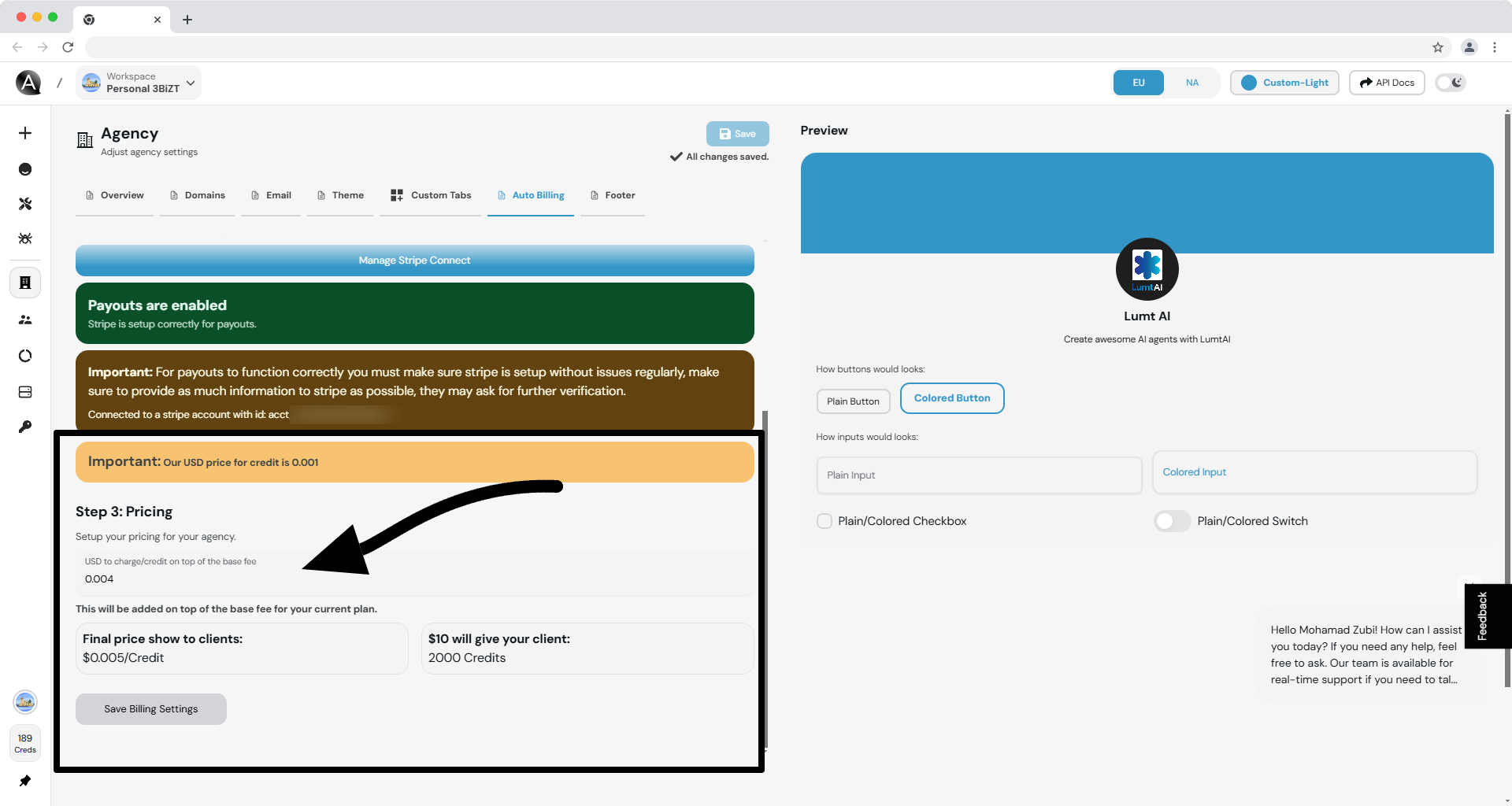
1. Set your **cost per credit** (e.g., `$0.004` per credit) this will be on top of our pricing.
2. Verify the final pricing displayed to your clients (e.g., `$10 = 2500 credits`).
Define how much your clients pay per credit used.
Display final credit pricing transparently to your customers.
Make sure your Stripe account is verified and active to avoid interruptions in payouts.
Ensure your Stripe account supports payouts. Stripe may require additional
verification.
Payouts will be disabled if your Stripe account is not set up correctly.
Contact Stripe support if necessary.
1. Set your **cost per credit** (e.g., `$0.004` per credit) this will be on top of our pricing.
2. Verify the final pricing displayed to your clients (e.g., `$10 = 2500 credits`).
Define how much your clients pay per credit used.
Display final credit pricing transparently to your customers.
 ## Customizing the Experience
After setting up Stripe, you can further enhance the customer experience:
View the current **payout status** in the Auto Billing tab. Resolve issues
promptly to ensure smooth transactions.
Adjust credit pricing at any time to align with your agency's goals. These
changes will reflect instantly for your clients.
Use Stripe's dashboard to view, analyze, and manage all transactions
securely.
Stripe's dashboard also offers insights into refunds, fees, and customer
payments.
## Troubleshooting Common Issues
Check if Stripe requires additional verification or if there are issues with
your linked bank account.
Reconnect your Stripe account by clicking `Manage Stripe Connect` in the
Auto Billing tab.
Always double-check your Stripe account settings to avoid any disruptions in
billing or payouts.
## Related Resources
Explore how to activate this feature for your clients.
Find answers to common questions about billing and credits.
## Customizing the Experience
After setting up Stripe, you can further enhance the customer experience:
View the current **payout status** in the Auto Billing tab. Resolve issues
promptly to ensure smooth transactions.
Adjust credit pricing at any time to align with your agency's goals. These
changes will reflect instantly for your clients.
Use Stripe's dashboard to view, analyze, and manage all transactions
securely.
Stripe's dashboard also offers insights into refunds, fees, and customer
payments.
## Troubleshooting Common Issues
Check if Stripe requires additional verification or if there are issues with
your linked bank account.
Reconnect your Stripe account by clicking `Manage Stripe Connect` in the
Auto Billing tab.
Always double-check your Stripe account settings to avoid any disruptions in
billing or payouts.
## Related Resources
Explore how to activate this feature for your clients.
Find answers to common questions about billing and credits.