> ## Documentation Index
> Fetch the complete documentation index at: https://docs.convocore.ai/llms.txt
> Use this file to discover all available pages before exploring further.
# Activation for Clients
> Enable billing visibility for a client organization inside your whitelabel dashboard.
Billing activation controls whether a client organization can access billing-related functionality in the client dashboard.
This is typically used after you have already configured your agency billing setup and want a specific client organization to manage subscription or payment activity from their side.
## Before you enable billing
Make sure these pieces are already in place:
* Your agency billing setup is configured
* Stripe Connect is connected for the owner workspace
* The target client organization already exists
If you have not completed the billing setup yet, start with [Billing Overview](/whitelabeling/clients/client-billing/billing-overview).
## Enable billing for an organization
Go to the `Clients` area in your whitelabel dashboard.
Find the organization you want to update and click `Manage`.
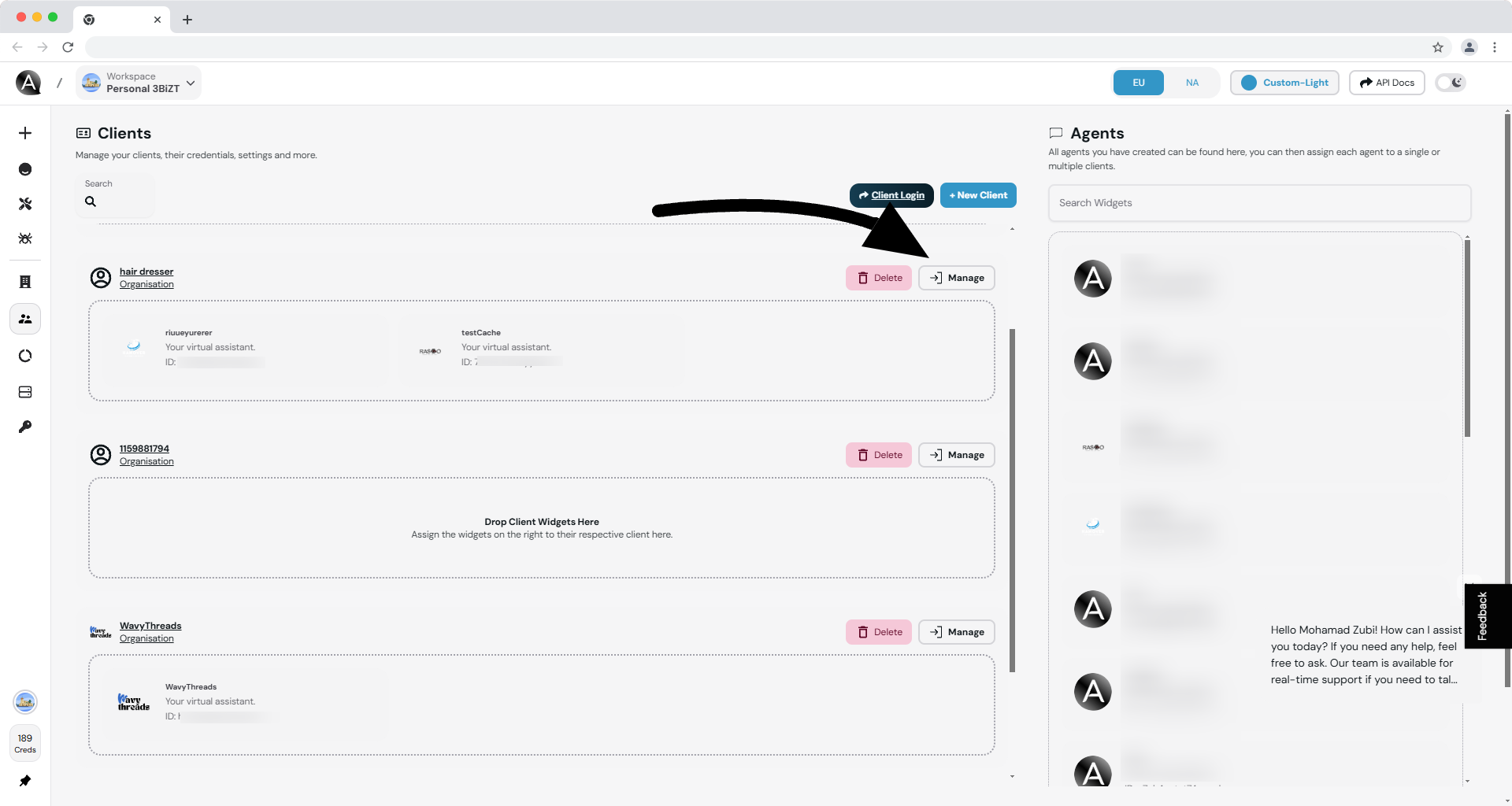 Open the `Org Info` panel for that organization.
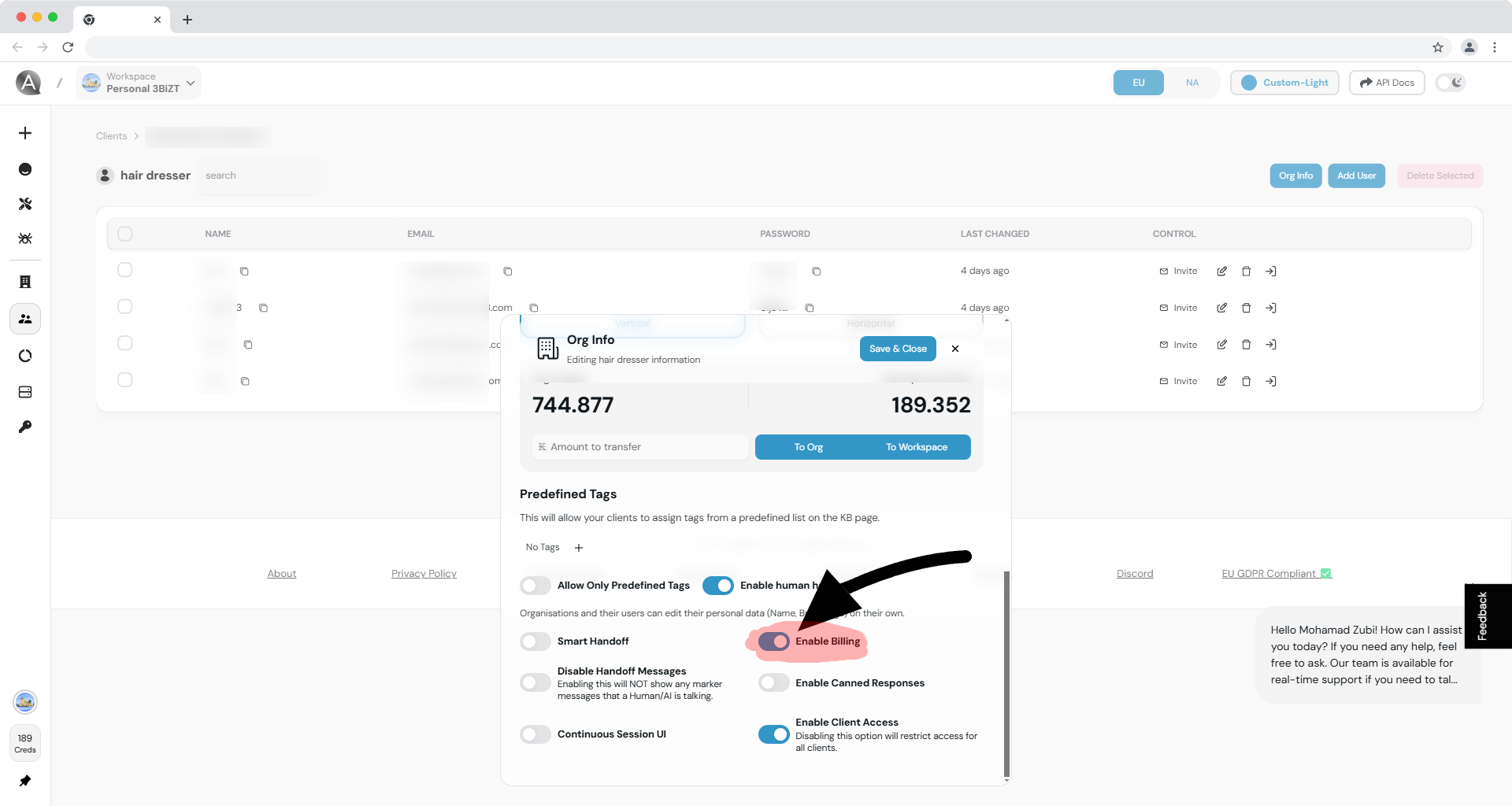
Scroll to the billing-related settings and enable billing for the organization.
Open the `Org Info` panel for that organization.
Scroll to the billing-related settings and enable billing for the organization.
 ## What this changes
Once billing is enabled, the client organization can access billing-related UI inside the whitelabel dashboard, depending on your agency configuration and subscription setup.
This may include:
* Viewing subscription or billing details
* Accessing credit or usage information
* Managing billing-related actions exposed in the client dashboard
Billing activation at the organization level does not replace the agency-wide Stripe setup. It only exposes billing functionality to the selected client organization.
## Frequently asked questions
Yes. You can return to the organization's settings and turn billing off again if you no longer want the client to manage billing through the dashboard.
No. Billing activation controls access to billing-related functionality. Your actual subscription and checkout flow still depends on your agency plan setup and pricing flow.
Yes. If your agency billing setup is not complete, client billing features will be limited or unavailable.
## Related documentation
Understand the full whitelabel billing model, including plans and subscriptions.
Review common billing questions and expected client behavior.
See how organization settings fit into the broader client management workflow.
Learn how clients subscribe through your public pricing flow.
## What this changes
Once billing is enabled, the client organization can access billing-related UI inside the whitelabel dashboard, depending on your agency configuration and subscription setup.
This may include:
* Viewing subscription or billing details
* Accessing credit or usage information
* Managing billing-related actions exposed in the client dashboard
Billing activation at the organization level does not replace the agency-wide Stripe setup. It only exposes billing functionality to the selected client organization.
## Frequently asked questions
Yes. You can return to the organization's settings and turn billing off again if you no longer want the client to manage billing through the dashboard.
No. Billing activation controls access to billing-related functionality. Your actual subscription and checkout flow still depends on your agency plan setup and pricing flow.
Yes. If your agency billing setup is not complete, client billing features will be limited or unavailable.
## Related documentation
Understand the full whitelabel billing model, including plans and subscriptions.
Review common billing questions and expected client behavior.
See how organization settings fit into the broader client management workflow.
Learn how clients subscribe through your public pricing flow.