> ## Documentation Index
> Fetch the complete documentation index at: https://docs.convocore.ai/llms.txt
> Use this file to discover all available pages before exploring further.
# Overview Tab
The Agency Overview tab is where you establish your agency's identity within the Convocore platform. This information will be prominently displayed in your client dashboard, creating a cohesive and branded experience for your customers.
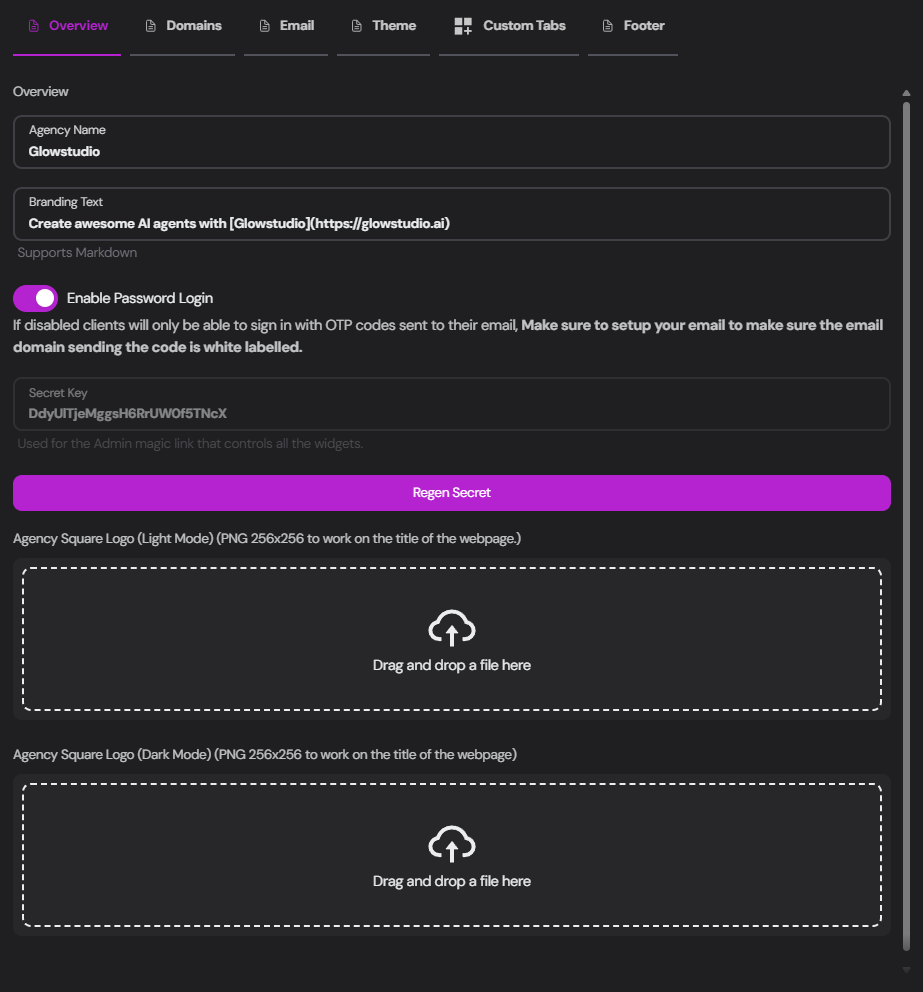 ## Configuring Your Agency Details
Enter your agency's name in the `Agency Name` field. This will be displayed in the top left corner of the dashboard.
```plaintext Example theme={null}
Agency Name: Convocore
```
Input your agency's slogan or a brief description in the `Branding Text` field. This supports Markdown formatting.
Use the format `[YOUR_TEXT](YOUR_LINK)` to create a clickable link within your branding text.
```markdown Example theme={null}
Create awesome AI Agents with [Convocore](https://convocore.ai)
```
Toggle `Enable Password Login` to determine how clients can access their dashboard:
* Enabled: Clients can log in with a password
* Disabled: Clients can also log in using OTP codes sent to their email
If you disable password login, ensure your email domain is properly set up for white-labeling. See our [Email Configuration Guide](/whitelabeling/agency/email) for details.
This key is used for the Admin magic link that controls all widgets.
For security reasons, you can regenerate this secret by clicking the `Regen Secret` button.
Upload square logos (256x256 PNG) for both light and dark modes:
Drag and drop or select a file for your light mode logo. This will be used when the client's dashboard is in light mode.
Drag and drop or select a file for your dark mode logo. This will be displayed when the client's dashboard is in dark mode.
We recommend uploading **both** light and dark mode logos for the best user experience across different dashboard themes.
## Configuring Your Agency Details
Enter your agency's name in the `Agency Name` field. This will be displayed in the top left corner of the dashboard.
```plaintext Example theme={null}
Agency Name: Convocore
```
Input your agency's slogan or a brief description in the `Branding Text` field. This supports Markdown formatting.
Use the format `[YOUR_TEXT](YOUR_LINK)` to create a clickable link within your branding text.
```markdown Example theme={null}
Create awesome AI Agents with [Convocore](https://convocore.ai)
```
Toggle `Enable Password Login` to determine how clients can access their dashboard:
* Enabled: Clients can log in with a password
* Disabled: Clients can also log in using OTP codes sent to their email
If you disable password login, ensure your email domain is properly set up for white-labeling. See our [Email Configuration Guide](/whitelabeling/agency/email) for details.
This key is used for the Admin magic link that controls all widgets.
For security reasons, you can regenerate this secret by clicking the `Regen Secret` button.
Upload square logos (256x256 PNG) for both light and dark modes:
Drag and drop or select a file for your light mode logo. This will be used when the client's dashboard is in light mode.
Drag and drop or select a file for your dark mode logo. This will be displayed when the client's dashboard is in dark mode.
We recommend uploading **both** light and dark mode logos for the best user experience across different dashboard themes.