> ## Documentation Index
> Fetch the complete documentation index at: https://docs.convocore.ai/llms.txt
> Use this file to discover all available pages before exploring further.

# Custom Tabs

The Custom Tabs feature is a powerful tool that allows you to create fully customized tabs tailored to your agency's unique offerings and client needs. This feature opens up a world of possibilities for enhancing your client's dashboard experience.

<img src="https://mintcdn.com/convocore/Am4w1WMyGg_r9i2k/images/custom-tabs/custom-tab-review.png?fit=max&auto=format&n=Am4w1WMyGg_r9i2k&q=85&s=7f4c5bc960e098a863cbe3a9de0572b8" alt="Custom Tabs Creator Interface" width="700" class="rounded-md" data-path="images/custom-tabs/custom-tab-review.png" />

## Creating Custom Tabs

<Steps>
  <Step title="Access Custom Tabs">
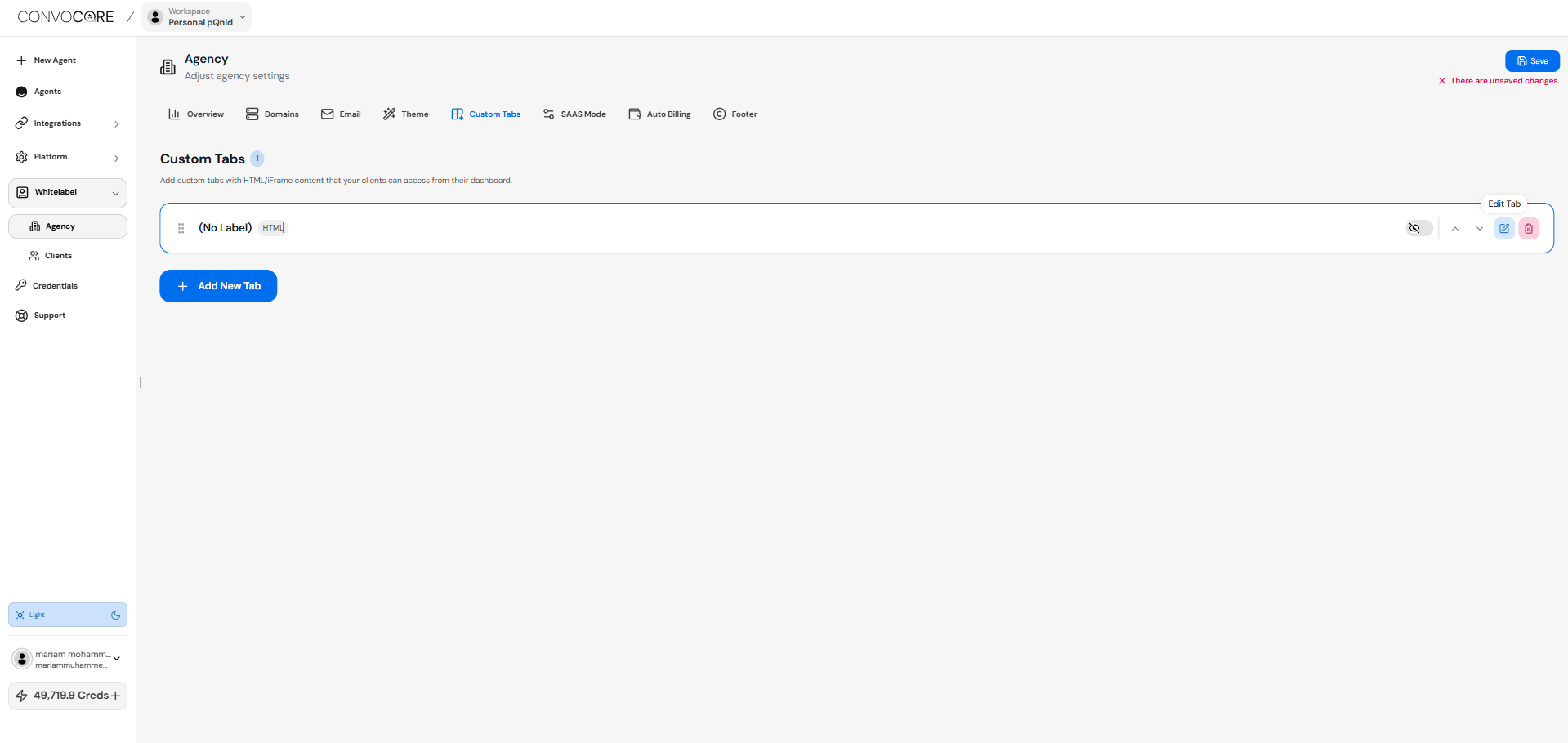
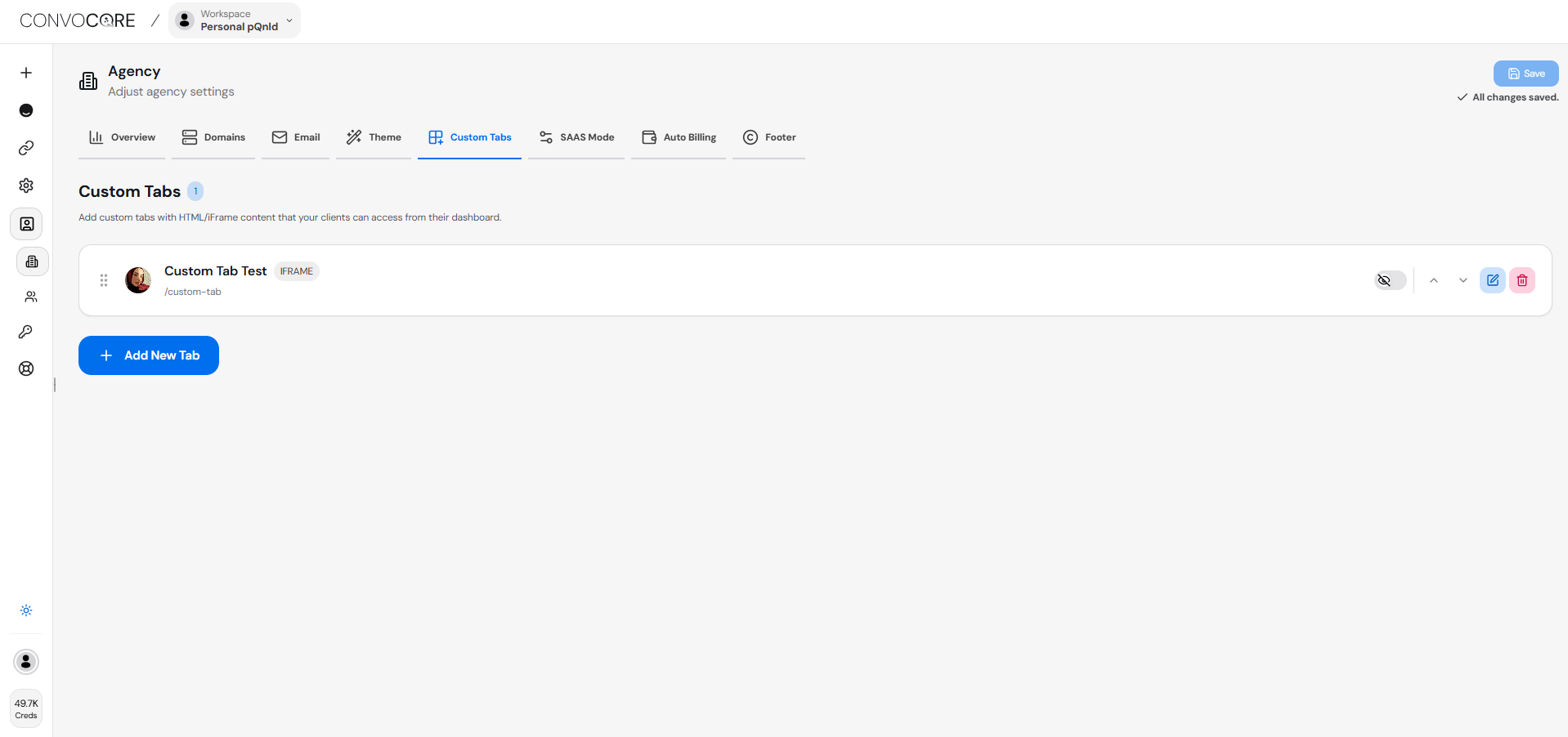
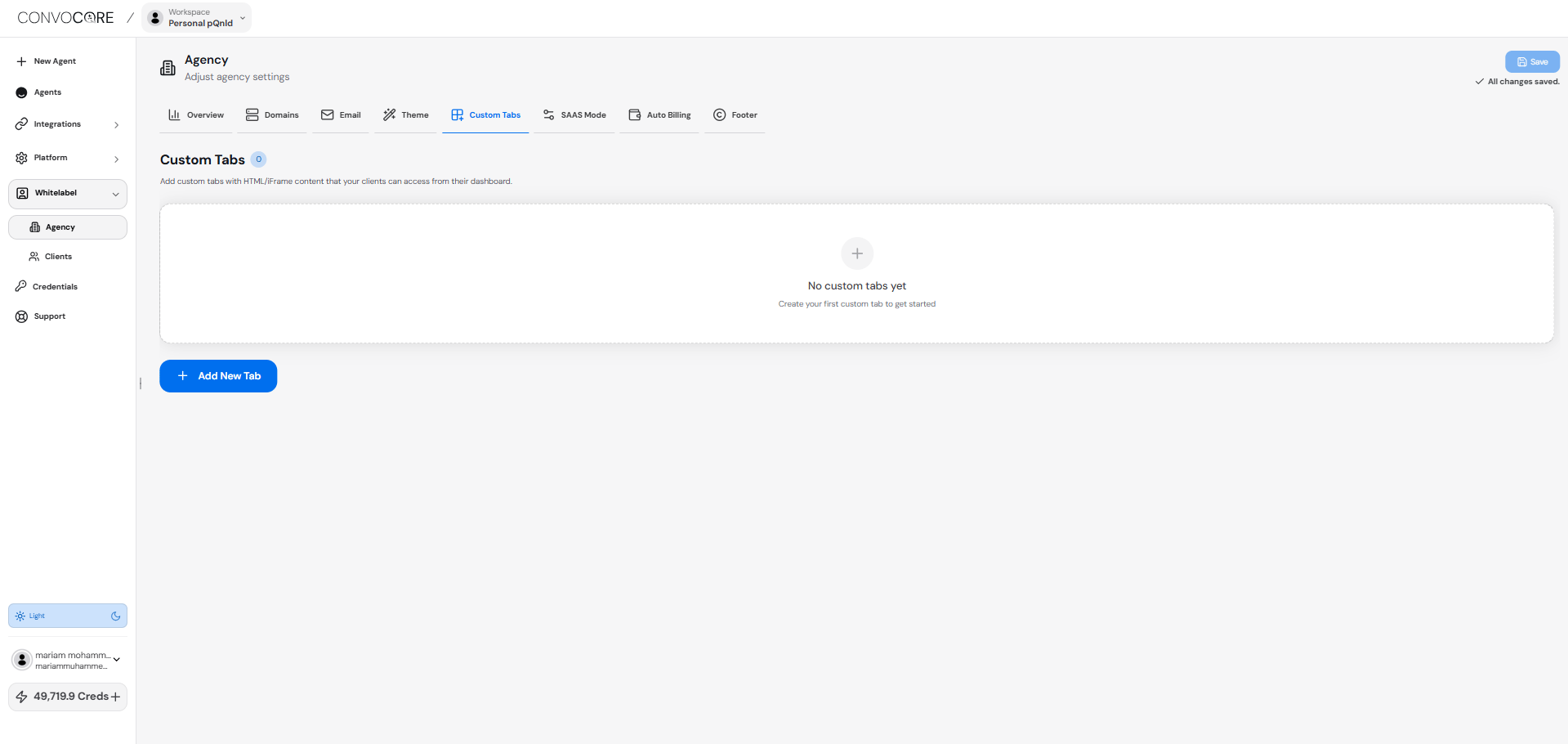
    Navigate to the `Agency` from left nav then click `Custom Tabs` section.

    <img src="https://mintcdn.com/convocore/Am4w1WMyGg_r9i2k/images/custom-tabs/custom-tab.png?fit=max&auto=format&n=Am4w1WMyGg_r9i2k&q=85&s=509083ddb579ba683a89b5e076c3f170" alt="Custom Tab Page" width="1919" height="910" data-path="images/custom-tabs/custom-tab.png" />
  </Step>

  <Step title="Add New Tab">
    Click the `+ Add Tab` button to create a new custom tab.

    <img src="https://mintcdn.com/convocore/Am4w1WMyGg_r9i2k/images/custom-tabs/custom-tab.png?fit=max&auto=format&n=Am4w1WMyGg_r9i2k&q=85&s=509083ddb579ba683a89b5e076c3f170" alt="Custom Tab Page" width="1919" height="910" data-path="images/custom-tabs/custom-tab.png" />
  </Step>

  <Step title="Edit Tab">
    Click the `Edit Icon` button to edit on new custom tab created.

    <img src="https://mintcdn.com/convocore/mAfsgD3Y9o-tsA0c/images/custom-tabs/edit-custom-tab.png?fit=max&auto=format&n=mAfsgD3Y9o-tsA0c&q=85&s=3c279bc3db704598e6b305d9dff88e12" alt="Edit Custom Tab" width="1919" height="909" data-path="images/custom-tabs/edit-custom-tab.png" />
  </Step>

  <Step title="Configure Tab Settings">
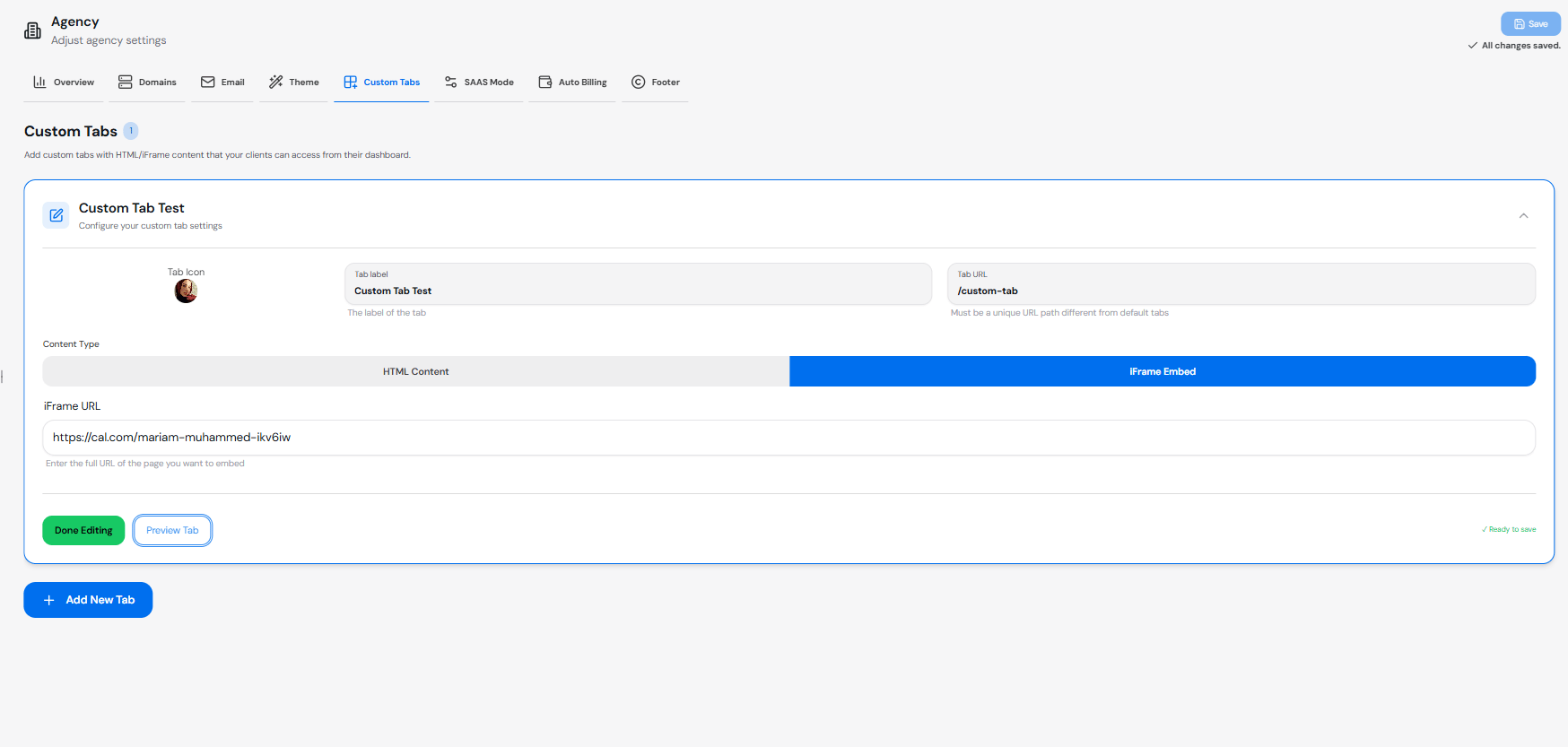
    Configure the following settings for each tab:

    * **Icon**: Select an icon to visually represent the tab
    * **Name**: Enter a descriptive name for the tab
    * **Unique Identifier**: Set a unique URL identifier for enabling client access

    <Tip>
      The unique identifier URL will be used internally to reference the tab and can be used when setting up permissions for different users' access to the tab.
    </Tip>

    <Tip>
      Tabs make for extremely good opportunities for up-selling to your clients. Everything from new services, extra agents to feedback loops. **Be creative**.
    </Tip>

    <img src="https://mintcdn.com/convocore/Am4w1WMyGg_r9i2k/images/custom-tabs/add-config.png?fit=max&auto=format&n=Am4w1WMyGg_r9i2k&q=85&s=675ceb0d55d2b2e31e17402431dbf98f" alt="Edit Custom Tab" width="1919" height="903" data-path="images/custom-tabs/add-config.png" />
  </Step>

  <Step title="Choose Content Type">
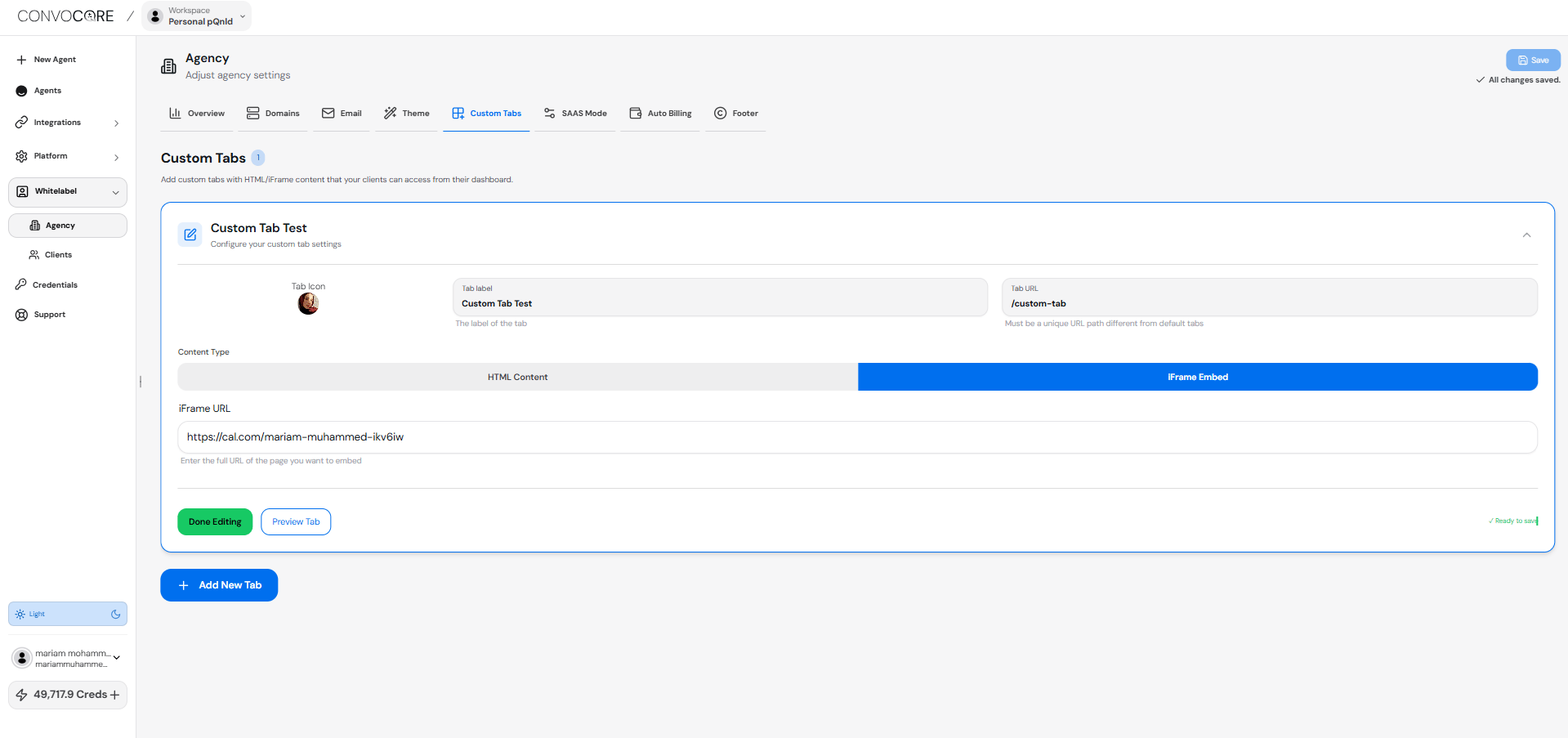
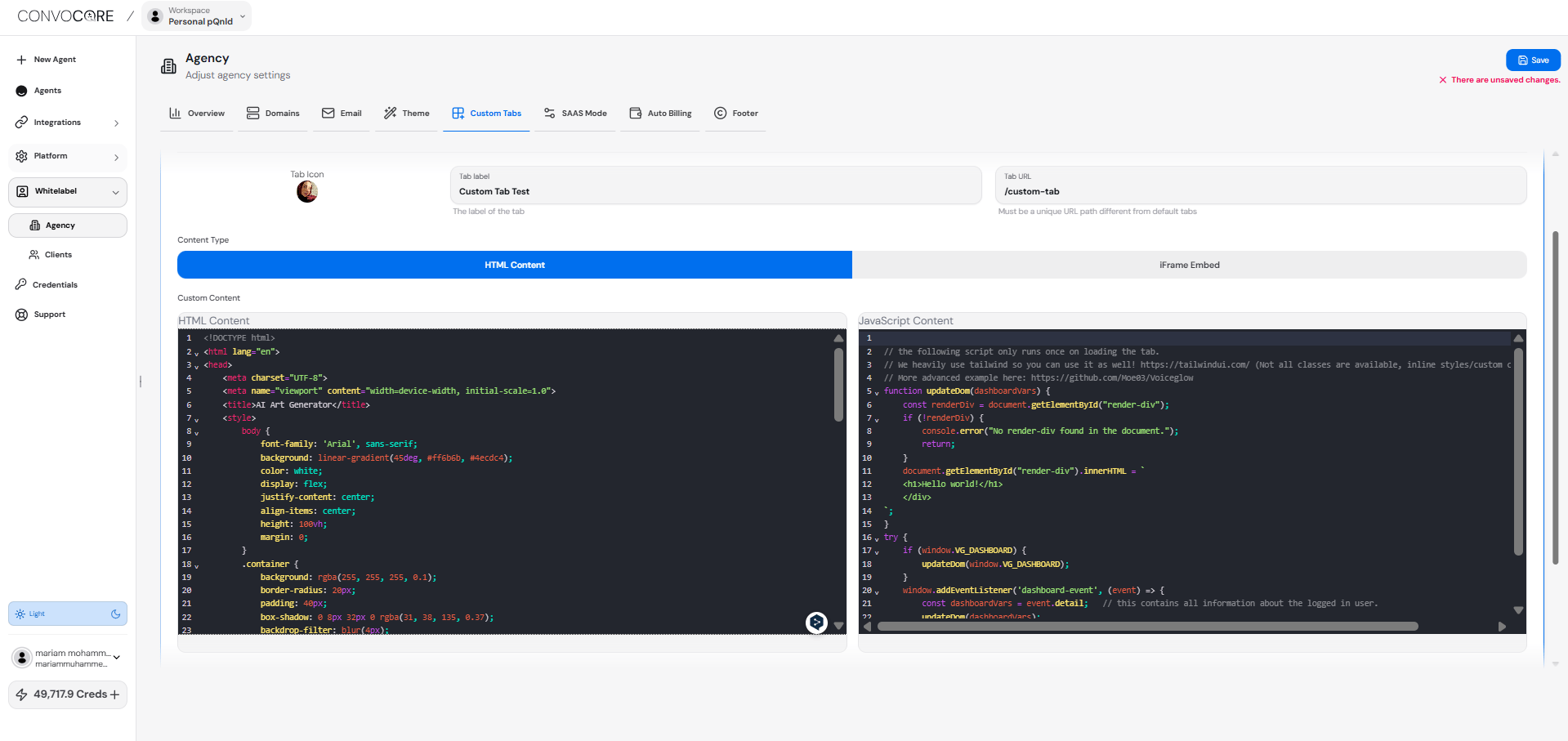
    Select between **HTML (with JavaScript)** or **iFrame**:

    ### HTML (with JavaScript)

    Use this option to create custom content with HTML and JavaScript.

    <Tip>
      You can use examples from our Use Cases section below as a starting point for your HTML content.
    </Tip>

    <img src="https://mintcdn.com/convocore/mAfsgD3Y9o-tsA0c/images/custom-tabs/html-content.png?fit=max&auto=format&n=mAfsgD3Y9o-tsA0c&q=85&s=fbefc0d5cad13287fb7cae7ea90b3588" alt="Custom Tabs Code interface" width="700" class="rounded-md" data-path="images/custom-tabs/html-content.png" />

    ### iFrame

    Use this option to embed external websites or applications.

    <Tip>
      You must use URLs that work in iframes. Services like cal.com and most custom websites will work in iframes.
    </Tip>

    <Warning>
      Some websites block iframe embedding. For example, `https://apple.com` will **not work** in iframes due to security restrictions. Always test your URLs to ensure they can be embedded before using them in custom tabs.
    </Warning>

    <img src="https://mintcdn.com/convocore/mAfsgD3Y9o-tsA0c/images/custom-tabs/iframe-content.png?fit=max&auto=format&n=mAfsgD3Y9o-tsA0c&q=85&s=09b77bcad0c2dd37efb2f9cc5e38c603" alt="Custom Tabs Code interface" width="700" class="rounded-md" data-path="images/custom-tabs/iframe-content.png" />
  </Step>

  <Step title="Preview and Save">
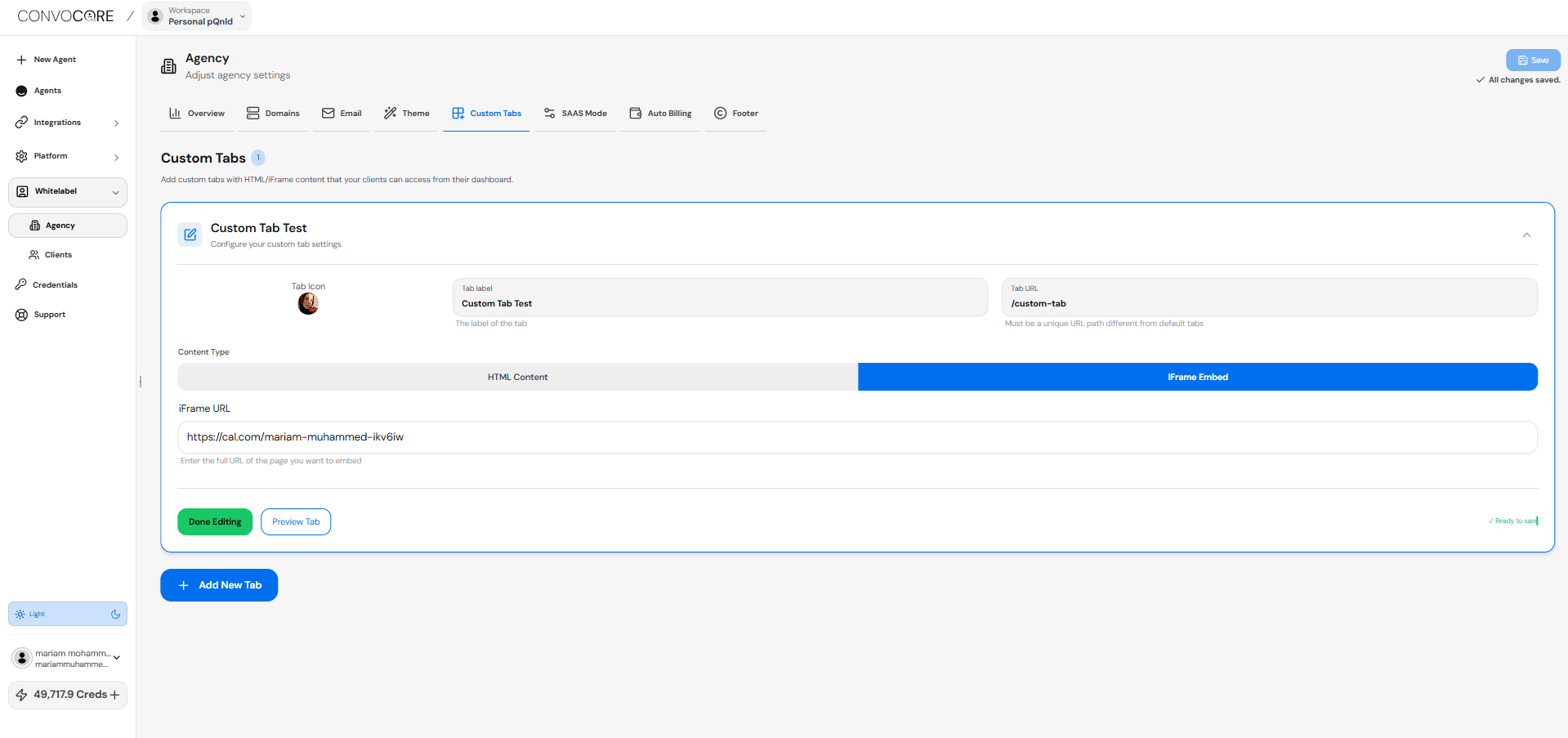
    Use the `Preview` button to check your tab's appearance, then click `Save`.

    <img src="https://mintcdn.com/convocore/mAfsgD3Y9o-tsA0c/images/custom-tabs/save.png?fit=max&auto=format&n=mAfsgD3Y9o-tsA0c&q=85&s=fc401c91db254ff9b36028fce16ae2f4" alt="save" width="700" class="rounded-md" data-path="images/custom-tabs/save.png" />
  </Step>
</Steps>

## Adding Custom Tab to Your Whitelabel

<Steps>
  <Step title="Add New Client">
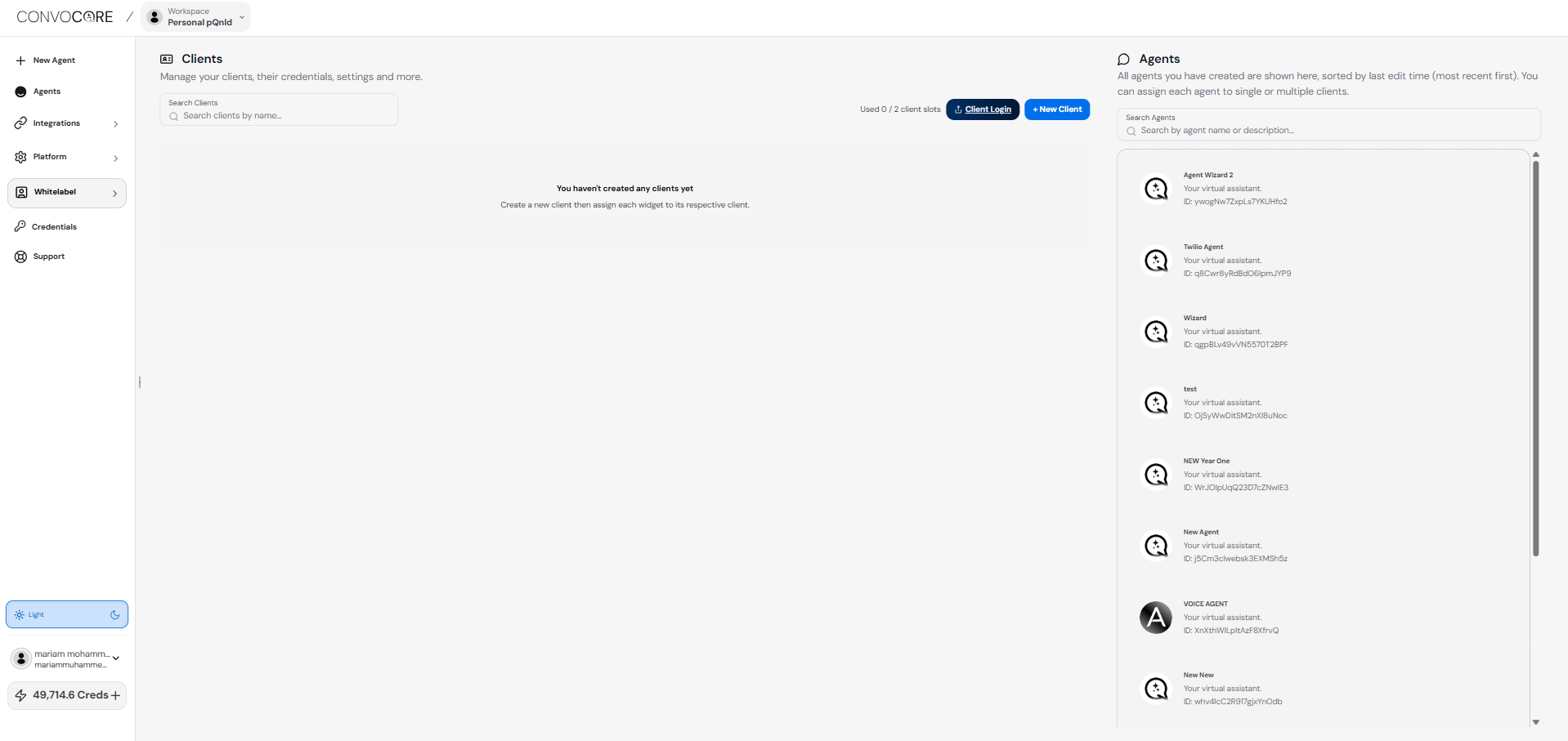
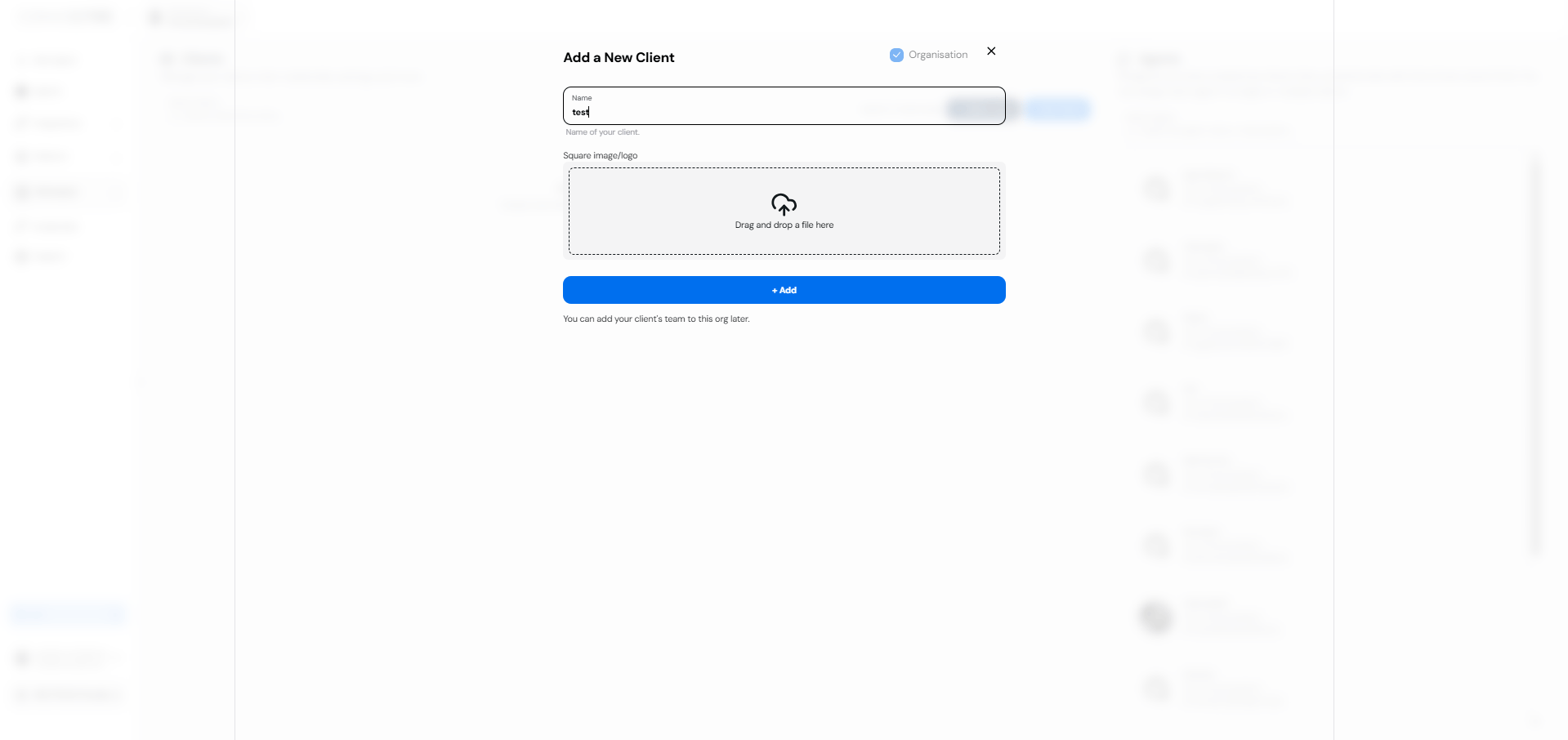
    Navigate to `Clients` from the left navigation, click on `+ New Client`, then enter the client name.

    <img src="https://mintcdn.com/convocore/Am4w1WMyGg_r9i2k/images/custom-tabs/client.png?fit=max&auto=format&n=Am4w1WMyGg_r9i2k&q=85&s=316f4d7e07c8fdcca8cfa6870c83937c" alt="Client page" width="1918" height="907" data-path="images/custom-tabs/client.png" />

    <img src="https://mintcdn.com/convocore/Am4w1WMyGg_r9i2k/images/custom-tabs/add-client.png?fit=max&auto=format&n=Am4w1WMyGg_r9i2k&q=85&s=f334ae9a350abd3880932ab089a27385" alt="Add new client" width="1919" height="906" data-path="images/custom-tabs/add-client.png" />
  </Step>

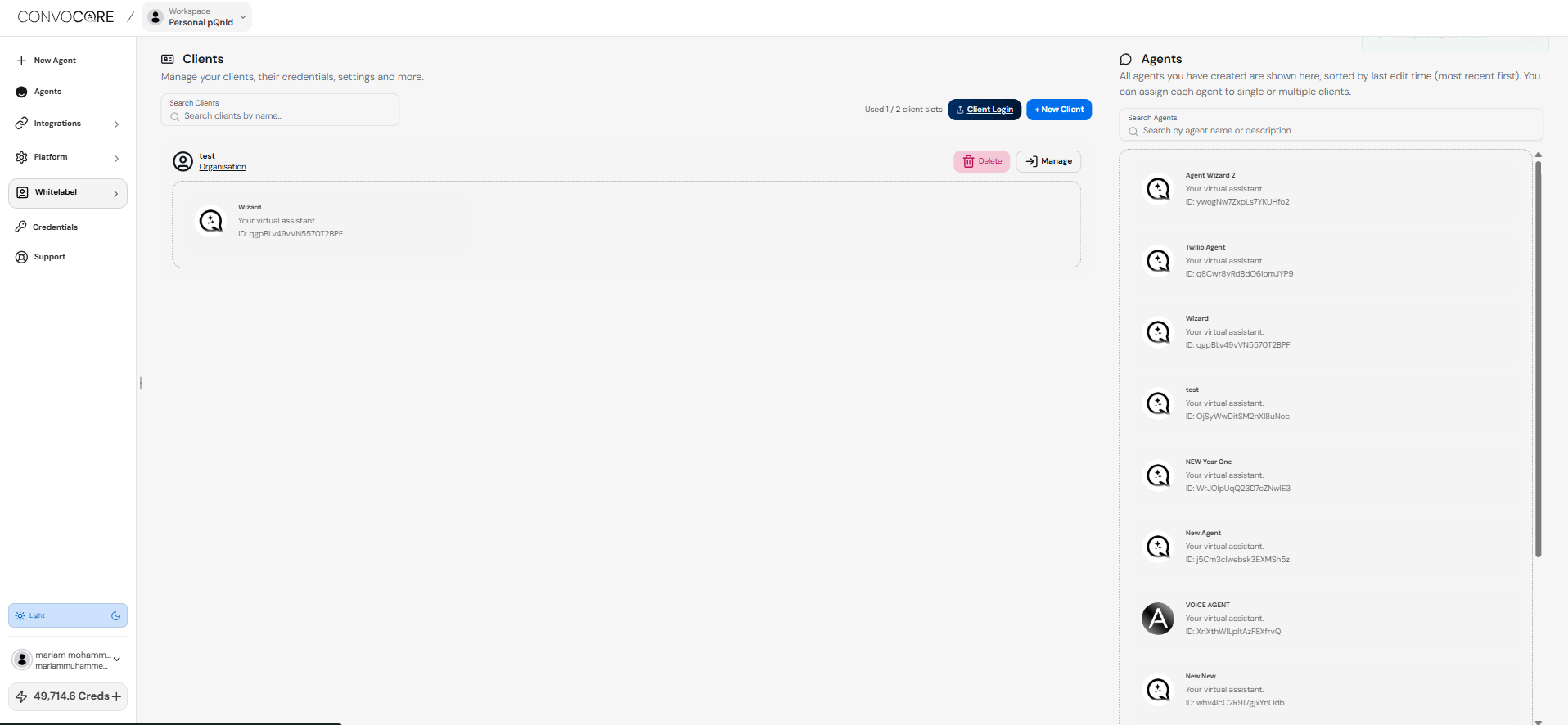
  <Step title="Assign Agent to Client">
    Drag the agent into the client you created, then click `Manage`.

    <img src="https://mintcdn.com/convocore/Am4w1WMyGg_r9i2k/images/custom-tabs/assign-agent.png?fit=max&auto=format&n=Am4w1WMyGg_r9i2k&q=85&s=da3602a9c75ef8cce9d5bdedd706c862" alt="Assign agent to client" width="1916" height="886" data-path="images/custom-tabs/assign-agent.png" />
  </Step>

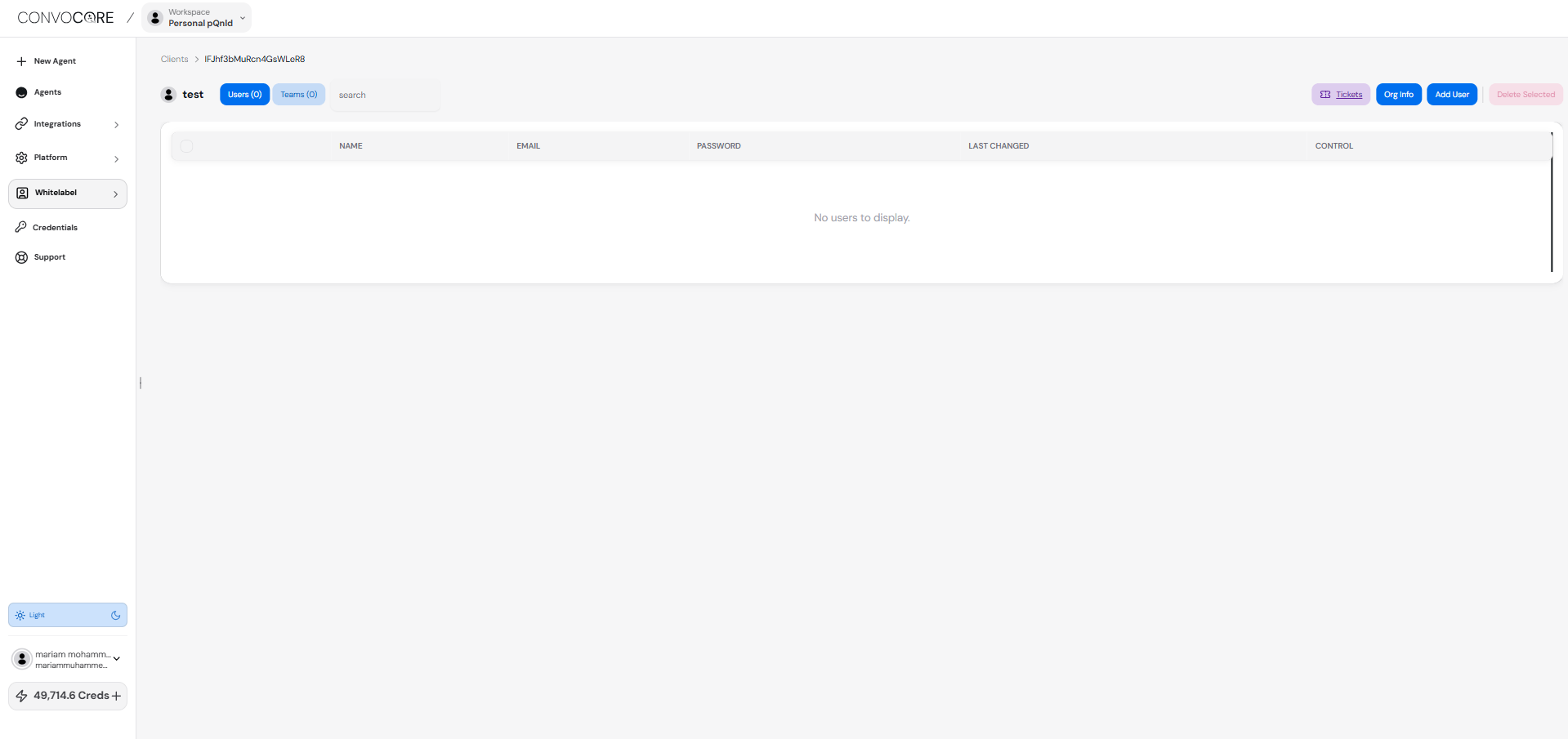
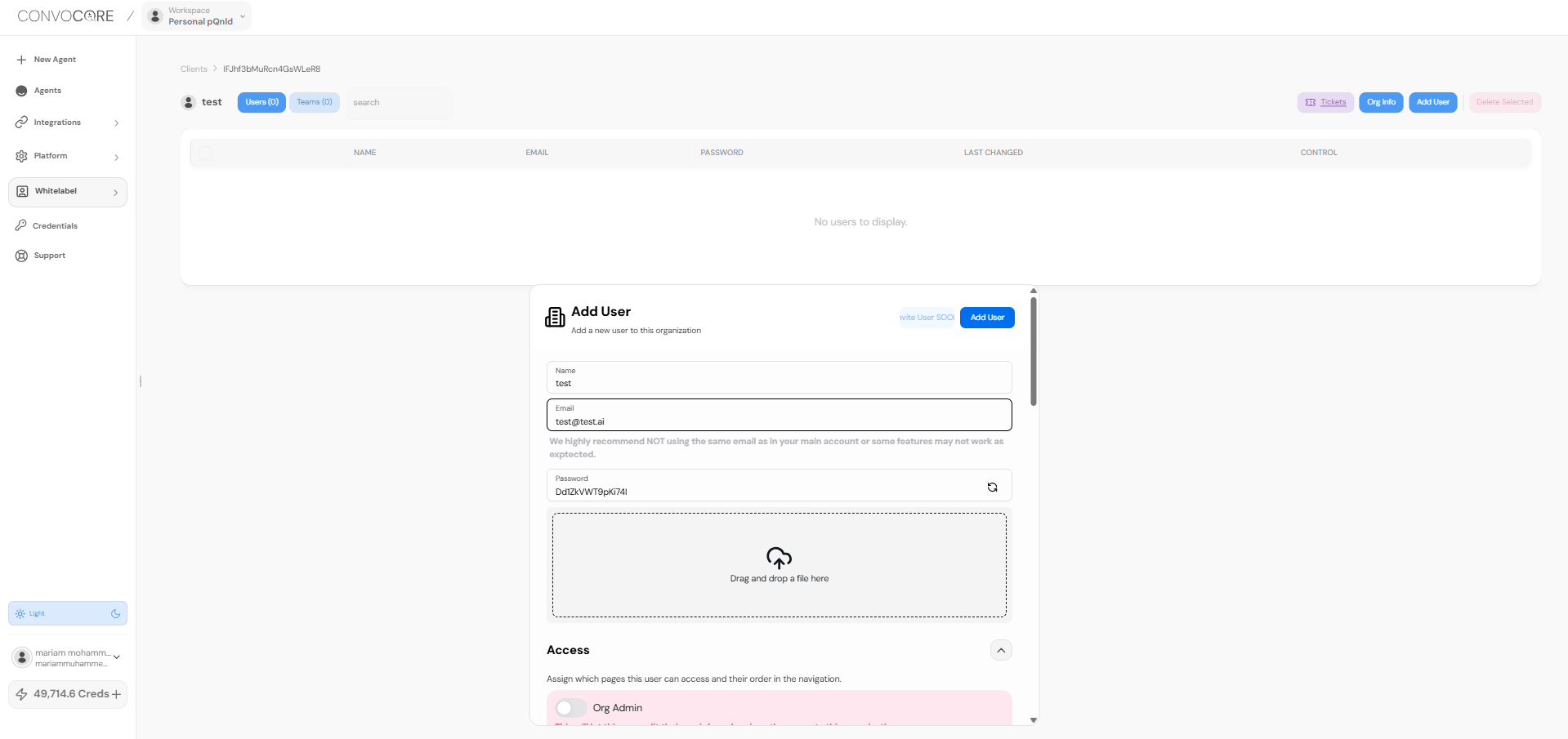
  <Step title="Add User">
    Click `Add User` and enter the user's name and email.

    <img src="https://mintcdn.com/convocore/Am4w1WMyGg_r9i2k/images/custom-tabs/add-user.png?fit=max&auto=format&n=Am4w1WMyGg_r9i2k&q=85&s=81b92b328d71579d83a92b13427acc17" alt="Add User" width="1919" height="905" data-path="images/custom-tabs/add-user.png" />

    <img src="https://mintcdn.com/convocore/mAfsgD3Y9o-tsA0c/images/custom-tabs/user-data.png?fit=max&auto=format&n=mAfsgD3Y9o-tsA0c&q=85&s=746ade1af7881b40ac87d6065307712b" alt="Add User Data" width="1919" height="905" data-path="images/custom-tabs/user-data.png" />
  </Step>

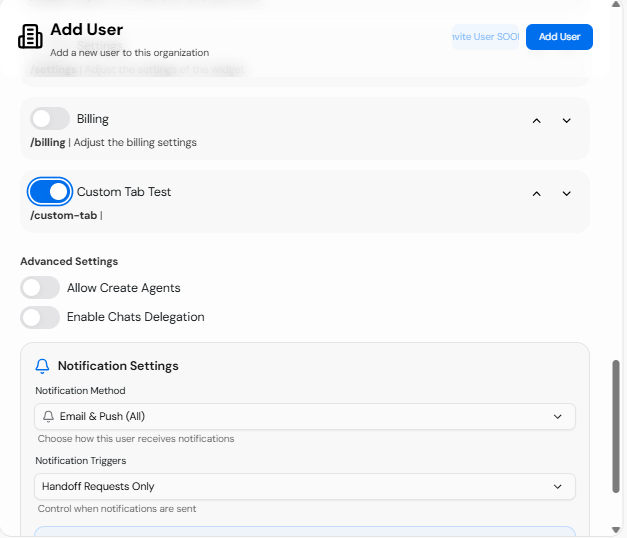
  <Step title="Enable Custom Tab">
    Enable the `Custom Tab` switch for the tab you created.

    <img src="https://mintcdn.com/convocore/mAfsgD3Y9o-tsA0c/images/custom-tabs/enable-custom-tab.png?fit=max&auto=format&n=mAfsgD3Y9o-tsA0c&q=85&s=2ba5873fd6f8ec35392083b19924566e" alt="Enable custom tab" width="627" height="538" data-path="images/custom-tabs/enable-custom-tab.png" />
  </Step>

  <Step title="Access Whitelabel Link">
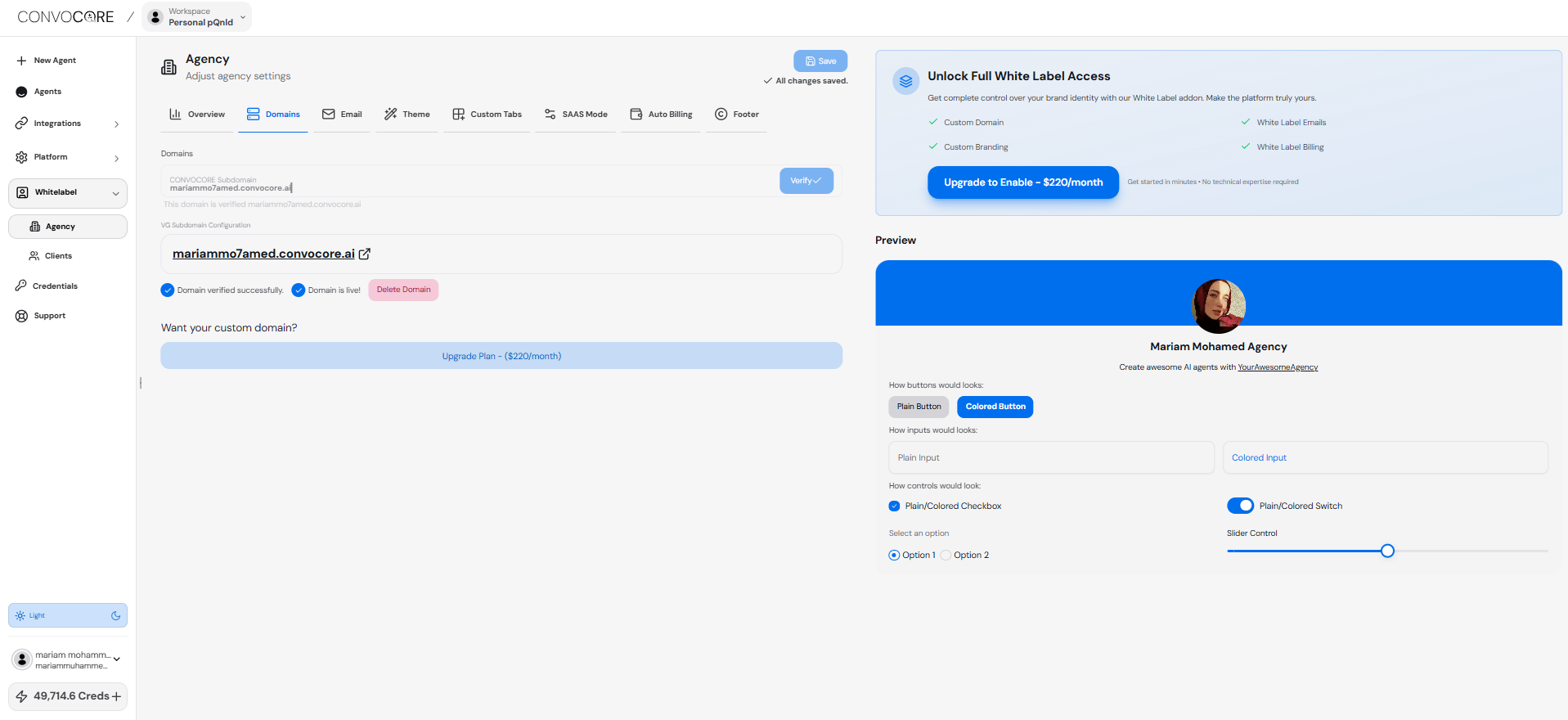
    Navigate to `Agency` → `Domain`, then click on the whitelabel URL.

    <img src="https://mintcdn.com/convocore/Am4w1WMyGg_r9i2k/images/custom-tabs/agency-url.png?fit=max&auto=format&n=Am4w1WMyGg_r9i2k&q=85&s=38a3c747c7b3e59fd2a4f073512a05de" alt="Whitelabel URL" width="1917" height="880" data-path="images/custom-tabs/agency-url.png" />
  </Step>

  <Step title="Login to Whitelabel">
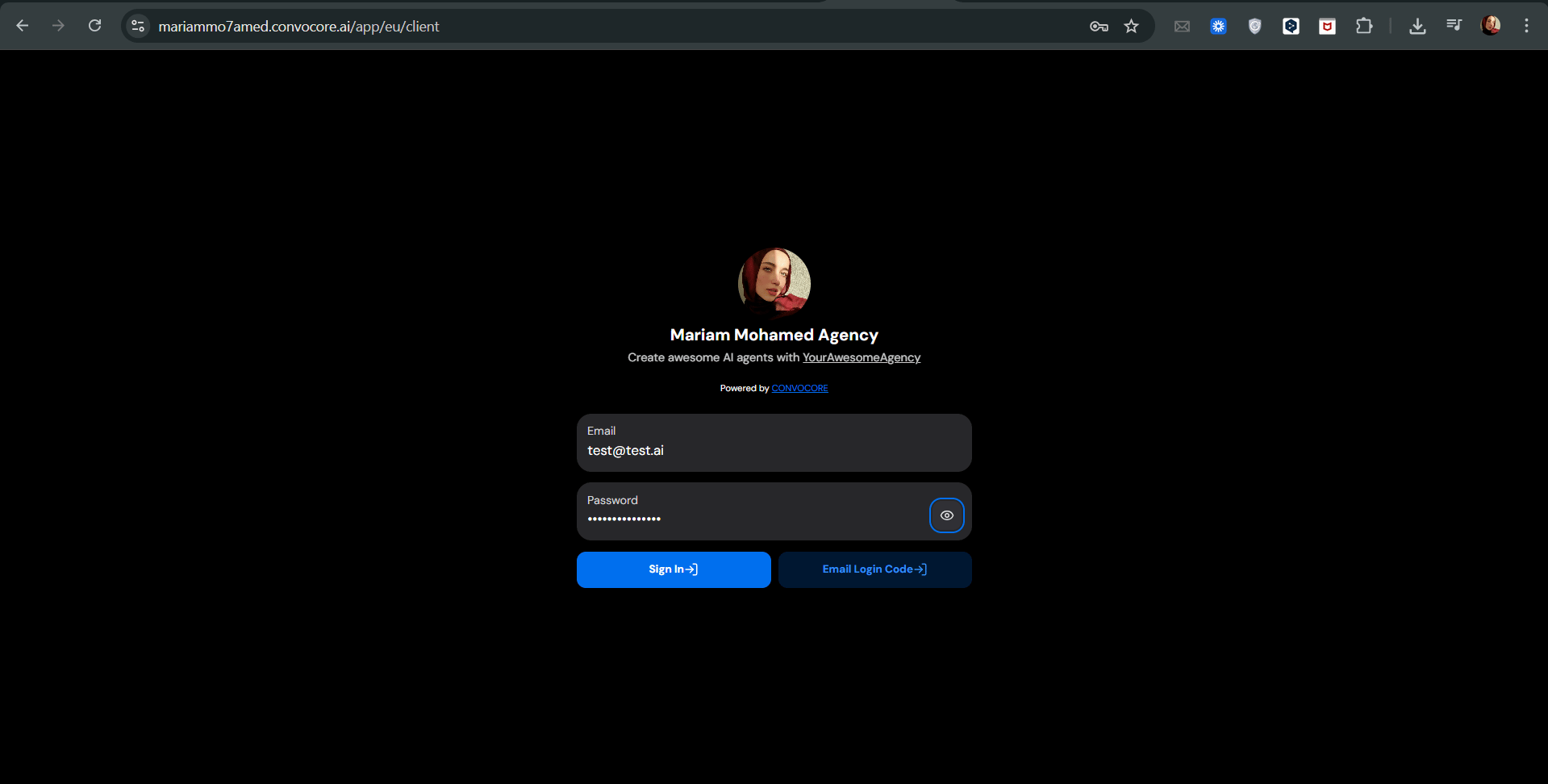
    Log in with the email of the user you created that has access to the `Custom Tab`.

    <img src="https://mintcdn.com/convocore/mAfsgD3Y9o-tsA0c/images/custom-tabs/login.png?fit=max&auto=format&n=mAfsgD3Y9o-tsA0c&q=85&s=8a5847363b290c2587f6bd192bb35180" alt="Login to whitelabel" width="1919" height="972" data-path="images/custom-tabs/login.png" />
  </Step>

  <Step title="View Custom Tab">
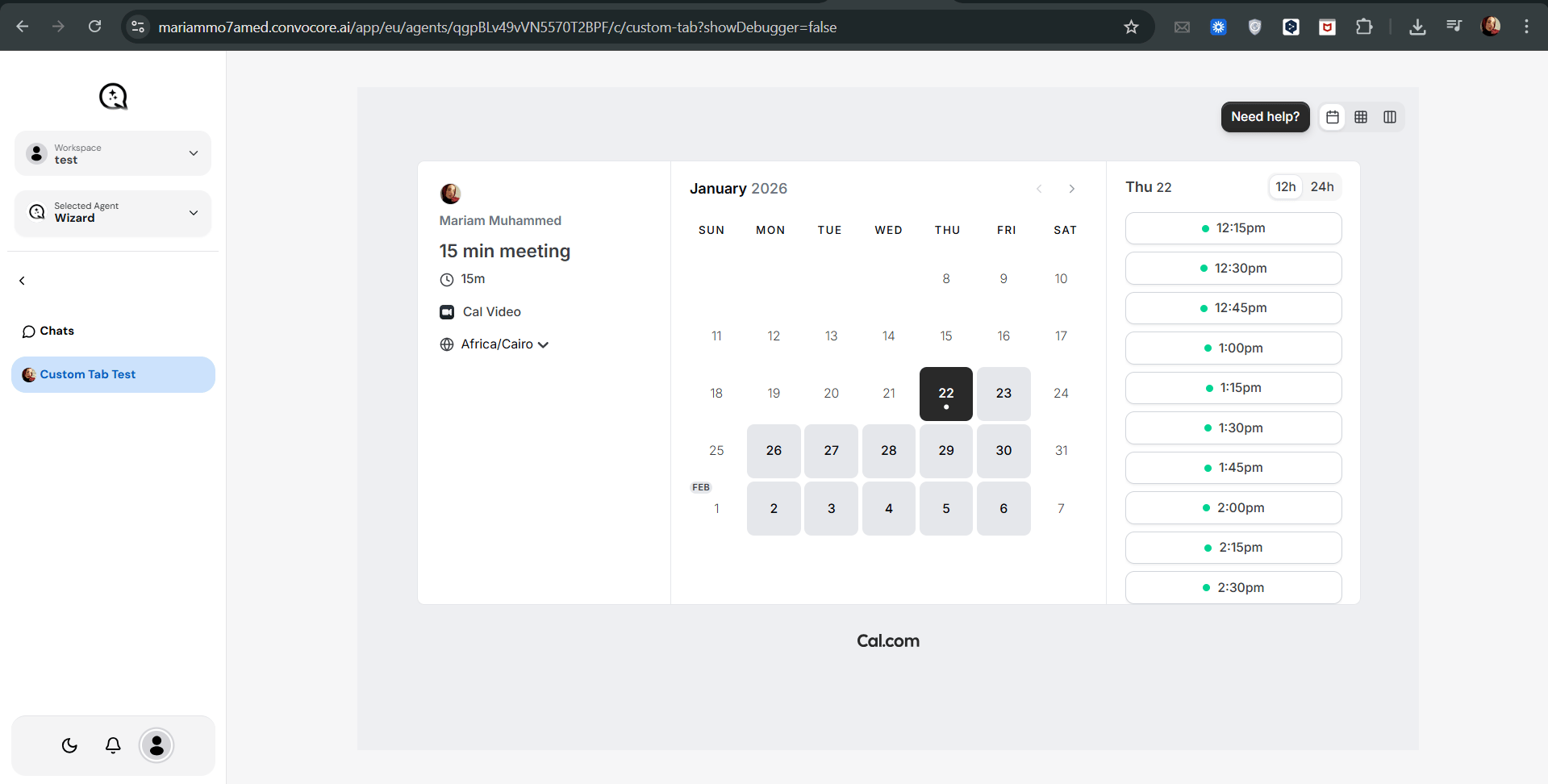
    Finally, you will see the `Custom Tab` on your dashboard.

    <img src="https://mintcdn.com/convocore/Am4w1WMyGg_r9i2k/images/custom-tabs/custom-tab-added.png?fit=max&auto=format&n=Am4w1WMyGg_r9i2k&q=85&s=cfcd0956da998ff69ebf44ae9e1166e6" alt="Custom tab added to dashboard" width="1919" height="972" data-path="images/custom-tabs/custom-tab-added.png" />
  </Step>
</Steps>

## Managing Custom Tabs

<CardGroup cols={2}>
  <Card title="Visibility Toggle" icon="eye">
    Use the `Always Visible` switch to control tab visibility for all clients.
  </Card>

  <Card title="Reordering" icon="arrows-up-down">
    Click the arrow buttons to change the tab's position in the list.
  </Card>

  <Card title="Editing" icon="pen-to-square">
    Click the edit icon to modify an existing tab's content or settings.
  </Card>

  <Card title="Deleting" icon="trash">
    Remove unwanted tabs using the delete button.
  </Card>
</CardGroup>

## Use Cases and Ideas

Here are some advanced, colorful, and feature-rich examples you can `copy` and `paste` into your custom tabs to see the possibilities:

<AccordionGroup>
  <Accordion title="Interactive AI Art Generator">
    ```html theme={null}
    <!DOCTYPE html>
    <html lang="en">
    <head>
        <meta charset="UTF-8">
        <meta name="viewport" content="width=device-width, initial-scale=1.0">
        <title>AI Art Generator</title>
        <style>
            body {
                font-family: 'Arial', sans-serif;
                background: linear-gradient(45deg, #ff6b6b, #4ecdc4);
                color: white;
                display: flex;
                justify-content: center;
                align-items: center;
                height: 100vh;
                margin: 0;
            }
            .container {
                background: rgba(255, 255, 255, 0.1);
                border-radius: 20px;
                padding: 40px;
                box-shadow: 0 8px 32px 0 rgba(31, 38, 135, 0.37);
                backdrop-filter: blur(4px);
                border: 1px solid rgba(255, 255, 255, 0.18);
            }
            h1 {
                text-align: center;
                color: #fff;
                text-shadow: 2px 2px 4px rgba(0,0,0,0.5);
            }
            input, button {
                width: 100%;
                padding: 10px;
                margin: 10px 0;
                border-radius: 5px;
                border: none;
            }
            button {
                background-color: #6c5ce7;
                color: white;
                cursor: pointer;
                transition: background-color 0.3s ease;
            }
            button:hover {
                background-color: #5641e5;
            }
            #result {
                margin-top: 20px;
                text-align: center;
            }
            #generatedImage {
                max-width: 100%;
                border-radius: 10px;
                box-shadow: 0 4px 15px rgba(0,0,0,0.2);
            }
        </style>
    </head>
    <body>
        <div class="container">
            <h1>🎨 AI Art Generator</h1>
            <input type="text" id="prompt" placeholder="Enter your art prompt">
            <button onclick="generateArt()">Generate Art</button>
            <div id="result"></div>
        </div>

        <script>
            function generateArt() {
                const prompt = document.getElementById('prompt').value;
                const result = document.getElementById('result');
                result.innerHTML = 'Generating your masterpiece...';
                
                // Simulating API call to an AI art generation service
                setTimeout(() => {
                    const imageUrl = `https://picsum.photos/800/600?random=${Math.random()}`;
                    result.innerHTML = `
                        <h3>Your AI-generated art:</h3>
                        <img id="generatedImage" src="${imageUrl}" alt="AI-generated art">
                    `;
                }, 2000);
            }
        </script>
    </body>
    </html>
    ```
  </Accordion>

  <Accordion title="Dynamic Dashboard Analytics">
    ```html theme={null}
    <!DOCTYPE html>
    <html lang="en">
    <head>
        <meta charset="UTF-8">
        <meta name="viewport" content="width=device-width, initial-scale=1.0">
        <title>Dynamic Dashboard Analytics</title>
        <script src="https://cdn.jsdelivr.net/npm/chart.js"></script>
        <style>
            body {
                font-family: 'Roboto', sans-serif;
                background: linear-gradient(120deg, #84fab0 0%, #8fd3f4 100%);
                margin: 0;
                padding: 20px;
                box-sizing: border-box;
                min-height: 100vh;
            }
            .dashboard {
                display: grid;
                grid-template-columns: repeat(auto-fit, minmax(300px, 1fr));
                gap: 20px;
            }
            .card {
                background: rgba(255, 255, 255, 0.9);
                border-radius: 15px;
                padding: 20px;
                box-shadow: 0 8px 32px rgba(31, 38, 135, 0.15);
            }
            h2 {
                color: #333;
                margin-top: 0;
            }
            .metric {
                font-size: 2em;
                font-weight: bold;
                color: #4a4a4a;
            }
            canvas {
                max-width: 100%;
            }
        </style>
    </head>
    <body>
        <div class="dashboard">
            <div class="card">
                <h2>Total Users</h2>
                <div class="metric" id="totalUsers">Loading...</div>
            </div>
            <div class="card">
                <h2>Revenue</h2>
                <div class="metric" id="revenue">Loading...</div>
            </div>
            <div class="card">
                <h2>User Growth</h2>
                <canvas id="userGrowthChart"></canvas>
            </div>
            <div class="card">
                <h2>Platform Usage</h2>
                <canvas id="platformUsageChart"></canvas>
            </div>
        </div>

        <script>
            // Simulated data fetching and chart rendering
            setTimeout(() => {
                document.getElementById('totalUsers').textContent = '1,234,567';
                document.getElementById('revenue').textContent = '$9,876,543';

                new Chart(document.getElementById('userGrowthChart'), {
                    type: 'line',
                    data: {
                        labels: ['Jan', 'Feb', 'Mar', 'Apr', 'May', 'Jun'],
                        datasets: [{
                            label: 'User Growth',
                            data: [1000, 1500, 2000, 3000, 4000, 5000],
                            borderColor: 'rgb(75, 192, 192)',
                            tension: 0.1
                        }]
                    }
                });

                new Chart(document.getElementById('platformUsageChart'), {
                    type: 'doughnut',
                    data: {
                        labels: ['Web', 'Mobile', 'Tablet'],
                        datasets: [{
                            data: [300, 50, 100],
                            backgroundColor: ['#FF6384', '#36A2EB', '#FFCE56']
                        }]
                    }
                });
            }, 1000);
        </script>
    </body>
    </html>
    ```
  </Accordion>

  <Accordion title="AI-Powered Customer Feedback Analyzer">
    ```html theme={null}
    <!DOCTYPE html>
    <html lang="en">
    <head>
        <meta charset="UTF-8">
        <meta name="viewport" content="width=device-width, initial-scale=1.0">
        <title>AI Feedback Analyzer</title>
        <style>
            body {
                font-family: 'Segoe UI', Tahoma, Geneva, Verdana, sans-serif;
                background: linear-gradient(135deg, #667eea 0%, #764ba2 100%);
                color: #ffffff;
                display: flex;
                justify-content: center;
                align-items: center;
                height: 100vh;
                margin: 0;
                padding: 20px;
                box-sizing: border-box;
            }
            .container {
                background: rgba(255, 255, 255, 0.1);
                border-radius: 20px;
                padding: 40px;
                width: 80%;
                max-width: 800px;
                box-shadow: 0 8px 32px 0 rgba(31, 38, 135, 0.37);
                backdrop-filter: blur(4px);
                border: 1px solid rgba(255, 255, 255, 0.18);
            }
            h1 {
                text-align: center;
                color: #fff;
                margin-bottom: 30px;
            }
            textarea {
                width: 100%;
                height: 150px;
                padding: 15px;
                border-radius: 10px;
                border: none;
                margin-bottom: 20px;
                font-size: 16px;
            }
            button {
                width: 100%;
                padding: 15px;
                background-color: #4CAF50;
                color: white;
                border: none;
                border-radius: 10px;
                cursor: pointer;
                font-size: 18px;
                transition: background-color 0.3s ease;
            }
            button:hover {
                background-color: #45a049;
            }
            #result {
                margin-top: 30px;
                background: rgba(255, 255, 255, 0.2);
                padding: 20px;
                border-radius: 10px;
            }
            .sentiment {
                font-size: 24px;
                font-weight: bold;
                text-align: center;
                margin-bottom: 20px;
            }
            .keywords {
                display: flex;
                flex-wrap: wrap;
                justify-content: center;
                gap: 10px;
            }
            .keyword {
                background: rgba(255, 255, 255, 0.3);
                padding: 5px 10px;
                border-radius: 20px;
                font-size: 14px;
            }
        </style>
    </head>
    <body>
        <div class="container">
            <h1>🤖 AI Feedback Analyzer</h1>
            <textarea id="feedbackInput" placeholder="Paste customer feedback here..."></textarea>
            <button onclick="analyzeFeedback()">Analyze Feedback</button>
            <div id="result"></div>
        </div>

        <script>
            function analyzeFeedback() {
                const feedback = document.getElementById('feedbackInput').value;
                const result = document.getElementById('result');
                result.innerHTML = '<p>Analyzing feedback...</p>';
                
                // Simulating AI analysis
                setTimeout(() => {
                    const sentiments = ['😃 Positive', '😐 Neutral', '😞 Negative'];
                    const sentiment = sentiments[Math.floor(Math.random() * sentiments.length)];
                    const keywords = ['Product', 'Service', 'Quality', 'Price', 'Support', 'User Experience']
                        .sort(() => 0.5 - Math.random())
                        .slice(0, 4);
                    
                    result.innerHTML = `
                        <div class="sentiment">${sentiment}</div>
                        <h3>Key Insights:</h3>
                        <div class="keywords">
                            ${keywords.map(keyword => `<span class="keyword">${keyword}</span>`).join('')}
                        </div>
                        <p>The feedback primarily focuses on ${keywords.join(', ')}. 
                        Overall sentiment appears to be ${sentiment.toLowerCase()}. 
                        Consider addressing these key areas to improve customer satisfaction.</p>
                    `;
                }, 2000);
            }
        </script>
    </body>
    </html>
    ```
  </Accordion>
</AccordionGroup>

<Tip>
  Remember to adapt these examples to fit your specific use case and branding. They serve as a starting point to inspire your own creative and functional custom tabs.
</Tip>