> ## Documentation Index
> Fetch the complete documentation index at: https://docs.convocore.ai/llms.txt
> Use this file to discover all available pages before exploring further.
# Managing Phone Numbers
> Configure and manage phone numbers for your SIP trunks
# Managing Phone Numbers
Phone numbers are the entry points for callers to reach your AI agents. This guide covers everything about adding, configuring, and managing phone numbers with your SIP trunks.
## Understanding Phone Numbers
Each phone number in your SIP trunk can be mapped to a specific AI agent. When someone calls that number:
1. Your SIP provider routes the call to the Asterisk server
2. The Asterisk server looks up the phone number configuration
3. The call is connected to the assigned AI agent
4. Your agent handles the conversation in real-time
```mermaid theme={null}
flowchart LR
A[👤 Caller
Dials +15551234567] --> B[📞 SIP Provider
Twilio/Peoplefone]
B --> C[🖥️ Convocore SIP Server
134.209.121.168:5060]
C --> D[🔍 Lookup Number
in Database]
D --> E[🤖 Customer Support Agent
AI Agent Answers]
style A fill:#e3f2fd,stroke:#1976d2,stroke-width:2px
style B fill:#fff3e0,stroke:#f57c00,stroke-width:2px
style C fill:#f3e5f5,stroke:#7b1fa2,stroke-width:2px
style D fill:#e8f5e9,stroke:#388e3c,stroke-width:2px
style E fill:#fce4ec,stroke:#c2185b,stroke-width:2px
```
## Adding a Phone Number
### Prerequisites
Before adding a phone number, ensure:
* ✅ You have at least one SIP provider configured
* ✅ The phone number is provisioned with your SIP provider
* ✅ You have a voice-enabled AI agent ready
* ✅ Your SIP provider is routing calls to the Asterisk server
### Step-by-Step Guide
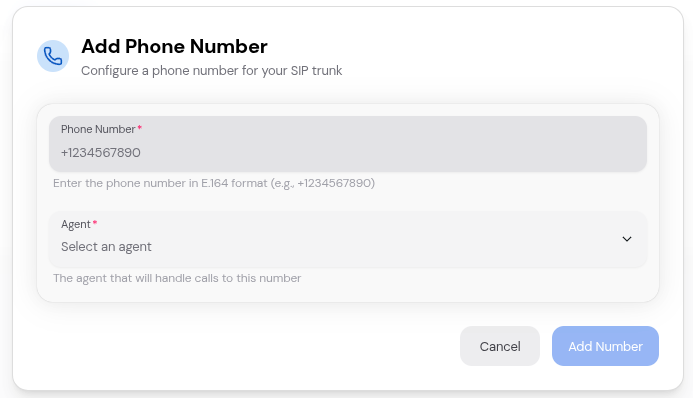
On the SIP management page, find the SIP provider you want to add a number
to
Click the **"Add Number"** button on the provider card
Enter the following information in the modal: - **Phone Number**: The number
in E.164 format - **Agent**: Select which AI agent will handle calls
Click **"Add Number"** to save the phone number configuration
 ## Phone Number Configuration
### Required Fields
**Phone Number** The phone number in international E.164 format. **Format
Rules:** - Must start with a plus sign (+) - Include country code - No spaces,
dashes, or parentheses - Only digits after the plus sign **Examples:** - ✅
`+15551234567` (United States) - ✅ `+442071234567` (United Kingdom) - ✅
`+61212345678` (Australia) - ✅ `+81312345678` (Japan) - ✅ `+33123456789`
(France) - ❌ `5551234567` (missing + and country code) - ❌ `+1 (555)
123-4567` (contains spaces and parentheses) - ❌ `+1-555-123-4567` (contains
dashes)
**Agent** The AI agent that will handle incoming calls to this number.
**Requirements:** - Agent must be voice-enabled - Agent must belong to the
same workspace - Agent must have valid voice configuration Select from the
dropdown list of your available agents. The dropdown shows: - Agent name
(title)
**Trunk ID** (Auto-filled) Automatically set to the SIP provider you're adding
the number to. This field is not visible in the UI but links the phone number
to the correct trunk.
### Understanding E.164 Format
The E.164 format is the international standard for phone numbers:
```
+[Country Code][Area/City Code][Local Number]
Examples by Country:
+1 5551234567 (USA)
│ └───────────── 10-digit national number
└──────────────── Country code
+44 2071234567 (UK)
│ └──────────── Local number with area code
└────────────── Country code
+61 212345678 (Australia)
│ └──────────── Local number
└────────────── Country code
```
## Viewing Phone Numbers
### Expand a SIP Provider
To view all phone numbers for a SIP provider:
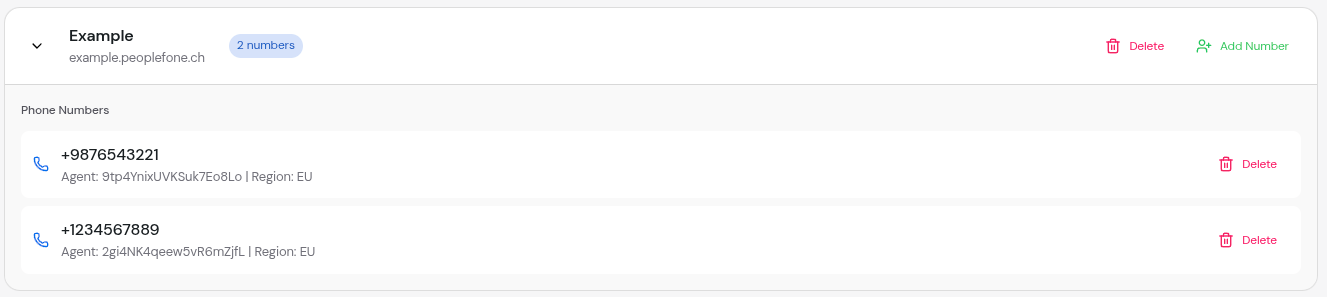
1. Click on the provider card or the chevron icon
2. The card expands to show all associated phone numbers
3. Each number displays:
* Phone number
* Assigned agent ID
* Region (NA or EU)
* Delete button
## Phone Number Configuration
### Required Fields
**Phone Number** The phone number in international E.164 format. **Format
Rules:** - Must start with a plus sign (+) - Include country code - No spaces,
dashes, or parentheses - Only digits after the plus sign **Examples:** - ✅
`+15551234567` (United States) - ✅ `+442071234567` (United Kingdom) - ✅
`+61212345678` (Australia) - ✅ `+81312345678` (Japan) - ✅ `+33123456789`
(France) - ❌ `5551234567` (missing + and country code) - ❌ `+1 (555)
123-4567` (contains spaces and parentheses) - ❌ `+1-555-123-4567` (contains
dashes)
**Agent** The AI agent that will handle incoming calls to this number.
**Requirements:** - Agent must be voice-enabled - Agent must belong to the
same workspace - Agent must have valid voice configuration Select from the
dropdown list of your available agents. The dropdown shows: - Agent name
(title)
**Trunk ID** (Auto-filled) Automatically set to the SIP provider you're adding
the number to. This field is not visible in the UI but links the phone number
to the correct trunk.
### Understanding E.164 Format
The E.164 format is the international standard for phone numbers:
```
+[Country Code][Area/City Code][Local Number]
Examples by Country:
+1 5551234567 (USA)
│ └───────────── 10-digit national number
└──────────────── Country code
+44 2071234567 (UK)
│ └──────────── Local number with area code
└────────────── Country code
+61 212345678 (Australia)
│ └──────────── Local number
└────────────── Country code
```
## Viewing Phone Numbers
### Expand a SIP Provider
To view all phone numbers for a SIP provider:
1. Click on the provider card or the chevron icon
2. The card expands to show all associated phone numbers
3. Each number displays:
* Phone number
* Assigned agent ID
* Region (NA or EU)
* Delete button
 ### Understanding the Number Count Badge
The provider card shows a badge with the number count:
```
[Provider Name]
[SIP Domain]
🏷️ 2 numbers
```
* Shows total numbers configured for this provider
* Updates automatically when you add or remove numbers
* Click anywhere on the card to see the list
## Managing Existing Numbers
### Deleting a Phone Number
Deleting a phone number removes its configuration from Convocore but does NOT
cancel the number with your SIP provider. The number will stop working until
reconfigured.
To delete a phone number:
Click on the SIP provider to expand and view its phone numbers
Click the **Delete** button (trash icon) next to the phone number
Confirm the deletion in the confirmation dialog
After deletion:
* The number is immediately removed from Convocore
* Calls to this number will fail until reconfigured
* The number count badge updates automatically
* The configuration is also removed from the Asterisk server
### Editing a Phone Number
Currently, you cannot directly edit a phone number's agent assignment. To change the agent:
Remove the existing phone number configuration
Add the phone number again with the new agent selected
**Coming Soon**: Direct editing of phone number configurations will be
available in a future update.
## Multiple Numbers Configuration
### Multiple Numbers, Same Agent
You can route multiple phone numbers to the same agent. This is useful for:
* Different departments calling the same general support agent
* Multiple regional numbers for the same service
* A/B testing with different phone numbers
### Multiple Numbers, Different Agents
Route different numbers to different agents for specialized handling:
```
+15551234567 → Customer Support Agent
+15552345678 → Sales Agent
+15553456789 → Billing Agent
+15554567890 → Technical Support Agent
```
## Advanced Configurations
### Additional Parameters
The phone number configuration supports additional parameters (stored in the `additionalParams` field). While not currently exposed in the UI, these can be set via API:
```json theme={null}
{
"number": "+15551234567",
"trunkId": "trunk-id-here",
"agentId": "agent-id-here",
"region": "na",
"additionalParams": {
"department": "sales",
"language": "en",
"timezone": "America/New_York",
"priority": "high",
"customGreeting": "Thank you for calling Sales"
}
}
```
These parameters can be used for:
* Custom routing logic
* Analytics and reporting
* Agent-specific configuration
* Metadata tracking
## Number Limits and Quotas
Your Convocore plan determines how many phone numbers you can configure:
Maximum phone numbers per workspace - **Free Plan**: 5 numbers - **Pro Plan**:
50 numbers - **Enterprise Plan**: Unlimited
When you approach or reach your limit:
* A warning appears when trying to add numbers
* The "Add Number" button may be disabled
* Consider upgrading your plan or removing unused numbers
## Troubleshooting Phone Numbers
### Common Issues
**Symptoms:** - Phone rings but no agent answers - Call drops immediately -
No conversation log in dashboard **Solutions:** - Verify the phone number is
in E.164 format - Check that the agent is voice-enabled - Ensure the SIP
provider is routing correctly - Verify the trunk is active and configured -
Check Asterisk server logs for errors
**Symptoms:** - Form validation errors - "Phone number already exists" error
* API errors when saving **Solutions:** - Ensure number is in correct E.164
format (+15551234567) - Check if the number is already configured elsewhere
* Verify you haven't reached your plan limit - Try adding the number via API
if UI fails - Check browser console for error details
**Symptoms:** - Different agent than expected answers - Agent doesn't have
correct context **Solutions:** - Verify the correct agent is selected -
Check if multiple numbers use the same agent - Confirm the number
configuration in the UI - Review Asterisk dialplan routing - Check
conversation logs for the agent ID
**Symptoms:** - Deleted number still receives calls - Old agent still
answering **Solutions:** - Check if the number was re-added - Verify
deletion on UI - Contact support if issue persists
### Validation Errors
Common validation errors when adding numbers:
| Error Message | Cause | Solution |
| ----------------------------- | ------------------ | ------------------------------------------------- |
| "Phone number is required" | Empty number field | Enter a valid phone number |
| "Invalid phone number format" | Wrong format | Use E.164 format (+15551234567) |
| "Agent is required" | No agent selected | Select an agent from dropdown |
| "Phone number already exists" | Duplicate number | Use a different number or delete the existing one |
| "Trunk not found" | Invalid trunk ID | Ensure SIP provider exists |
## Best Practices
Document what each phone number is for in your own records
Call each number right after configuration to verify it works
Regularly check conversation logs to ensure numbers are working
Keep a spreadsheet of number → agent mappings
Design your numbering strategy before adding many numbers
Choose regions based on caller location for best latency
## Number Porting
If you want to port an existing phone number to your SIP provider:
Initiate the porting process with your SIP provider (not Convocore)
Number porting typically takes 7-21 business days
Once ported, add the number to your SIP trunk in Convocore
Make test calls to ensure everything works correctly
Number porting is handled entirely by your SIP provider. Convocore is not
involved in the porting process.
## Analytics and Monitoring
### Tracking Number Performance
Monitor your phone numbers using:
1. **Conversation Logs**: View all calls in the Conversations tab
2. **Analytics Dashboard**: See call volume per number
3. **Agent Performance**: Track how each agent handles calls
4. **SIP Provider Dashboard**: Monitor call quality and reliability
### Key Metrics to Track
* Call volume per number
* Average call duration
* Agent response times
* Call success/failure rates
* Regional distribution of calls
* Peak calling hours
## Next Steps
Learn how the Asterisk server handles your calls
Track and analyze your call performance
### Understanding the Number Count Badge
The provider card shows a badge with the number count:
```
[Provider Name]
[SIP Domain]
🏷️ 2 numbers
```
* Shows total numbers configured for this provider
* Updates automatically when you add or remove numbers
* Click anywhere on the card to see the list
## Managing Existing Numbers
### Deleting a Phone Number
Deleting a phone number removes its configuration from Convocore but does NOT
cancel the number with your SIP provider. The number will stop working until
reconfigured.
To delete a phone number:
Click on the SIP provider to expand and view its phone numbers
Click the **Delete** button (trash icon) next to the phone number
Confirm the deletion in the confirmation dialog
After deletion:
* The number is immediately removed from Convocore
* Calls to this number will fail until reconfigured
* The number count badge updates automatically
* The configuration is also removed from the Asterisk server
### Editing a Phone Number
Currently, you cannot directly edit a phone number's agent assignment. To change the agent:
Remove the existing phone number configuration
Add the phone number again with the new agent selected
**Coming Soon**: Direct editing of phone number configurations will be
available in a future update.
## Multiple Numbers Configuration
### Multiple Numbers, Same Agent
You can route multiple phone numbers to the same agent. This is useful for:
* Different departments calling the same general support agent
* Multiple regional numbers for the same service
* A/B testing with different phone numbers
### Multiple Numbers, Different Agents
Route different numbers to different agents for specialized handling:
```
+15551234567 → Customer Support Agent
+15552345678 → Sales Agent
+15553456789 → Billing Agent
+15554567890 → Technical Support Agent
```
## Advanced Configurations
### Additional Parameters
The phone number configuration supports additional parameters (stored in the `additionalParams` field). While not currently exposed in the UI, these can be set via API:
```json theme={null}
{
"number": "+15551234567",
"trunkId": "trunk-id-here",
"agentId": "agent-id-here",
"region": "na",
"additionalParams": {
"department": "sales",
"language": "en",
"timezone": "America/New_York",
"priority": "high",
"customGreeting": "Thank you for calling Sales"
}
}
```
These parameters can be used for:
* Custom routing logic
* Analytics and reporting
* Agent-specific configuration
* Metadata tracking
## Number Limits and Quotas
Your Convocore plan determines how many phone numbers you can configure:
Maximum phone numbers per workspace - **Free Plan**: 5 numbers - **Pro Plan**:
50 numbers - **Enterprise Plan**: Unlimited
When you approach or reach your limit:
* A warning appears when trying to add numbers
* The "Add Number" button may be disabled
* Consider upgrading your plan or removing unused numbers
## Troubleshooting Phone Numbers
### Common Issues
**Symptoms:** - Phone rings but no agent answers - Call drops immediately -
No conversation log in dashboard **Solutions:** - Verify the phone number is
in E.164 format - Check that the agent is voice-enabled - Ensure the SIP
provider is routing correctly - Verify the trunk is active and configured -
Check Asterisk server logs for errors
**Symptoms:** - Form validation errors - "Phone number already exists" error
* API errors when saving **Solutions:** - Ensure number is in correct E.164
format (+15551234567) - Check if the number is already configured elsewhere
* Verify you haven't reached your plan limit - Try adding the number via API
if UI fails - Check browser console for error details
**Symptoms:** - Different agent than expected answers - Agent doesn't have
correct context **Solutions:** - Verify the correct agent is selected -
Check if multiple numbers use the same agent - Confirm the number
configuration in the UI - Review Asterisk dialplan routing - Check
conversation logs for the agent ID
**Symptoms:** - Deleted number still receives calls - Old agent still
answering **Solutions:** - Check if the number was re-added - Verify
deletion on UI - Contact support if issue persists
### Validation Errors
Common validation errors when adding numbers:
| Error Message | Cause | Solution |
| ----------------------------- | ------------------ | ------------------------------------------------- |
| "Phone number is required" | Empty number field | Enter a valid phone number |
| "Invalid phone number format" | Wrong format | Use E.164 format (+15551234567) |
| "Agent is required" | No agent selected | Select an agent from dropdown |
| "Phone number already exists" | Duplicate number | Use a different number or delete the existing one |
| "Trunk not found" | Invalid trunk ID | Ensure SIP provider exists |
## Best Practices
Document what each phone number is for in your own records
Call each number right after configuration to verify it works
Regularly check conversation logs to ensure numbers are working
Keep a spreadsheet of number → agent mappings
Design your numbering strategy before adding many numbers
Choose regions based on caller location for best latency
## Number Porting
If you want to port an existing phone number to your SIP provider:
Initiate the porting process with your SIP provider (not Convocore)
Number porting typically takes 7-21 business days
Once ported, add the number to your SIP trunk in Convocore
Make test calls to ensure everything works correctly
Number porting is handled entirely by your SIP provider. Convocore is not
involved in the porting process.
## Analytics and Monitoring
### Tracking Number Performance
Monitor your phone numbers using:
1. **Conversation Logs**: View all calls in the Conversations tab
2. **Analytics Dashboard**: See call volume per number
3. **Agent Performance**: Track how each agent handles calls
4. **SIP Provider Dashboard**: Monitor call quality and reliability
### Key Metrics to Track
* Call volume per number
* Average call duration
* Agent response times
* Call success/failure rates
* Regional distribution of calls
* Peak calling hours
## Next Steps
Learn how the Asterisk server handles your calls
Track and analyze your call performance