> ## Documentation Index
> Fetch the complete documentation index at: https://docs.convocore.ai/llms.txt
> Use this file to discover all available pages before exploring further.
# Web Calling
> Learn how to enable voice-to-voice interactions in Convocore using Web Calling.
Learn how to enable **voice-to-voice interactions** in Convocore using Web Calling. With this feature, users can make calls directly from your website using the Convocore Voice widget.
***
## 🎙 Web Calling
Web Calling allows seamless voice communication from your widget. Follow these steps to enable the feature:
1. Navigate to the **Voice Setup** page in your Convocore dashboard.
2. Go to the **Advanced & Settings** tab.
3. Enable **"Web Calling"** by toggling the switch.
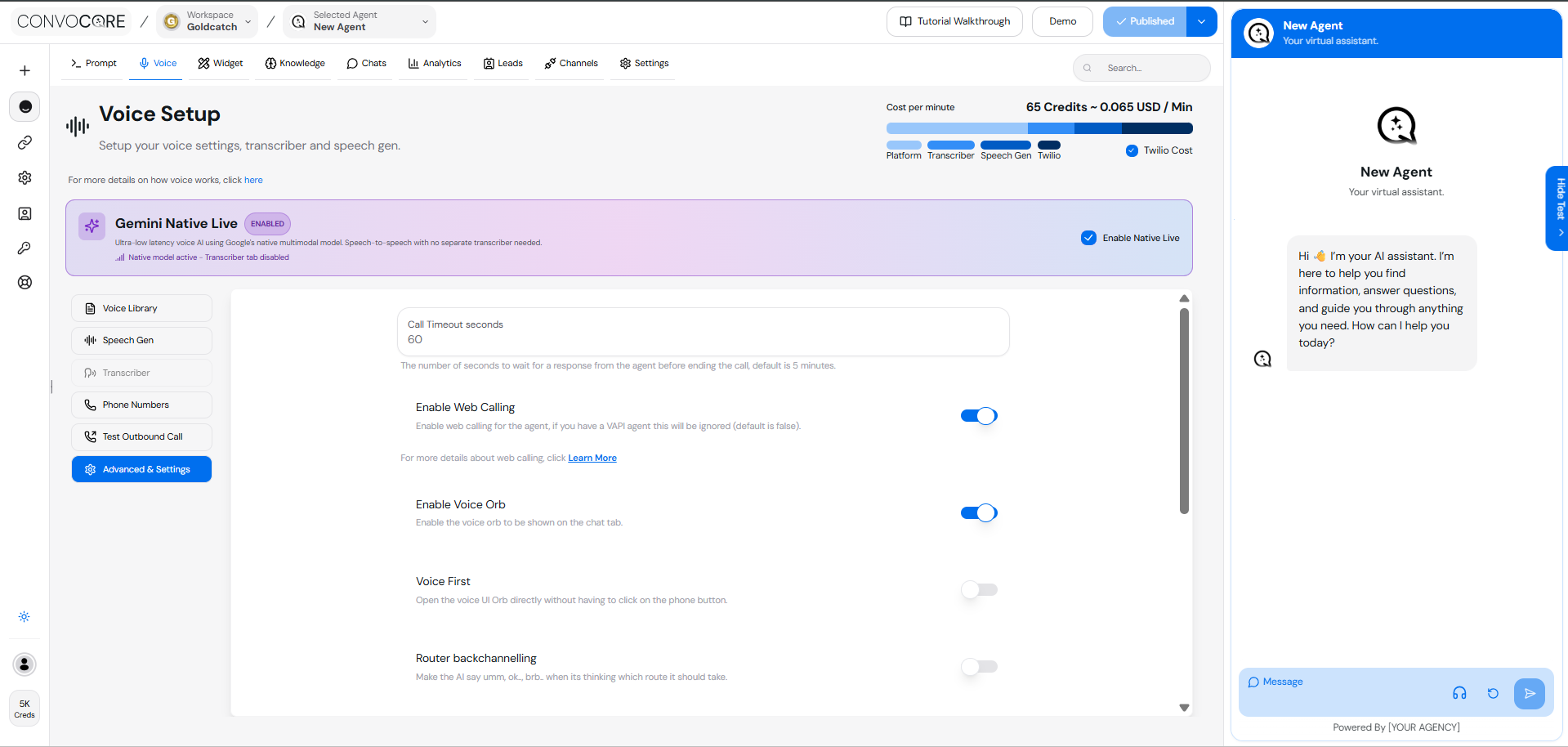 > Once enabled, the widget will automatically display a **Call Button**. When pressed:
>
> * A circular **audio visualizer** will appear.
> * Users can press the **"Start Call"** button to initiate the call.
***
## 🚀 Deploy the Widget to Your Website
To integrate the widget into your website:
1. In the Convocore **Agent Dashboard**, click on **Demo** at the top right.
> Once enabled, the widget will automatically display a **Call Button**. When pressed:
>
> * A circular **audio visualizer** will appear.
> * Users can press the **"Start Call"** button to initiate the call.
***
## 🚀 Deploy the Widget to Your Website
To integrate the widget into your website:
1. In the Convocore **Agent Dashboard**, click on **Demo** at the top right.
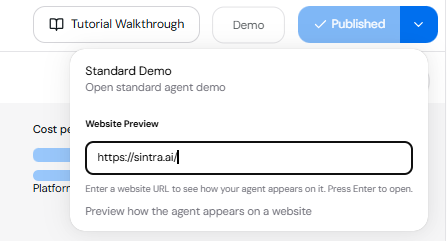 2. Enter a website URL to see how your agent appears on it.
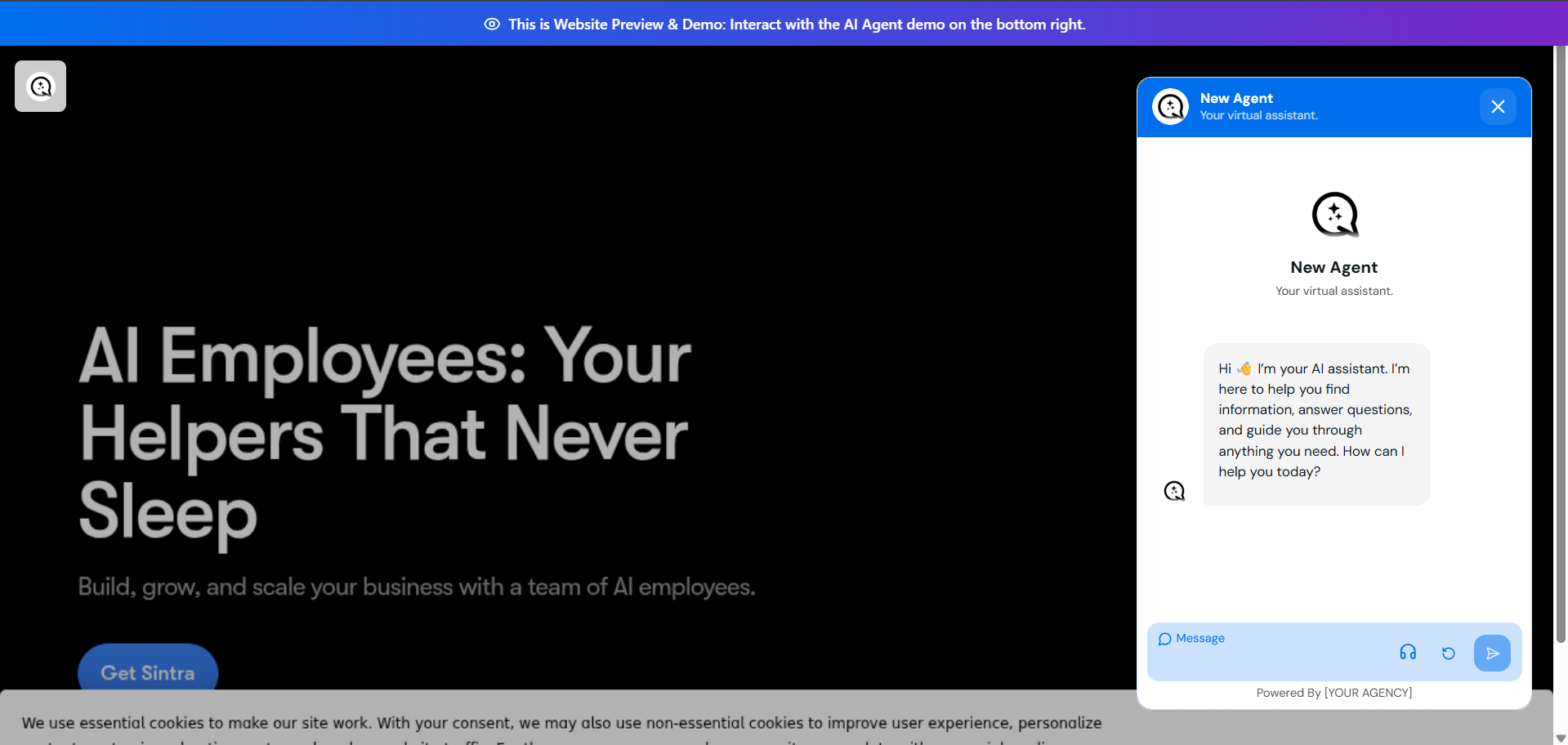 ### Script Showcase
Here’s an example of the script:
1. In the Convocore **Agent Dashboard**, click on **Published Arrow** at the top right.
2. Press **Website Script** and copy the generated script snippet.
3. Paste the script into your website’s HTML.
### Script Showcase
Here’s an example of the script:
1. In the Convocore **Agent Dashboard**, click on **Published Arrow** at the top right.
2. Press **Website Script** and copy the generated script snippet.
3. Paste the script into your website’s HTML.
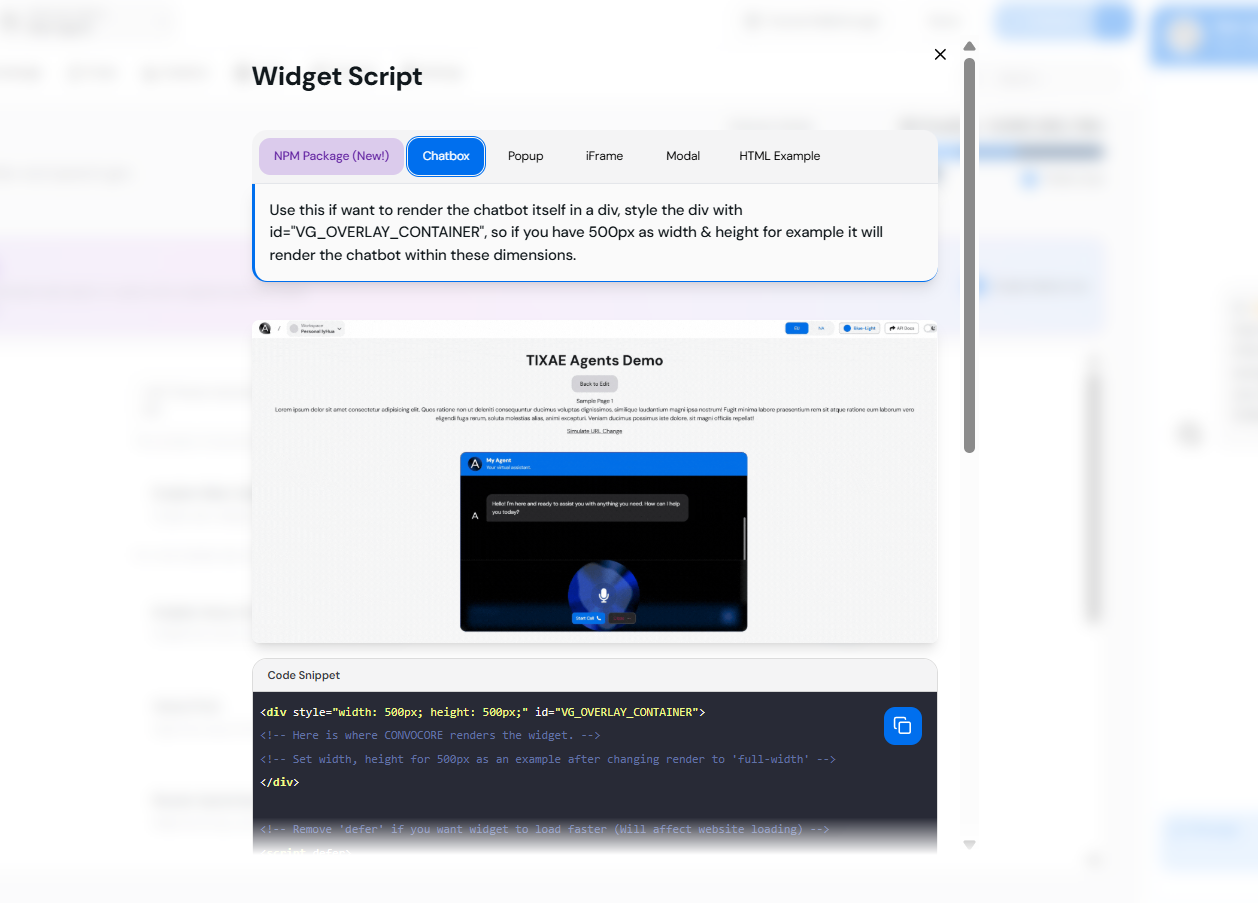 ***
We support **different deployment options** for your website: - You can choose between
displaying the widget as a **popup** or embedding it directly into your site.
{' '}
> **Coming Soon**: A **React Component** will be available to simplify integration further for developers.
***
## 🔗 Next Steps
Learn how to configure additional features like **call recording** and **webhooks**.
Integrate Twilio to enable phone-based calling alongside Web Calling.
You’re all set! With Web Calling enabled, your users can now interact seamlessly using the Convocore Voice widget. 🚀
***
We support **different deployment options** for your website: - You can choose between
displaying the widget as a **popup** or embedding it directly into your site.
{' '}
> **Coming Soon**: A **React Component** will be available to simplify integration further for developers.
***
## 🔗 Next Steps
Learn how to configure additional features like **call recording** and **webhooks**.
Integrate Twilio to enable phone-based calling alongside Web Calling.
You’re all set! With Web Calling enabled, your users can now interact seamlessly using the Convocore Voice widget. 🚀