> ## Documentation Index
> Fetch the complete documentation index at: https://docs.convocore.ai/llms.txt
> Use this file to discover all available pages before exploring further.
# Twilio Setup
> Learn how to setup voice to voice interactions in Convocore.
Integrate **Twilio** with the Voice Suite to enable seamless phone number management and real-time calling. Follow the steps below to configure Twilio in your Convocore dashboard.
***
## 🛠 Step 1: Access the Voice Setup Page
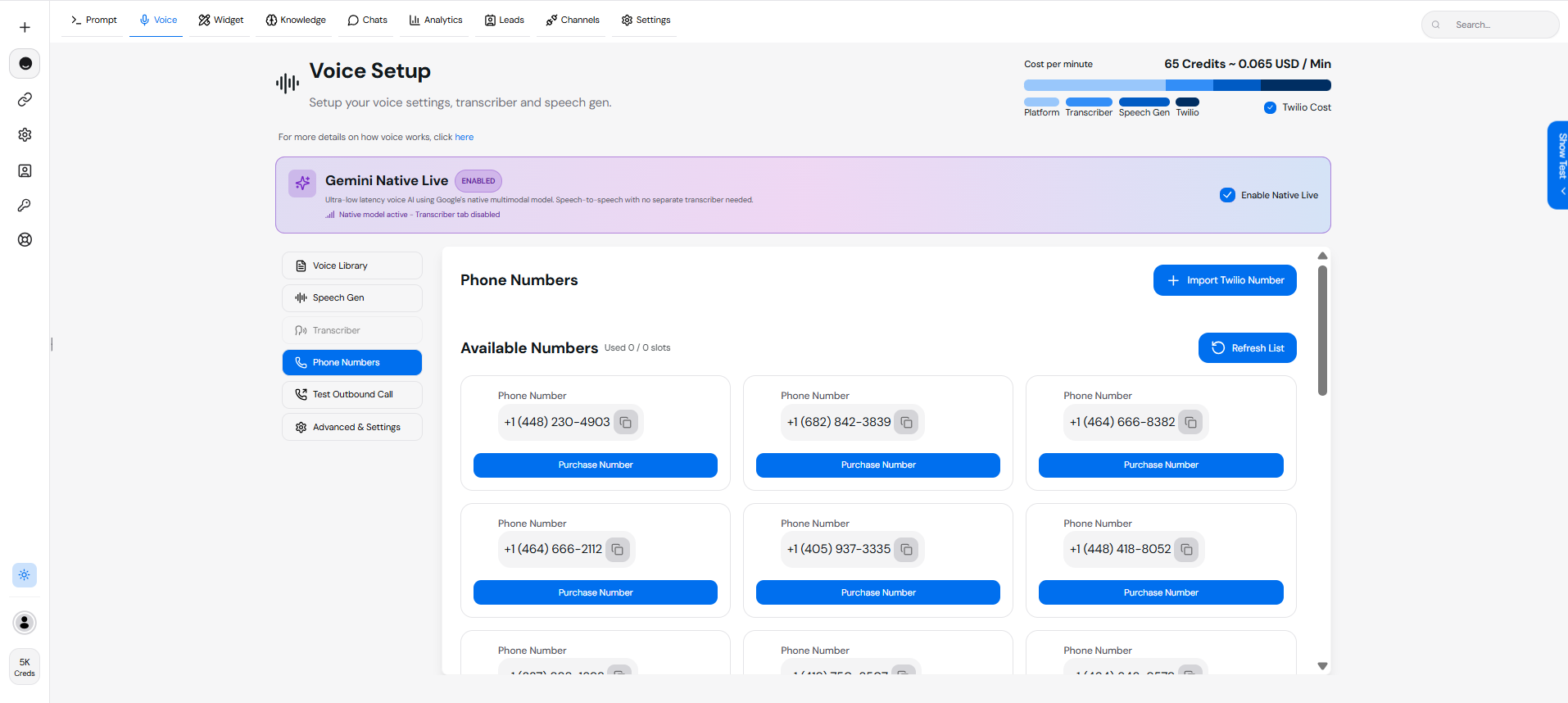
1. Navigate to the **Voice Setup** page in the Convocore dashboard.
2. Select the **Phone Numbers** tab.
 ***
## 📞 Step 2: Purchase or View Twilio Numbers
### 2.1 **View Available Numbers**
* Click on the **Phone Numbers** tab.
* A list of **Available Numbers** will appear.
* To refresh the list, click **"Refresh List"**.
### 2.2 **Purchase a Number**
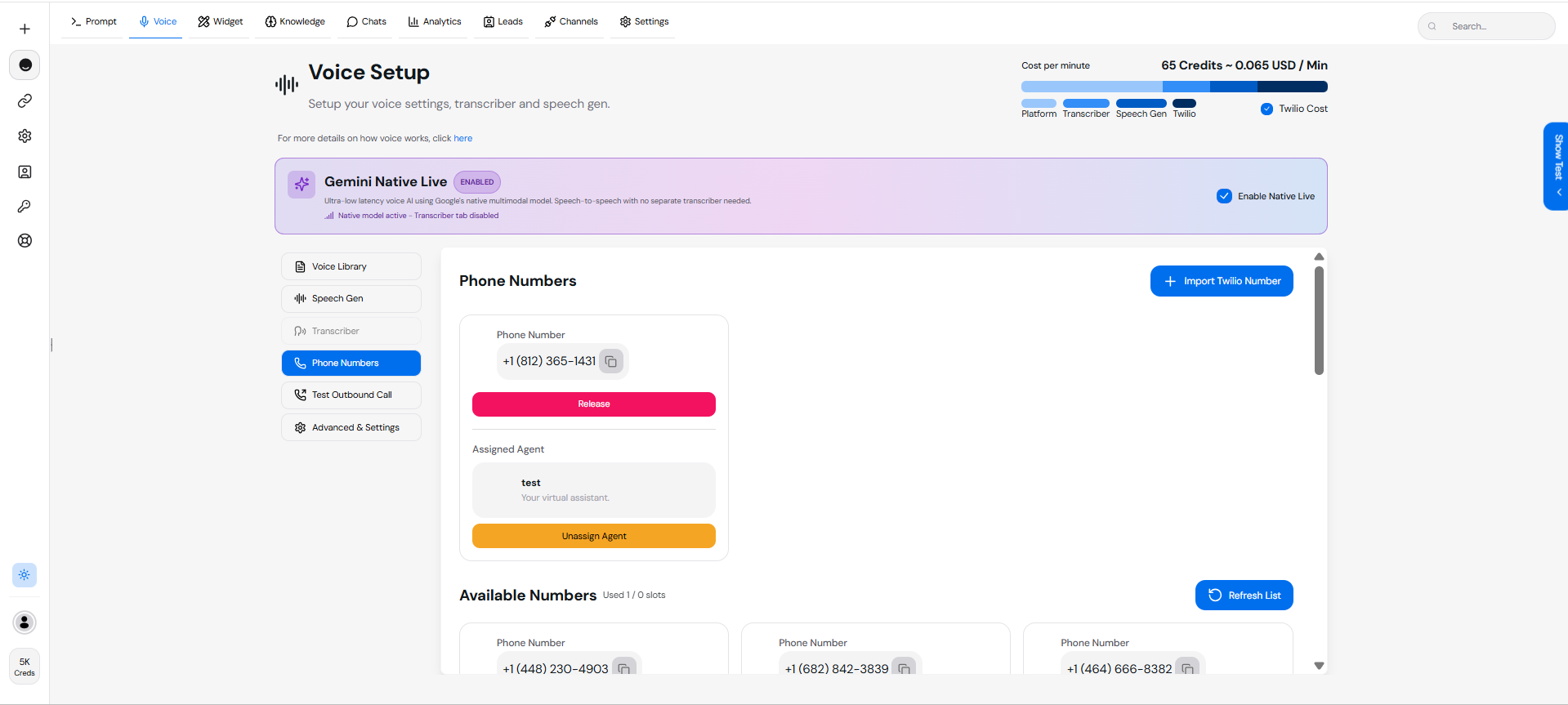
* Click **"Buy"** next to a Twilio number to purchase it.
* Once purchased, the number will appear under **Purchased Numbers**.
***
## 📞 Step 2: Purchase or View Twilio Numbers
### 2.1 **View Available Numbers**
* Click on the **Phone Numbers** tab.
* A list of **Available Numbers** will appear.
* To refresh the list, click **"Refresh List"**.
### 2.2 **Purchase a Number**
* Click **"Buy"** next to a Twilio number to purchase it.
* Once purchased, the number will appear under **Purchased Numbers**.
 ***
## 🔑 Step 3: Assign a Number to Your Agent
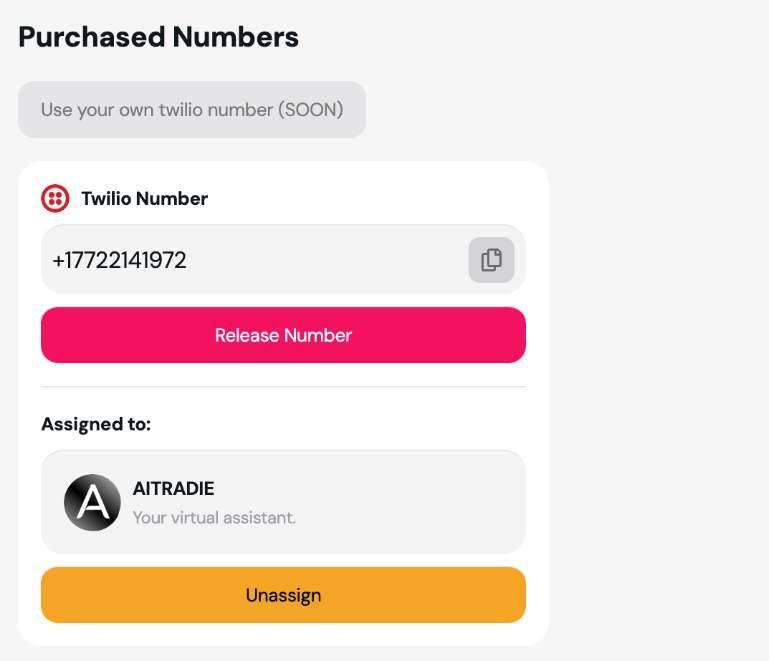
1. Under **Purchased Numbers**, locate the number you wish to assign.
2. Click the **"Assign"** button.
3. Assign the number to your virtual agent (e.g., **test**).
> **Tip**: You can **Release** or **Unassign** numbers if needed.
***
## 🔑 Step 3: Assign a Number to Your Agent
1. Under **Purchased Numbers**, locate the number you wish to assign.
2. Click the **"Assign"** button.
3. Assign the number to your virtual agent (e.g., **test**).
> **Tip**: You can **Release** or **Unassign** numbers if needed.
 ***
## 📊 Cost Breakdown
* Convocore Voice charges **10 credits per minute** for Twilio calls.
* The cost per minute is displayed in the dashboard:
* **22 Credits \~ 0.083 USD/Min**.
***
## 🚦 Troubleshooting
### Issue: Twilio Numbers Not Showing Up
* Ensure your Twilio credentials are correct.
* Refresh the list under **Available Numbers**.
### Issue: Calls Not Connecting
* Verify that your assigned Twilio number is active in the Twilio Console.
* Check network settings and webhook configurations.
***
## 🔗 Next Steps
Enable browser-based calling.
Customize your voice settings for Twilio.
You’re all set! Start leveraging Twilio with the Voice Suite to manage phone numbers and real-time calls seamlessly. 🚀
***
## 📊 Cost Breakdown
* Convocore Voice charges **10 credits per minute** for Twilio calls.
* The cost per minute is displayed in the dashboard:
* **22 Credits \~ 0.083 USD/Min**.
***
## 🚦 Troubleshooting
### Issue: Twilio Numbers Not Showing Up
* Ensure your Twilio credentials are correct.
* Refresh the list under **Available Numbers**.
### Issue: Calls Not Connecting
* Verify that your assigned Twilio number is active in the Twilio Console.
* Check network settings and webhook configurations.
***
## 🔗 Next Steps
Enable browser-based calling.
Customize your voice settings for Twilio.
You’re all set! Start leveraging Twilio with the Voice Suite to manage phone numbers and real-time calls seamlessly. 🚀