> ## Documentation Index
> Fetch the complete documentation index at: https://docs.convocore.ai/llms.txt
> Use this file to discover all available pages before exploring further.

# Ultravox Speech-to-Speech

> Configure Ultravox for real-time speech-to-speech AI voice interactions with low latency and natural conversations.

Welcome to the **Ultravox** integration guide! Ultravox is a powerful Speech-to-Speech (STS) provider that enables ultra-low latency, natural voice conversations with your AI agents.

***

## 🚀 What is Ultravox?

Ultravox is a speech-to-speech AI platform that processes audio directly without intermediate text-to-speech steps, resulting in:

* **Ultra-low latency** responses (sub-second)
* **Natural conversational flow** with intelligent turn-taking
* **Real-time interruption handling** - users can interrupt the agent naturally
* **Native tool execution** - agents can use your configured tools during conversations
* **Multi-language support** - 25+ languages supported

<Tip>
  Ultravox is ideal for phone calls and real-time voice interactions where latency and natural conversation flow are critical.
</Tip>

***

## 🔧 How Ultravox Works in Convocore

Ultravox uses a **server-to-server WebSocket architecture** that enables ultra-low latency voice conversations. Unlike traditional voice systems that use separate transcription and speech generation steps, Ultravox processes audio directly for faster, more natural interactions.

***

## ⚙️ Configuration Steps

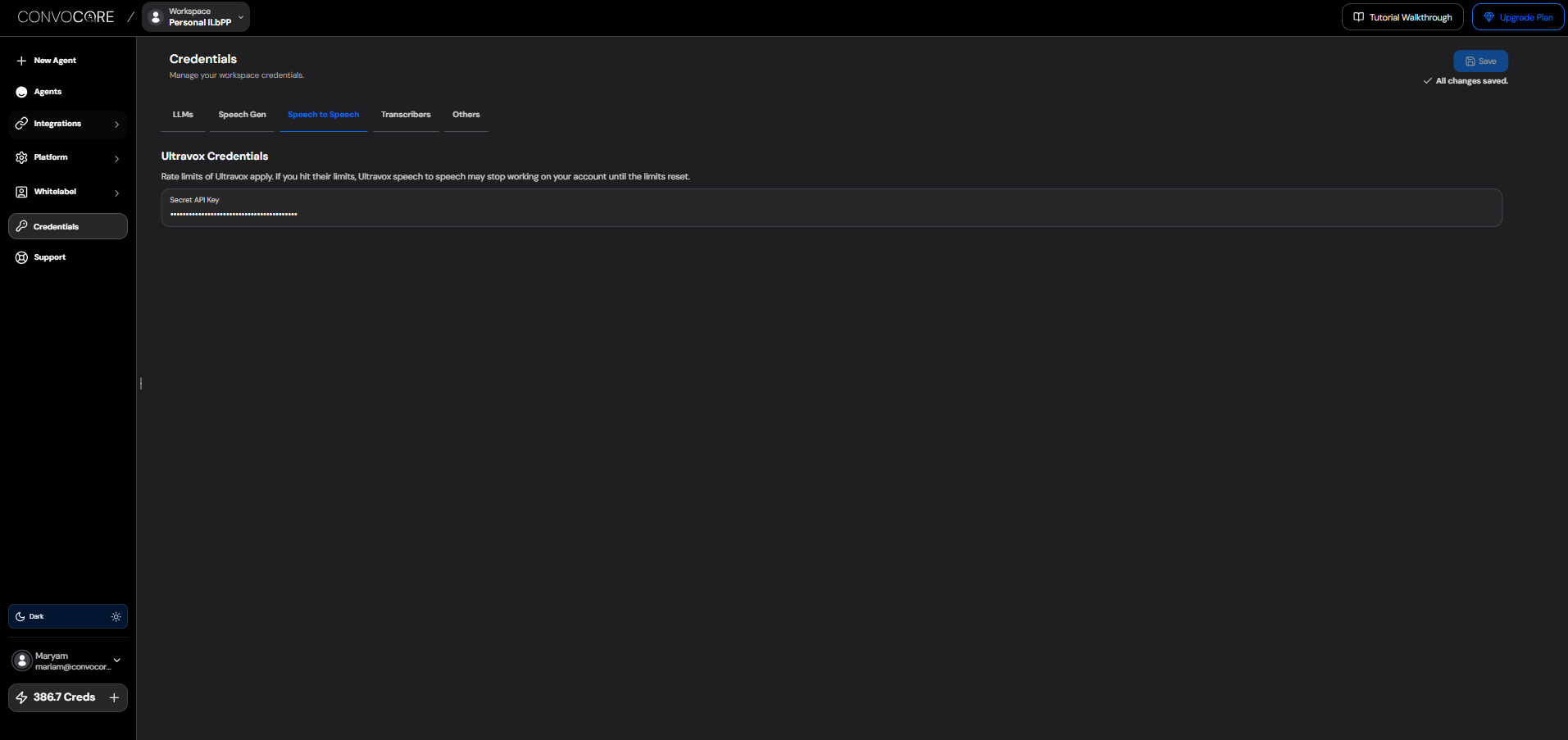
### Step 1: Add Your Ultravox API Key (Optional)

<Note>
  Adding your Ultravox API key is optional. When added, consumption and billing will be charged directly to your Ultravox account instead of using Convocore credits. If you don't add an API key, usage will be billed through Convocore credits.
</Note>

1. Navigate to your **Workspace Settings** in Convocore
2. Go to the **Credentials** tab
3. In the **Speech to Speech** section
4. Enter your **Secret API Key**
5. Click **Save**

<img src="https://mintcdn.com/convocore/i5Nz7vLPc2Vm3jzS/voice/assets/ultravox-apiKey.png?fit=max&auto=format&n=i5Nz7vLPc2Vm3jzS&q=85&s=38d7a83752f31d10e2d037b71ea53ea1" alt="Ultravox Credentials" width="1913" height="903" data-path="voice/assets/ultravox-apiKey.png" />

***

### Step 2: Enable Ultravox for Your Agent

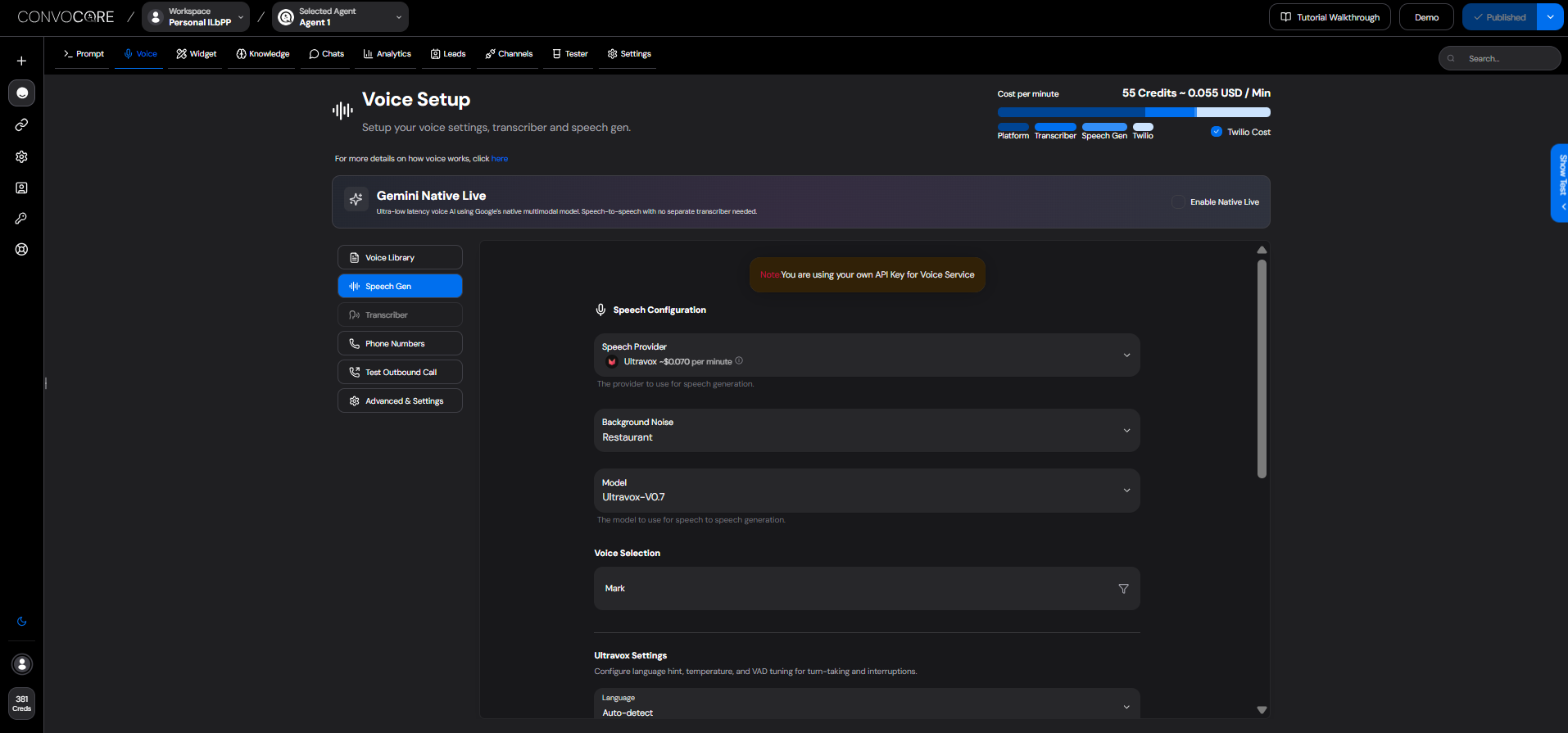
1. Open your agent's configuration
2. Go to the **Voice Setup** page
3. Click on the **Speech Gen** tab
4. Select **Ultravox** from the provider dropdown
<img src="https://mintcdn.com/convocore/i5Nz7vLPc2Vm3jzS/voice/assets/new-speechgen-select2.png?fit=max&auto=format&n=i5Nz7vLPc2Vm3jzS&q=85&s=814c8bbf3aa996b487ae8e5d133f2459" alt="Speech Provider Selection" width="1914" height="895" data-path="voice/assets/new-speechgen-select2.png" />

***

### Step 3: Configure Voice Settings

#### Select a Voice

1. Browse the available Ultravox voices in the **Audio Library**
2. Preview voices using the play button
3. Click **Use Voice** to select your preferred voice

#### Set Language

Configure the language for your agent:

1. Find the **Language** dropdown in Ultravox Settings
2. Select your target language or leave as **Auto-detect**

***

### Step 4: Advanced Settings (Optional)

#### Temperature

Control the creativity/randomness of responses:

* **Lower values (0.0-0.3)**: More focused, deterministic responses
* **Higher values (0.7-1.0)**: More creative, varied responses
* **Default**: Recommended for most use cases

#### Voice Activity Detection Settings

Fine-tune turn-taking behavior for natural conversations:

| Setting                   | Description                                                     | Default |
| ------------------------- | --------------------------------------------------------------- | ------- |
| **Turn Endpoint Delay**   | How long to wait after the user stops talking before responding | 384ms   |
| **Minimum Turn Duration** | Minimum speaking time before processing                         | 0ms     |
| **Interruption Duration** | How long user must speak to interrupt                           | 90ms    |
| **Activation Threshold**  | Sensitivity for detecting speech                                | 0.1     |

<Note>
  The default VAD settings are optimized for natural phone conversations. Only adjust if you experience specific issues with turn-taking.
</Note>

***

## 🛠 Tool Integration

Ultravox seamlessly integrates with your agent's configured tools:

1. **Knowledge Base Search**: Automatically enabled when KB is active on your agent
2. **Custom Tools**: All tools configured on your agent's current node are available
3. **Natural Execution**: The agent naturally integrates tool results into the conversation

***

## 💰 Pricing

Ultravox pricing is **usage-based** and billed per minute of conversation. Below is a complete cost breakdown:

<div style={{ border: '1px solid #dddddd44', borderRadius: '8px', padding: '10px', marginBottom: '20px' }}>
  <table style={{ width: '100%', borderCollapse: 'collapse', textAlign: 'left' }}>
    <thead>
      <tr>
        <th style={{ padding: '12px 16px', borderBottom: '2px solid #ddd', fontWeight: '600' }}>Component</th>
        <th style={{ padding: '12px 16px', borderBottom: '2px solid #ddd', fontWeight: '600', textAlign: 'right' }}>Cost per min</th>
        <th style={{ padding: '12px 16px', borderBottom: '2px solid #ddd', fontWeight: '600' }}>Description</th>
      </tr>
    </thead>

    <tbody>
      <tr>
        <td style={{ padding: '12px 16px', borderBottom: '1px solid #ddd' }}><strong>Ultravox</strong></td>
        <td style={{ padding: '12px 16px', borderBottom: '1px solid #ddd', textAlign: 'right', fontFamily: 'monospace' }}>\$0.007/min</td>
        <td style={{ padding: '12px 16px', borderBottom: '1px solid #ddd', color: '#666' }}>All-in-one voice model (includes STT, TTS, and LLM)</td>
      </tr>

      <tr>
        <td style={{ padding: '12px 16px', borderBottom: '1px solid #ddd' }}><strong>Convocore Platform</strong></td>
        <td style={{ padding: '12px 16px', borderBottom: '1px solid #ddd', textAlign: 'right', fontFamily: 'monospace' }}>Variable</td>
        <td style={{ padding: '12px 16px', borderBottom: '1px solid #ddd', color: '#666' }}>Infrastructure, routing, and platform services</td>
      </tr>

      <tr>
        <td style={{ padding: '12px 16px' }}><strong>Twilio (Optional)</strong></td>
        <td style={{ padding: '12px 16px', textAlign: 'right', fontFamily: 'monospace' }}>$0.01 - $0.02/min</td>
        <td style={{ padding: '12px 16px', color: '#666' }}>Phone number and telephony costs (only if using phone calls)</td>
      </tr>
    </tbody>
  </table>
</div>

<Card title="Calculate Your Costs" icon="calculator" href="/Pricing/credits">
  Use the Pricing Calculator in your dashboard to get accurate cost estimates based on your usage and plan.
</Card>

***

## 🔍 Troubleshooting

<AccordionGroup>
  <Accordion title="No audio response from agent">
    * Verify your Ultravox API key is correct
    * Check that you have sufficient Ultravox credits
    * Ensure a voice is selected in the Speech Gen settings
  </Accordion>

  <Accordion title="Agent responds too slowly">
    * Check your network connection
    * Reduce the Turn Endpoint Delay in VAD settings
    * Ensure you're using a region close to your users
  </Accordion>

  <Accordion title="Agent gets interrupted too easily">
    * Increase the **Minimum Interruption Duration** (e.g., to 150ms)
    * Increase the **Activation Threshold** (e.g., to 0.15)
  </Accordion>

  <Accordion title="Agent doesn't respond to interruptions">
    * Decrease the **Minimum Interruption Duration** (e.g., to 50ms)
    * Decrease the **Activation Threshold** (e.g., to 0.05)
  </Accordion>

  <Accordion title="Tools not being executed">
    * Ensure tools are enabled on the current node
    * Check that the tool is not disabled in Tools settings
    * Verify the tool has a clear description so the AI knows when to use it
  </Accordion>
</AccordionGroup>

## 🔗 Next Steps

<CardGroup cols={2}>
  <Card title="Setup Twilio" icon="phone" iconType="solid" href="/voice/setup/twilio">
    Connect phone numbers to enable voice calling with Ultravox.
  </Card>

  <Card title="Web Calling" icon="globe" iconType="solid" href="/voice/setup/webcalling">
    Enable voice interactions directly in your website widget.
  </Card>

  <Card title="Advanced Configuration" icon="gear" iconType="solid" href="/voice/config/advanced">
    Explore call recording, webhooks, and other advanced settings.
  </Card>

  <Card title="Canvas & Tools" icon="diagram-project" iconType="solid" href="/canvas/introduction">
    Configure conversation flows and tools for your Ultravox agent.
  </Card>
</CardGroup>

***

With Ultravox configured, your agents are ready for natural, low-latency voice conversations! 🎙️
