> ## Documentation Index
> Fetch the complete documentation index at: https://docs.convocore.ai/llms.txt
> Use this file to discover all available pages before exploring further.
# Transcriber Configuration
> Learn how to configure speech-to-text transcribers in Convocore Voice Suite.
Learn how to configure **speech-to-text transcribers** in Convocore Voice Suite. Transcribers convert user voice inputs into real-time text using providers like **Deepgram**.
***
## 🛠 Configuring the Transcriber
Follow these steps to set up the transcriber:
1. Navigate to the **Voice Setup** page in your Convocore dashboard.
2. Select the **Transcriber** tab.
***
## 🔧 Step 1: Choose Your Transcriber Provider
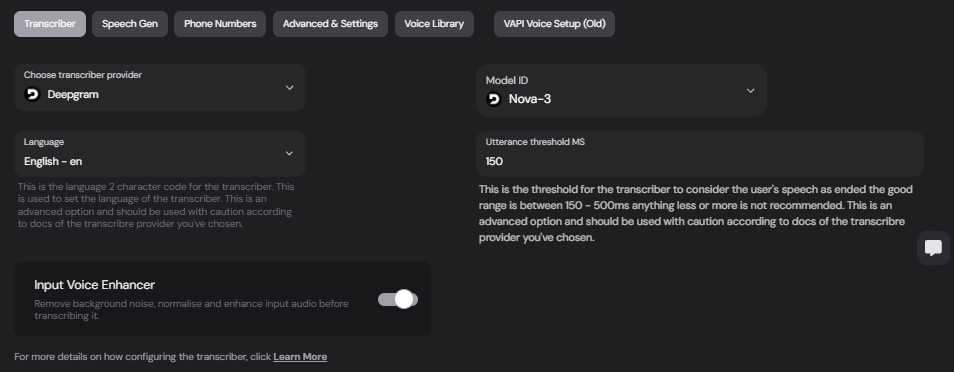
1. Use the dropdown to select your preferred provider.
 ***
## 🤖 Step 2: Choose Model ID
* Use the dropdown to select your preferred Model ID.
***
## 🌐 Step 3: Configure Language
* Input the **2-character language code** that matches the target transcription language.
* For example:
* `en` for English
* `fr` for French
* `es` for Spanish
> Refer to the documentation of the chosen provider (e.g., Deepgram) for supported language codes.
***
## ⚙️ Step 4: Utterance threshold MS
The **Utterance threshold MS** determines the threshold for the transcriber to consider the user's speech as ended
* **good range is between (150 - 500ms)** anything less or more is not recommended.
This is an advanced option and should be used with caution according to docs of the transcribre provider you've chosen.
***
## ✨ Step 5: Enable Input Voice Enhancer (optional)
* This will remove background noice, normalise and enhance input audio before transcribing it.
***
## 🤖 Step 2: Choose Model ID
* Use the dropdown to select your preferred Model ID.
***
## 🌐 Step 3: Configure Language
* Input the **2-character language code** that matches the target transcription language.
* For example:
* `en` for English
* `fr` for French
* `es` for Spanish
> Refer to the documentation of the chosen provider (e.g., Deepgram) for supported language codes.
***
## ⚙️ Step 4: Utterance threshold MS
The **Utterance threshold MS** determines the threshold for the transcriber to consider the user's speech as ended
* **good range is between (150 - 500ms)** anything less or more is not recommended.
This is an advanced option and should be used with caution according to docs of the transcribre provider you've chosen.
***
## ✨ Step 5: Enable Input Voice Enhancer (optional)
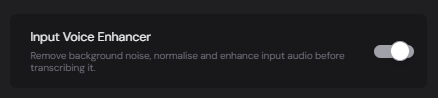
* This will remove background noice, normalise and enhance input audio before transcribing it.
 ***
## 🚦 Advanced Settings
If your transcriber provider offers advanced options, such as **custom models**, input the **Model ID** field:
* **Model ID**: Use this if a new model has been released by the provider (e.g., Deepgram’s Beta models).
* Ensure to test thoroughly before deployment.
***
## 📝 Example Use Case
Here’s a simple scenario:
1. **User**: "What time is my meeting tomorrow?"
2. **Transcriber**: Converts voice into text: `"What time is my meeting tomorrow?"`
3. The **AI** processes the text and generates a response.
***
## 🔗 Next Steps
Set up speech responses using ElevenLabs or other providers.
Explore advanced routing, recording, and more.
By configuring the transcriber settings, you can ensure fast, reliable, and accurate voice-to-text interactions in your
***
## 🚦 Advanced Settings
If your transcriber provider offers advanced options, such as **custom models**, input the **Model ID** field:
* **Model ID**: Use this if a new model has been released by the provider (e.g., Deepgram’s Beta models).
* Ensure to test thoroughly before deployment.
***
## 📝 Example Use Case
Here’s a simple scenario:
1. **User**: "What time is my meeting tomorrow?"
2. **Transcriber**: Converts voice into text: `"What time is my meeting tomorrow?"`
3. The **AI** processes the text and generates a response.
***
## 🔗 Next Steps
Set up speech responses using ElevenLabs or other providers.
Explore advanced routing, recording, and more.
By configuring the transcriber settings, you can ensure fast, reliable, and accurate voice-to-text interactions in your