> ## Documentation Index
> Fetch the complete documentation index at: https://docs.convocore.ai/llms.txt
> Use this file to discover all available pages before exploring further.
# Speech Generation
> Learn how to configure speech generation in Convocore Voice Suite.
Learn how to configure **Speech Generation** in the Convocore Voice Suite. Use providers like **ElevenLabs** to generate human-like speech responses with customizable options for tone, background noise, and punctuation breaks.
***
## 🎤 Speech Generation Setup
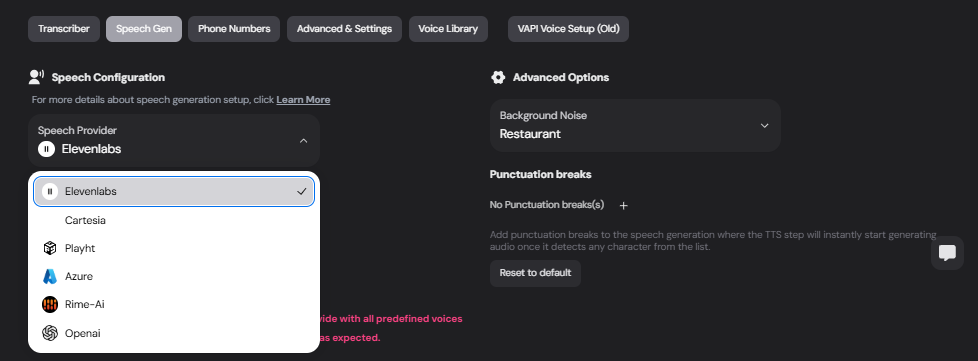
### 1. Select a Speech Provider
1. Navigate to the **Voice Setup** page in your Convocore dashboard.
2. Click on the **Speech Gen** tab.
3. From the **Speech Provider** dropdown, select your preferred provider:
* **ElevenLabs** is currently supported.
 ***
### 2. Choose a Voice
1. Under the **ElevenLabs Audio Library**, available voices are listed.
2. Browse through the options and preview each voice.
* Use the **play button** to listen to a sample.
* Adjust playback speed (e.g., `1x`, `1.5x`).
3. Click **"Use Voice"** to select a voice for your setup.
> **Available Voices**:
>
> * **Marcus** - Authoritative and deep
> * **Sam** - Chill, Southern California Male
> * **Ali** - Versatile and neutral
> * **Lisa** - Gentle, calm
> * **Jessi** - Neutral tone
> * **Mimi** - Soft and expressive
***
### 3. Advanced Options
Configure additional settings for speech generation:
#### 🔊 Background Noise
Add environmental noise to simulate real-world settings.
* Options include:
* **Restaurant**
* **Office**
* **Quiet Environment**
#### ✍️ Punctuation Breaks
* Add pauses in the generated speech whenever punctuation (e.g., `,` or `.`) is detected.
* Click **"+"** to customize punctuation rules.
> Reset to default settings if needed using the **"Reset to default"** button.
***
## 📝 Text-to-Speech Example
Here’s an example workflow for Speech Generation:
1. **Input Text**: "Hello, how are you?"
2. **Selected Voice**: Sam - Chill, Southern California Male
3. **Generated Speech**: A natural-sounding voice plays the input text with optional background noise.
***
## ⚙️ Troubleshooting
### Voice Not Showing?
* Ensure your ElevenLabs API key is valid and configured correctly.
### Speech Playback Delays?
* Check your network connection.
* Reduce background noise for faster processing.
***
## 🔗 Next Steps
Convert user speech into text.
Explore call recording, routing, and other configurations.
With Speech Generation set up, you can deliver human-like, customizable voice responses in your application. 🚀
***
### 2. Choose a Voice
1. Under the **ElevenLabs Audio Library**, available voices are listed.
2. Browse through the options and preview each voice.
* Use the **play button** to listen to a sample.
* Adjust playback speed (e.g., `1x`, `1.5x`).
3. Click **"Use Voice"** to select a voice for your setup.
> **Available Voices**:
>
> * **Marcus** - Authoritative and deep
> * **Sam** - Chill, Southern California Male
> * **Ali** - Versatile and neutral
> * **Lisa** - Gentle, calm
> * **Jessi** - Neutral tone
> * **Mimi** - Soft and expressive
***
### 3. Advanced Options
Configure additional settings for speech generation:
#### 🔊 Background Noise
Add environmental noise to simulate real-world settings.
* Options include:
* **Restaurant**
* **Office**
* **Quiet Environment**
#### ✍️ Punctuation Breaks
* Add pauses in the generated speech whenever punctuation (e.g., `,` or `.`) is detected.
* Click **"+"** to customize punctuation rules.
> Reset to default settings if needed using the **"Reset to default"** button.
***
## 📝 Text-to-Speech Example
Here’s an example workflow for Speech Generation:
1. **Input Text**: "Hello, how are you?"
2. **Selected Voice**: Sam - Chill, Southern California Male
3. **Generated Speech**: A natural-sounding voice plays the input text with optional background noise.
***
## ⚙️ Troubleshooting
### Voice Not Showing?
* Ensure your ElevenLabs API key is valid and configured correctly.
### Speech Playback Delays?
* Check your network connection.
* Reduce background noise for faster processing.
***
## 🔗 Next Steps
Convert user speech into text.
Explore call recording, routing, and other configurations.
With Speech Generation set up, you can deliver human-like, customizable voice responses in your application. 🚀