> ## Documentation Index
> Fetch the complete documentation index at: https://docs.convocore.ai/llms.txt
> Use this file to discover all available pages before exploring further.
# Advanced Settings
> Learn how to configure advanced settings in Convocore Voice Suite.
The **Advanced Settings** section in Convocore Voice Suite provides additional options to fine-tune your voice interactions. From enabling web calling to configuring server webhooks, this section allows greater flexibility for advanced use cases.
***
## ⚙️ Enable Web Calling
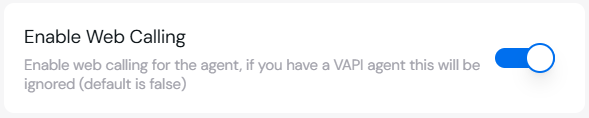
The **Web Calling** feature allows voice calls directly from the widget.
1. Go to the **Advanced & Settings** tab in the Voice Setup dashboard.
2. Toggle **Enable Web Calling** to turn this feature ON.
 > **Note**: If you’re using a **VAPI agent**, this setting will be ignored.
***
## 🎙 Record Calls
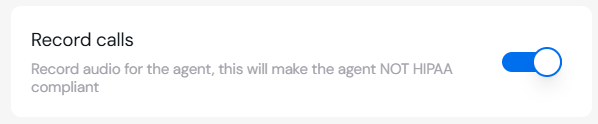
Enable **call recording** for monitoring and analysis:
1. Toggle **Record Calls** to **ON**.
2. This will store audio recordings of voice calls.
> **Warning**: Enabling call recording will make the agent **NOT HIPAA compliant**.
> **Note**: If you’re using a **VAPI agent**, this setting will be ignored.
***
## 🎙 Record Calls
Enable **call recording** for monitoring and analysis:
1. Toggle **Record Calls** to **ON**.
2. This will store audio recordings of voice calls.
> **Warning**: Enabling call recording will make the agent **NOT HIPAA compliant**.
 ***
## 🔄 Router Backchanneling
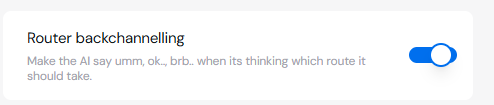
The **Router Backchanneling** feature makes the AI provide filler phrases (like "umm," "ok," "brb...") while deciding which response route to take.
1. Toggle **Router Backchanneling** to **ON** to enable this feature.
2. Use this to create a more human-like voice experience when the AI is "thinking."\\
***
## 🔄 Router Backchanneling
The **Router Backchanneling** feature makes the AI provide filler phrases (like "umm," "ok," "brb...") while deciding which response route to take.
1. Toggle **Router Backchanneling** to **ON** to enable this feature.
2. Use this to create a more human-like voice experience when the AI is "thinking."\\
 ***
## 🔗 Server Configuration
You can configure your webhook server to receive live call updates.
### Server URL
* Input the **Server URL** where webhook POST events will be sent.
* Example: `https://your-server-url.com`
### Server URL Secret
* Set a **Server URL Secret** that will be appended to the request as a **Bearer Token**.
* Example:
```bash theme={null}
Authorization: Bearer YOUR_SECRET_HERE
```
***
## 🔗 Server Configuration
You can configure your webhook server to receive live call updates.
### Server URL
* Input the **Server URL** where webhook POST events will be sent.
* Example: `https://your-server-url.com`
### Server URL Secret
* Set a **Server URL Secret** that will be appended to the request as a **Bearer Token**.
* Example:
```bash theme={null}
Authorization: Bearer YOUR_SECRET_HERE
```
 ***
## 📝 Summary of Settings
| **Setting** | **Description** | **Default** |
| ------------------------- | ----------------------------------------------------- | ----------- |
| **Enable Web Calling** | Allows web-based voice calls via the widget. | OFF |
| **Record Calls** | Enables call recording (non-HIPAA compliant). | OFF |
| **Router Backchanneling** | Adds filler phrases while the AI processes responses. | OFF |
| **Server URL** | Webhook URL for POST events from voice interactions. | - |
| **Server URL Secret** | Security token for authenticating webhook requests. | - |
***
## 🚦 Troubleshooting
* **Web Calls Not Working?**
* Verify that **Web Calling** is enabled and properly configured.
* Ensure your server URL is correct and active.
* **Recording Issues?**
* Check your storage and verify the Record Calls toggle is ON.
***
## 🔗 Next Steps
Learn how to enable web-based calls in your widget.
Configure natural-sounding voice responses.
With these advanced settings, you can customize and control voice behavior for enhanced flexibility and user experience. 🚀
***
## 📝 Summary of Settings
| **Setting** | **Description** | **Default** |
| ------------------------- | ----------------------------------------------------- | ----------- |
| **Enable Web Calling** | Allows web-based voice calls via the widget. | OFF |
| **Record Calls** | Enables call recording (non-HIPAA compliant). | OFF |
| **Router Backchanneling** | Adds filler phrases while the AI processes responses. | OFF |
| **Server URL** | Webhook URL for POST events from voice interactions. | - |
| **Server URL Secret** | Security token for authenticating webhook requests. | - |
***
## 🚦 Troubleshooting
* **Web Calls Not Working?**
* Verify that **Web Calling** is enabled and properly configured.
* Ensure your server URL is correct and active.
* **Recording Issues?**
* Check your storage and verify the Record Calls toggle is ON.
***
## 🔗 Next Steps
Learn how to enable web-based calls in your widget.
Configure natural-sounding voice responses.
With these advanced settings, you can customize and control voice behavior for enhanced flexibility and user experience. 🚀