> ## Documentation Index
> Fetch the complete documentation index at: https://docs.convocore.ai/llms.txt
> Use this file to discover all available pages before exploring further.
# Shopify Integration
> Connect your Shopify store to enable AI-powered order tracking and product browsing.
## Introduction
Connect your Shopify store to Convocore so your customers can check their order status and browse your products through your AI agent.
## Overview
The Shopify integration allows your customers to:
* **Check their order status** by providing their order number
* **View order details** (items, shipping, total)
* **Browse your store products** and get product information
* **See product availability** and pricing
This integration is **read-only** for security. Your agent can help customers
view information but cannot modify orders or products in your store.
## Prerequisites
Before connecting your Shopify store, you'll need:
* Admin access to your Shopify store
* Ability to create private apps in your Shopify admin
## Step-by-Step Setup Guide
### Step 1: Create a Shopify App
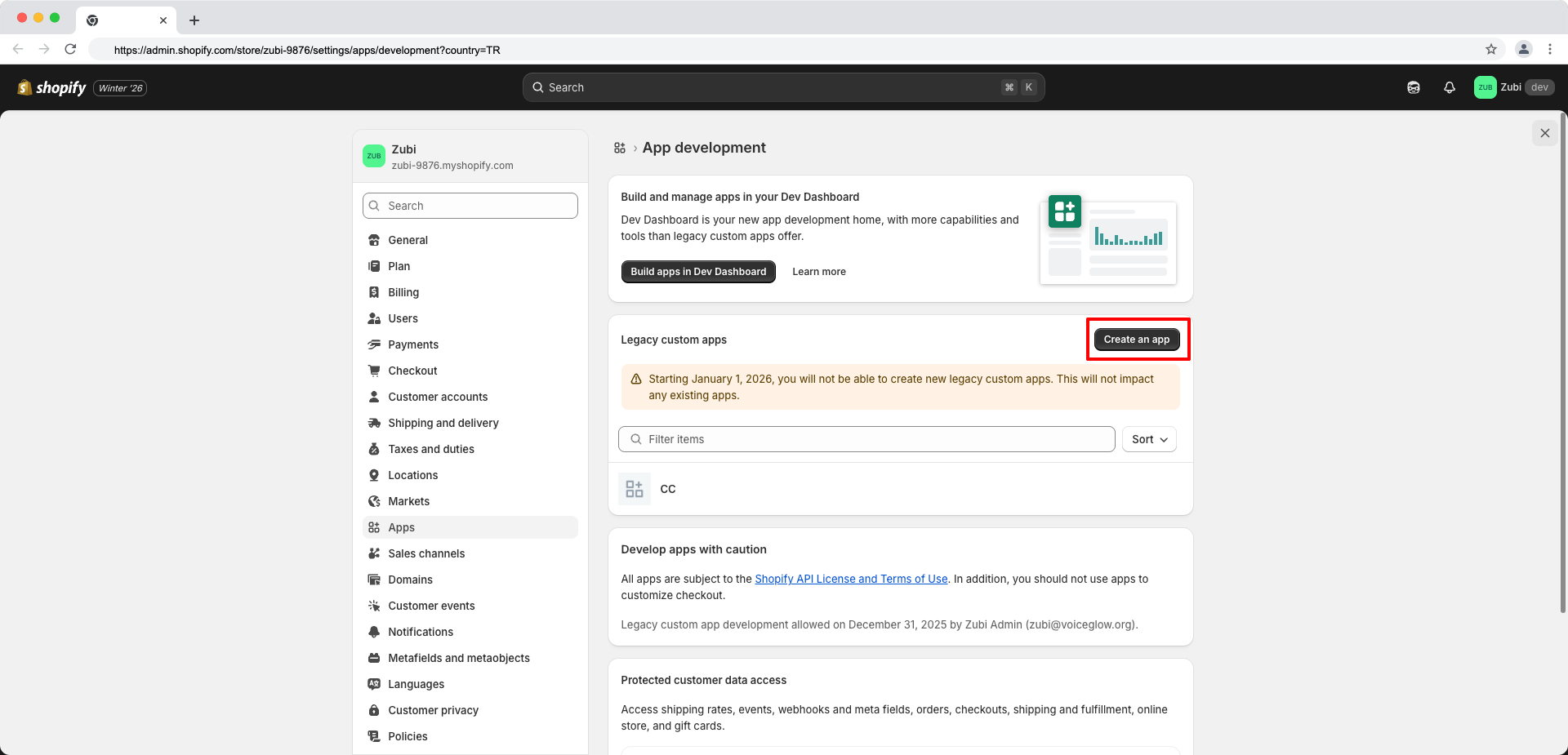
First, you'll need to create a custom app in your Shopify admin to generate API credentials.
1. **Go to your Shopify admin panel**
2. **Navigate to Settings** → **Apps and sales channels**
3. **Click "Develop apps"** at the top right
4. **Click "Create an app"**
5. **Give your app a name** (e.g., "Convocore AI Assistant")
 The app name is just for your reference. Choose something descriptive like
"Customer Support Bot" or "AI Assistant Integration".
### Step 2: Configure Admin API Scopes
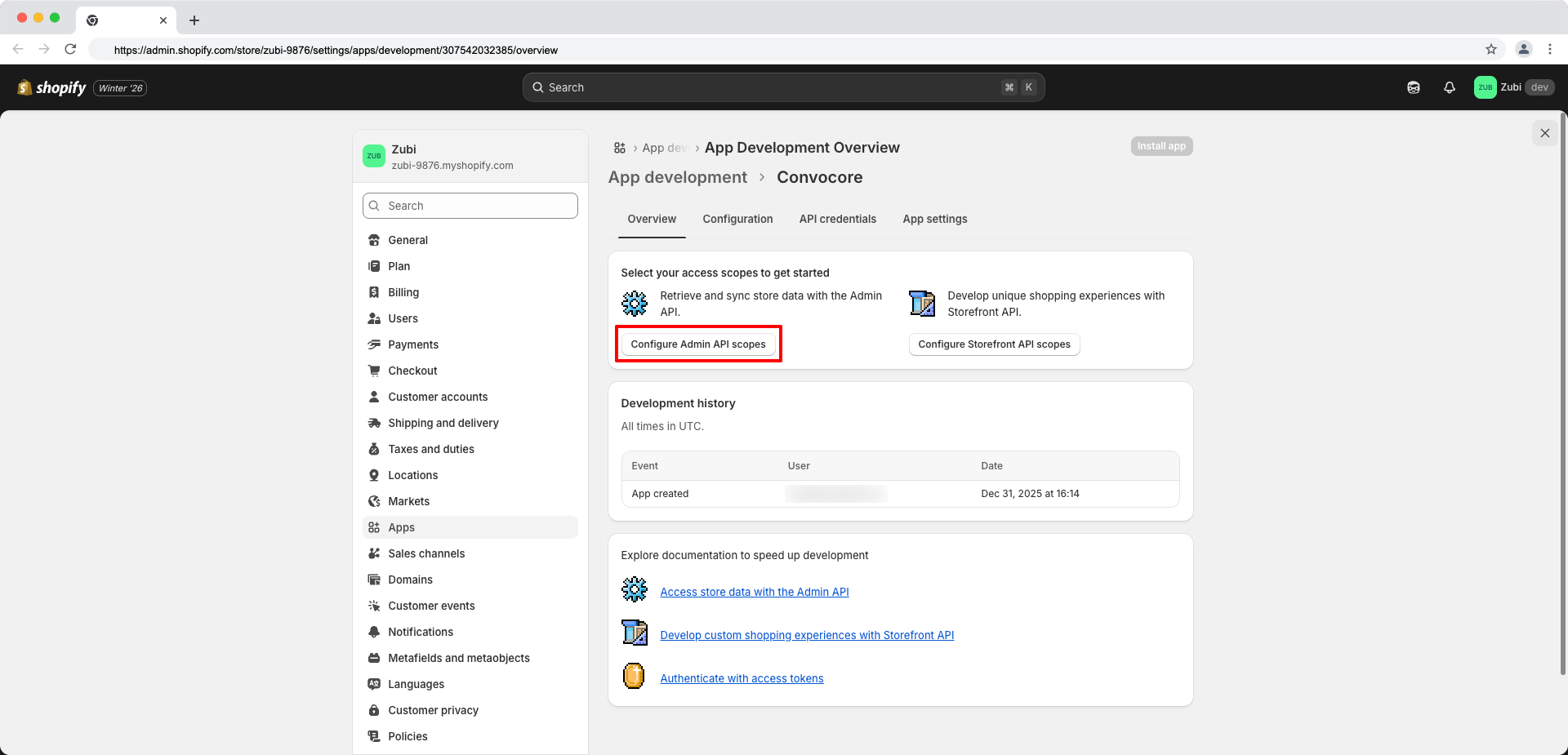
After creating the app, you need to configure the API scopes to grant read access to orders and products.
1. **Click "Configure Admin API scopes"**
2. **Scroll through the available scopes**
The app name is just for your reference. Choose something descriptive like
"Customer Support Bot" or "AI Assistant Integration".
### Step 2: Configure Admin API Scopes
After creating the app, you need to configure the API scopes to grant read access to orders and products.
1. **Click "Configure Admin API scopes"**
2. **Scroll through the available scopes**
 ### Step 3: Select Required Scopes
You need to enable exactly these three scopes for the integration to work:
```json Required Scopes theme={null}
{
"read_orders": "View order information and status",
"read_products": "View product data and details",
"read_product_listings": "View published products"
}
```
**Find and check these scopes:**
* ✅ **read\_orders** - Allows viewing order information
* ✅ **read\_products** - Allows viewing product data
* ✅ **read\_product\_listings** - Allows viewing published products
### Step 3: Select Required Scopes
You need to enable exactly these three scopes for the integration to work:
```json Required Scopes theme={null}
{
"read_orders": "View order information and status",
"read_products": "View product data and details",
"read_product_listings": "View published products"
}
```
**Find and check these scopes:**
* ✅ **read\_orders** - Allows viewing order information
* ✅ **read\_products** - Allows viewing product data
* ✅ **read\_product\_listings** - Allows viewing published products
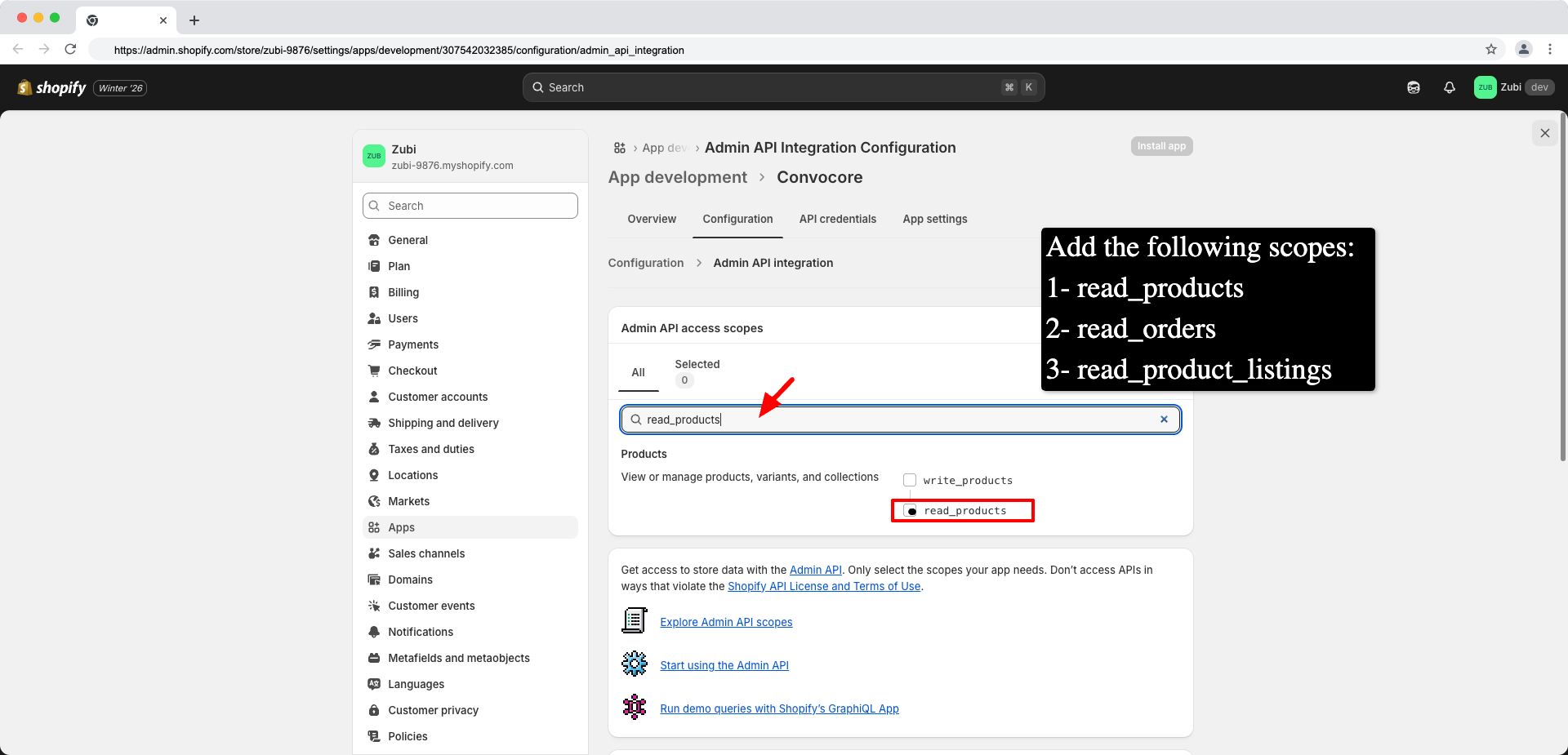 Make sure to select **exactly these three scopes**. Missing or incorrect
scopes will prevent the integration from working properly.
After selecting the scopes, **click "Save"** at the bottom of the page.
### Step 4: Install the App
Once you've configured the scopes, you need to install the app to your store.
1. **Click "Install app"** button
2. **Confirm the installation** when prompted
Make sure to select **exactly these three scopes**. Missing or incorrect
scopes will prevent the integration from working properly.
After selecting the scopes, **click "Save"** at the bottom of the page.
### Step 4: Install the App
Once you've configured the scopes, you need to install the app to your store.
1. **Click "Install app"** button
2. **Confirm the installation** when prompted
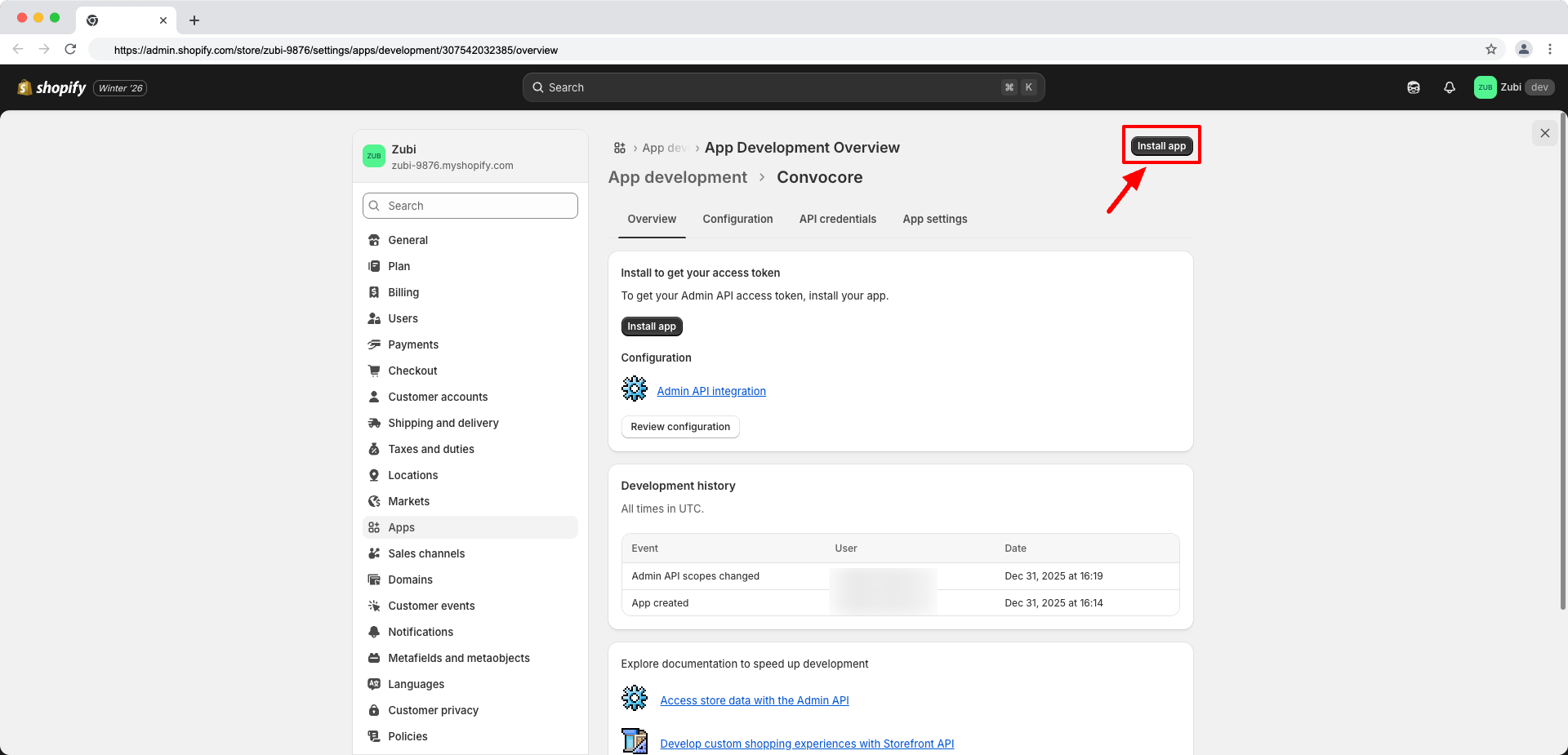 Installing the app generates your API credentials. This is a one-time setup
per store.
### Step 5: Copy Your Credentials
After installation, you'll see your API credentials. You need to copy two pieces of information:
1. **Admin API access token** (starts with `shpat_`)
2. **API secret key**
Installing the app generates your API credentials. This is a one-time setup
per store.
### Step 5: Copy Your Credentials
After installation, you'll see your API credentials. You need to copy two pieces of information:
1. **Admin API access token** (starts with `shpat_`)
2. **API secret key**
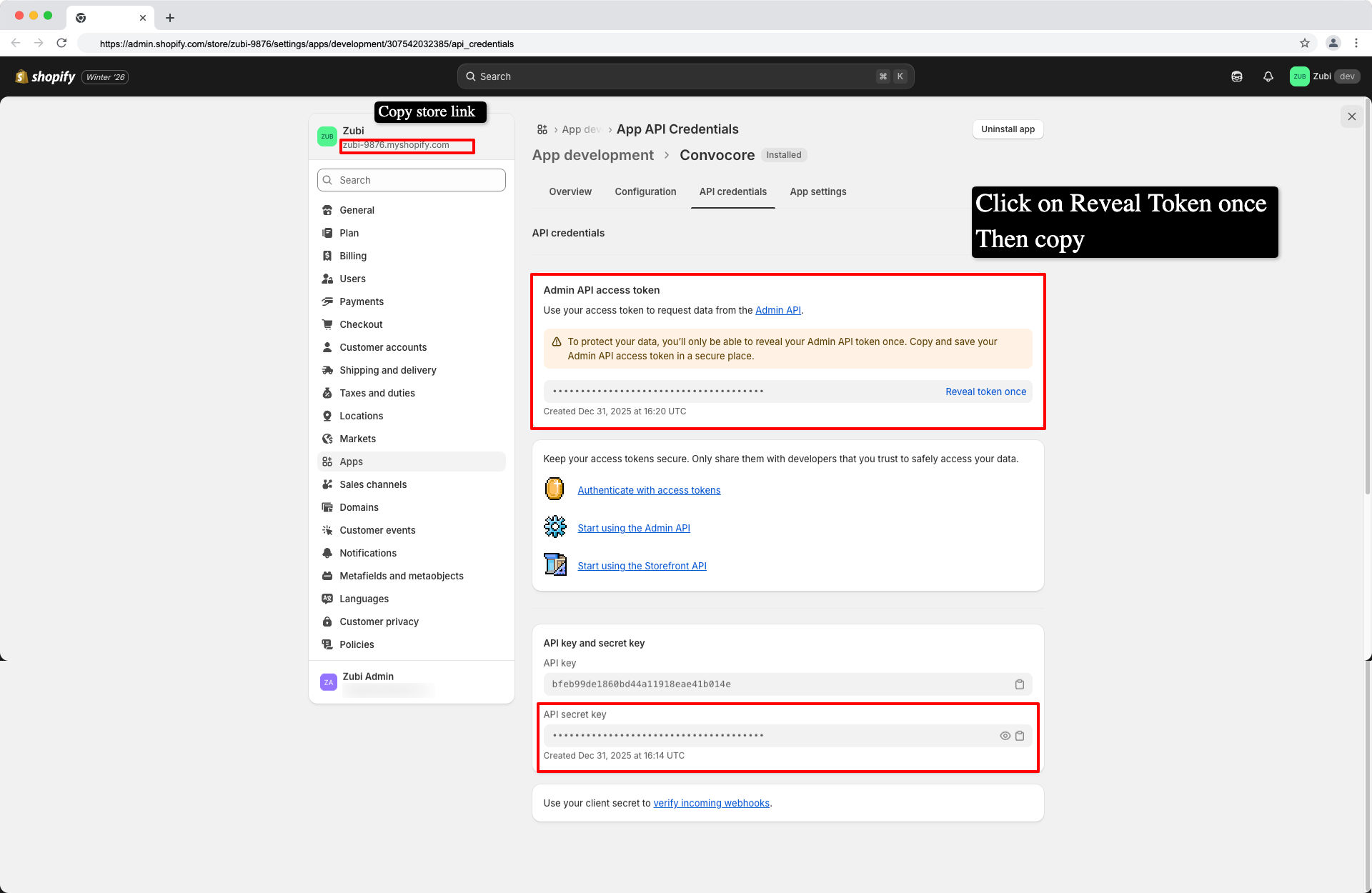 **Important**: The access token is only shown once! Make sure to copy it
before leaving this page. If you lose it, you'll need to regenerate the
credentials.
### Step 6: Connect to Convocore
Now you're ready to connect your Shopify store to Convocore!
1. **Go to the Integrations page** in your Convocore dashboard
2. **Find the Shopify card** and click **"Connect"**
3. **Fill in the required information**:
* **Store Domain**: `your-store.myshopify.com`
* **Admin API Access Token**: `shpat_xxxxxxxxxxxxx` (from Step 5)
* **API Secret Key**: Your app's secret key (from Step 5)
4. **Click "Connect Store"** to test and establish the connection
**Important**: The access token is only shown once! Make sure to copy it
before leaving this page. If you lose it, you'll need to regenerate the
credentials.
### Step 6: Connect to Convocore
Now you're ready to connect your Shopify store to Convocore!
1. **Go to the Integrations page** in your Convocore dashboard
2. **Find the Shopify card** and click **"Connect"**
3. **Fill in the required information**:
* **Store Domain**: `your-store.myshopify.com`
* **Admin API Access Token**: `shpat_xxxxxxxxxxxxx` (from Step 5)
* **API Secret Key**: Your app's secret key (from Step 5)
4. **Click "Connect Store"** to test and establish the connection
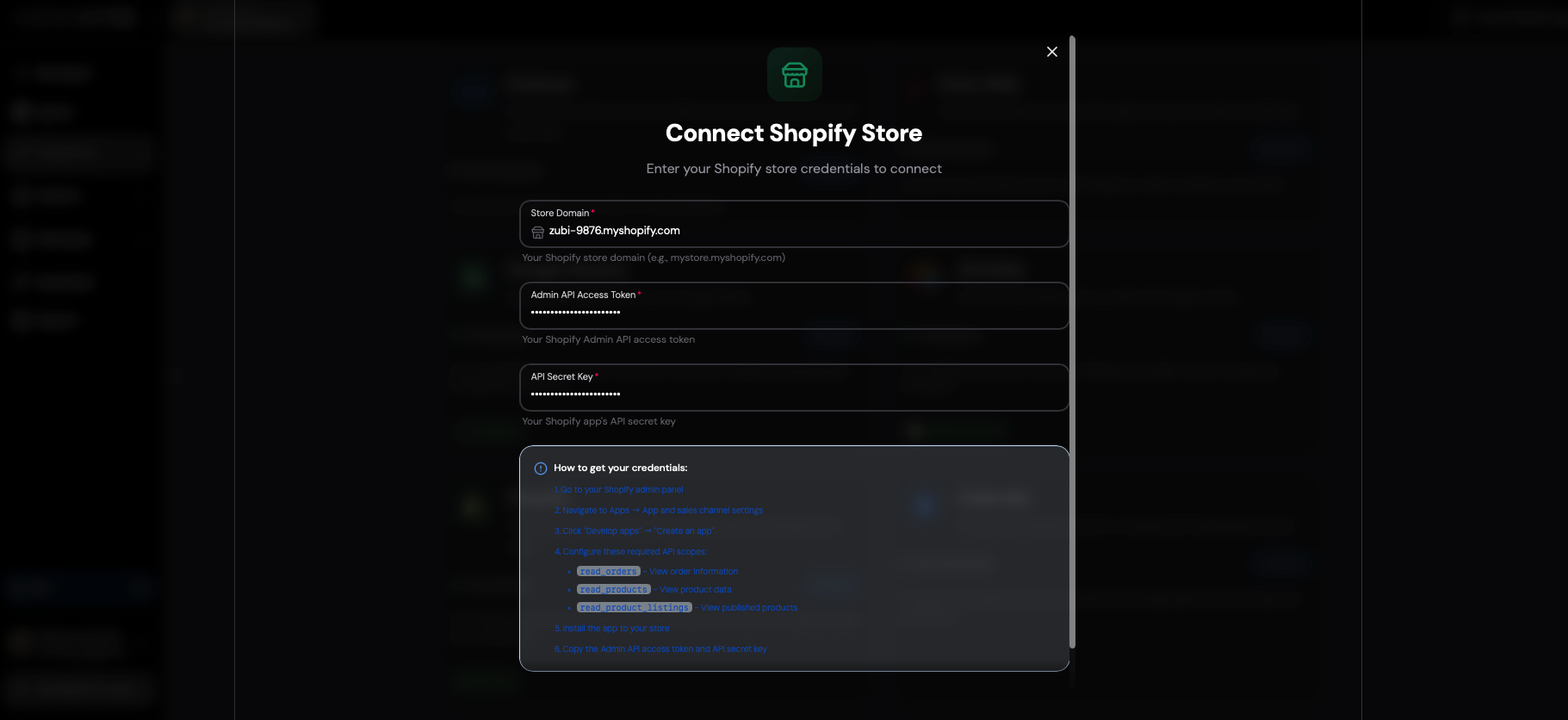 The system will automatically test your credentials before saving them. If you
see a success message, you're all set!
## Assigning to Agents
After connecting your Shopify store, you need to assign it to the agents that should have access.
### Method 1: Through Integrations Page
1. **Go to Integrations** in your Convocore dashboard
2. **Find your connected Shopify store** and click **"Manage"**
3. **Switch to the "Agent Assignment" tab**
4. **Select the Shopify store** you want to assign (if you have multiple)
5. **Choose one or more agents** from the dropdown
6. **Click "Assign Shopify"**
You can assign the same Shopify store to multiple agents, and each agent will
have read-only access to your store data.
### Method 2: Through Agent Settings
1. **Go to the Agents tab** and select your agent
2. **Navigate to the Canvas** (or Nodes view)
3. **Edit a node** (typically the Start Node)
4. **In the Tools section**, find and enable the **"Shopify"** tool
5. **Save the node configuration**
### Agent Instructions
To help your agent understand when to use Shopify, add instructions like this to your agent's prompt:
```markdown theme={null}
You can help customers with their orders and questions about products:
- Check order status and delivery information
- Browse product catalog and pricing
- Check product availability and details
When customers ask about their orders or products, use the Shopify tool to get
real-time information from the store.
```
## What Your Customers Can Do
Once connected, your customers can interact with your agent to:
### Order Inquiries
* **"What's the status of my order #12345?"**
* **"When will my order arrive?"**
* **"What items are in my order?"**
* **"How much did I pay for my order?"**
* **"Has my order been shipped yet?"**
### Product Browsing
* **"What products do you have?"**
* **"Tell me about \[product name]"**
* **"How much does \[product] cost?"**
* **"Do you have \[product] in stock?"**
* **"Show me products in \[category]"**
## Usage Examples
### Customer Checking Order Status
```text Customer theme={null}
Hi, I want to check my order status. My order number is 677561797429.
```
```text Agent Response theme={null}
I found your order! Here are the details:
📦 **Order #677561797429**
💰 **Total**: $125.99
📅 **Ordered**: January 28, 2024
🔄 **Status**: Fulfilled
🚚 **Shipping**: Delivered via UPS
Your order contains 3 items and has been successfully delivered. Is there
anything else you'd like to know about your order?
```
### Customer Asking About Products
```text Customer theme={null}
Do you have any cotton t-shirts available?
```
```text Agent Response theme={null}
Yes! Here are our cotton t-shirts currently available:
🏷️ **Premium Cotton T-Shirt**
💰 **Price**: $29.99
📏 **Sizes**: Small, Medium, Large, XL
🎨 **Colors**: Black, White, Navy, Gray
✅ **In Stock**: Yes
🏷️ **Organic Cotton Tee**
💰 **Price**: $34.99
📏 **Sizes**: Small, Medium, Large
🎨 **Colors**: Natural, Charcoal
✅ **In Stock**: Yes
Would you like more details about any of these shirts or help with placing an
order?
```
## Managing Your Integration
### Viewing Connected Stores
1. **Go to Integrations** in your dashboard
2. **Find the Shopify card** - it will show "X Connections" if connected
3. **Click "Manage"** to see all connected stores
### Managing Agent Assignments
In the Manage modal, you'll see two tabs:
**Store Connections Tab:**
* View all connected Shopify stores
* See store details (domain, currency, timezone)
* Disconnect stores when needed
**Agent Assignment Tab:**
* See which agents are using Shopify
* Assign Shopify to new agents
* Remove Shopify from agents
### Disconnecting a Store
If you need to disconnect a Shopify store:
1. **Go to Integrations** → **Shopify** → **"Manage"**
2. **Go to "Store Connections" tab**
3. **Find the store** you want to disconnect
4. **Click the store** to expand details
5. **Click "Disconnect"** and confirm
Disconnecting a store will prevent any agents using it from accessing order
and product data. Make sure to remove agent assignments first if needed.
## Tips for Better Customer Experience
### Helpful Agent Prompts
To make your agent more effective with Shopify integration, consider adding these suggestions to your agent's system prompt:
```text System Prompt Addition theme={null}
When customers ask about orders:
- Always ask for their order number if not provided
- Provide clear status updates and tracking information
- Offer to help with any concerns about their order
When customers ask about products:
- Show relevant products with prices and availability
- Highlight key features and benefits
- Ask if they need help with sizing or have questions
- Offer to help them find similar products if something is out of stock
```
### Common Customer Questions
Your agent will be able to handle questions like:
* "What's the status of order #12345?"
* "When will my order arrive?"
* "Do you have \[product] in stock?"
* "How much does \[product] cost?"
* "What products do you have in \[category]?"
* "Can you help me find \[type of product]?"
## Troubleshooting
### Connection Issues
**Problem**: "Invalid access token or unauthorized"
**Solutions**:
* Verify your access token starts with `shpat_`
* Check that your app is installed to your store
* Ensure API scopes are configured correctly (all 3 scopes)
* Try regenerating the access token in Shopify
**Problem**: "Store not found - check your shop domain"
**Solutions**:
* Verify your store domain includes `.myshopify.com`
* Check for typos in the domain name
* Ensure the store is active and accessible
**Problem**: "Access forbidden - check your API permissions"
**Solutions**:
* Go back to Shopify and verify all 3 API scopes are enabled
* Make sure the app is installed to your store
* Try uninstalling and reinstalling the app
### Agent Can't Find Orders
**Problem**: Customer provides order number but agent says "order not found"
**Solutions**:
* Ask customer to double-check their order number
* Verify you're connected to the correct Shopify store
* Check that the `read_orders` scope is enabled
* Order might be very old (system searches recent orders first)
### Agent Not Responding to Shopify Questions
**Problem**: Agent doesn't use Shopify when customers ask about orders/products
**Solutions**:
* Make sure Shopify is assigned to the agent (check in Integrations → Manage → Agent Assignment)
* Verify the Shopify tool is enabled in your agent's node settings
* Check that your store connection shows as "Connected" in Integrations
* Add clearer instructions in your agent's prompt about using Shopify
* Try reconnecting your store if issues persist
### Error Messages
If you see error messages when connecting:
| Error Message | What It Means | Solution |
| ------------------------ | ----------------------------- | ---------------------------------- |
| "Invalid access token" | The access token is incorrect | Copy the token again from Shopify |
| "Store not found" | Domain is incorrect | Check your `.myshopify.com` domain |
| "Access forbidden" | Missing API scopes | Add all 3 required scopes |
| "Connection test failed" | Network or API issue | Try again in a few moments |
## Security & Privacy
Your data security is our top priority:
* ✅ **Read-only access** - Cannot modify your store data or process orders
* ✅ **Secure storage** - API credentials are encrypted at rest
* ✅ **HTTPS only** - All API calls use secure SSL connections
* ✅ **No data retention** - Order and customer data is not stored by Convocore
* ✅ **Disconnect anytime** - Remove access instantly from Integrations page
* ✅ **Scoped permissions** - Only requests the minimum required access
Your Shopify credentials are never exposed to end users or stored in logs.
They are only used server-side to make authenticated API requests to your
store.
## Advanced Configuration
### Multiple Store Support
You can connect multiple Shopify stores to your workspace:
1. **Each store** gets its own connection in Integrations
2. **Each agent** can be assigned to one or more stores
3. **Agents will search** across all assigned stores when helping customers
### Custom Agent Behaviors
You can customize how your agent uses Shopify by:
**In Agent Prompt:**
```markdown theme={null}
When using Shopify:
- Always format order information in a clear, easy-to-read format
- Include emojis to make responses more engaging
- If an order hasn't shipped yet, let customers know the expected timeline
- If a product is out of stock, offer to check similar items
```
## Support
Need help? Here's what to check:
1. **Connection Status** - Verify your store shows as "Connected" (green indicator) in Integrations
2. **Agent Assignment** - Make sure Shopify is assigned to your agent via Integrations → Manage
3. **Test Connection** - The system tests your credentials automatically when connecting
4. **Check Scopes** - All 3 API scopes must be enabled in your Shopify app
For additional support, contact our team through the dashboard or check our help center.
***
## Quick Start Checklist
* [ ] Create Shopify app in your admin panel
* [ ] Configure the 3 required API scopes
* [ ] Install the app to your store
* [ ] Copy Admin API access token and secret
* [ ] Connect store in Convocore Integrations
* [ ] Assign Shopify to your agent(s)
* [ ] Add helpful instructions to agent prompt
* [ ] Test with sample customer questions
Your Shopify integration is now ready! Your customers can check their order status and browse your products through natural conversation with your AI agent. 🎉
The system will automatically test your credentials before saving them. If you
see a success message, you're all set!
## Assigning to Agents
After connecting your Shopify store, you need to assign it to the agents that should have access.
### Method 1: Through Integrations Page
1. **Go to Integrations** in your Convocore dashboard
2. **Find your connected Shopify store** and click **"Manage"**
3. **Switch to the "Agent Assignment" tab**
4. **Select the Shopify store** you want to assign (if you have multiple)
5. **Choose one or more agents** from the dropdown
6. **Click "Assign Shopify"**
You can assign the same Shopify store to multiple agents, and each agent will
have read-only access to your store data.
### Method 2: Through Agent Settings
1. **Go to the Agents tab** and select your agent
2. **Navigate to the Canvas** (or Nodes view)
3. **Edit a node** (typically the Start Node)
4. **In the Tools section**, find and enable the **"Shopify"** tool
5. **Save the node configuration**
### Agent Instructions
To help your agent understand when to use Shopify, add instructions like this to your agent's prompt:
```markdown theme={null}
You can help customers with their orders and questions about products:
- Check order status and delivery information
- Browse product catalog and pricing
- Check product availability and details
When customers ask about their orders or products, use the Shopify tool to get
real-time information from the store.
```
## What Your Customers Can Do
Once connected, your customers can interact with your agent to:
### Order Inquiries
* **"What's the status of my order #12345?"**
* **"When will my order arrive?"**
* **"What items are in my order?"**
* **"How much did I pay for my order?"**
* **"Has my order been shipped yet?"**
### Product Browsing
* **"What products do you have?"**
* **"Tell me about \[product name]"**
* **"How much does \[product] cost?"**
* **"Do you have \[product] in stock?"**
* **"Show me products in \[category]"**
## Usage Examples
### Customer Checking Order Status
```text Customer theme={null}
Hi, I want to check my order status. My order number is 677561797429.
```
```text Agent Response theme={null}
I found your order! Here are the details:
📦 **Order #677561797429**
💰 **Total**: $125.99
📅 **Ordered**: January 28, 2024
🔄 **Status**: Fulfilled
🚚 **Shipping**: Delivered via UPS
Your order contains 3 items and has been successfully delivered. Is there
anything else you'd like to know about your order?
```
### Customer Asking About Products
```text Customer theme={null}
Do you have any cotton t-shirts available?
```
```text Agent Response theme={null}
Yes! Here are our cotton t-shirts currently available:
🏷️ **Premium Cotton T-Shirt**
💰 **Price**: $29.99
📏 **Sizes**: Small, Medium, Large, XL
🎨 **Colors**: Black, White, Navy, Gray
✅ **In Stock**: Yes
🏷️ **Organic Cotton Tee**
💰 **Price**: $34.99
📏 **Sizes**: Small, Medium, Large
🎨 **Colors**: Natural, Charcoal
✅ **In Stock**: Yes
Would you like more details about any of these shirts or help with placing an
order?
```
## Managing Your Integration
### Viewing Connected Stores
1. **Go to Integrations** in your dashboard
2. **Find the Shopify card** - it will show "X Connections" if connected
3. **Click "Manage"** to see all connected stores
### Managing Agent Assignments
In the Manage modal, you'll see two tabs:
**Store Connections Tab:**
* View all connected Shopify stores
* See store details (domain, currency, timezone)
* Disconnect stores when needed
**Agent Assignment Tab:**
* See which agents are using Shopify
* Assign Shopify to new agents
* Remove Shopify from agents
### Disconnecting a Store
If you need to disconnect a Shopify store:
1. **Go to Integrations** → **Shopify** → **"Manage"**
2. **Go to "Store Connections" tab**
3. **Find the store** you want to disconnect
4. **Click the store** to expand details
5. **Click "Disconnect"** and confirm
Disconnecting a store will prevent any agents using it from accessing order
and product data. Make sure to remove agent assignments first if needed.
## Tips for Better Customer Experience
### Helpful Agent Prompts
To make your agent more effective with Shopify integration, consider adding these suggestions to your agent's system prompt:
```text System Prompt Addition theme={null}
When customers ask about orders:
- Always ask for their order number if not provided
- Provide clear status updates and tracking information
- Offer to help with any concerns about their order
When customers ask about products:
- Show relevant products with prices and availability
- Highlight key features and benefits
- Ask if they need help with sizing or have questions
- Offer to help them find similar products if something is out of stock
```
### Common Customer Questions
Your agent will be able to handle questions like:
* "What's the status of order #12345?"
* "When will my order arrive?"
* "Do you have \[product] in stock?"
* "How much does \[product] cost?"
* "What products do you have in \[category]?"
* "Can you help me find \[type of product]?"
## Troubleshooting
### Connection Issues
**Problem**: "Invalid access token or unauthorized"
**Solutions**:
* Verify your access token starts with `shpat_`
* Check that your app is installed to your store
* Ensure API scopes are configured correctly (all 3 scopes)
* Try regenerating the access token in Shopify
**Problem**: "Store not found - check your shop domain"
**Solutions**:
* Verify your store domain includes `.myshopify.com`
* Check for typos in the domain name
* Ensure the store is active and accessible
**Problem**: "Access forbidden - check your API permissions"
**Solutions**:
* Go back to Shopify and verify all 3 API scopes are enabled
* Make sure the app is installed to your store
* Try uninstalling and reinstalling the app
### Agent Can't Find Orders
**Problem**: Customer provides order number but agent says "order not found"
**Solutions**:
* Ask customer to double-check their order number
* Verify you're connected to the correct Shopify store
* Check that the `read_orders` scope is enabled
* Order might be very old (system searches recent orders first)
### Agent Not Responding to Shopify Questions
**Problem**: Agent doesn't use Shopify when customers ask about orders/products
**Solutions**:
* Make sure Shopify is assigned to the agent (check in Integrations → Manage → Agent Assignment)
* Verify the Shopify tool is enabled in your agent's node settings
* Check that your store connection shows as "Connected" in Integrations
* Add clearer instructions in your agent's prompt about using Shopify
* Try reconnecting your store if issues persist
### Error Messages
If you see error messages when connecting:
| Error Message | What It Means | Solution |
| ------------------------ | ----------------------------- | ---------------------------------- |
| "Invalid access token" | The access token is incorrect | Copy the token again from Shopify |
| "Store not found" | Domain is incorrect | Check your `.myshopify.com` domain |
| "Access forbidden" | Missing API scopes | Add all 3 required scopes |
| "Connection test failed" | Network or API issue | Try again in a few moments |
## Security & Privacy
Your data security is our top priority:
* ✅ **Read-only access** - Cannot modify your store data or process orders
* ✅ **Secure storage** - API credentials are encrypted at rest
* ✅ **HTTPS only** - All API calls use secure SSL connections
* ✅ **No data retention** - Order and customer data is not stored by Convocore
* ✅ **Disconnect anytime** - Remove access instantly from Integrations page
* ✅ **Scoped permissions** - Only requests the minimum required access
Your Shopify credentials are never exposed to end users or stored in logs.
They are only used server-side to make authenticated API requests to your
store.
## Advanced Configuration
### Multiple Store Support
You can connect multiple Shopify stores to your workspace:
1. **Each store** gets its own connection in Integrations
2. **Each agent** can be assigned to one or more stores
3. **Agents will search** across all assigned stores when helping customers
### Custom Agent Behaviors
You can customize how your agent uses Shopify by:
**In Agent Prompt:**
```markdown theme={null}
When using Shopify:
- Always format order information in a clear, easy-to-read format
- Include emojis to make responses more engaging
- If an order hasn't shipped yet, let customers know the expected timeline
- If a product is out of stock, offer to check similar items
```
## Support
Need help? Here's what to check:
1. **Connection Status** - Verify your store shows as "Connected" (green indicator) in Integrations
2. **Agent Assignment** - Make sure Shopify is assigned to your agent via Integrations → Manage
3. **Test Connection** - The system tests your credentials automatically when connecting
4. **Check Scopes** - All 3 API scopes must be enabled in your Shopify app
For additional support, contact our team through the dashboard or check our help center.
***
## Quick Start Checklist
* [ ] Create Shopify app in your admin panel
* [ ] Configure the 3 required API scopes
* [ ] Install the app to your store
* [ ] Copy Admin API access token and secret
* [ ] Connect store in Convocore Integrations
* [ ] Assign Shopify to your agent(s)
* [ ] Add helpful instructions to agent prompt
* [ ] Test with sample customer questions
Your Shopify integration is now ready! Your customers can check their order status and browse your products through natural conversation with your AI agent. 🎉