> ## Documentation Index
> Fetch the complete documentation index at: https://docs.convocore.ai/llms.txt
> Use this file to discover all available pages before exploring further.
# Overview
> Guide to integrating Voiceflow with Convocore, including analytics, templates, and library components.
## Introduction
This documentation covers the integration of Voiceflow with [Convocore](https://convocore.ai/). Learn how to connect your Voiceflow projects, access analytics, and leverage templates and library components for better performance.
### Prerequisites
* [Voiceflow](https://www.voiceflow.com/) account and access to your project dashboard.
* **Agent ID** and **Project ID** from Voiceflow.
* Access to the [Convocore](https://convocore.ai/) platform.
***
## Connecting the Voiceflow Agent
### Step 1: Gather Required Information
* Log in to your [Voiceflow](https://www.voiceflow.com/) account.
* Locate your **Agent ID** and **Project ID** from the project dashboard.
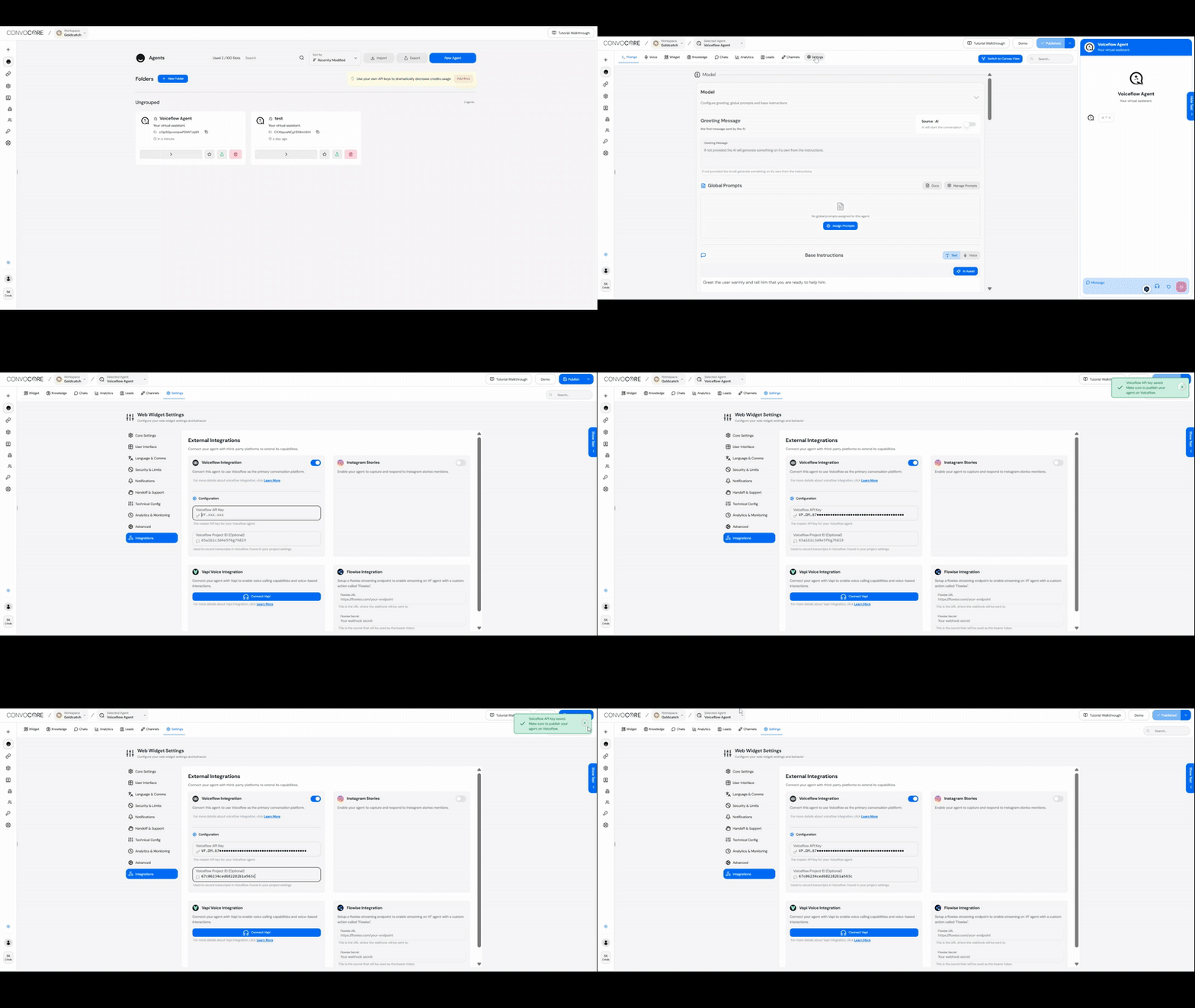
### Step 2: Configure in Convocore
1. Navigate to the [Convocore](https://convocore.ai/) page and choose your agent.
2. Enter the Voiceflow **Agent ID** and **Project ID** in the agent design section.
3. Save the configuration and test the connection.
### Troubleshooting Tips - Double-check IDs for typos. - Ensure your Voiceflow project
is published and active.
***
## Voiceflow Analytics
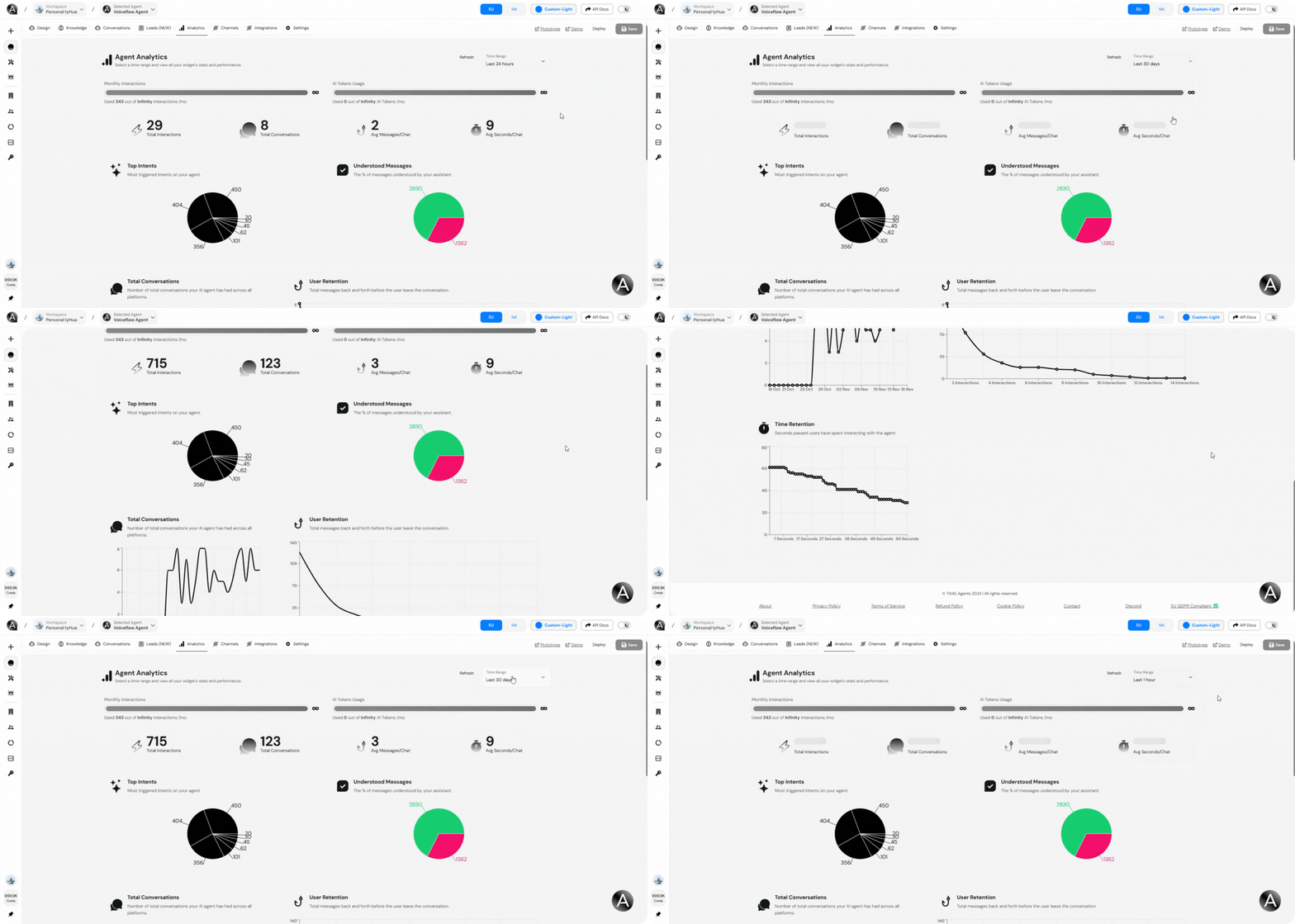
### Accessing Analytics
* Go to your Convocore agent dashboard.
* Navigate to the **Analytics** section.
To access the analytics, ensure that your Voiceflow **Agent ID** and **Project ID** are
correctly configured in the platform.
### Key Metrics Explained
* **Total Interactions:** Total number of interactions your users have had with the agent.
* **Total Conversations:** Number of total conversations your AI agent has had across all platforms.
* **User Retention:** Total messages exchanged before the user leaves the conversation.
* **Top Intents:** Most triggered intents on your agent, showing the most common actions users take.
* **Time Retention:** Seconds users have spent interacting with the agent.
### Using Insights Effectively Use these insights to optimize your agent's flows and
enhance user satisfaction.
***
## Voiceflow Template
### Where to Find the Template
* Locate the Voiceflow template in the **[Convocore](https://convocore.ai/)** profile section or download it directly from [here](https://cdn.voiceglow.org/public/VGLatestTemplate.vf).
### Importing the Template
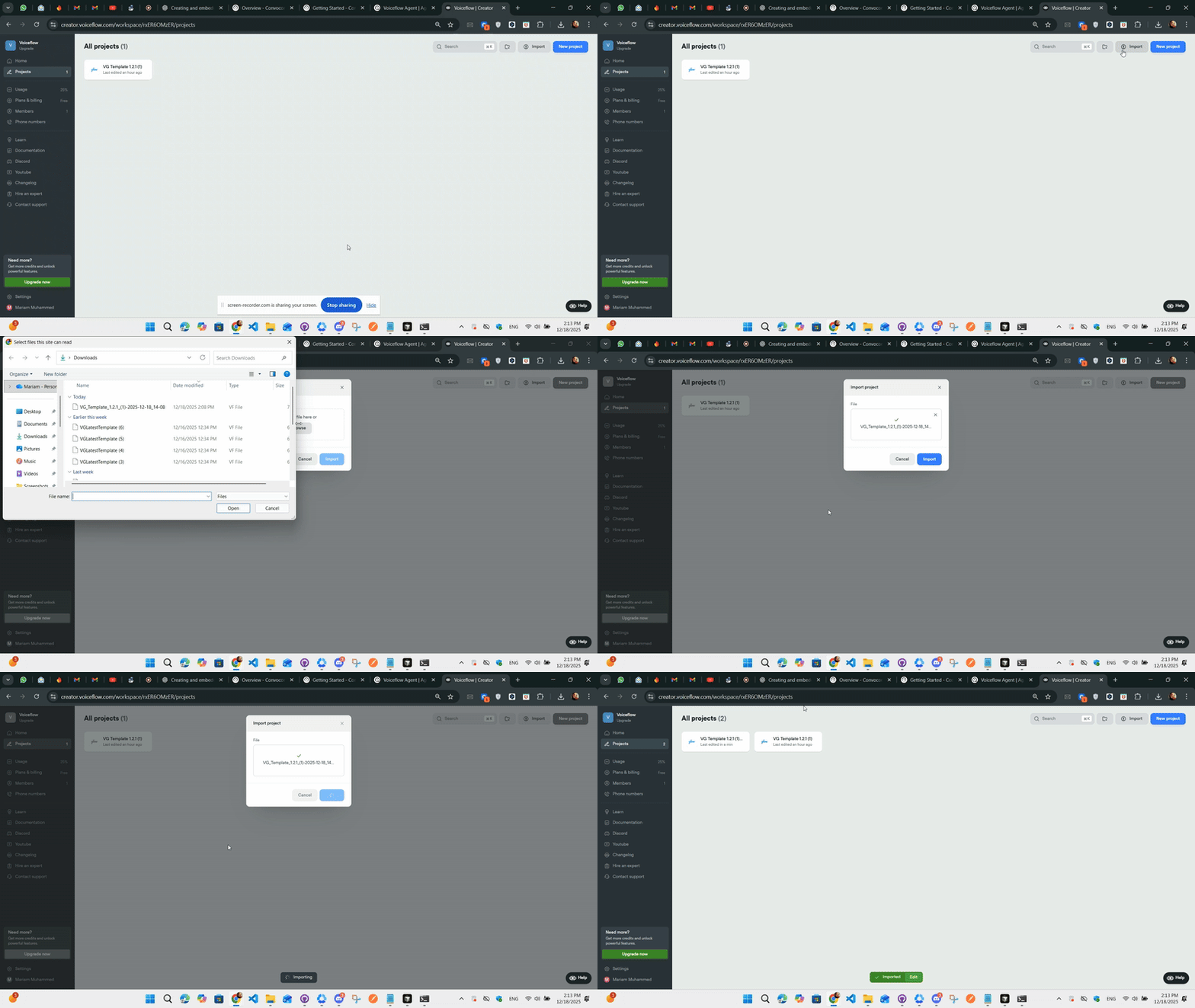
1. Download the Voiceflow template file.
2. Go to your Voiceflow [creator page](https://creator.voiceflow.com/).
3. Import the template using the **Import** option.
It's crucial to use the **latest** Voiceflow Template to ensure smooth functionality and
avoid any potential issues with the agent!
***
## Using Library Components
### Overview
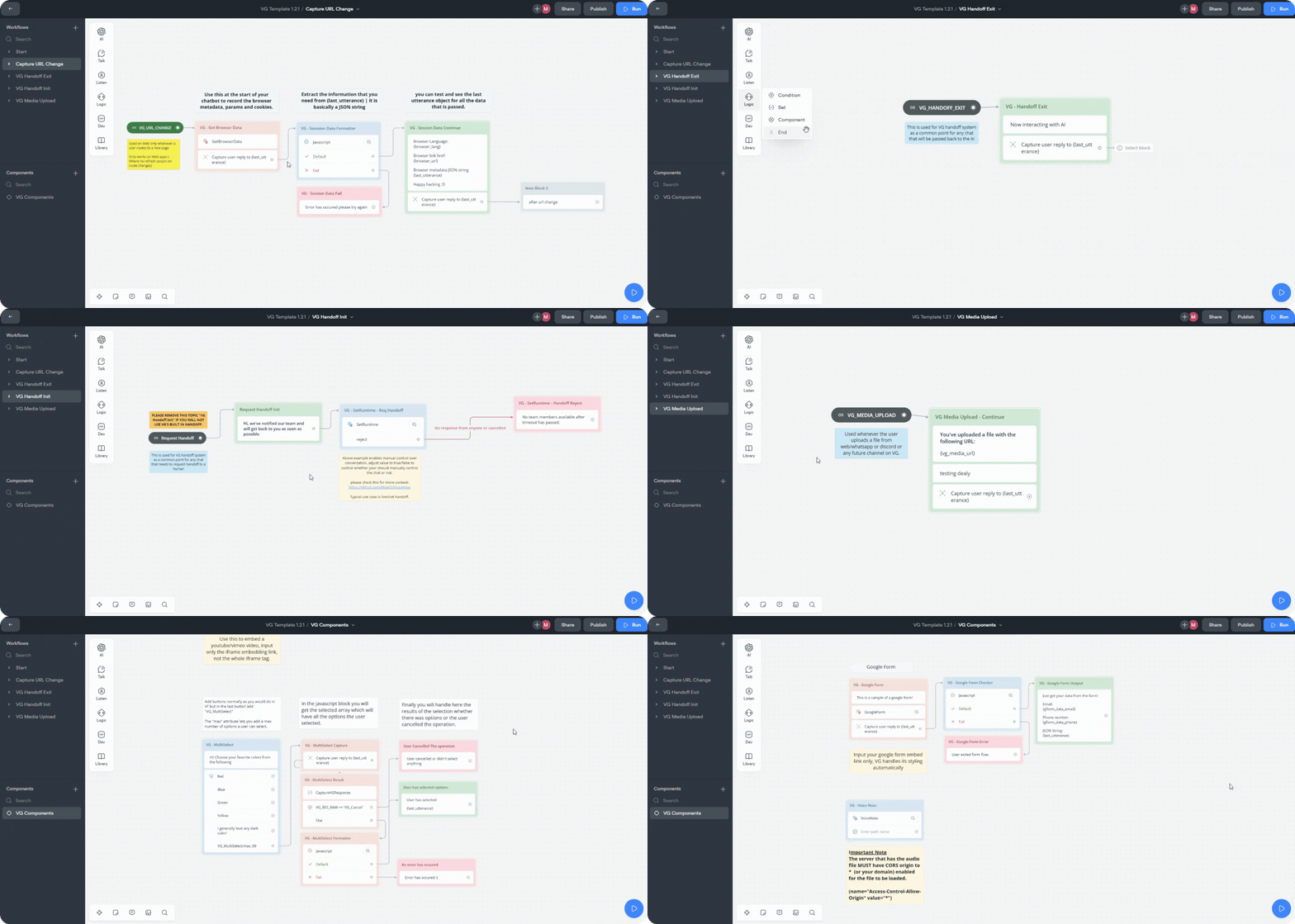
Library components in the Voiceflow template are pre-built, reusable tools designed to simplify and enhance your conversational flow creation. They help you save time, ensure consistency, and provide advanced functionality without starting from scratch.
***
### Step-by-Step Guide
#### 1. **Locate Components in the Voiceflow Template**
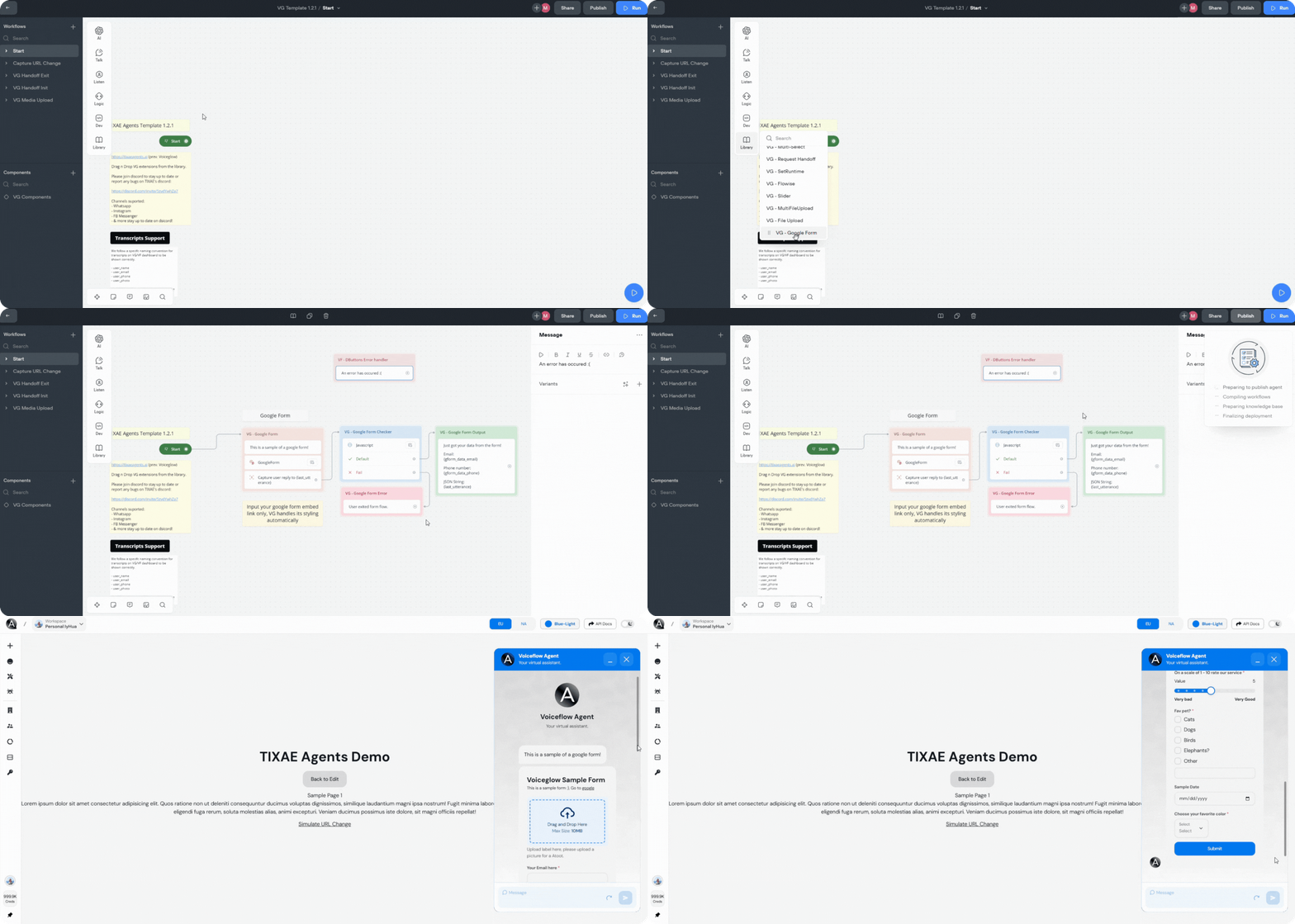
* Open the Voiceflow template in your Voiceflow creator.
* Navigate to the **Library** section to view the available components.
#### 2. **Drag and Drop**
* Select the desired component and drag it into your conversation flow.
If you're not importing the whole template into your flow and just a single component,
make sure to create the variables and intents needed for that component so nothing
breaks.
#### 3. **Customize**
* Modify the component’s settings to suit your agent’s requirements, such as adding specific intents, API endpoints, or fallback messages.
#### 4. **Test Your Flow**
* Use Voiceflow's testing environment to simulate interactions and ensure the components work as expected.
***
### Video Tutorial
Watch a detailed guide to using library components:
### Pro Tip: Start with basic components, then progressively integrate more advanced
ones as you refine your agent's capabilities.
***
## Extensions Page
### What Are Extensions?
Extensions enhance the functionality of your Voiceflow agents by adding new capabilities or integrations.
[Visit Extensions Page](/integration/Voiceflow/extensions)
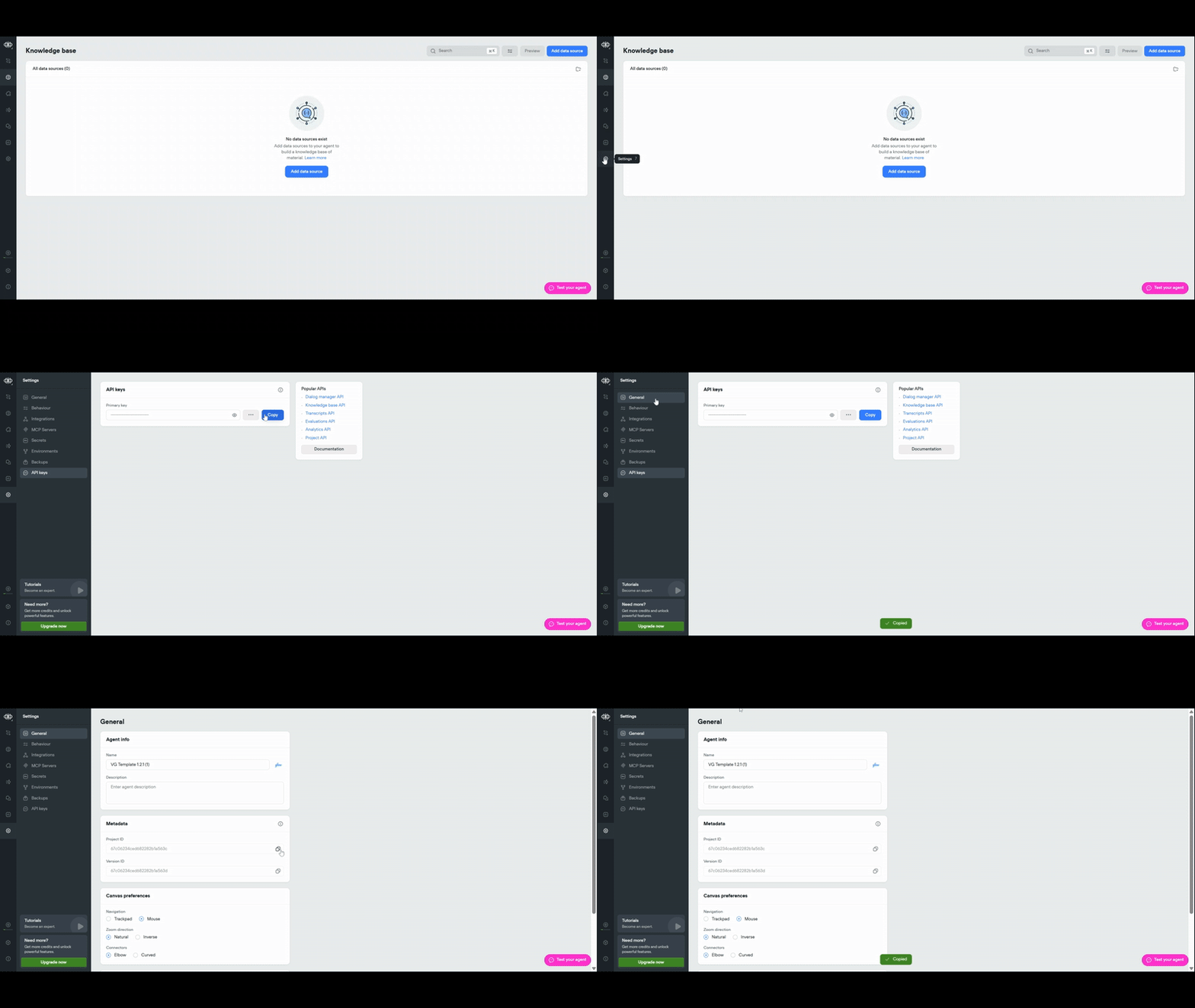 ### Step 2: Configure in Convocore
1. Navigate to the [Convocore](https://convocore.ai/) page and choose your agent.
2. Enter the Voiceflow **Agent ID** and **Project ID** in the agent design section.
3. Save the configuration and test the connection.
### Step 2: Configure in Convocore
1. Navigate to the [Convocore](https://convocore.ai/) page and choose your agent.
2. Enter the Voiceflow **Agent ID** and **Project ID** in the agent design section.
3. Save the configuration and test the connection.
 ### Where to Find the Template
* Locate the Voiceflow template in the **[Convocore](https://convocore.ai/)** profile section or download it directly from [here](https://cdn.voiceglow.org/public/VGLatestTemplate.vf).
### Importing the Template
1. Download the Voiceflow template file.
2. Go to your Voiceflow [creator page](https://creator.voiceflow.com/).
3. Import the template using the **Import** option.
### Where to Find the Template
* Locate the Voiceflow template in the **[Convocore](https://convocore.ai/)** profile section or download it directly from [here](https://cdn.voiceglow.org/public/VGLatestTemplate.vf).
### Importing the Template
1. Download the Voiceflow template file.
2. Go to your Voiceflow [creator page](https://creator.voiceflow.com/).
3. Import the template using the **Import** option.
 #### 1. **Locate Components in the Voiceflow Template**
* Open the Voiceflow template in your Voiceflow creator.
* Navigate to the **Library** section to view the available components.
#### 2. **Drag and Drop**
* Select the desired component and drag it into your conversation flow.
#### 1. **Locate Components in the Voiceflow Template**
* Open the Voiceflow template in your Voiceflow creator.
* Navigate to the **Library** section to view the available components.
#### 2. **Drag and Drop**
* Select the desired component and drag it into your conversation flow.