> ## Documentation Index
> Fetch the complete documentation index at: https://docs.convocore.ai/llms.txt
> Use this file to discover all available pages before exploring further.
# Connect WhatsApp Using Embedded Sign-Up
> Easily connect your WhatsApp Business account to your AI agent on Convocore using the new embedded sign-up method.
### Introduction
This guide walks you through the new embedded sign-up method to connect your WhatsApp Business account to your AI agent on Convocore. This method simplifies the process by allowing you to verify and connect a phone number not previously linked to WhatsApp directly through our platform.
### Prerequisites
* A phone number **not** currently connected to WhatsApp.
* Access to the Convocore platform.
* A Facebook account to associate with your WhatsApp Business account.
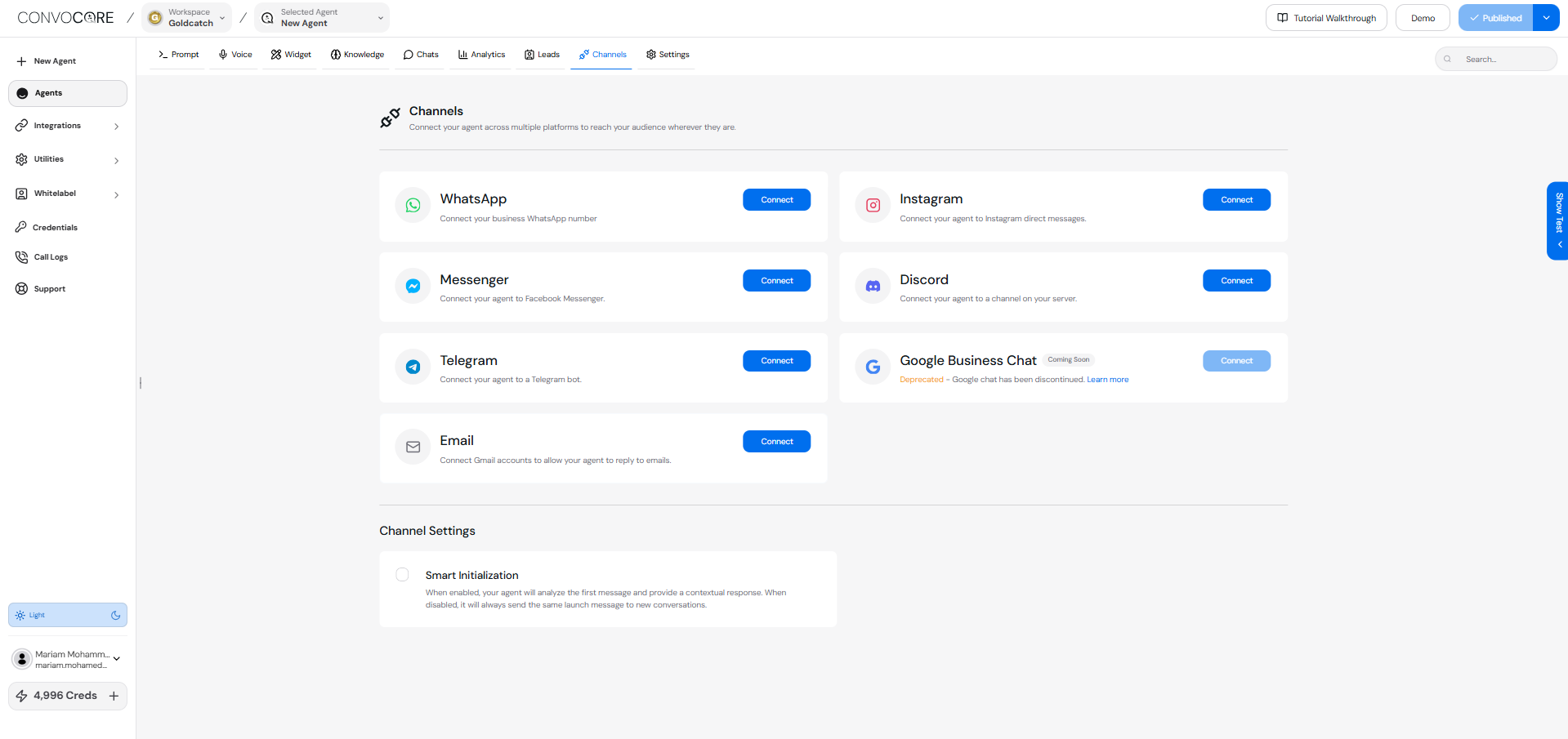
### Step 1: Access the Channels Section
1. In to your Convocore Agent.
2. Navigate to the **Channels** section in the topbar and choose whatsapp integration.
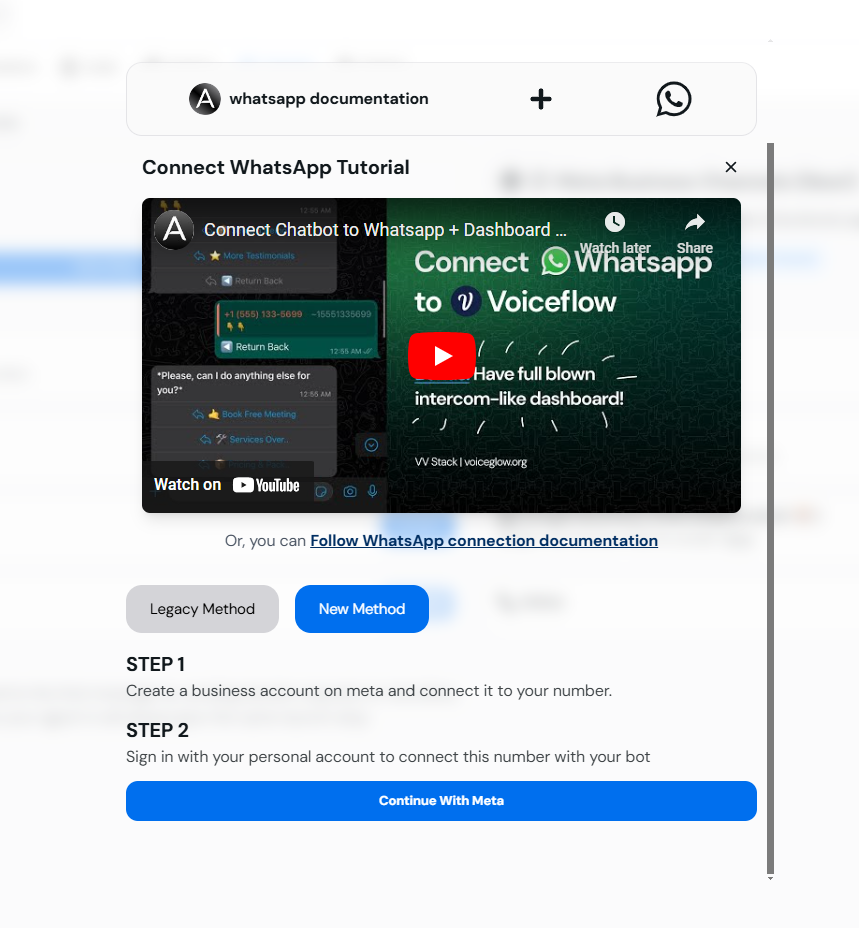
 ### Step 2: Choose the New Integration Method
1. In the **Whatsapp** model, click on the **Connect New Method** button.
2. Select **Continue with Meta** to proceed with the embedded sign-up process.
### Step 2: Choose the New Integration Method
1. In the **Whatsapp** model, click on the **Connect New Method** button.
2. Select **Continue with Meta** to proceed with the embedded sign-up process.
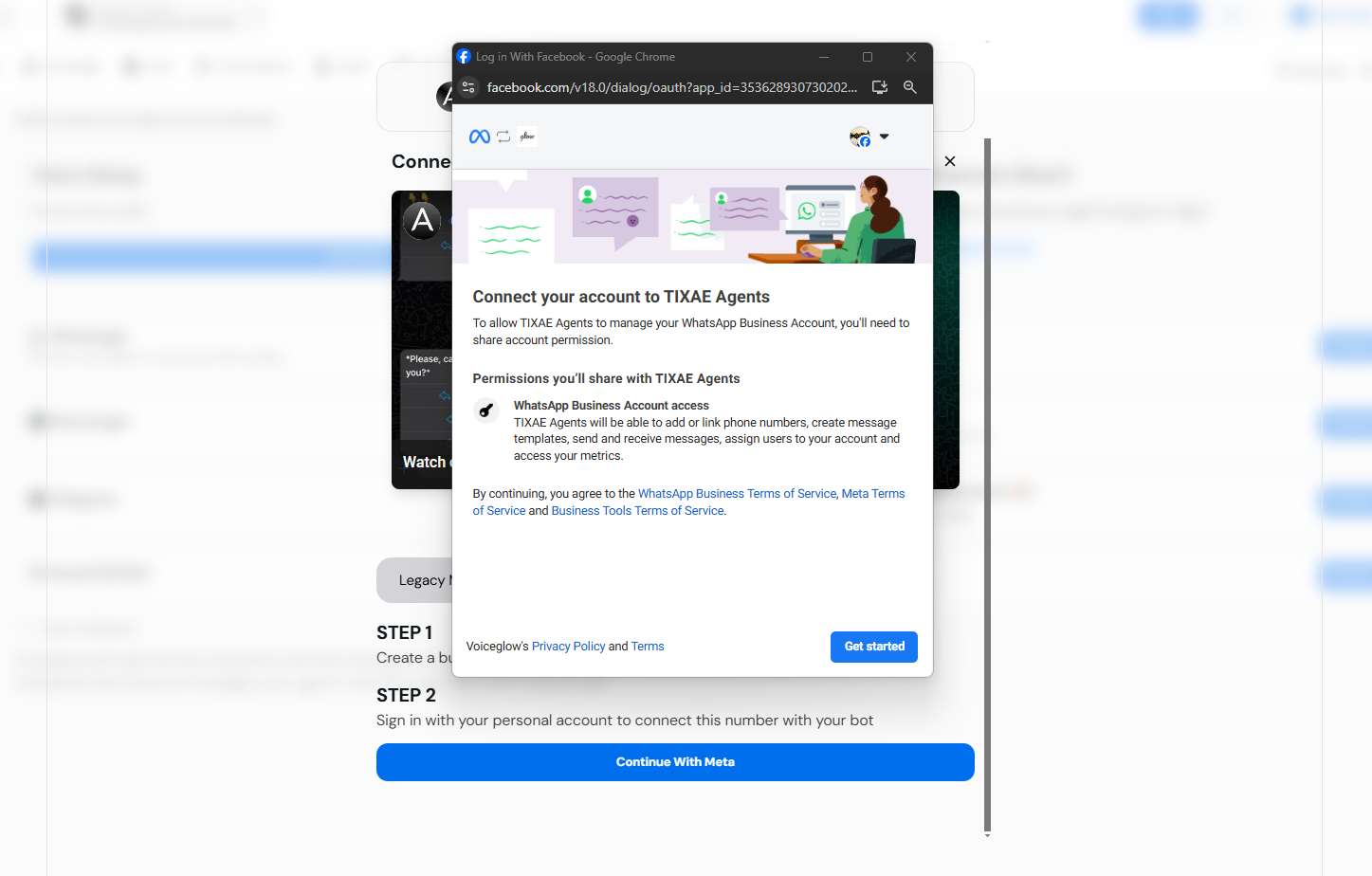
 ### Step 3: Sign In with Your Facebook Account
1. A small window will appear asking you to sign in with your Facebook account.
2. Enter the credentials of the Facebook account you want to associate with your WhatsApp Business account.
3. Click **Get Started** to proceed.
### Step 3: Sign In with Your Facebook Account
1. A small window will appear asking you to sign in with your Facebook account.
2. Enter the credentials of the Facebook account you want to associate with your WhatsApp Business account.
3. Click **Get Started** to proceed.
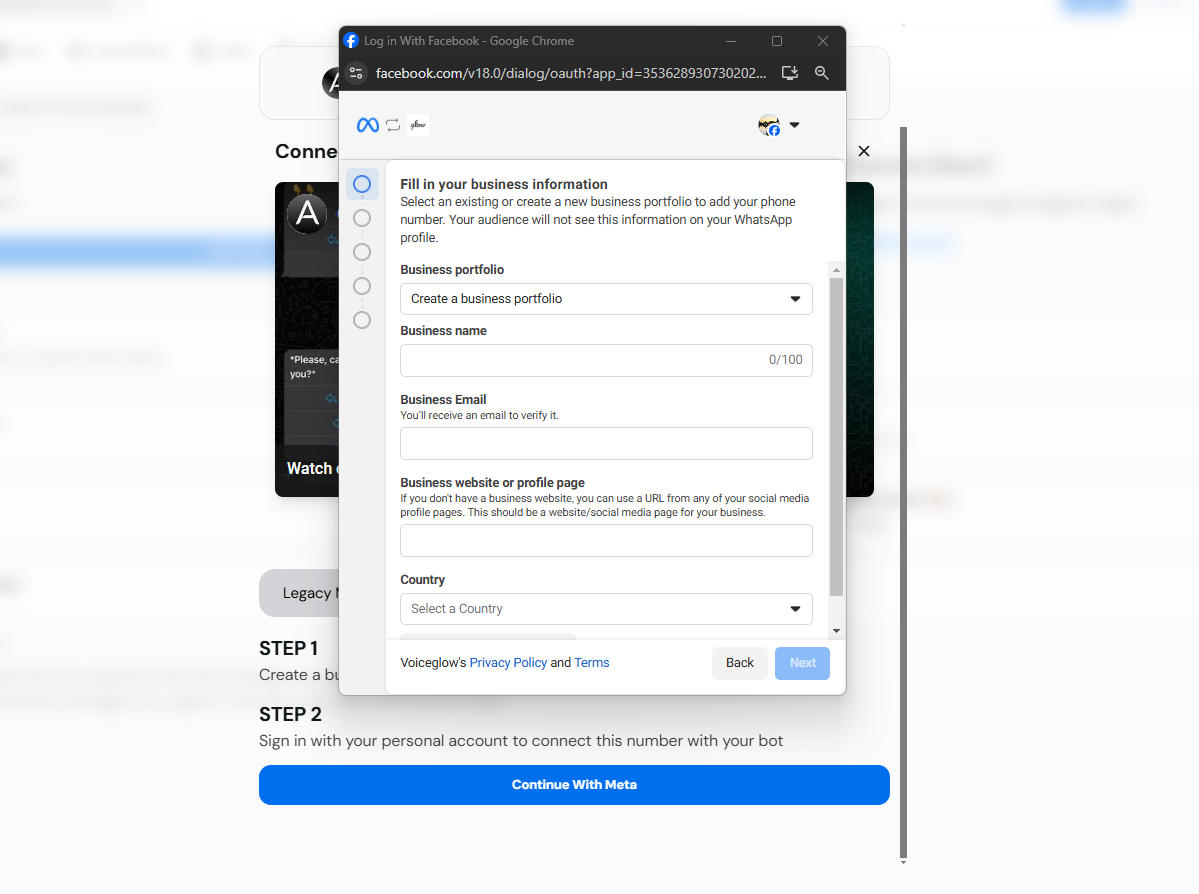
 ### Step 4: Create a Business Portfolio
1. After signing in, you will be prompted to create a Business Portfolio.
2. Enter a name for your business portfolio.
3. Click **Next** to continue.
### Step 4: Create a Business Portfolio
1. After signing in, you will be prompted to create a Business Portfolio.
2. Enter a name for your business portfolio.
3. Click **Next** to continue.
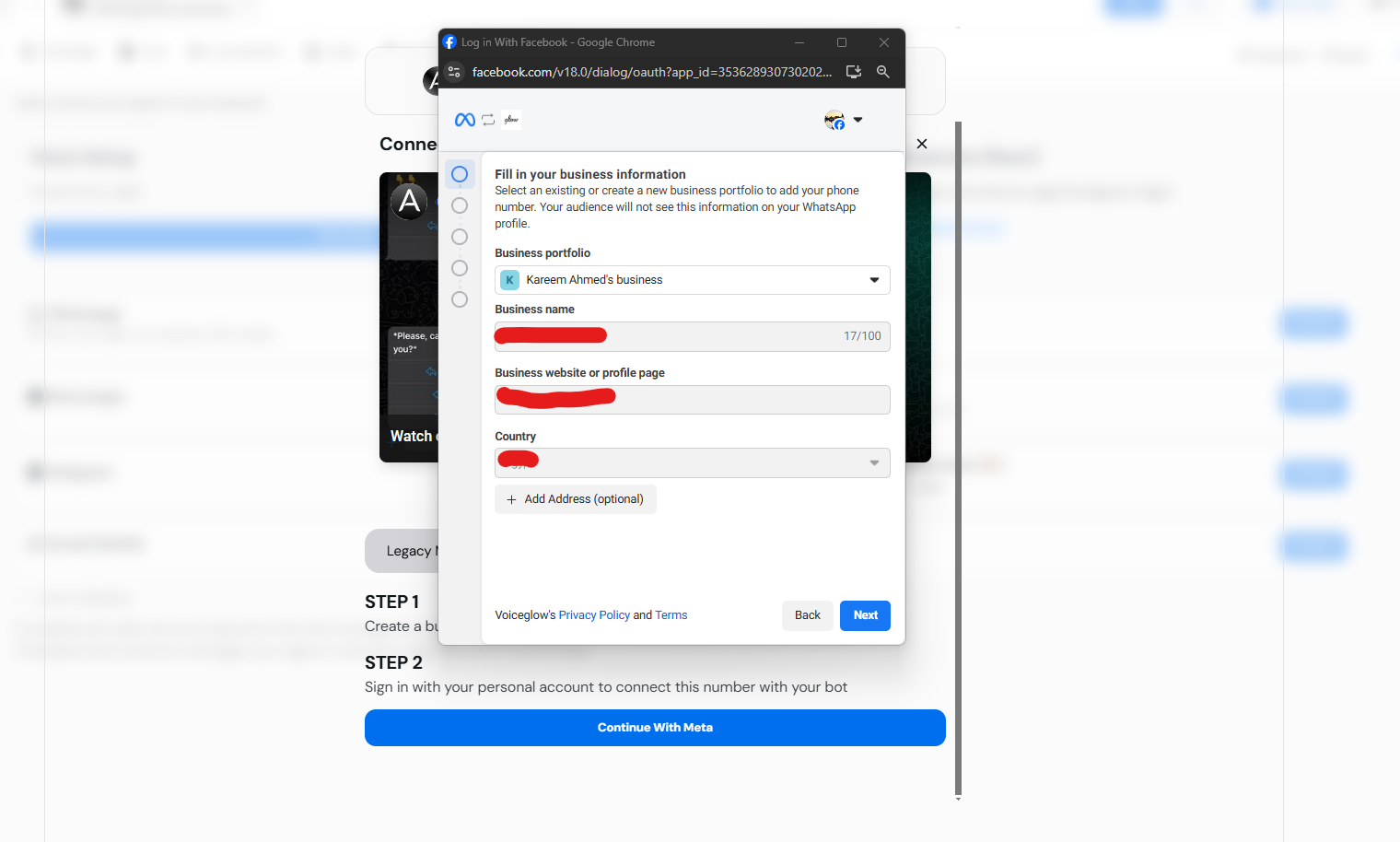
 ### Step 5: Use an Existing Business Portfolio (Optional)
* If you already have a Business Portfolio, you can choose to use it instead of creating a new one.
* Select your existing portfolio from the list and click **Next**.
### Step 5: Use an Existing Business Portfolio (Optional)
* If you already have a Business Portfolio, you can choose to use it instead of creating a new one.
* Select your existing portfolio from the list and click **Next**.
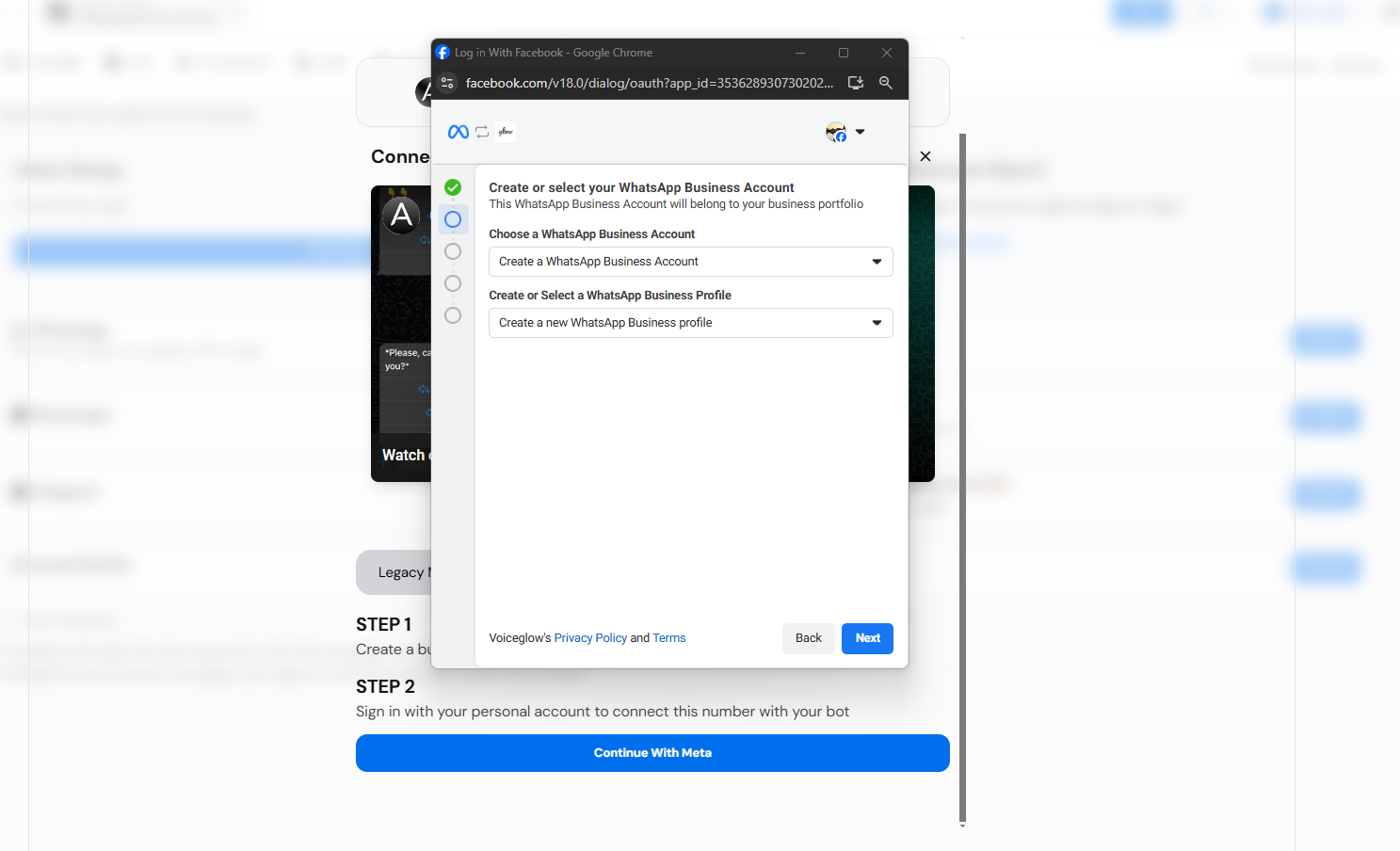
 ### Step 6: Choose or Create a Business Account
1. You will be presented with options to choose an existing Business Account or create a new one.
2. For this guide, select **Create New Business Account** or choose your old one up to you.
3. Click **Next** to proceed.
### Step 6: Choose or Create a Business Account
1. You will be presented with options to choose an existing Business Account or create a new one.
2. For this guide, select **Create New Business Account** or choose your old one up to you.
3. Click **Next** to proceed.
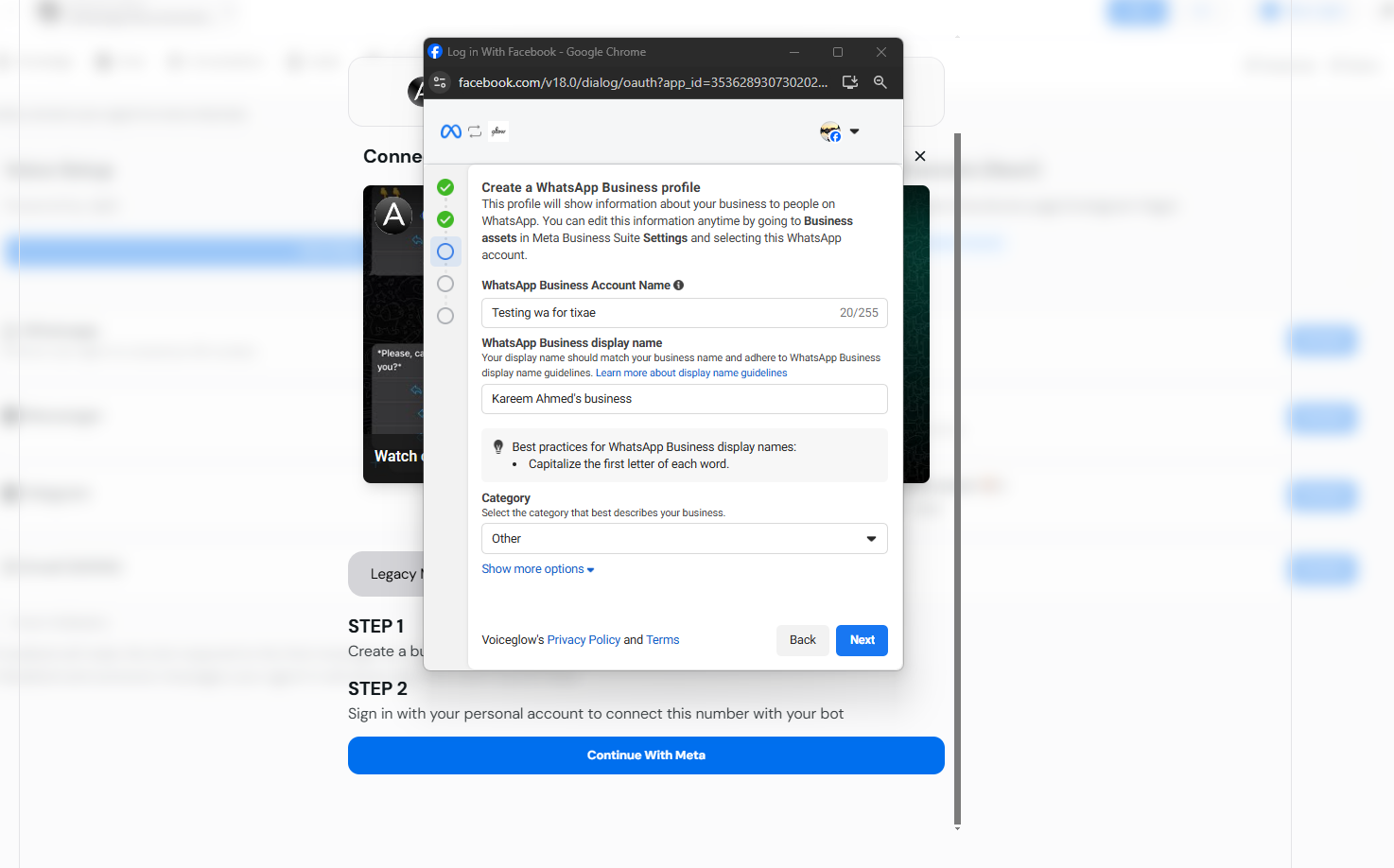
 ### Step 7: Create Your WhatsApp Business Profile
1. Enter a name for your WhatsApp Business account and fill other data.
2. Click **Next** to continue.
### Step 7: Create Your WhatsApp Business Profile
1. Enter a name for your WhatsApp Business account and fill other data.
2. Click **Next** to continue.
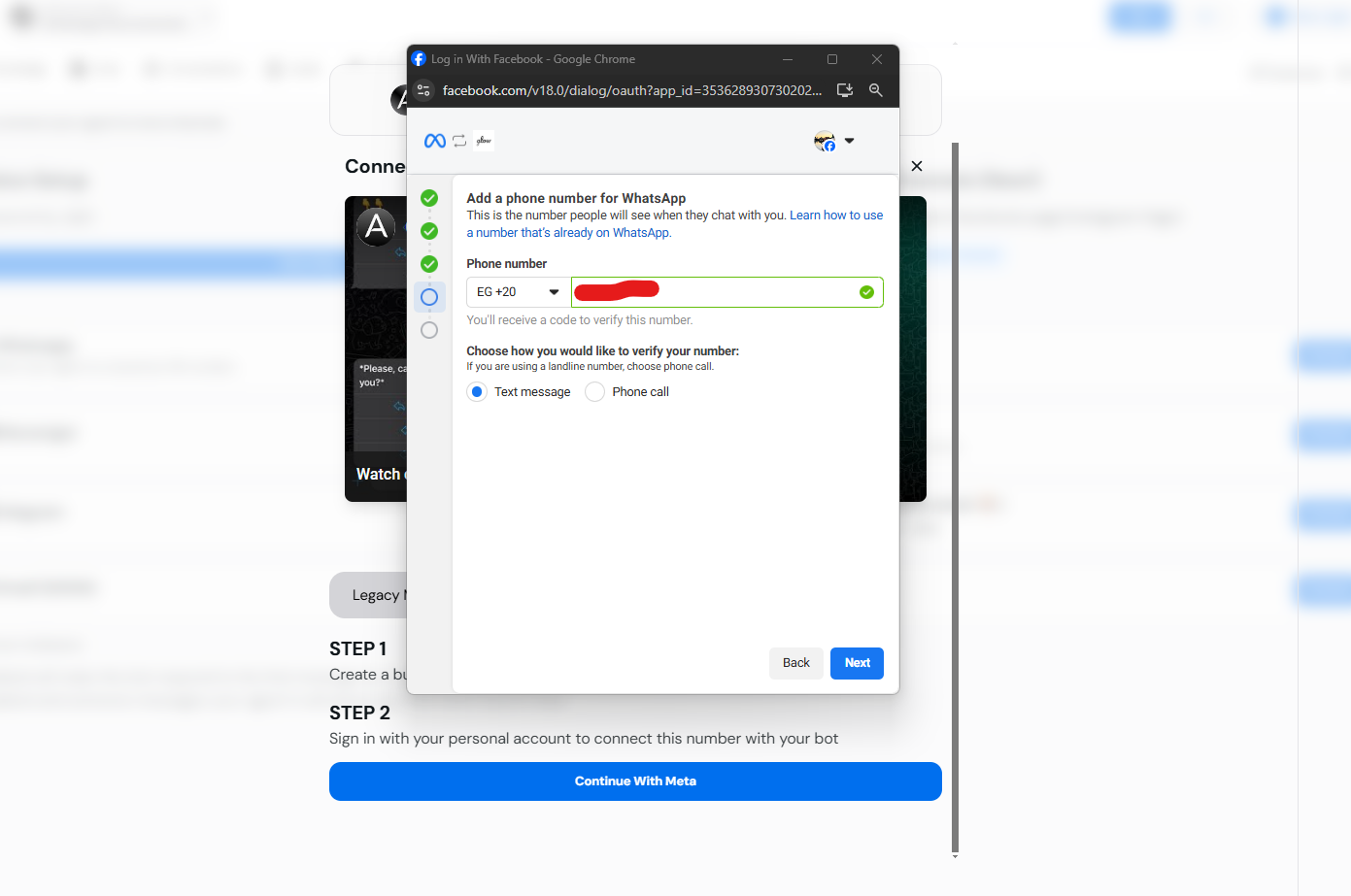
 ### Step 8: Connect Your Phone Number
1. Enter the phone number you wish to connect to your WhatsApp Business account.
2. Select your country code from the dropdown menu.
### Step 8: Connect Your Phone Number
1. Enter the phone number you wish to connect to your WhatsApp Business account.
2. Select your country code from the dropdown menu.
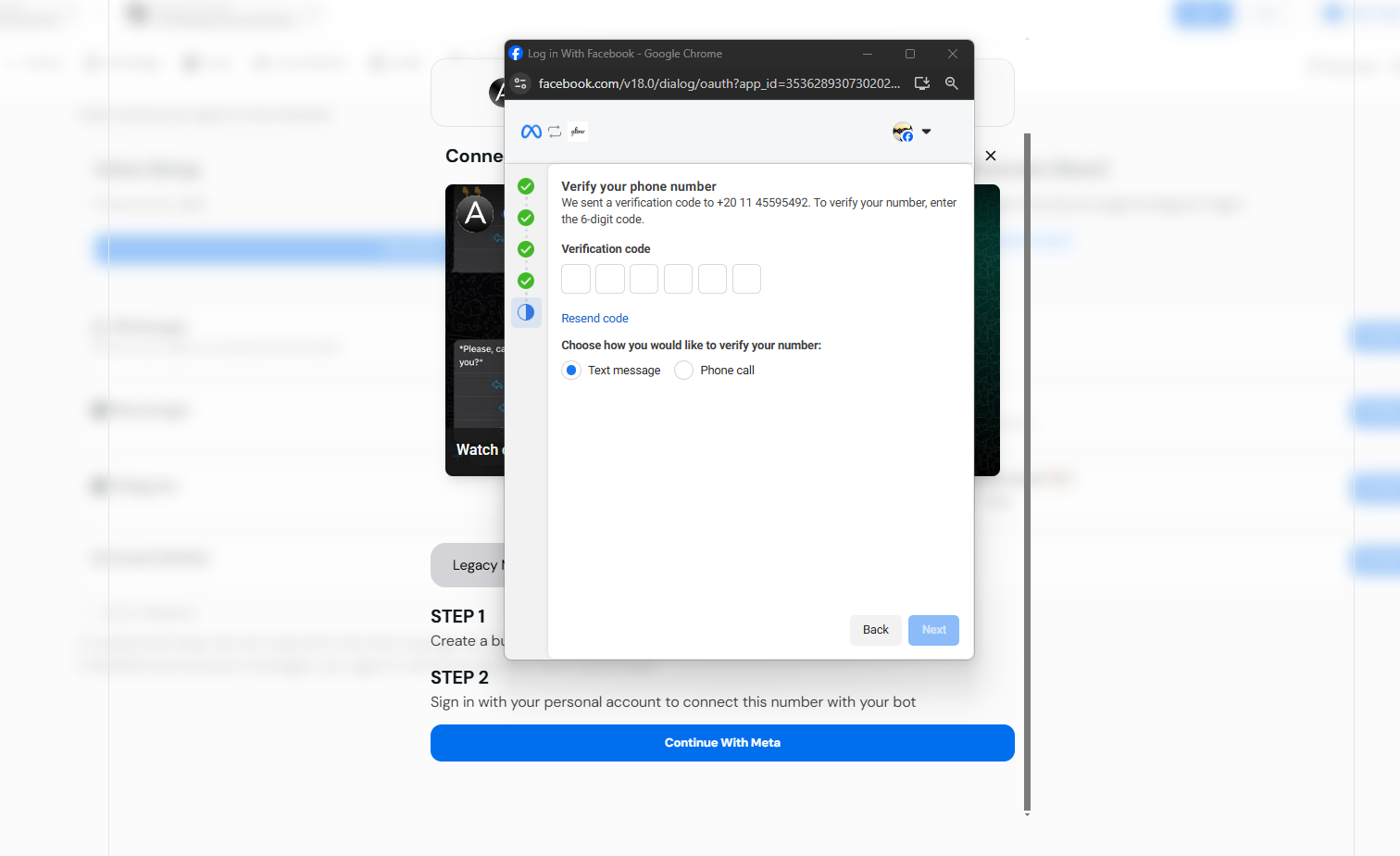
 ### Step 9: Verify Your Phone Number
1. A verification code will be sent to the phone number you provided via SMS.
2. Enter the received verification code in the provided field.
3. Click **Verify** to confirm your phone number.
### Step 9: Verify Your Phone Number
1. A verification code will be sent to the phone number you provided via SMS.
2. Enter the received verification code in the provided field.
3. Click **Verify** to confirm your phone number.
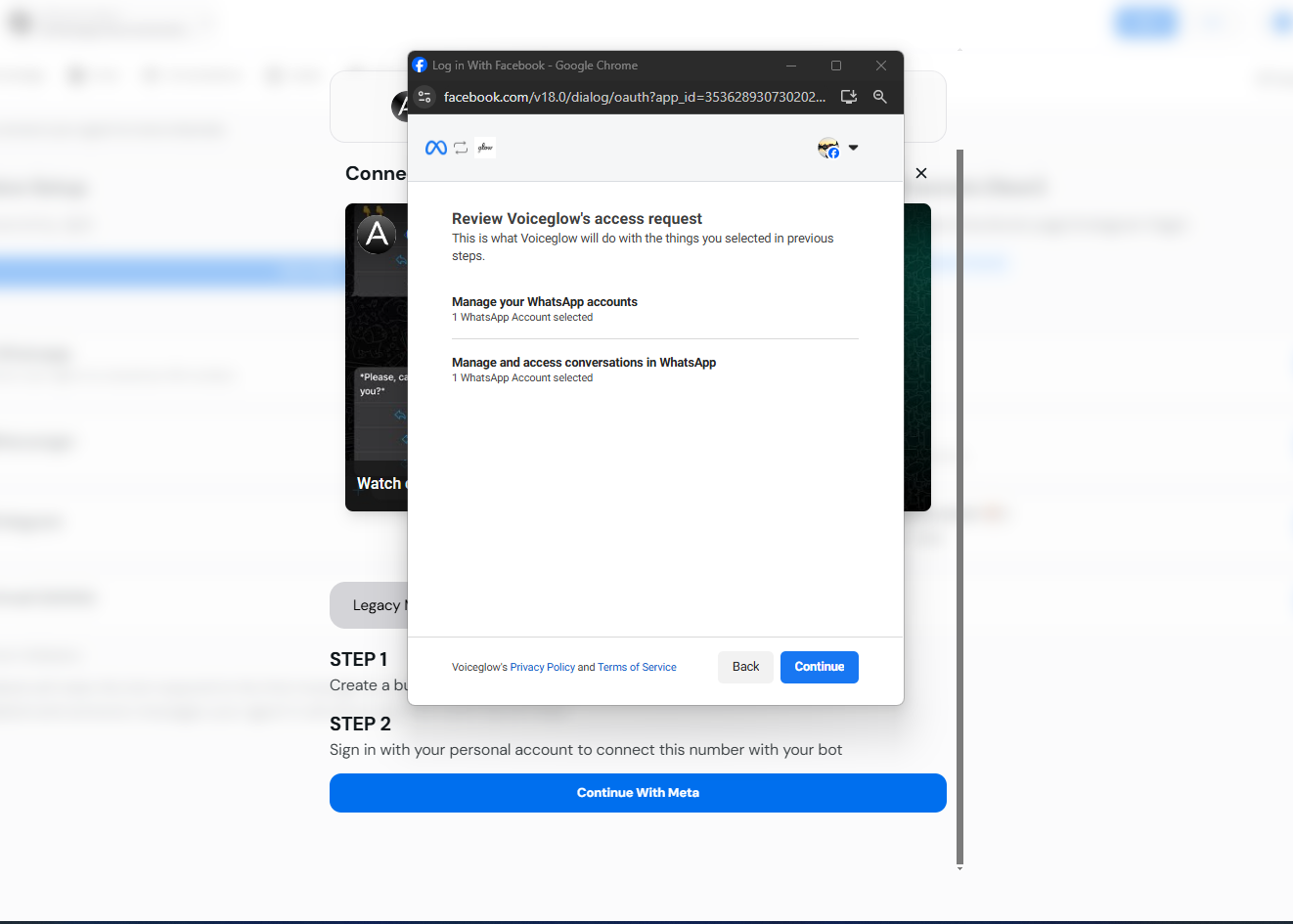
 ### Step 10: Finish the Setup
1. After successful verification, click the **Continue** button to complete the setup process.
### Step 10: Finish the Setup
1. After successful verification, click the **Continue** button to complete the setup process.
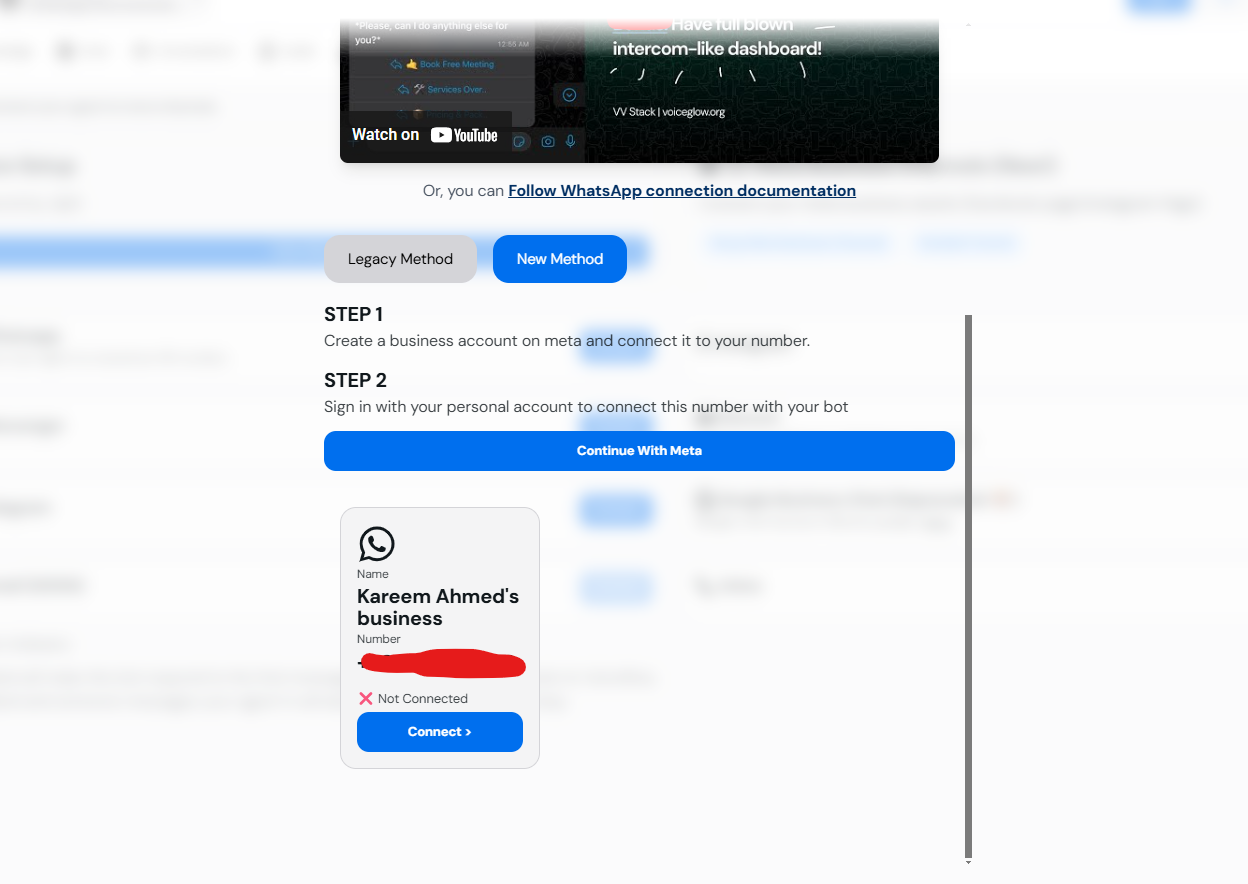
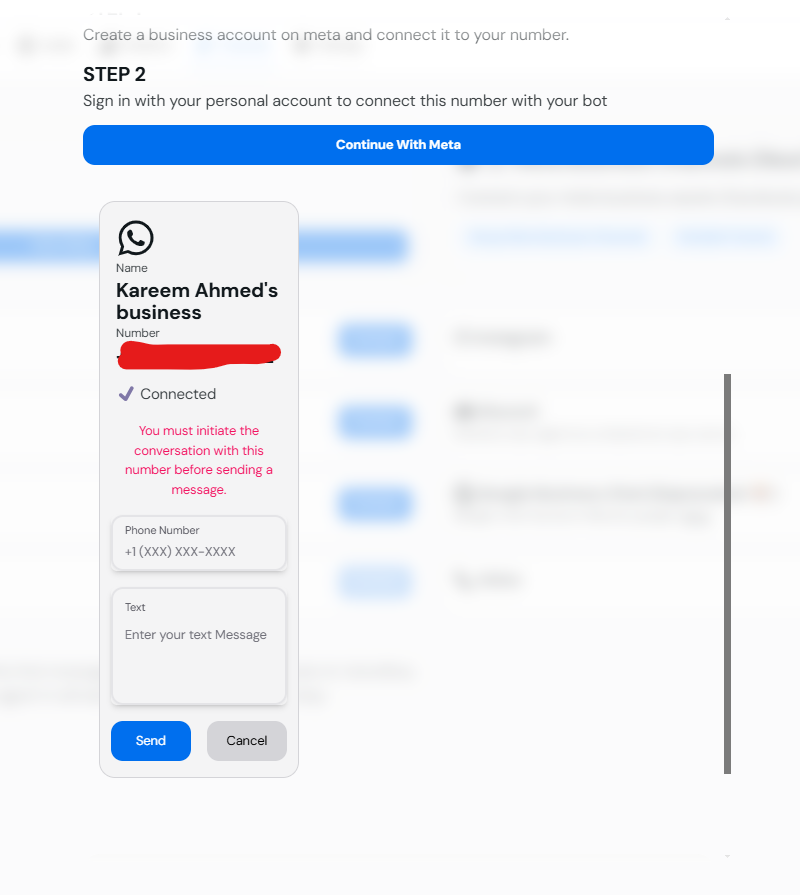
 ### Step 11: Connect Your Verified Account
1. Once verified, your WhatsApp Business account will appear in the list with a **Connect** button underneath it.
2. Click the **Connect** button to link your account with Convocore.
### Step 11: Connect Your Verified Account
1. Once verified, your WhatsApp Business account will appear in the list with a **Connect** button underneath it.
2. Click the **Connect** button to link your account with Convocore.
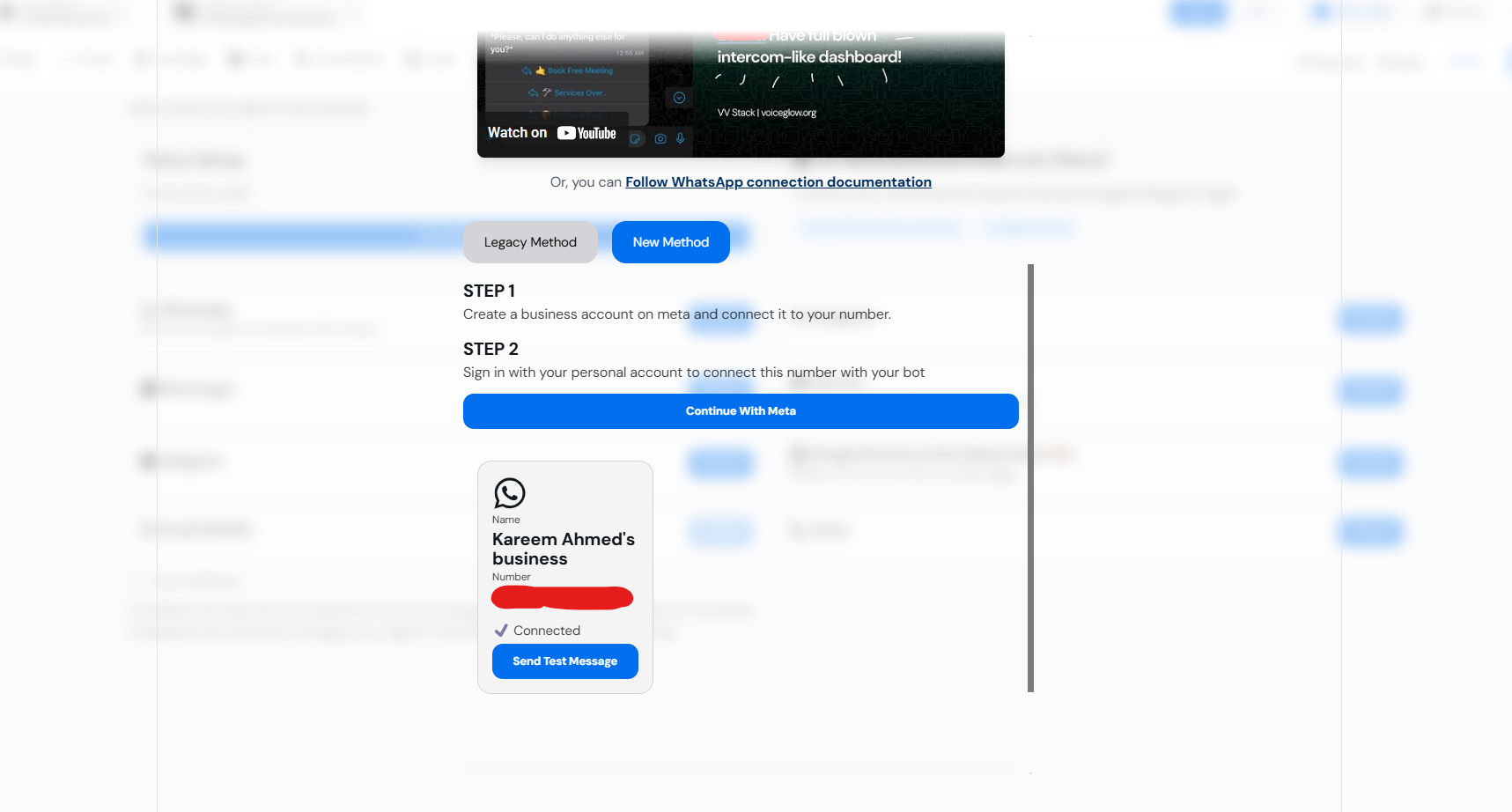
 ### Step 12: Confirmation of Connection
1. After clicking **Connect**, the status will change to **Connected**, indicating a successful integration.
### Step 12: Confirmation of Connection
1. After clicking **Connect**, the status will change to **Connected**, indicating a successful integration.
 ### Step 13: Optional - Test Your Integration
1. (Optional) Enter your phone number with the country code in the provided field to send a test message.
2. This step is not mandatory but recommended to ensure the connection is functioning correctly.
### Step 13: Optional - Test Your Integration
1. (Optional) Enter your phone number with the country code in the provided field to send a test message.
2. This step is not mandatory but recommended to ensure the connection is functioning correctly.
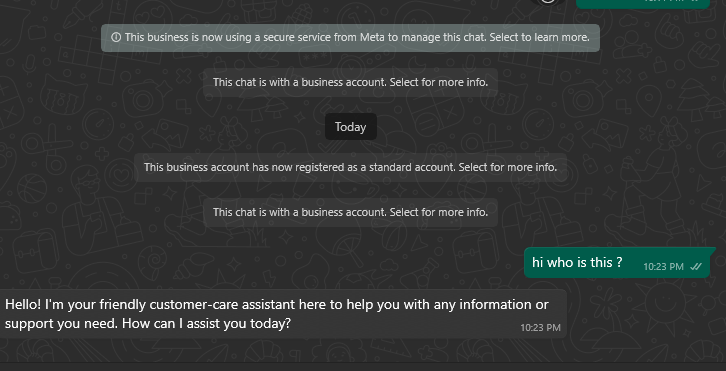
 ### Step 14: Final Confirmation
1. Open WhatsApp to verify that your Business Account has been successfully registered.
2. You should see a confirmation message indicating that your account is connected.
Please note that this step may take a few minutes to process.
### Step 14: Final Confirmation
1. Open WhatsApp to verify that your Business Account has been successfully registered.
2. You should see a confirmation message indicating that your account is connected.
Please note that this step may take a few minutes to process.
 **Congratulations!** Your WhatsApp Business account is now successfully connected to your Convocore AI agent.
### Troubleshooting
* **Verification Code Not Received:** Ensure your phone number is correct and capable of receiving SMS messages. If the issue persists, try requesting a new code.
* **Number Already Connected:** Make sure the phone number you are using is not linked to any existing WhatsApp account. If it is, you will need to disconnect it from WhatsApp before proceeding.
* **Connection Issues:** If the **Connect** button does not change to **Connected**, try refreshing the page or re-initiating the connection process.
### Additional Resources
* [Convocore Help Center](https://help.convocore.com)
* [WhatsApp Business API Documentation](https://developers.facebook.com/docs/whatsapp)
* [Contact Support](https://support.convocore.com)
This new embedded sign-up method streamlines the process of connecting your WhatsApp
Business account by eliminating the need to manually create and configure a Facebook
App. Follow the steps above to quickly integrate WhatsApp with your Convocore agent.
***
**Happy Messaging!** If you encounter any issues or have questions, feel free to reach out to our support team.
**Congratulations!** Your WhatsApp Business account is now successfully connected to your Convocore AI agent.
### Troubleshooting
* **Verification Code Not Received:** Ensure your phone number is correct and capable of receiving SMS messages. If the issue persists, try requesting a new code.
* **Number Already Connected:** Make sure the phone number you are using is not linked to any existing WhatsApp account. If it is, you will need to disconnect it from WhatsApp before proceeding.
* **Connection Issues:** If the **Connect** button does not change to **Connected**, try refreshing the page or re-initiating the connection process.
### Additional Resources
* [Convocore Help Center](https://help.convocore.com)
* [WhatsApp Business API Documentation](https://developers.facebook.com/docs/whatsapp)
* [Contact Support](https://support.convocore.com)
This new embedded sign-up method streamlines the process of connecting your WhatsApp
Business account by eliminating the need to manually create and configure a Facebook
App. Follow the steps above to quickly integrate WhatsApp with your Convocore agent.
***
**Happy Messaging!** If you encounter any issues or have questions, feel free to reach out to our support team.