> ## Documentation Index
> Fetch the complete documentation index at: https://docs.convocore.ai/llms.txt
> Use this file to discover all available pages before exploring further.
# Connect Vapi
> Connect your Vapi account to your AI agent on Convocore.
# Vapi Voice Service Integration
Welcome to the Convocore Vapi Voice Service integration guide! This document will help you quickly connect and configure the Vapi Voice Service with Convocore, allowing you to leverage voice interactions powered by AI.
## What is Vapi Voice Service?
Vapi Voice Service is a powerful tool that enables voice-based interactions through AI and language models. It provides robust capabilities for processing and interpreting spoken language, making it an ideal solution for voice-based customer interactions.
## Why Integrate Vapi with Convocore?
Voice interactions can significantly improve user engagement and satisfaction. Consider using voice channels for scenarios where typing might be inconvenient or impossible for users.
By integrating Vapi with Convocore, you can:
* Enhance customer experiences through conversational voice interactions
* Leverage advanced AI-powered voice recognition and response capabilities
* Improve efficiency and reduce response times for common customer queries
## Prerequisites
Our integration specialists are available to guide you through the Vapi setup process. Reach out for personalized assistance!
Before you start, ensure you have:
1. An active [Convocore](https://convocore.ai/) account with permissions to integrate third-party services.
2. Access to a [Vapi Voice Service](https://dashboard.vapi.ai/) account.
***
## Steps to Integrate Vapi with Convocore
Make sure to keep your API keys secure and never share them publicly. Consider using environment variables for additional security.
### Step 1: Access the Vapi Dashboard and Retrieve API Keys
1. Sign in to your [Vapi Voice Service account](https://dashboard.vapi.ai/).
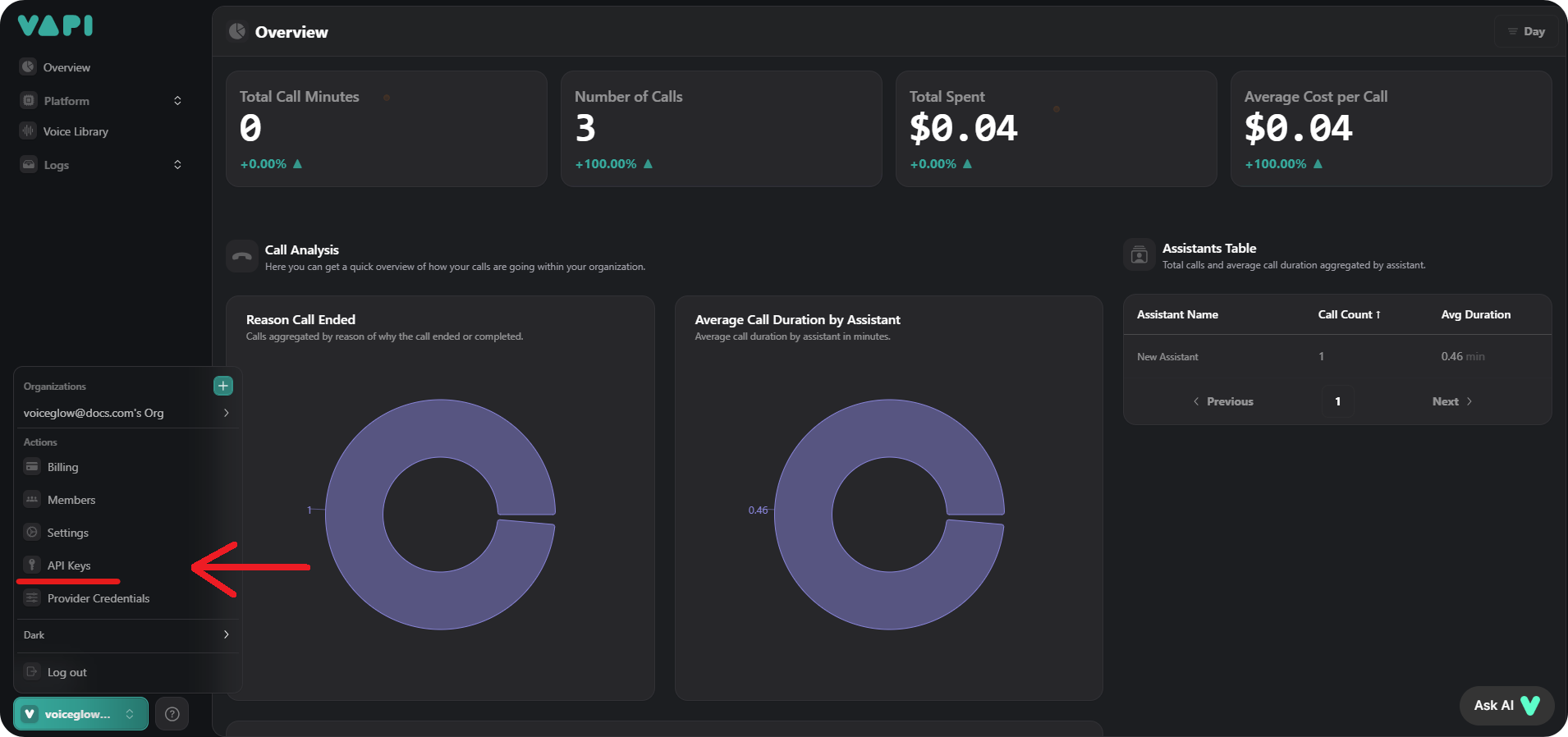
2. In the profile menu, navigate to the **API Keys** page.
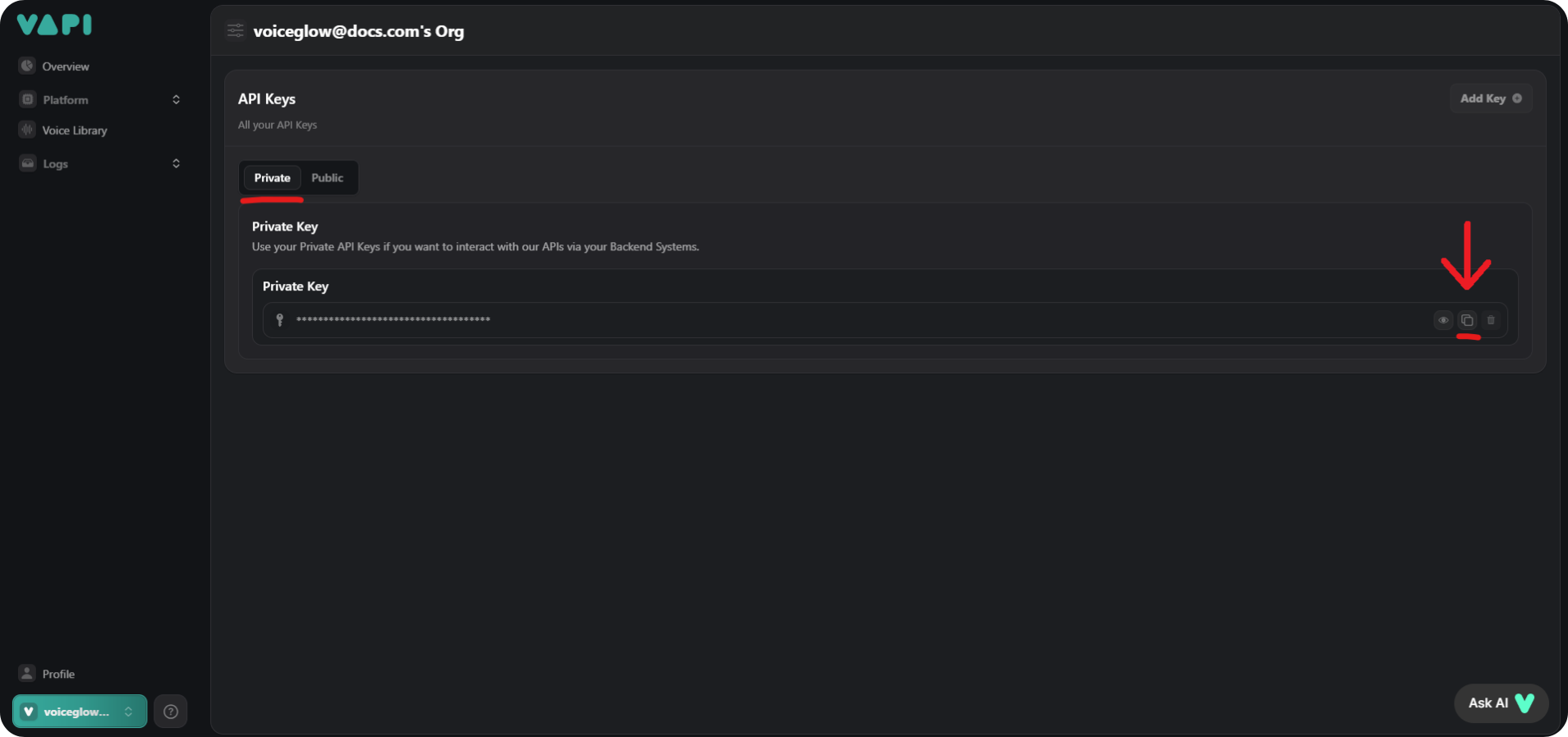
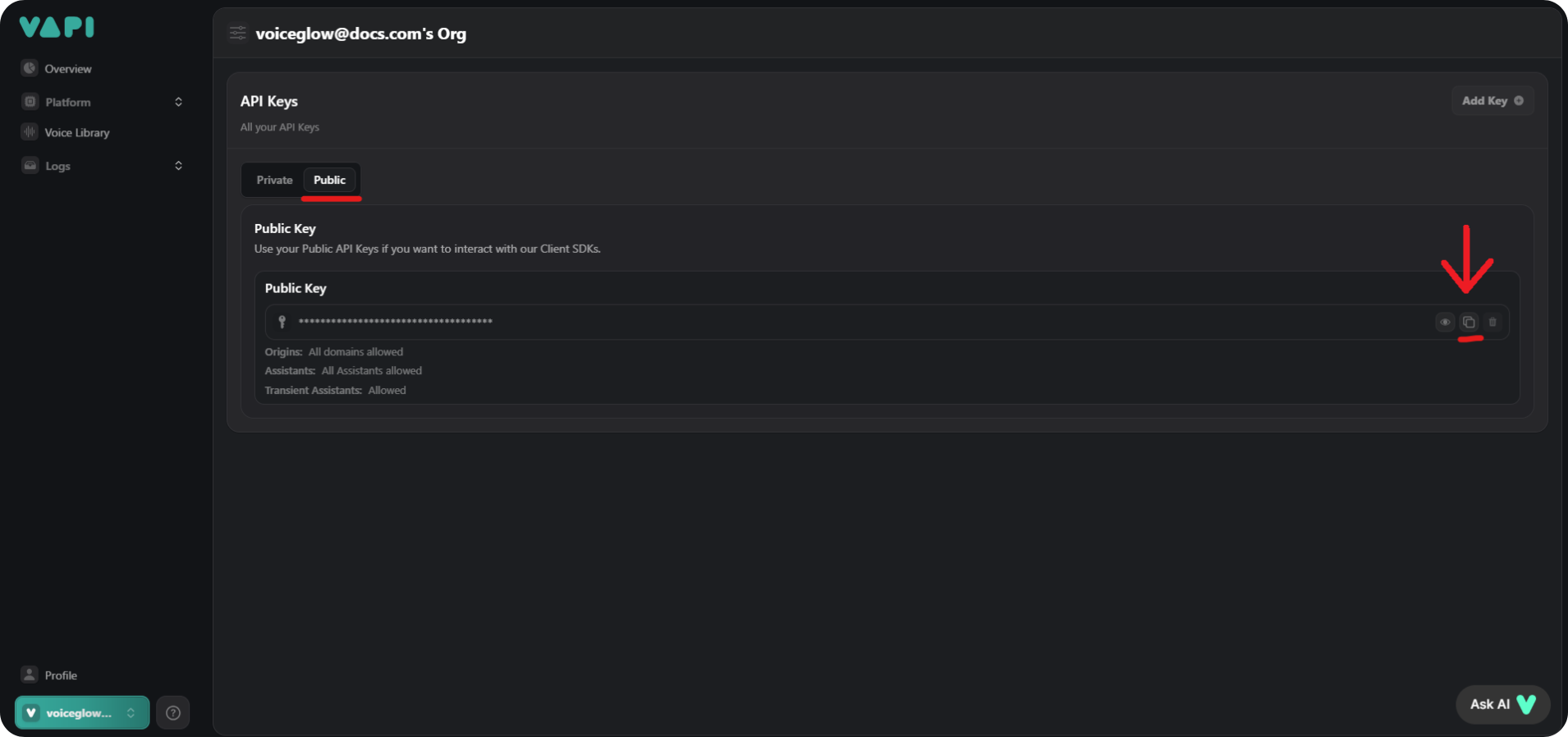
3. On the **API Keys** page, locate both your **Public API Key** and **Private API Key**.
***
### Step 2: Configure Convocore for Vapi Integration
1. Log in to your [Convocore](https://convocore.ai/) account.
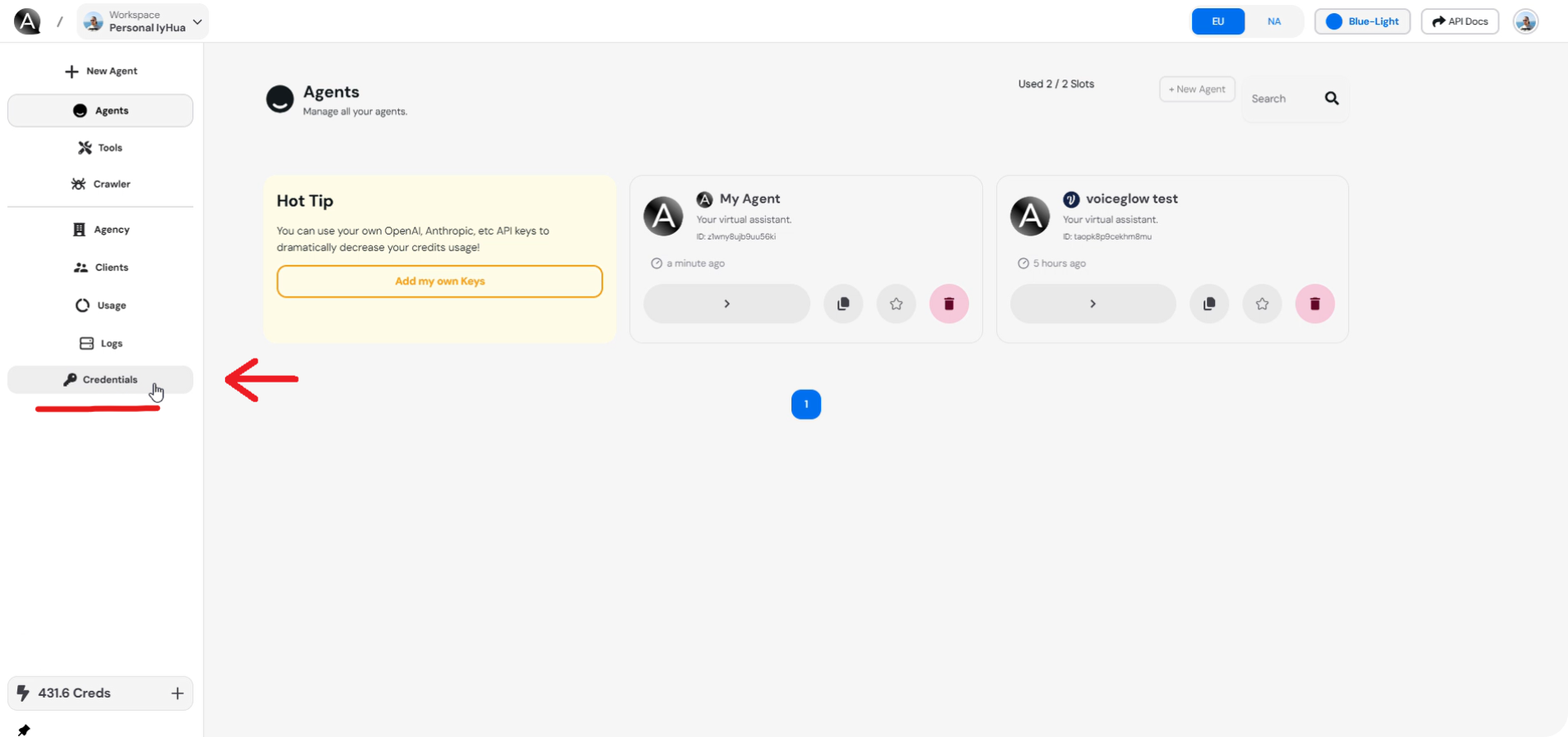
2. Go to the **Credentials** tab.
3. In the **VAPI Credentials** section, enter your **Public API Key** and **Private API Key** that you retrieved from the Vapi dashboard.
4. Click the "Save" button to store your credentials.
***
### Step 3: Retrieve the Assistant ID from Vapi Dashboard
1. Go back to your [Vapi Voice Service dashboard](https://dashboard.vapi.ai/).
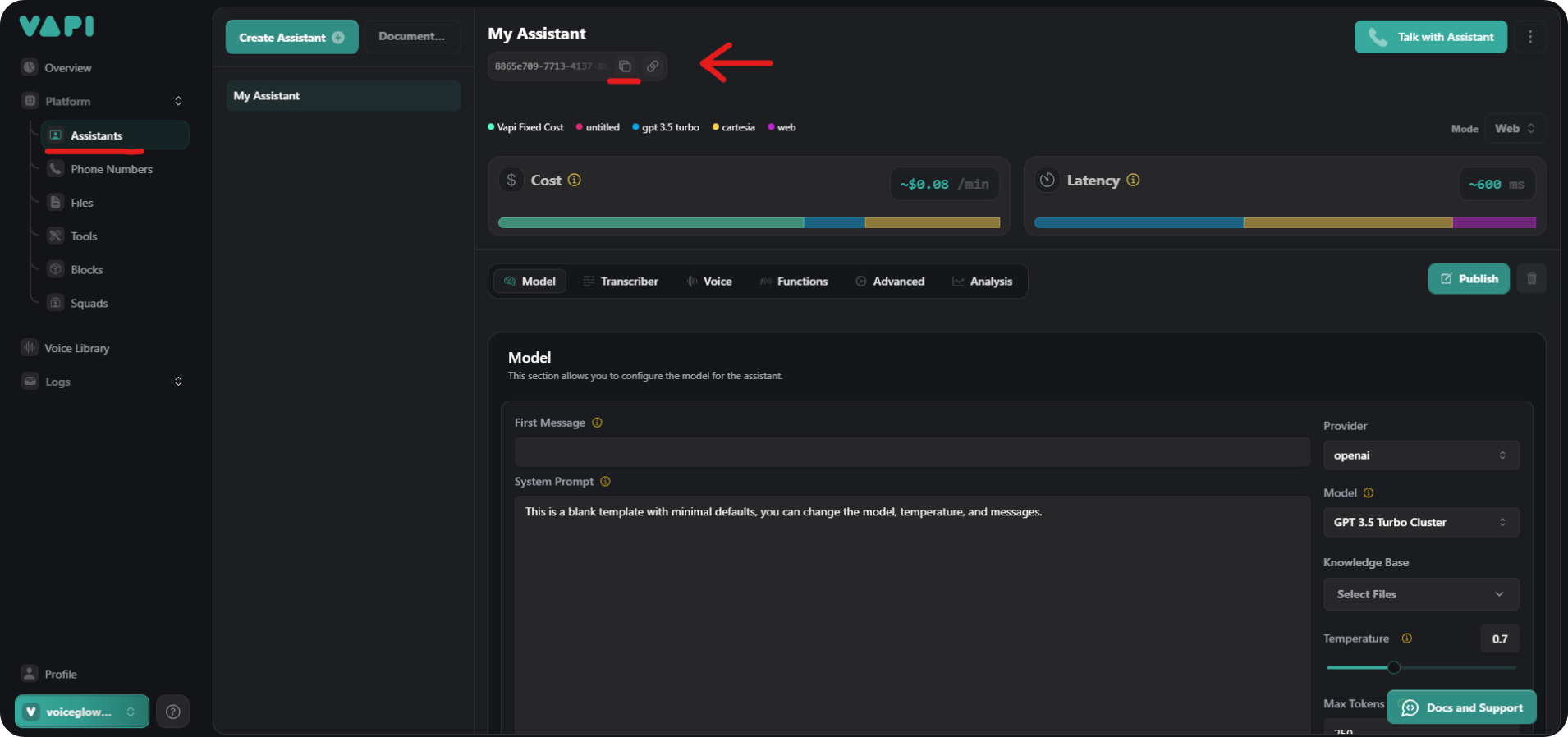
2. Navigate to **Platform** > **Assistants**.
3. Select your assistant, and copy the **Assistant ID** from the assistant's details page.
***
### Step 4: Configure Voice Setup for the Agent on Convocore
1. On your [Convocore](https://convocore.ai/) platform, select the **agent** you want to integrate with Vapi.
2. In the agent's details, go to the **Channels** page, and click on **Voice Setup** for the Vapi integration.
3. In the **Voice Setup** section, enter your **Assistant ID** that you retrieved from the Vapi dashboard. Click on **Enable VAPI on Web** to enable the Vapi integration on your agent and enter your **Popup Message**. Then, click on **Save** to save the changes.
### Step 5: Test the Integration
***
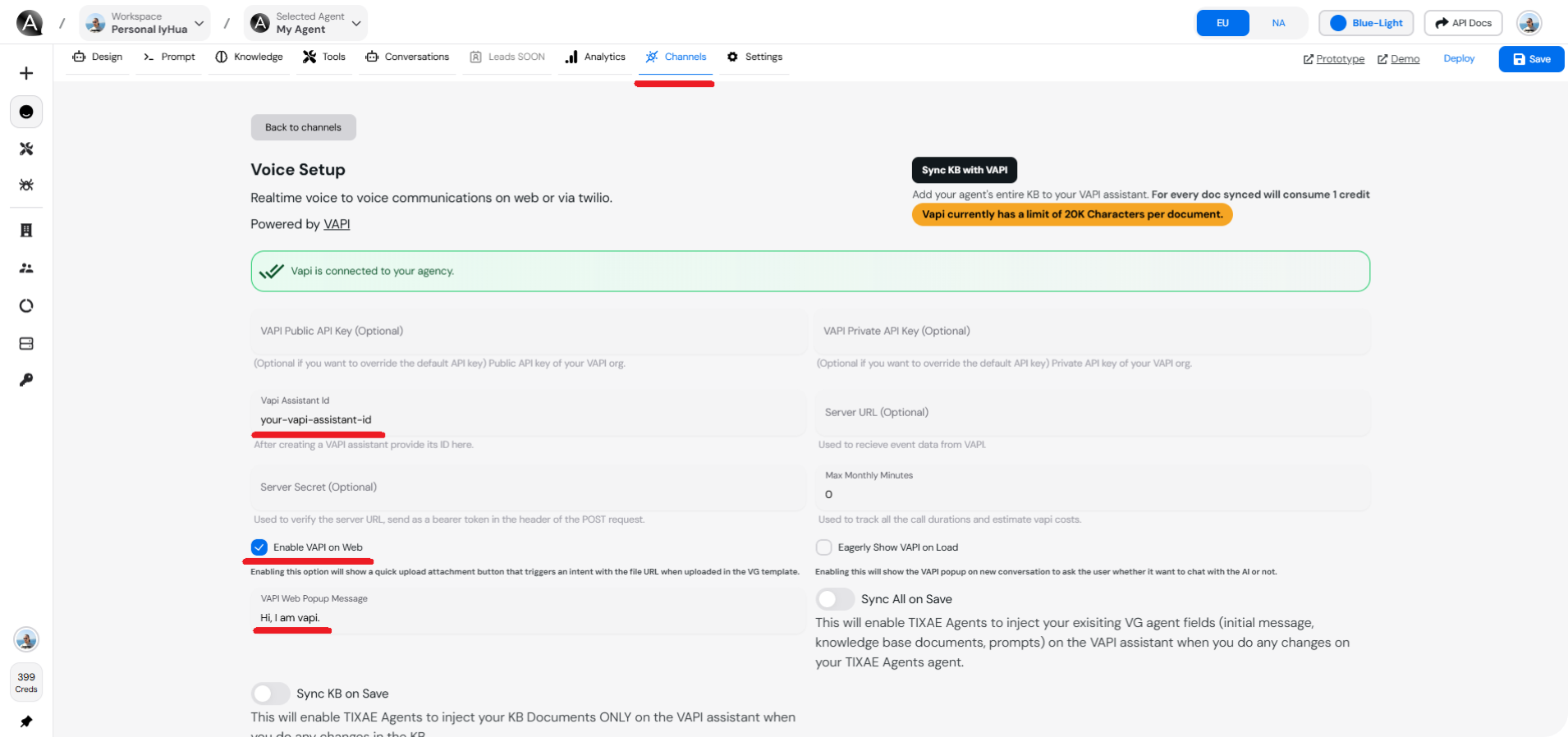
1. Once the Voice Setup is complete, navigate to the agent's **Channels** page.
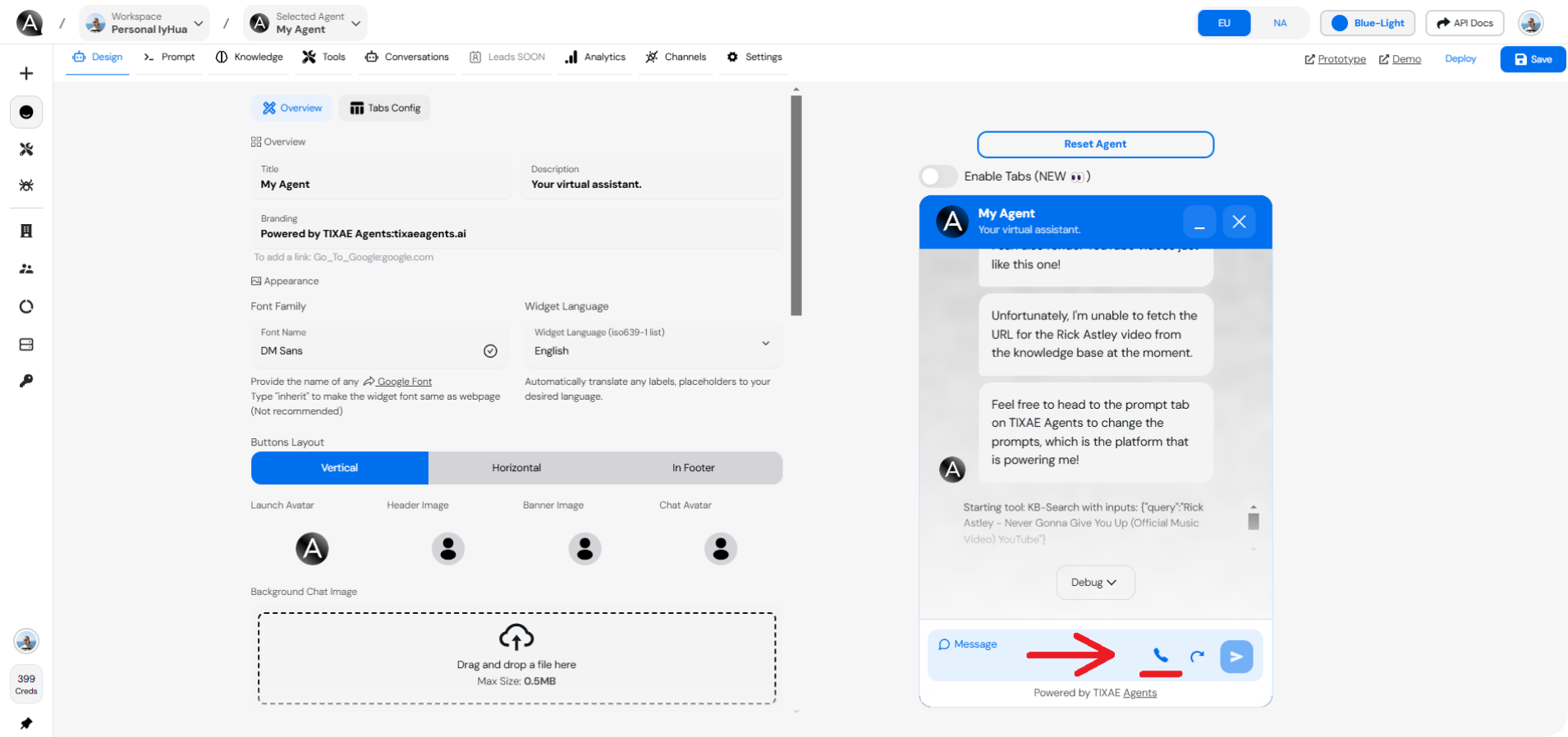
2. You should see a **phone icon** indicating that the Vapi assistant is ready.
3. Click on the phone icon to initiate a test session and interact with the Vapi assistant to ensure it's working as expected.
***
### Learn More
* This tutorial video provides a comprehensive guide on connecting VAPI to your Convocore agent:
***
## Troubleshooting
Most integration issues can be resolved by double-checking credentials and ensuring all required permissions are in place.
If you encounter issues with the Vapi Voice Service integration, try the following steps:
* **API Key errors:** Double-check that you entered the correct **Public** and **Private API Keys** in both the Vapi and Convocore platforms. Ensure there are no spaces or missing characters
* **Voice Assistant not responding:** Ensure that the Assistant ID is correct and that your agent has been properly configured for voice interactions
* **Phone icon not appearing:** Verify that the **Enable VAPI on Web** option is checked in the **Voice Setup** section of your agent's Channels page
## Usage Limits and Pricing
Monitor your voice interaction metrics and usage patterns to optimize costs and improve performance. Check your dashboard regularly!
* Be aware of your Vapi Voice Service plan limits and associated costs
* Monitor your usage regularly to avoid unexpected charges
## Security Considerations
Exposing API keys in public or client-side code can lead to unauthorized access and potential security breaches. Always follow security best practices when handling credentials.
* **API Key Protection:**
* Never expose your API keys in the client-side code
* Rotate keys periodically for enhanced security
* Store keys securely in environment variables
## Best Practices
Creating a test environment before deploying to production can help identify and resolve potential issues early in the integration process.
* **Test frequently:** Before going live, thoroughly test the voice interactions to ensure a smooth user experience
* **Monitor usage:** Regularly monitor the performance of the voice assistant through the Vapi dashboard to identify any potential issues or improvements
* **Update as needed:** Make sure to periodically update your API keys and assistant settings to keep the integration secure and up-to-date
 2. In the profile menu, navigate to the **API Keys** page.
3. On the **API Keys** page, locate both your **Public API Key** and **Private API Key**.
2. In the profile menu, navigate to the **API Keys** page.
3. On the **API Keys** page, locate both your **Public API Key** and **Private API Key**.
 ***
### Step 2: Configure Convocore for Vapi Integration
1. Log in to your [Convocore](https://convocore.ai/) account.
2. Go to the **Credentials** tab.
***
### Step 2: Configure Convocore for Vapi Integration
1. Log in to your [Convocore](https://convocore.ai/) account.
2. Go to the **Credentials** tab.
 3. In the **VAPI Credentials** section, enter your **Public API Key** and **Private API Key** that you retrieved from the Vapi dashboard.
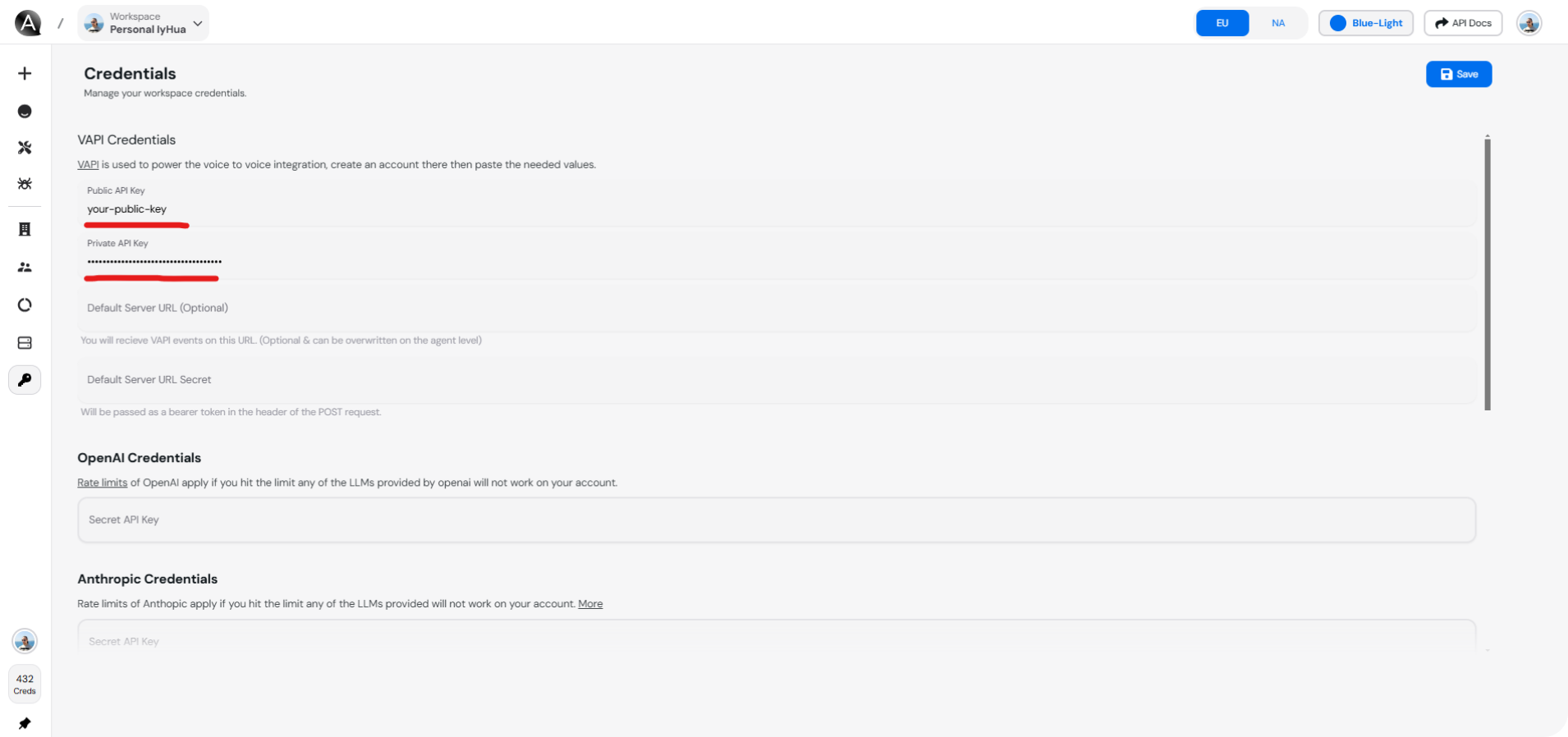 4. Click the "Save" button to store your credentials.
***
### Step 3: Retrieve the Assistant ID from Vapi Dashboard
1. Go back to your [Vapi Voice Service dashboard](https://dashboard.vapi.ai/).
2. Navigate to **Platform** > **Assistants**.
3. Select your assistant, and copy the **Assistant ID** from the assistant's details page.
4. Click the "Save" button to store your credentials.
***
### Step 3: Retrieve the Assistant ID from Vapi Dashboard
1. Go back to your [Vapi Voice Service dashboard](https://dashboard.vapi.ai/).
2. Navigate to **Platform** > **Assistants**.
3. Select your assistant, and copy the **Assistant ID** from the assistant's details page.
 ***
### Step 4: Configure Voice Setup for the Agent on Convocore
1. On your [Convocore](https://convocore.ai/) platform, select the **agent** you want to integrate with Vapi.
2. In the agent's details, go to the **Channels** page, and click on **Voice Setup** for the Vapi integration.
***
### Step 4: Configure Voice Setup for the Agent on Convocore
1. On your [Convocore](https://convocore.ai/) platform, select the **agent** you want to integrate with Vapi.
2. In the agent's details, go to the **Channels** page, and click on **Voice Setup** for the Vapi integration.
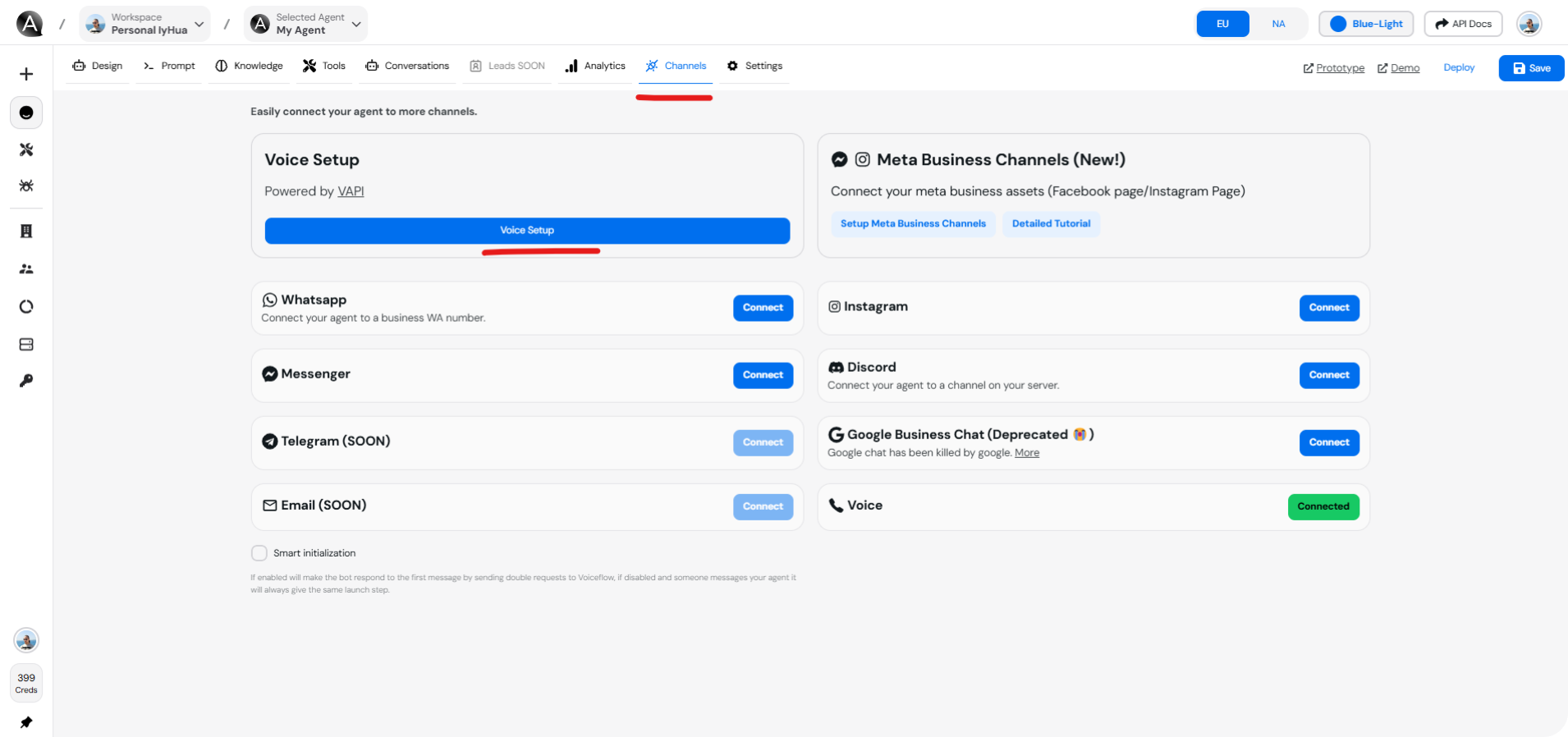 3. In the **Voice Setup** section, enter your **Assistant ID** that you retrieved from the Vapi dashboard. Click on **Enable VAPI on Web** to enable the Vapi integration on your agent and enter your **Popup Message**. Then, click on **Save** to save the changes.
 ### Step 5: Test the Integration
***
1. Once the Voice Setup is complete, navigate to the agent's **Channels** page.
2. You should see a **phone icon** indicating that the Vapi assistant is ready.
3. Click on the phone icon to initiate a test session and interact with the Vapi assistant to ensure it's working as expected.
### Step 5: Test the Integration
***
1. Once the Voice Setup is complete, navigate to the agent's **Channels** page.
2. You should see a **phone icon** indicating that the Vapi assistant is ready.
3. Click on the phone icon to initiate a test session and interact with the Vapi assistant to ensure it's working as expected.
 ***
### Learn More
* This tutorial video provides a comprehensive guide on connecting VAPI to your Convocore agent:
***
## Troubleshooting
***
### Learn More
* This tutorial video provides a comprehensive guide on connecting VAPI to your Convocore agent:
***
## Troubleshooting