> ## Documentation Index
> Fetch the complete documentation index at: https://docs.convocore.ai/llms.txt
> Use this file to discover all available pages before exploring further.
# UI Engine
> Create dynamic, interactive elements in your AI agent responses
## Introduction
The UI Engine is a powerful feature in Convocore that enables your AI agents to create rich, interactive elements in their responses. This enhances user engagement by going beyond simple text exchanges.
This is an **experimental** feature and may not always work as expected. Use
with caution and thoroughly test your implementation.
## Enabling the UI Engine
Enabling the UI engine appends further instructions to your system prompt, allowing your AI agent to output JSON data that renders UI elements like buttons, cards, carousels, forms and inputs. While not directly a UI element, your agent can also show images and render iframes out of the box.To enable it, do the following:
Open your agent's dashboard and go to the `Prompts` tab.
Find the UI Engine **checkbox** in the settings.
Check the box and `save`.
## Instructing Your Agent
With the UI Engine enabled, you have several options for guiding your agent's use of UI components:
Provide specific instructions in your initial or system prompt. For example:
```markdown theme={null}
Generate two buttons saying "Start Tutorial" and "Skip Introduction".
Then, create a card with the title "Welcome", a brief description of our service, and an "Learn More" button.
```
Set up a structured interaction flow in your system prompt:
```markdown theme={null}
Follow these steps in the conversation:
1. Ask about the user's preference and generate three buttons: "Product Info", "Pricing", "Support".
2. Based on their choice, display a relevant card with:
- Title: [Chosen topic]
- Brief description
- "Get Details" button
3. After showing the card, ask if they want to explore another topic or end the conversation.
```
Give your agent the freedom to generate UI components as it sees fit:
```markdown theme={null}
You have access to the UI Engine for creating interactive elements like buttons, cards, carousels, forms and inputs, and images. Use these components when you believe they will enhance the user experience or make information presentation more effective. Be creative in your approach.
```
For information on integrating the UI Engine with your knowledge base, see our [KB and UI Engine](/agent-creation/knowledgebase/kb-and-ui-engine) page.
Models like `Claude 3.5 Sonnet` are particularly adept at generating appropriate UI elements code and using these components **effectively**. When giving your agent creative freedom, consider using such advanced models for optimal results.
## UI Components
The UI Engine offers a variety of versatile interactive elements to enhance your AI agent's responses. They can be customized and combined to create engaging user interfaces.
**Buttons provide clear calls-to-action or navigation options.**
**• Single button
• Multiple buttons in a row**
```markdown theme={null}
Generate two buttons:
1. "Learn More"
2. "Contact Us"
```
```markdown theme={null}
Write this with markdown formatting:
#### 👋 Welcome to Convocore AI! 🎨✨
I'm Gia, your friendly AI assistant. I'm here to help you navigate our AI agent studio and unleash your creativity!
How can I assist you today?
Then, below it:
generate three relevant buttons.
```
**Cards highlight key information or products with high customizability.**
**• Basic card with text only
• Card with image
• Card with button(s)
• Card with image and button(s)
• Card with title, description, image, and multiple buttons**
```markdown theme={null}
Create a card with:
- Title: "Premium Plan"
- Description: "Get access to all features"
- Image: [URL of premium plan icon]
- Button: "Subscribe Now"
```
```markdown theme={null}
Write a **short** welcome message.
Then, Generate two cards below each other:
One with just information.
and one with image (https://mintlify.s3-us-west-1.amazonaws.com/magicmarkas/images/glowstudio-hero.png) and cta button.
```
**Carousels display multiple items in a scrollable format.**
**• Image carousel
• Card carousel
• Card with buttons and text carousel
• Mixed content carousel (images, cards, text, button(s))**
```markdown theme={null}
Generate a carousel of 3 product cards. Each card should have:
- Product image [URL]
- Product name
- Price
- "Add to Cart" button
```
```
Write a **short** welcome message.
Then, create a carousel with three unique cards using ui elements:
{/* TODO: Check if this is still relevant */}
1. One carousel with text and this image https://mintlify.s3-us-west-1.amazonaws.com/magicmarkas/images/glowstudio-hero.png
2. One with information and button.
3. One with just information.
IMPORTANT: the first card in the carousel **have** to have an image!
```
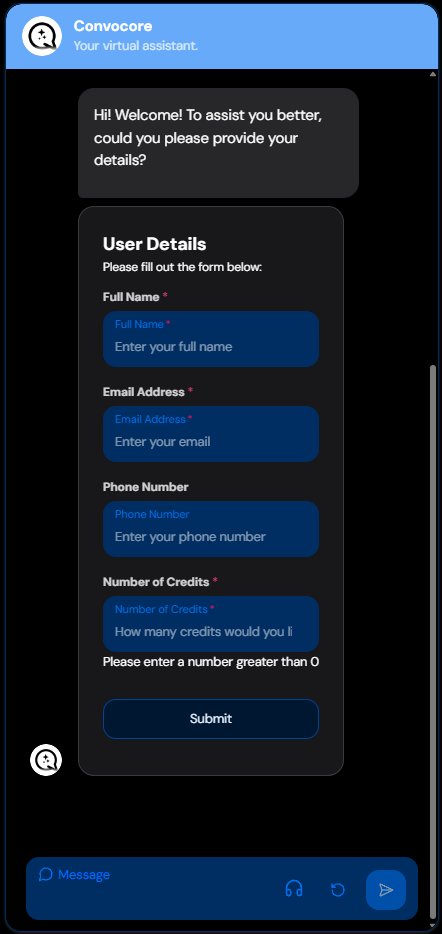
**Forms and inputs allow users to provide structured data and interact with your agent through various input types.**
**• Text input fields
• Email input fields
• Number input fields
• Dropdown/select menus
• Checkboxes and radio buttons
• Text areas for longer input
• Date/time pickers
• File upload inputs**
```markdown theme={null}
Create a contact form with:
- Name (text input)
- Email (email input)
- Message (text area)
- Submit button
```
```markdown theme={null}
Generate a feedback form with:
- Rating (dropdown: 1-5 stars)
- Comments (text area)
- Would you recommend us? (radio buttons: Yes/No)
- Submit feedback button
```
```markdown theme={null}
Create a survey form asking about user preferences:
- Favorite color (dropdown)
- Age range (radio buttons)
- Interests (checkboxes for multiple selection)
- Additional comments (text area)
```
**Images provide visual content for a more engaging chat, all you need is a valid image URL.**
Remember to provide the agent with working image URLs. Example: `https://www.hdwallpapers.in/download/lake_with_reflection_of_mountain_and_clouds_4k_hd_nature-3840x2160.jpg`
**• Single image display
• Display in carousel or cards**
```markdown theme={null}
Display an image:
- URL: [product image URL]
```
```markdown theme={null}
Write a **short** nature inspired welcome message with emojis.
Show this image in 200px width x 100px height: https://i.pinimg.com/originals/eb/49/e5/eb49e5a5ab67740df2b5bed8ddb153de.jpg
Then. show this image in 200px width x 100px height: https://wallpapers.com/images/featured/4k-ultra-hd-landscape-yva5dmhhj6fii9af.jpg
```
Put this in your agent's [initial prompt](/agent-creation/initial-prompt) and see every UI element in action.
```markdown Everything at once theme={null}
### Say hi and welcome. You MUST generate all these ui elements, fill them with random interesting information:
Card with information
Card with two buttons and information
Card with image and information:https://wallpapers.com/images/hd/4k-nature-moraine-lake-r66plwqa8m3z5reg.jpg
Carousel with images and buttons https://wallpapers.com/images/hd/4k-nature-moraine-lake-r66plwqa8m3z5reg.jpg
Form with name (text input), email (email input), and message (text area) fields with submit button
small iframe with youtube video:
image, use this with 200 height and 400 width: https://wallpapers.com/images/hd/4k-nature-moraine-lake-r66plwqa8m3z5reg.jpg
small frame with calendly:
three buttons at the bottom'
```
The versatility of the UI components allows for numerous combinations and
configurations. You can instruct your agent to create **complex elements**
like a carousel of cards, each with its own image, description, and buttons.
Experiment with different component combinations to find the most effective
way to present information and engage users in **your** specific use case.
## Best Practices
To make the most of the UI Engine:
Mix textual responses with UI components for a rich, varied interaction.
Use UI elements that are relevant to the current conversation context.
Start with essential information in text, then enhance with UI components.
Experiment with structured instructions vs. creative freedom to find what
works best for your use case.
## Credit Usage Considerations
Enabling the UI Engine **increases** credit consumption per response due to
the additional instructions appended to each interaction.
To manage credit usage effectively:
Regularly check your credit usage in the [Usage tab](/features/usage-tab).
Use UI components together with text responses to optimize usage.
If you're an agency, ensure your clients are aware of the potential increase
in credit usage when the UI Engine is enabled.
Run comparisons of credit usage with and without the UI Engine to understand
its impact on your specific use case.
## Examples and Use Cases
Here are some real-world applications of the UI Engine:
Interactive coding assistant tips, tricks and code explanations.
{" "}
News agent that has information about the latest tech and awesome gadgets. Has
a tech savvy tone of voice.
{" "}
Sneaker store with product showcases and a cool tone of voice.
Interactive dating profile assistant with conversation starters, bio helper and other tips.
These examples demonstrate how the UI Engine can be used to create engaging,
interactive experiences across various industries and use cases. Experiment
with different components and combinations to find what works best for your
specific needs.