> ## Documentation Index
> Fetch the complete documentation index at: https://docs.convocore.ai/llms.txt
> Use this file to discover all available pages before exploring further.
# Crawler
> Efficiently build your agents knowledge base with the Convocore AI Crawler
The Crawler is a powerful tool designed to streamline the process of creating and maintaining your agent's knowledge base. By automatically scraping and importing content from specified websites, the crawler ensures your agent stays up-to-date with the latest information.
## How the Crawler Works
The crawler operates by systematically visiting web pages, extracting relevant content, and organizing it into makrdown suitable for your agent's knowledge base. This process involves crawling through links, scraping text, and formatting the data for optimal use by AI models.
## Crawler Jobs
The core of the crawler functionality revolves around crawler jobs. Each job is associated with specific source URLs you want to crawl and is identified by a unique ID. The [developer API](/api-reference) offers several ways to interact with the crawler.
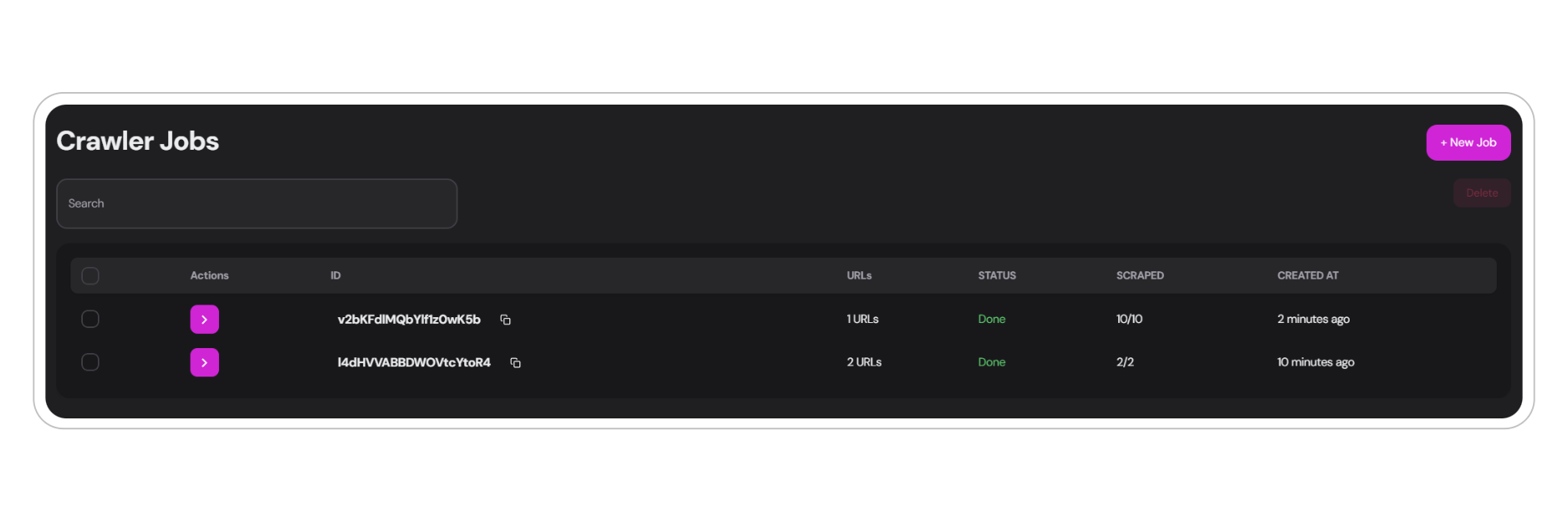 ### Creating a New Crawler Job
To initiate a new crawler job, follow these steps:
Navigate to the crawler tab from the menu on the left side of your dashboard. Click on `new job` and Enter the main URL(s) you want the crawler to begin with (e.g., [https://www.convocore.ai](https://www.convocore.ai)).
Ensure you use valid URLs in the correct format: [https://example.com](https://example.com)
There are two options to consider that determines the quality of the scrape:
* Default option, costs **1 credit** per page scraped.
* Autoscrolls and forces loading of images for better quality. Costs **10 credits** per page.
## Set Crawler Refresh Rate
The crawler refresh rate determines how often the crawler will update the current job with potential new information from the scraped site. This is particularly useful for websites that update frequently, such as e-commerce sites.
You can create separate crawler jobs for different sub-pages. This allows you to set different refresh rates for various sections of a website. For example, on a Shopify site, you might want to update `/collections/protein-powder` more frequently than the main page, as product information changes more often.
### Available Refresh Rate Options:
```bash Refresh Rates theme={null}
Every 6 hours
Every 12 hours
Every 24 hours
Every 7 days
Never
```
Set the maximum number of pages to scrape for that job, ranging from **10** up to **500** pages.
Review the **sitemap** beforehand to determine the optimal number of pages to scrape. To view, write `/sitemap.xml` at the end of a valid URL. Ex. [https://www.convocore.ai/sitemap.xml](https://www.convocore.ai/sitemap.xml) or use [this](https://www.seowl.co/sitemap-extractor/)
```
/collections
/products
/blog
```
This would include URLs containing the above.
```
/blog
```
This would exclude any URLs containing "/blog"
Coming soon: Ability to assign crawl jobs directly to specific agents for automatic knowledge base updates.
## Scraped Pages
After completing a crawler job, you can review and manage the scraped pages in the jobs dedicated interface. This section provides an overview of all pages collected during the job and status messages, such as when the maximum page limit is reached or when the crawler is active.
### Creating a New Crawler Job
To initiate a new crawler job, follow these steps:
Navigate to the crawler tab from the menu on the left side of your dashboard. Click on `new job` and Enter the main URL(s) you want the crawler to begin with (e.g., [https://www.convocore.ai](https://www.convocore.ai)).
Ensure you use valid URLs in the correct format: [https://example.com](https://example.com)
There are two options to consider that determines the quality of the scrape:
* Default option, costs **1 credit** per page scraped.
* Autoscrolls and forces loading of images for better quality. Costs **10 credits** per page.
## Set Crawler Refresh Rate
The crawler refresh rate determines how often the crawler will update the current job with potential new information from the scraped site. This is particularly useful for websites that update frequently, such as e-commerce sites.
You can create separate crawler jobs for different sub-pages. This allows you to set different refresh rates for various sections of a website. For example, on a Shopify site, you might want to update `/collections/protein-powder` more frequently than the main page, as product information changes more often.
### Available Refresh Rate Options:
```bash Refresh Rates theme={null}
Every 6 hours
Every 12 hours
Every 24 hours
Every 7 days
Never
```
Set the maximum number of pages to scrape for that job, ranging from **10** up to **500** pages.
Review the **sitemap** beforehand to determine the optimal number of pages to scrape. To view, write `/sitemap.xml` at the end of a valid URL. Ex. [https://www.convocore.ai/sitemap.xml](https://www.convocore.ai/sitemap.xml) or use [this](https://www.seowl.co/sitemap-extractor/)
```
/collections
/products
/blog
```
This would include URLs containing the above.
```
/blog
```
This would exclude any URLs containing "/blog"
Coming soon: Ability to assign crawl jobs directly to specific agents for automatic knowledge base updates.
## Scraped Pages
After completing a crawler job, you can review and manage the scraped pages in the jobs dedicated interface. This section provides an overview of all pages collected during the job and status messages, such as when the maximum page limit is reached or when the crawler is active.
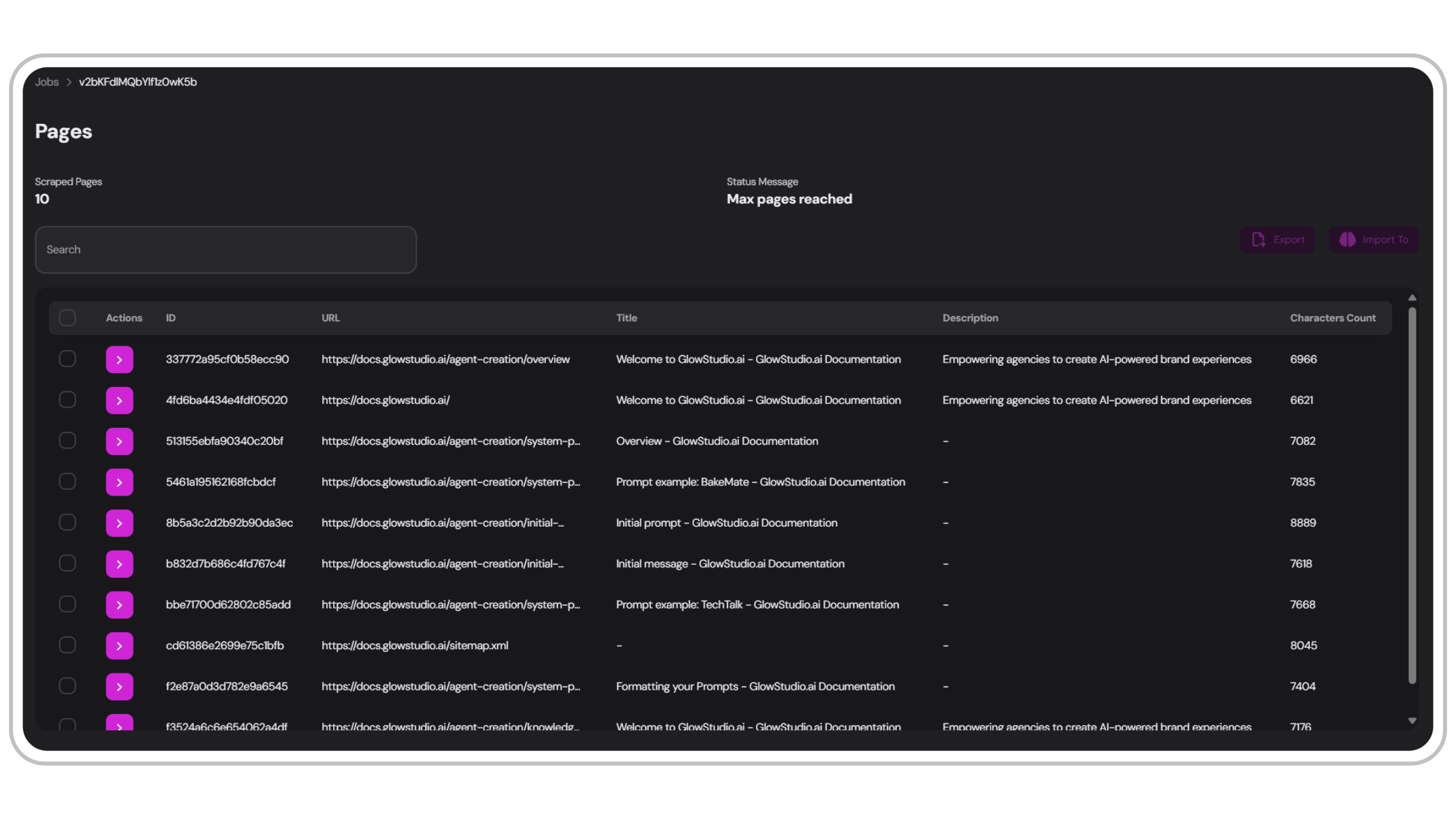 A distinct identifier for each scraped page
The web address of the scraped page
The main title of the document
A brief summary of the page content
The total number of characters in the scraped document
## Managing Scraped Pages
You can perform the following actions on the scraped pages:
Check the pages you want to process further
Download selected pages as a zip file containing .txt documents
Add selected pages to the knowledge base of your chosen agent
## Scraped Page Data
The scraped page data shows a detailed view of each page scraped in the job:
A distinct identifier for each scraped page
The web address of the scraped page
The main title of the document
A brief summary of the page content
The total number of characters in the scraped document
## Managing Scraped Pages
You can perform the following actions on the scraped pages:
Check the pages you want to process further
Download selected pages as a zip file containing .txt documents
Add selected pages to the knowledge base of your chosen agent
## Scraped Page Data
The scraped page data shows a detailed view of each page scraped in the job:
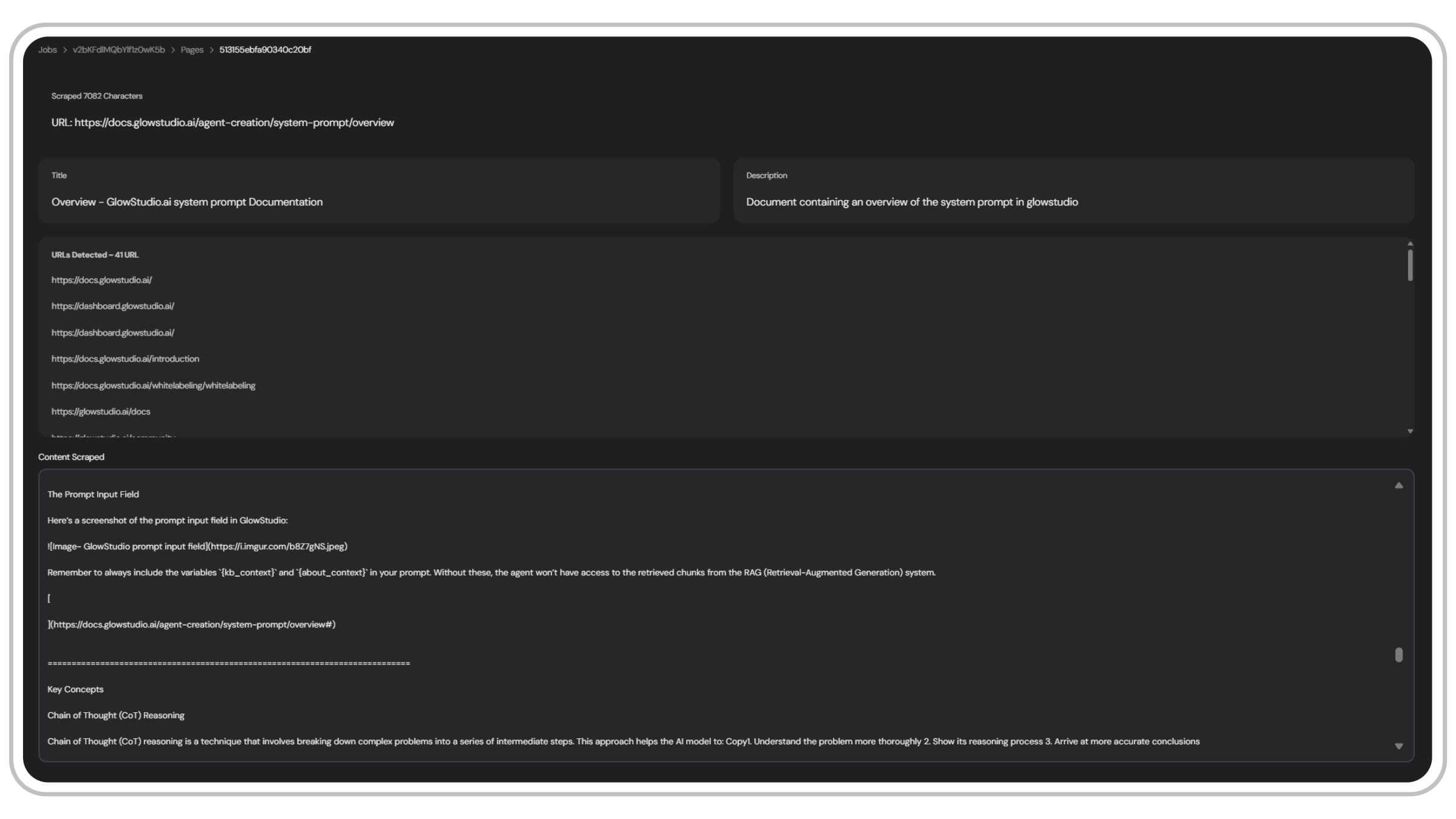 The web address of the scraped page
The main title of the page
A descriptive sentence that works as a summary of the page content and provides context to the LLM when retrieving from the knowledge base.
Links found within the scraped page
The main text scraped from the page, formatted in markdown
#
**Example snippet of scraped information in markdown:**
```markdown theme={null}
convocore AI provides access to a wide range of **state-of-the-art** AI models, ensuring that your agents are always equipped with the best and newest models on the market.
=========================================================
As soon as **new models** are released, the Convocore AI team promptly updates the platform. This means you typically get access to the latest and most powerful models **right away**.
```
Scraped information is formatted in markdown for easy reading by LLMs. To learn more about formatting KB documents, visit the [formatting doc](/agent-creation/knowledgebase/structuring-kb-documents).
## Crawler Job Status
When you initiate a new crawler job, it will progress through several status stages:
1. **Pending**: The crawler has started and is in the process of gathering URLs and scraping content.
2. **Active**: The crawler is actively scraping pages.
3. **Completed**: The job has finished, and all specified pages have been scraped.
You will receive a notification in the dashboard when the job status changes to `Completed`.
## Best Practices and Tips
Carefully define match and unmatch patterns to focus on the most relevant content.
Remember that each page scraped costs credits (1 for normal, 10 for deep scrape).
Set appropriate refresh rates for dynamic content to keep your knowledge base current.
Always review scraped content before importing it into your agent's knowledge base.
The web address of the scraped page
The main title of the page
A descriptive sentence that works as a summary of the page content and provides context to the LLM when retrieving from the knowledge base.
Links found within the scraped page
The main text scraped from the page, formatted in markdown
#
**Example snippet of scraped information in markdown:**
```markdown theme={null}
convocore AI provides access to a wide range of **state-of-the-art** AI models, ensuring that your agents are always equipped with the best and newest models on the market.
=========================================================
As soon as **new models** are released, the Convocore AI team promptly updates the platform. This means you typically get access to the latest and most powerful models **right away**.
```
Scraped information is formatted in markdown for easy reading by LLMs. To learn more about formatting KB documents, visit the [formatting doc](/agent-creation/knowledgebase/structuring-kb-documents).
## Crawler Job Status
When you initiate a new crawler job, it will progress through several status stages:
1. **Pending**: The crawler has started and is in the process of gathering URLs and scraping content.
2. **Active**: The crawler is actively scraping pages.
3. **Completed**: The job has finished, and all specified pages have been scraped.
You will receive a notification in the dashboard when the job status changes to `Completed`.
## Best Practices and Tips
Carefully define match and unmatch patterns to focus on the most relevant content.
Remember that each page scraped costs credits (1 for normal, 10 for deep scrape).
Set appropriate refresh rates for dynamic content to keep your knowledge base current.
Always review scraped content before importing it into your agent's knowledge base.