> ## Documentation Index
> Fetch the complete documentation index at: https://docs.convocore.ai/llms.txt
> Use this file to discover all available pages before exploring further.
# Conversations tab
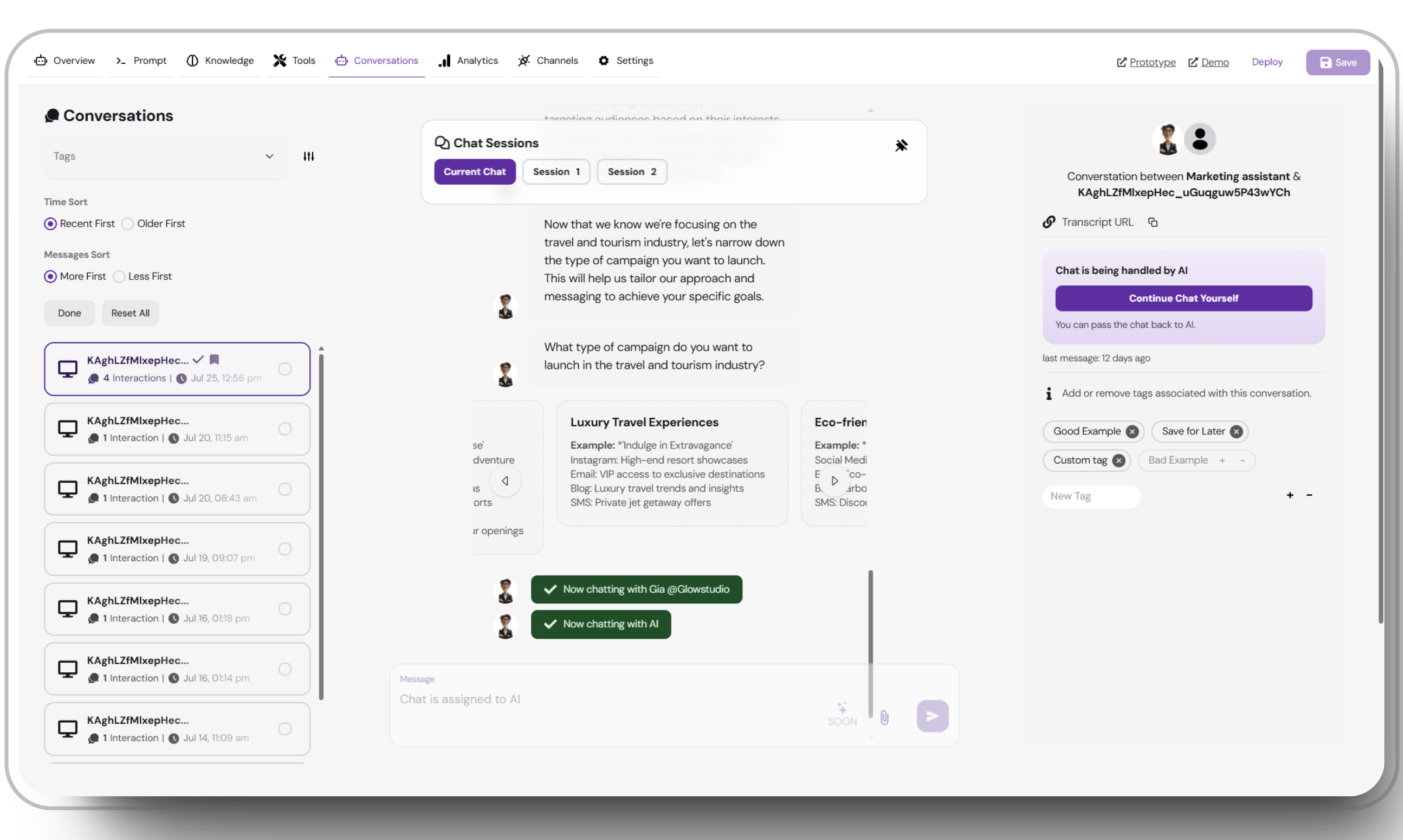
The Conversation tab is a crucial feature of your AI agent that provides invaluable insights into user interactions, exporting conversations and sharing insights with clients.
 ## Key Features
Watch live conversations as they unfold between users and your AI agent.
Gain insights to continuously improve your agent's responses and effectiveness.
Share specific conversations with clients or team members using unique URLs.
Organize and categorize conversations for efficient management and analysis.
The Conversation tab is divided into three main sections.
## Left Panel: Conversation List
## Key Features
Watch live conversations as they unfold between users and your AI agent.
Gain insights to continuously improve your agent's responses and effectiveness.
Share specific conversations with clients or team members using unique URLs.
Organize and categorize conversations for efficient management and analysis.
The Conversation tab is divided into three main sections.
## Left Panel: Conversation List
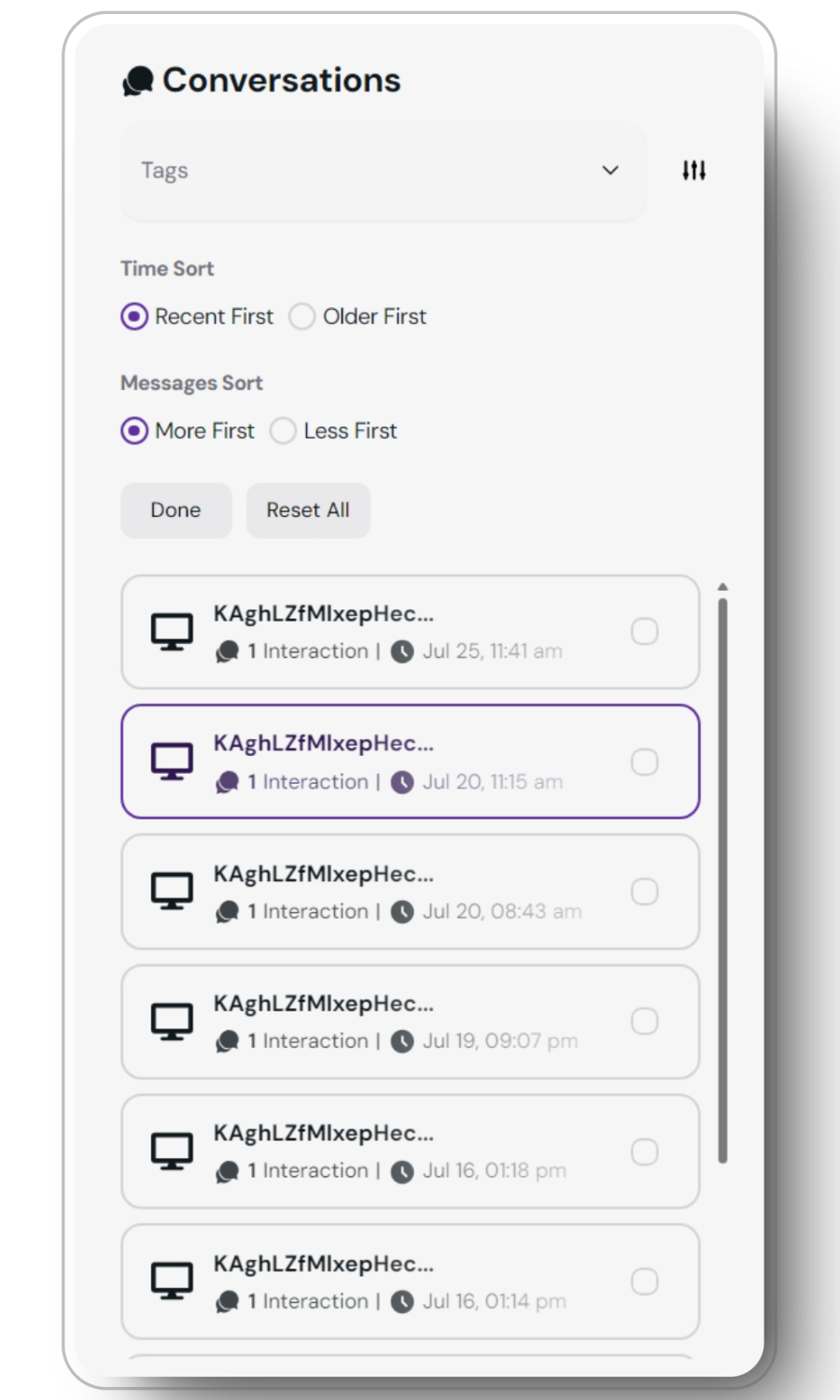 The left panel provides a list of all conversations, date, platform and offers various sorting options.
### Conversation Fields
Each conversation in the list displays the following information:
Unique identifier for each user (auto-generated or set via the [API](/api-reference))
Number of user messages in the current chat
Start time of the conversation
The channel were the conversation took place (Website, discord, instagram etc. See [integrations](/integration/Channels/discord) for more information.) This is viewed as the TV screen on the left side.
### Sorting Options
There are three ways of sorting your conversations. All of them can be used in conjunction withy each other.
* Recent: Display newest conversations first
* Oldest: Display oldest conversations first
* More: Sort by highest number of interactions
* Less: Sort by lowest number of interactions
Filter conversations using custom or predefined tags
## Central Panel: Conversation Transcript
The central panel displays the selected conversation transcript and offers session management features.
The left panel provides a list of all conversations, date, platform and offers various sorting options.
### Conversation Fields
Each conversation in the list displays the following information:
Unique identifier for each user (auto-generated or set via the [API](/api-reference))
Number of user messages in the current chat
Start time of the conversation
The channel were the conversation took place (Website, discord, instagram etc. See [integrations](/integration/Channels/discord) for more information.) This is viewed as the TV screen on the left side.
### Sorting Options
There are three ways of sorting your conversations. All of them can be used in conjunction withy each other.
* Recent: Display newest conversations first
* Oldest: Display oldest conversations first
* More: Sort by highest number of interactions
* Less: Sort by lowest number of interactions
Filter conversations using custom or predefined tags
## Central Panel: Conversation Transcript
The central panel displays the selected conversation transcript and offers session management features.
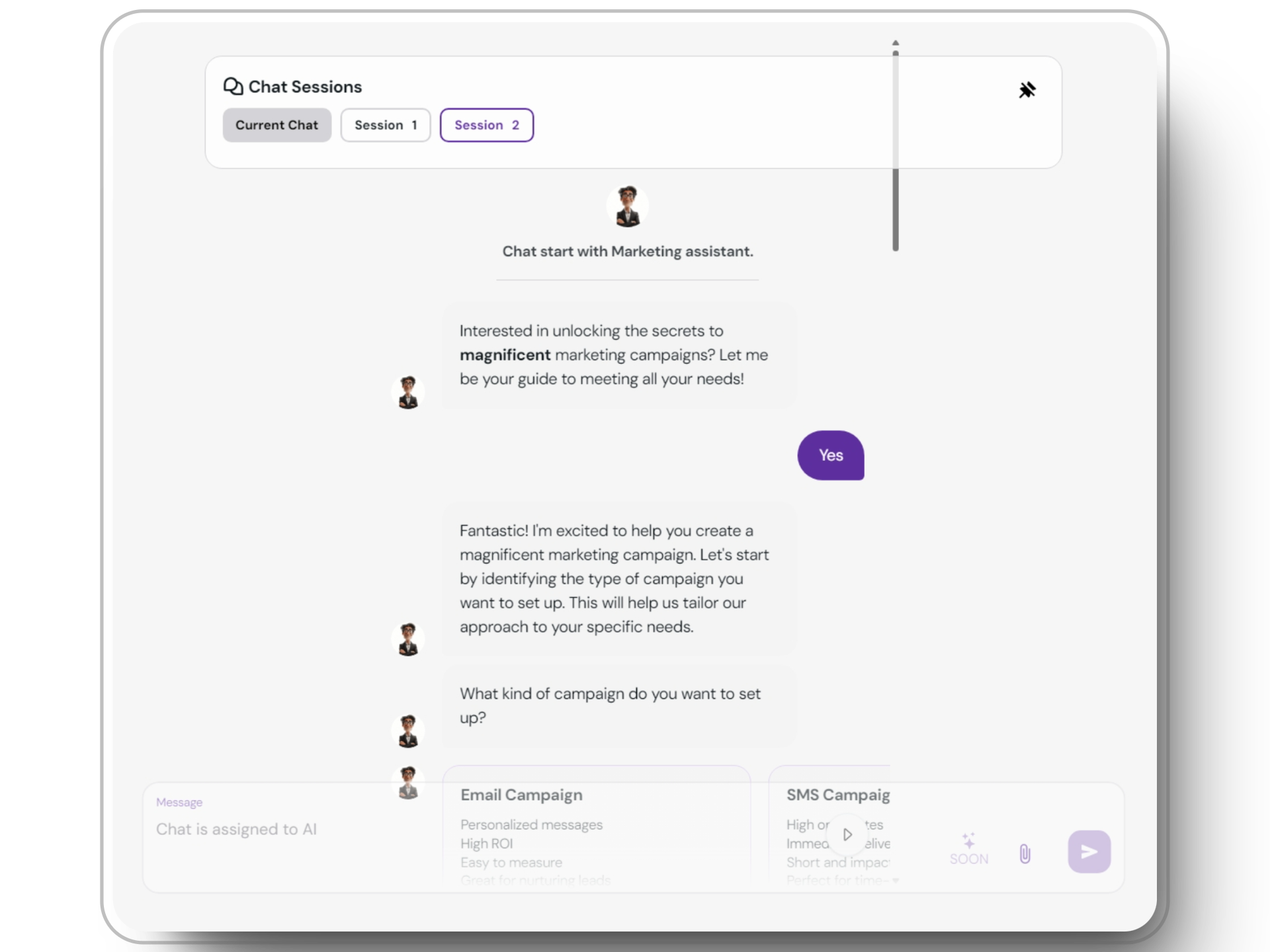 Choose from sessions by **ID** using the list at the top of the panel.
Review the back-and-forth messages between the user and AI agent.
Click the `pin icon` in the upper right to keep the session UI visible while scrolling. Handy when a user has many sessions to go through.
A new session **starts** each time a user with an `ID` initiates a conversation on your website. Because of this, one user might have many sessions.
## Right Panel: Conversation Management
The right panel provides tools for managing tags, using the handoff feature or sharing conversations via transcript URL.
Choose from sessions by **ID** using the list at the top of the panel.
Review the back-and-forth messages between the user and AI agent.
Click the `pin icon` in the upper right to keep the session UI visible while scrolling. Handy when a user has many sessions to go through.
A new session **starts** each time a user with an `ID` initiates a conversation on your website. Because of this, one user might have many sessions.
## Right Panel: Conversation Management
The right panel provides tools for managing tags, using the handoff feature or sharing conversations via transcript URL.
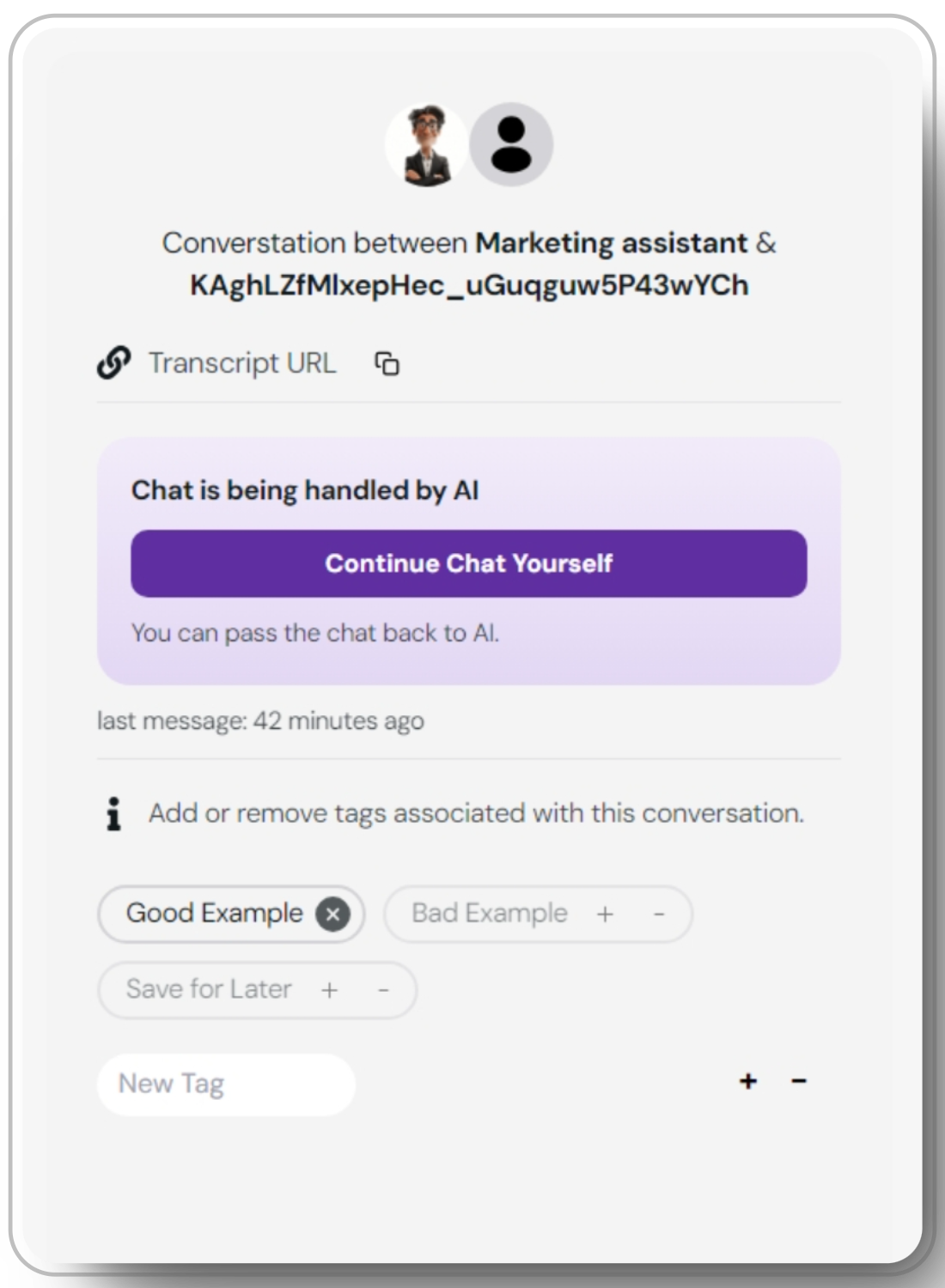 Share specific conversations easily with a unique URL for each conversation. This is especially useful during the demo phase, as sharing a conversation with a client for feedback is more effective than presenting an agent that's still a work in progress.
If configured, **URLs** are hosted on your agency's [domain](/whitelabeling/agency/custom-domain) and will always be whitelabeled.
For information on live agent handoff, please refer to our Handoff Documentation.
Click the `pin icon` in the upper right to keep the session UI visible while scrolling. Handy when a user has many sessions to go through.
### Using Tags
1. Click the `+` icon
2. Enter a name for your **custom tag**
3. Add as many tags as needed
* Good Example: Marks with a checkmark
* Bad Example: Marks with an X
* Save for Later: Marks with a flag
#
## Exporting Conversations
Exporting and storing conversations makes for many useful applications. Data storage and further data manipulation can provide deep insights into user behavior and preferences. These capabilities also offer excellent opportunities for upselling to clients by offering detailed data analysis.
{/* Explore the Glowstudio [marketplace](https://glowstudio.ai/markteplace) for templates using Make.com and ChatGPT. */}
## Export options:
Download or copy conversation data in CSV format.
Download or copy conversation transcript as plain text.
Export all conversations in your preferred format.
## Deleting Conversations
If you only want to store some conversations or clean up after testing, deleting conversations is a good way to maintain a more organized and relevant dataset.
#
Deleting conversations is **permanent** and cannot be undone. Use caution when deleting conversations.
#
### Best Practices for conversation tab:
Set aside time to review conversations regularly for continuous improvement.
Use a consistent tagging system to make sorting and analysis more efficient.
Use the transcript URL feature to share notable conversations with your team or clients.
Regularly export crucial conversations to maintain a record outside the platform.
Share specific conversations easily with a unique URL for each conversation. This is especially useful during the demo phase, as sharing a conversation with a client for feedback is more effective than presenting an agent that's still a work in progress.
If configured, **URLs** are hosted on your agency's [domain](/whitelabeling/agency/custom-domain) and will always be whitelabeled.
For information on live agent handoff, please refer to our Handoff Documentation.
Click the `pin icon` in the upper right to keep the session UI visible while scrolling. Handy when a user has many sessions to go through.
### Using Tags
1. Click the `+` icon
2. Enter a name for your **custom tag**
3. Add as many tags as needed
* Good Example: Marks with a checkmark
* Bad Example: Marks with an X
* Save for Later: Marks with a flag
#
## Exporting Conversations
Exporting and storing conversations makes for many useful applications. Data storage and further data manipulation can provide deep insights into user behavior and preferences. These capabilities also offer excellent opportunities for upselling to clients by offering detailed data analysis.
{/* Explore the Glowstudio [marketplace](https://glowstudio.ai/markteplace) for templates using Make.com and ChatGPT. */}
## Export options:
Download or copy conversation data in CSV format.
Download or copy conversation transcript as plain text.
Export all conversations in your preferred format.
## Deleting Conversations
If you only want to store some conversations or clean up after testing, deleting conversations is a good way to maintain a more organized and relevant dataset.
#
Deleting conversations is **permanent** and cannot be undone. Use caution when deleting conversations.
#
### Best Practices for conversation tab:
Set aside time to review conversations regularly for continuous improvement.
Use a consistent tagging system to make sorting and analysis more efficient.
Use the transcript URL feature to share notable conversations with your team or clients.
Regularly export crucial conversations to maintain a record outside the platform.