> ## Documentation Index
> Fetch the complete documentation index at: https://docs.convocore.ai/llms.txt
> Use this file to discover all available pages before exploring further.
# Agent Campaigns
> Run outbound voice campaigns and lead-based outreach from your agent.
Campaigns let you reach a selected group of leads with automated outreach flows.
The campaign system is built around **lead groups**, so the usual workflow is:
1. Import or organize leads
2. Group them
3. Create a campaign that targets that group
4. Monitor progress, metrics, and outcomes
## What campaigns are for
Common campaign use cases include:
* Outbound sales follow-up
* Lead qualification
* Appointment reminders
* Re-engagement of inactive contacts
* Voice-based customer outreach
## Campaign types
At a high level, Convocore supports campaign-style outreach for:
* **Voice campaigns**: automated outbound calling to a lead group
* **WhatsApp template campaigns**: template-based outreach for WhatsApp use cases where supported in your workflow
This page focuses on the main lead-group-driven campaign flow used in the agent dashboard.
## Before you create a campaign
You need a lead group first.
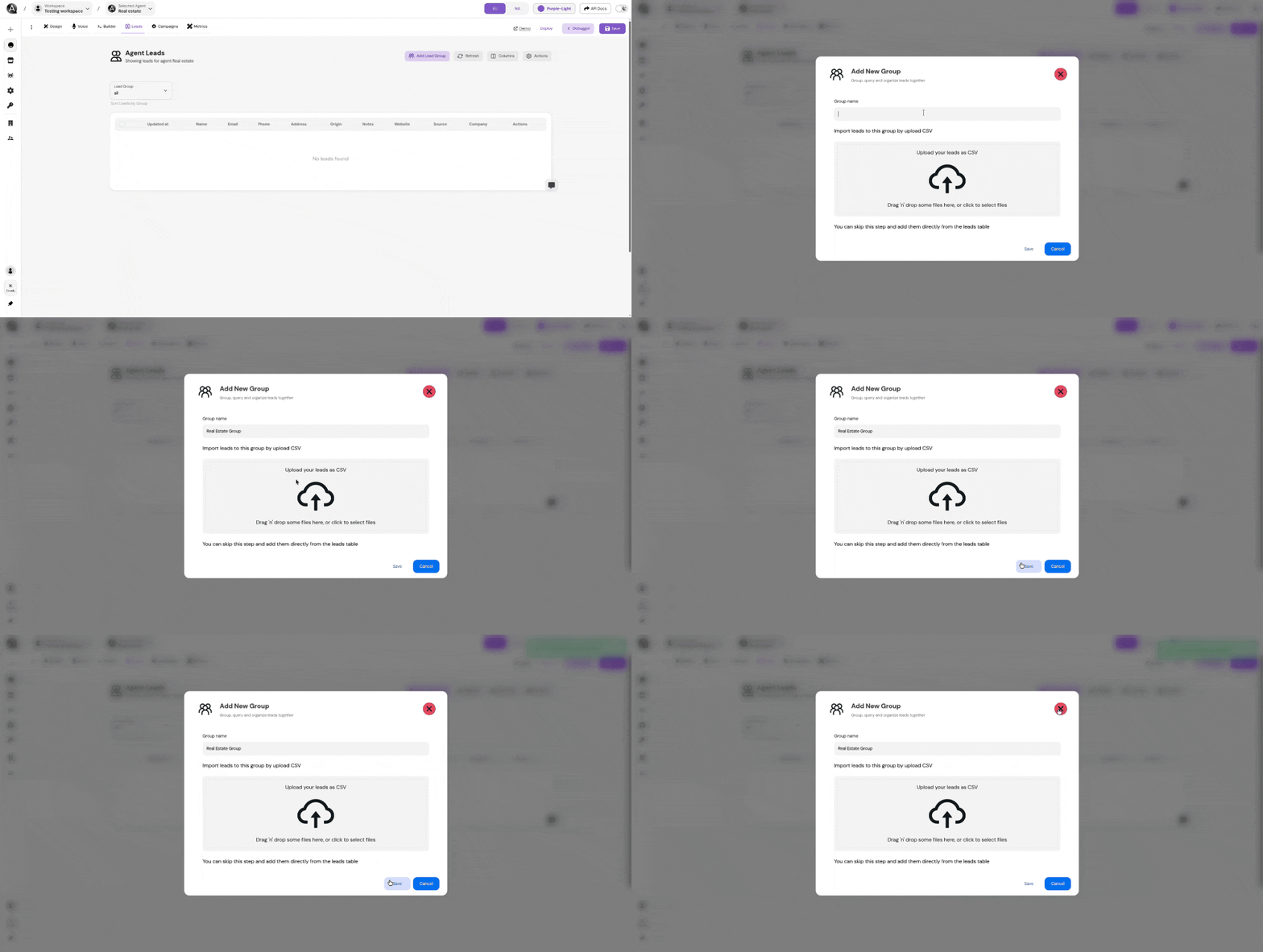 Go to your agent dashboard and open the section where your leads are managed.
Add leads manually or import them in bulk using a CSV file.
Group leads under a shared name so the campaign can target them together.
You can download the sample CSV import file from this template.
## Create a campaign
Go to your agent dashboard and open the `Campaigns` tab.
Click `Create Campaign`.
Set the campaign name and select the lead group you want to target.
Define concurrency, delay between calls, and other runtime controls.
Define how the outreach starts and what should be analyzed after each call.
Save the campaign, then run, pause, or stop it from the campaigns table.
## Core campaign settings
### Target lead group
This determines which leads are included in the campaign.
### Concurrency slots
Controls how many outbound calls the campaign is allowed to process at the same time.
### Delay between calls
Adds spacing between outbound attempts to help you control pacing.
### Initial prompt
Defines the opening message or first instruction used when the call begins.
### Call analysis summary prompt
Defines what the system should evaluate after the call ends, such as outcome classification, notes, or follow-up quality.
### Post-call metrics
You can attach metrics to measure campaign outcomes. Depending on your setup, these can be:
* Built-in metrics
* Custom metrics configured in the platform
## Scheduling and timing
Campaigns can be restricted to a working schedule so outreach happens only during allowed hours.
* **Open time / close time**: Set the daily window when the campaign may run
* **Timezone**: Choose the timezone that the schedule should follow
* **Working days**: Limit the campaign to selected days of the week
If the campaign reaches a closed window, it waits until the next valid time instead of continuing immediately.
## Managing campaigns
From the campaigns table you can usually:
* Start a campaign
* Pause or stop a campaign
* Edit campaign settings
* Review status and progress
* Remove a campaign you no longer need
## Best practices
Use clear grouping so you always know exactly who a campaign is targeting.
Strong opening prompts and post-call summaries make campaign results much easier to review.
Limit outreach to appropriate business hours for the audience you are contacting.
Attach useful metrics so you can compare campaigns and optimize what works.
Go to your agent dashboard and open the section where your leads are managed.
Add leads manually or import them in bulk using a CSV file.
Group leads under a shared name so the campaign can target them together.
You can download the sample CSV import file from this template.
## Create a campaign
Go to your agent dashboard and open the `Campaigns` tab.
Click `Create Campaign`.
Set the campaign name and select the lead group you want to target.
Define concurrency, delay between calls, and other runtime controls.
Define how the outreach starts and what should be analyzed after each call.
Save the campaign, then run, pause, or stop it from the campaigns table.
## Core campaign settings
### Target lead group
This determines which leads are included in the campaign.
### Concurrency slots
Controls how many outbound calls the campaign is allowed to process at the same time.
### Delay between calls
Adds spacing between outbound attempts to help you control pacing.
### Initial prompt
Defines the opening message or first instruction used when the call begins.
### Call analysis summary prompt
Defines what the system should evaluate after the call ends, such as outcome classification, notes, or follow-up quality.
### Post-call metrics
You can attach metrics to measure campaign outcomes. Depending on your setup, these can be:
* Built-in metrics
* Custom metrics configured in the platform
## Scheduling and timing
Campaigns can be restricted to a working schedule so outreach happens only during allowed hours.
* **Open time / close time**: Set the daily window when the campaign may run
* **Timezone**: Choose the timezone that the schedule should follow
* **Working days**: Limit the campaign to selected days of the week
If the campaign reaches a closed window, it waits until the next valid time instead of continuing immediately.
## Managing campaigns
From the campaigns table you can usually:
* Start a campaign
* Pause or stop a campaign
* Edit campaign settings
* Review status and progress
* Remove a campaign you no longer need
## Best practices
Use clear grouping so you always know exactly who a campaign is targeting.
Strong opening prompts and post-call summaries make campaign results much easier to review.
Limit outreach to appropriate business hours for the audience you are contacting.
Attach useful metrics so you can compare campaigns and optimize what works.