> ## Documentation Index
> Fetch the complete documentation index at: https://docs.convocore.ai/llms.txt
> Use this file to discover all available pages before exploring further.

# Tabs Configuration

> Transform your widget into an interactive multi-tab experience that boosts user engagement and satisfaction

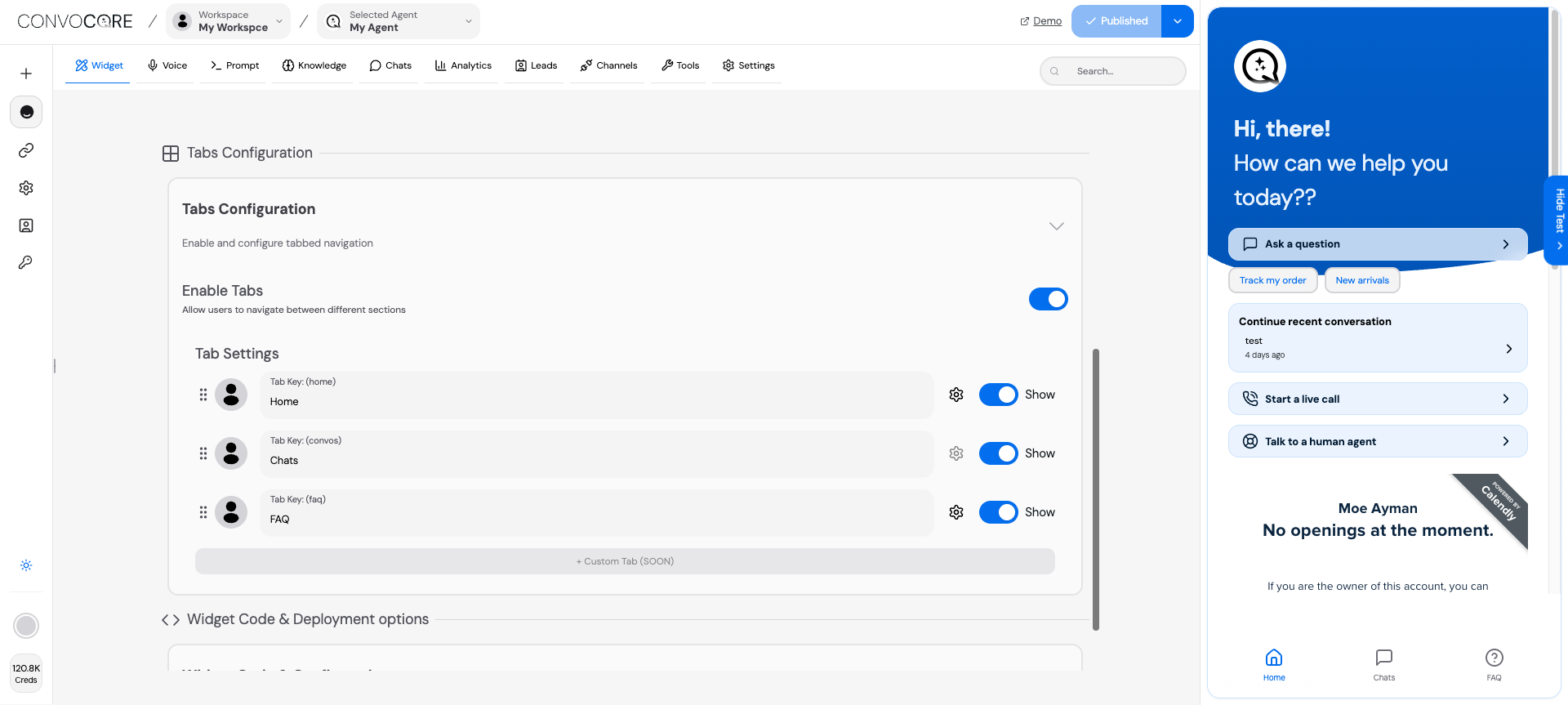
<img className="block dark:hidden" src="https://mintcdn.com/convocore/XT4nF9yL3BqLaML1/images/tabs-configuration-light.png?fit=max&auto=format&n=XT4nF9yL3BqLaML1&q=85&s=201cf2bc9fa651162c3c3ffe2ece0e8b" alt="Tabs Configuration Interface" width="1920" height="863" data-path="images/tabs-configuration-light.png" />

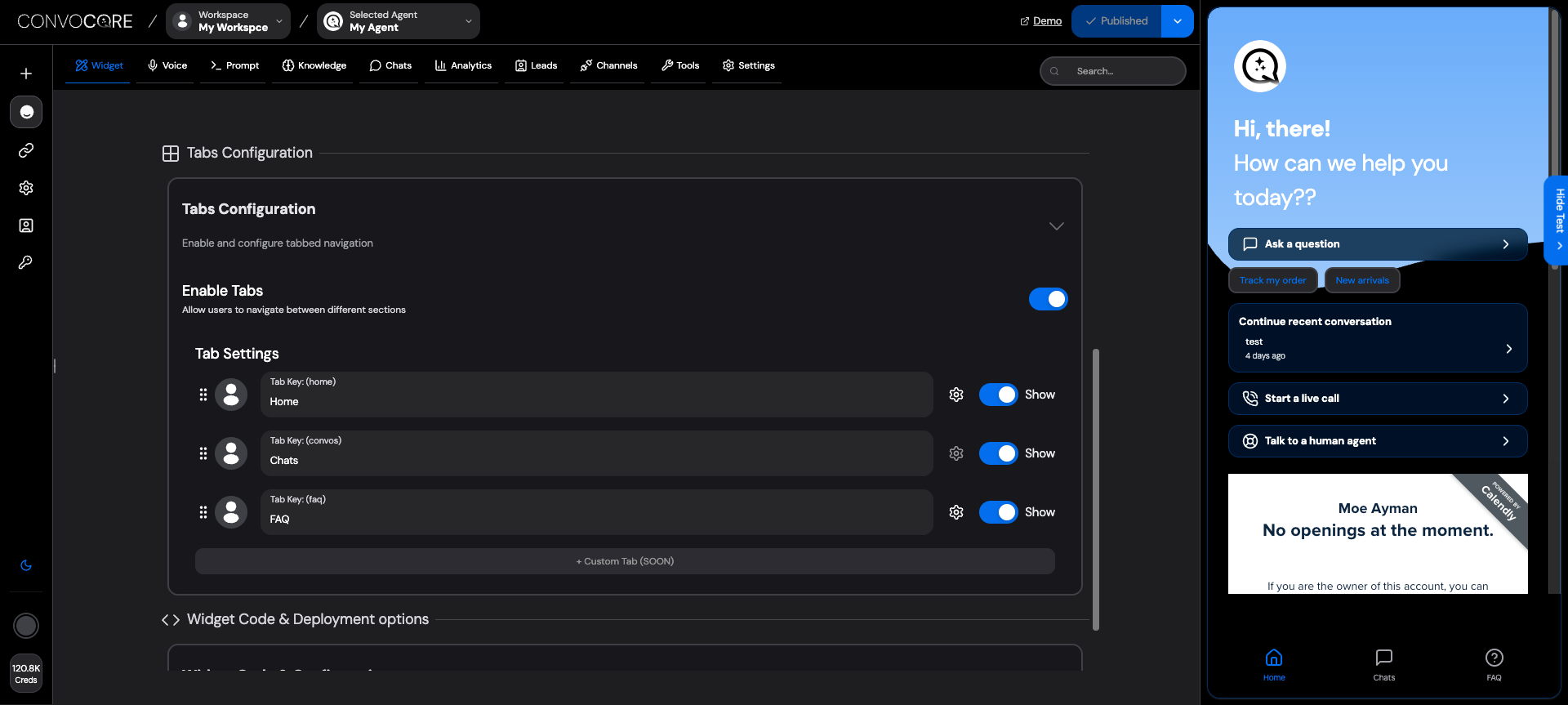
<img className="hidden dark:block" src="https://mintcdn.com/convocore/XT4nF9yL3BqLaML1/images/tabs-configuration-dark.png?fit=max&auto=format&n=XT4nF9yL3BqLaML1&q=85&s=907d3554ae4c5c5e979edb8764095982" alt="Tabs Configuration Interface" width="1920" height="863" data-path="images/tabs-configuration-dark.png" />

Transform your basic chat widget into a sophisticated, multi-tab interface that provides users with an intuitive navigation experience. The Tabs Configuration feature elevates user engagement by organizing functionality into distinct, accessible sections.

## Why Use Tabs?

<CardGroup cols={2}>
  <Card title="Enhanced UX" icon="sparkles">
    Create an intuitive, app-like experience that guides users naturally through your services
  </Card>

  <Card title="Better Organization" icon="layer-group">
    Separate different functionalities into logical sections for easier navigation
  </Card>

  <Card title="Higher Engagement" icon="chart-line">
    Users spend more time exploring features when they're presented in an organized tab structure
  </Card>

  <Card title="Professional Look" icon="star">
    Transform your widget from basic chat to a sophisticated customer portal
  </Card>
</CardGroup>

## Quick Start

<Steps>
  <Step title="Access Tabs Configuration">
    Navigate to your agent dashboard and click on **Tabs** in the left sidebar
  </Step>

  <Step title="Enable Tab Interface">
    Toggle the **"Enable Tabs"** switch to activate the multi-tab experience
  </Step>

  <Step title="Customize Your Tabs">
    Use the drag-and-drop interface to reorder tabs and configure their content
  </Step>

  <Step title="Preview & Test">
    Test your configuration in the widget preview to ensure optimal user experience
  </Step>
</Steps>

<Tip>
  Pro tip: Enable tabs early in your setup process - it's much easier to design your content with tabs in mind from the start!
</Tip>

## Tab Types Overview

<Tabs>
  <Tab title="Home Tab">
    <div className="space-y-4">
      <p>The welcome center of your widget - your users' first impression and primary navigation hub.</p>

      <AccordionGroup>
        <Accordion title="Custom Header Configuration">
          * **Dynamic Greetings**: Use variables like `{user.name}` for personalization
          * **Brand Messaging**: Craft compelling descriptions that reflect your value proposition
          * **Visual Hierarchy**: Control header height and spacing for optimal impact
        </Accordion>

        <Accordion title="Action Buttons Setup">
          * **Ask a Question**: Direct pathway to your AI agent
          * **Continue Conversation**: Quick access to recent chat history
          * **Live Call**: Voice interaction capability (requires voice setup)
          * **Human Handoff**: Seamless escalation to human support
        </Accordion>

        <Accordion title="Ice Breakers & Suggestions">
          Configure conversation starters that appear when users hover over buttons:

          * "Track my order status"
          * "Product recommendations"
          * "Technical support"
          * "Billing questions"
        </Accordion>
      </AccordionGroup>
    </div>
  </Tab>

  <Tab title="Chats Tab">
    <div className="space-y-4">
      <p>A comprehensive conversation history interface that keeps users engaged and informed.</p>

      <Frame>
        <div className="p-4 bg-gray-50 dark:bg-gray-900 rounded-lg">
          <h4 className="font-semibold mb-2">Key Features</h4>

          <ul className="space-y-1 text-sm">
            <li>✅ Chronological conversation display</li>
            <li>✅ One-click conversation resumption</li>
            <li>✅ Search and filter capabilities</li>
            <li>✅ Export conversation transcripts</li>
            <li>✅ Mobile-optimized interface</li>
          </ul>
        </div>
      </Frame>
    </div>
  </Tab>

  <Tab title="FAQ Tab">
    <div className="space-y-4">
      <p>Self-service support that reduces chat volume while providing instant answers.</p>

      <CardGroup cols={1}>
        <Card title="Smart FAQ Management" icon="brain">
          * Auto-categorization of questions
          * Search-friendly formatting
          * Analytics on most-viewed questions
          * Integration with your knowledge base
        </Card>

        <Card title="Custom Content Options" icon="pencil">
          * Rich text editor for answers
          * Image and video embedding
          * External URL integration
          * Dynamic content updates
        </Card>
      </CardGroup>
    </div>
  </Tab>
</Tabs>

## Configuration Walkthrough

<AccordionGroup>
  <Accordion title="Tab Reordering & Organization" icon="arrows-up-down">
    <Steps>
      <Step title="Access Drag Interface">
        In your Tabs Configuration panel, you'll see all available tabs listed vertically
      </Step>

      <Step title="Drag to Reorder">
        Click and hold any tab card, then drag it to your preferred position
      </Step>

      <Step title="Auto-Save Changes">
        Release to lock in the new order - changes save automatically
      </Step>
    </Steps>

    <Warning>
      The first tab in your list becomes the default landing tab for new users
    </Warning>
  </Accordion>

  <Accordion title="Home Tab Deep Customization" icon="house">
    <Tabs>
      <Tab title="Header Setup">
        <div className="space-y-3">
          ```text theme={null}
          Header Title: "Welcome back, {user.name}! 👋"
          Description: "How can we help you today?"
          Height: 120px (recommended)
          ```

          <Info>
            **Dynamic Variables Available:**

            * `{user.name}` - User's display name
            * `{user.email}` - User's email address
            * `{user.company}` - Company name (if available)
          </Info>
        </div>
      </Tab>

      <Tab title="Action Buttons">
        <CardGroup cols={2}>
          <Card title="Ask Question" icon="message">
            **Purpose**: Direct chat access
            **Ice Breakers**: Product info, Support, Pricing
            **Customizable**: Label, icon, visibility
          </Card>

          <Card title="Recent Chats" icon="clock">
            **Purpose**: Continue conversations
            **Auto-detects**: Last 5 conversations
            **Smart display**: Shows only if history exists
          </Card>

          <Card title="Live Call" icon="phone">
            **Purpose**: Voice interaction
            **Requires**: Voice feature enabled
            **Fallback**: Hides if voice disabled
          </Card>

          <Card title="Human Support" icon="user">
            **Purpose**: Escalation pathway
            **Integration**: Works with handoff settings
            **Customizable**: Working hours, availability
          </Card>
        </CardGroup>
      </Tab>

      <Tab title="Ice Breakers">
        <Frame>
          <div className="bg-blue-50 dark:bg-blue-900 p-4 rounded-lg">
            <h4 className="font-semibold text-blue-800 mb-2">Best Practice Examples</h4>

            <div className="grid grid-cols-1 md:grid-cols-2 gap-3 text-sm">
              <div>
                <strong>E-commerce:</strong>

                <ul className="mt-1 space-y-1">
                  <li>"Track my order"</li>
                  <li>"Return policy"</li>
                  <li>"Size guide"</li>
                </ul>
              </div>

              <div>
                <strong>SaaS:</strong>

                <ul className="mt-1 space-y-1">
                  <li>"Getting started"</li>
                  <li>"Billing questions"</li>
                  <li>"Feature requests"</li>
                </ul>
              </div>
            </div>
          </div>
        </Frame>
      </Tab>
    </Tabs>
  </Accordion>

  <Accordion title="FAQ Tab Configuration" icon="circle-question">
    <div className="space-y-4">
      <Tabs>
        <Tab title="Content Management">
          <Steps>
            <Step title="Enable Custom FAQ">
              Toggle on to use your own Q\&A content instead of defaults
            </Step>

            <Step title="Add Questions">
              Use the rich text editor to create comprehensive answers
            </Step>

            <Step title="Organize Categories">
              Group related questions for better user navigation
            </Step>

            <Step title="Enable Search">
              Allow users to search through your FAQ database
            </Step>
          </Steps>
        </Tab>

        <Tab title="External Integration">
          ```json theme={null}
          {
            "type": "external_url",
            "url": "https://help.yourcompany.com",
            "height": "600px",
            "responsive": true
          }
          ```

          <Tip>
            External FAQ integration is perfect if you already have a comprehensive help center
          </Tip>
        </Tab>
      </Tabs>
    </div>
  </Accordion>
</AccordionGroup>

## Best Practices & Optimization

<CardGroup cols={3}>
  <Card title="Design Excellence" icon="palette">
    **Visual Hierarchy**

    * Use contrasting colors for CTAs
    * Implement consistent spacing
    * Choose readable font sizes

    **Brand Consistency**

    * Match your website's color scheme
    * Use your brand's tone of voice
    * Include brand-specific terminology
  </Card>

  <Card title="User Psychology" icon="brain">
    **Cognitive Load**

    * Limit tabs to 3-4 maximum
    * Use familiar terminology
    * Provide clear visual cues

    **Engagement Tactics**

    * Personalize greetings
    * Use action-oriented language
    * Create urgency when appropriate
  </Card>

  <Card title="Performance Metrics" icon="chart-bar">
    **Key Indicators**

    * Time spent per tab
    * Button click rates
    * FAQ search queries

    **Optimization**

    * A/B test button labels
    * Monitor drop-off points
    * Refine based on analytics
  </Card>
</CardGroup>

## Advanced Features

<Tabs>
  <Tab title="Dynamic Personalization">
    <AccordionGroup>
      <Accordion title="User Context Variables">
        ```javascript theme={null}
        // Available variables in your tab content
        {user.name}          // "John Doe"
        {user.email}         // "john@company.com"
        {user.company}       // "Acme Corp"
        {user.lastVisit}     // "2 days ago"
        {user.location}      // "New York, NY"
        ```

        <Info>
          Variables automatically populate from user data when available, gracefully falling back to generic text when not.
        </Info>
      </Accordion>

      <Accordion title="Conditional Content Display">
        * **Time-based**: Show different content based on business hours
        * **User tier**: Display premium features for paid users
        * **Geographic**: Adapt content based on user location
        * **Behavioral**: Customize based on previous interactions
      </Accordion>
    </AccordionGroup>
  </Tab>

  <Tab title="Integration & APIs">
    <Frame>
      <div className="space-y-4">
        <div className="bg-gradient-to-r from-purple-50 to-blue-50 dark:from-purple-900 dark:to-blue-900 p-4 rounded-lg">
          <h4 className="font-semibold mb-2">External Content Sources</h4>

          <ul className="space-y-2 text-sm">
            <li>🔗 **Help Center Integration**: Embed your existing documentation</li>
            <li>📊 **Analytics Dashboards**: Show real-time metrics to users</li>
            <li>🛒 **E-commerce Data**: Display order status and product info</li>
            <li>📅 **Calendar Systems**: Enable appointment booking</li>
          </ul>
        </div>
      </div>
    </Frame>
  </Tab>

  <Tab title="Analytics & Insights">
    <CardGroup cols={2}>
      <Card title="User Behavior Tracking" icon="eye">
        * Tab switching patterns
        * Time spent per section
        * Most clicked buttons
        * FAQ search queries
      </Card>

      <Card title="Performance Metrics" icon="chart-bar">
        * Load times per tab
        * Engagement rates
        * Conversion tracking
        * User satisfaction scores
      </Card>
    </CardGroup>
  </Tab>
</Tabs>

## Troubleshooting Guide

<AccordionGroup>
  <Accordion title="Tabs Not Displaying" icon="triangle-exclamation">
    <Steps>
      <Step title="Verify Enable Status">
        Check that the "Enable Tabs" toggle is switched on in your configuration
      </Step>

      <Step title="Check Widget Integration">
        Ensure your widget code is the latest version and properly embedded
      </Step>

      <Step title="Clear Cache">
        Force refresh your browser cache (Ctrl+F5 or Cmd+Shift+R)
      </Step>

      <Step title="Test in Incognito">
        Open your widget in an incognito/private browsing window
      </Step>
    </Steps>
  </Accordion>

  <Accordion title="Buttons Not Responding" icon="arrow-pointer">
    <div className="space-y-3">
      <Frame>
        **Quick Diagnostic Checklist:**

        * ✅ Button visibility enabled in settings
        * ✅ Required features (voice, handoff) properly configured
        * ✅ Custom URLs are accessible and valid
        * ✅ No JavaScript errors in browser console
      </Frame>

      <Warning>
        If voice calling buttons don't work, ensure your voice configuration is complete and enabled.
      </Warning>
    </div>
  </Accordion>

  <Accordion title="FAQ Content Issues" icon="circle-question">
    <Tabs>
      <Tab title="Content Not Showing">
        * Enable "Custom FAQ" toggle if using your own content
        * Verify questions and answers are properly saved
        * Check for special characters that might break formatting
      </Tab>

      <Tab title="External URL Problems">
        * Test the external URL directly in a new browser tab
        * Ensure the target site allows iframe embedding
        * Check for HTTPS requirements (mixed content issues)
      </Tab>
    </Tabs>
  </Accordion>
</AccordionGroup>

<Note>
  **Pro Tip**: Most configuration changes take effect immediately, but some cached content may require up to 5 minutes to update globally. For immediate testing, use incognito mode or clear your browser cache.
</Note>

## What's Next?

<CardGroup cols={2}>
  <Card title="Theme Customization" icon="brush" href="/agent-dashboard/theme-customization">
    Customize colors, fonts, and styling to match your brand perfectly
  </Card>

  <Card title="Widget Configuration" icon="sliders" href="/agent-dashboard/widget-configuration">
    Advanced widget settings and behavioral customizations
  </Card>

  <Card title="Analytics Setup" icon="chart-simple" href="/features/analytics">
    Track user engagement and optimize your tab performance
  </Card>

  <Card title="Voice Integration" icon="microphone" href="/voice/introduction">
    Add voice capabilities to enhance your tab interactions
  </Card>
</CardGroup>
