> ## Documentation Index
> Fetch the complete documentation index at: https://docs.convocore.ai/llms.txt
> Use this file to discover all available pages before exploring further.
# Previewing the KB
The Preview KB feature allows you to test your knowledge base, experiment with different chunking options, and try out various AI models directly within your agent's interface.
### Accessing Preview KB
Open your agent's dashboard and select the 'Knowledge' tab.
Look for the `Preview KB` button in the upper right corner of the interface.
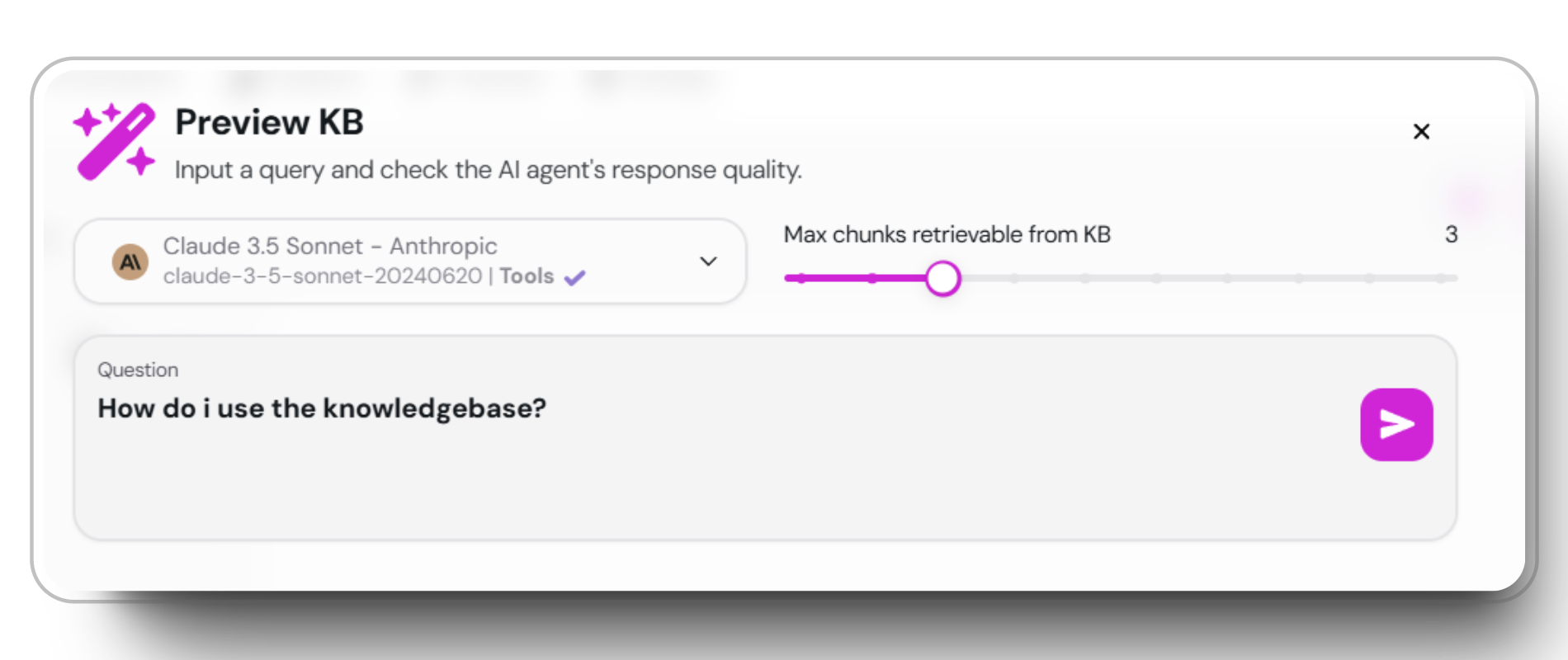 Experiment with different queries, chunking options, and AI models to optimize your knowledge base.
## Using the Debug Screen
The debug screen is a powerful tool for testing how your agent's utlizises its knowledge. Here's the details you can see:
#
**Starting tool**: Input variable with the users question. **Query:** The users query sent to the LLM.
**Parent Document metadata:** The name and description of the document, used for better context to the LLM.
Experiment with different queries, chunking options, and AI models to optimize your knowledge base.
## Using the Debug Screen
The debug screen is a powerful tool for testing how your agent's utlizises its knowledge. Here's the details you can see:
#
**Starting tool**: Input variable with the users question. **Query:** The users query sent to the LLM.
**Parent Document metadata:** The name and description of the document, used for better context to the LLM.
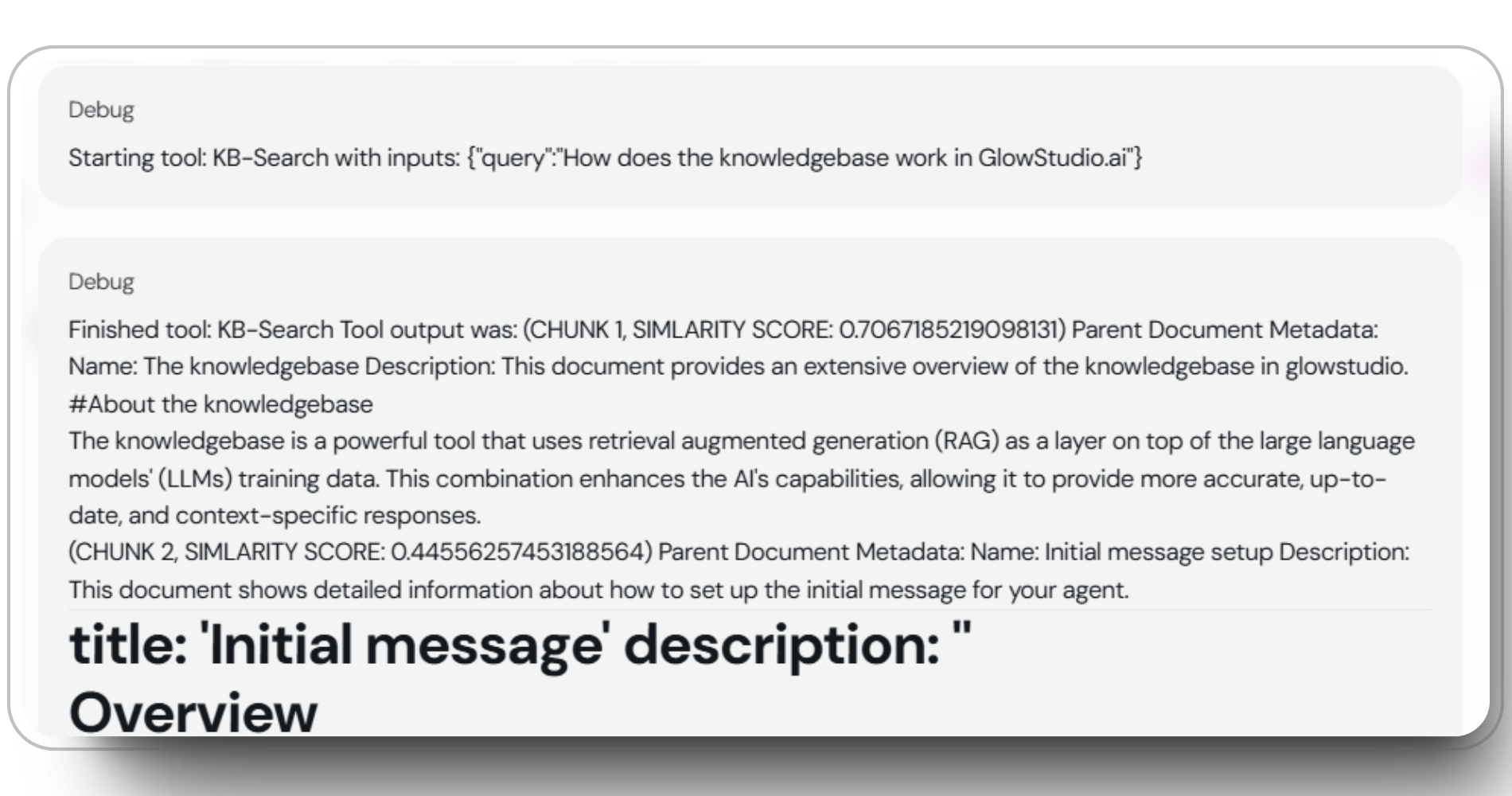 View all text chunks that match your query, along with their similarity scores.
See the source document name and description for each chunk retrieved.
Monitor both input and output token consumption for each query.
Evaluate how different [AI models](AImodels) perform with your knowledge base.
### Understanding retrieval details
The retrieval details makes for advanced control over your agents usage, with detailed information about each chunk, tokens and LLM. The similarity scores help you gauge the relevance of returned chunks to your query. This is crucial for retrieving the most useful information and for using the input and output tokens efficiently.
In the screenshots below the chunk with the highest similarity score ranked `0.683`, using **1262** input tokens and **220** to output the answer with `claude 3.5 sonnet`
View all text chunks that match your query, along with their similarity scores.
See the source document name and description for each chunk retrieved.
Monitor both input and output token consumption for each query.
Evaluate how different [AI models](AImodels) perform with your knowledge base.
### Understanding retrieval details
The retrieval details makes for advanced control over your agents usage, with detailed information about each chunk, tokens and LLM. The similarity scores help you gauge the relevance of returned chunks to your query. This is crucial for retrieving the most useful information and for using the input and output tokens efficiently.
In the screenshots below the chunk with the highest similarity score ranked `0.683`, using **1262** input tokens and **220** to output the answer with `claude 3.5 sonnet`
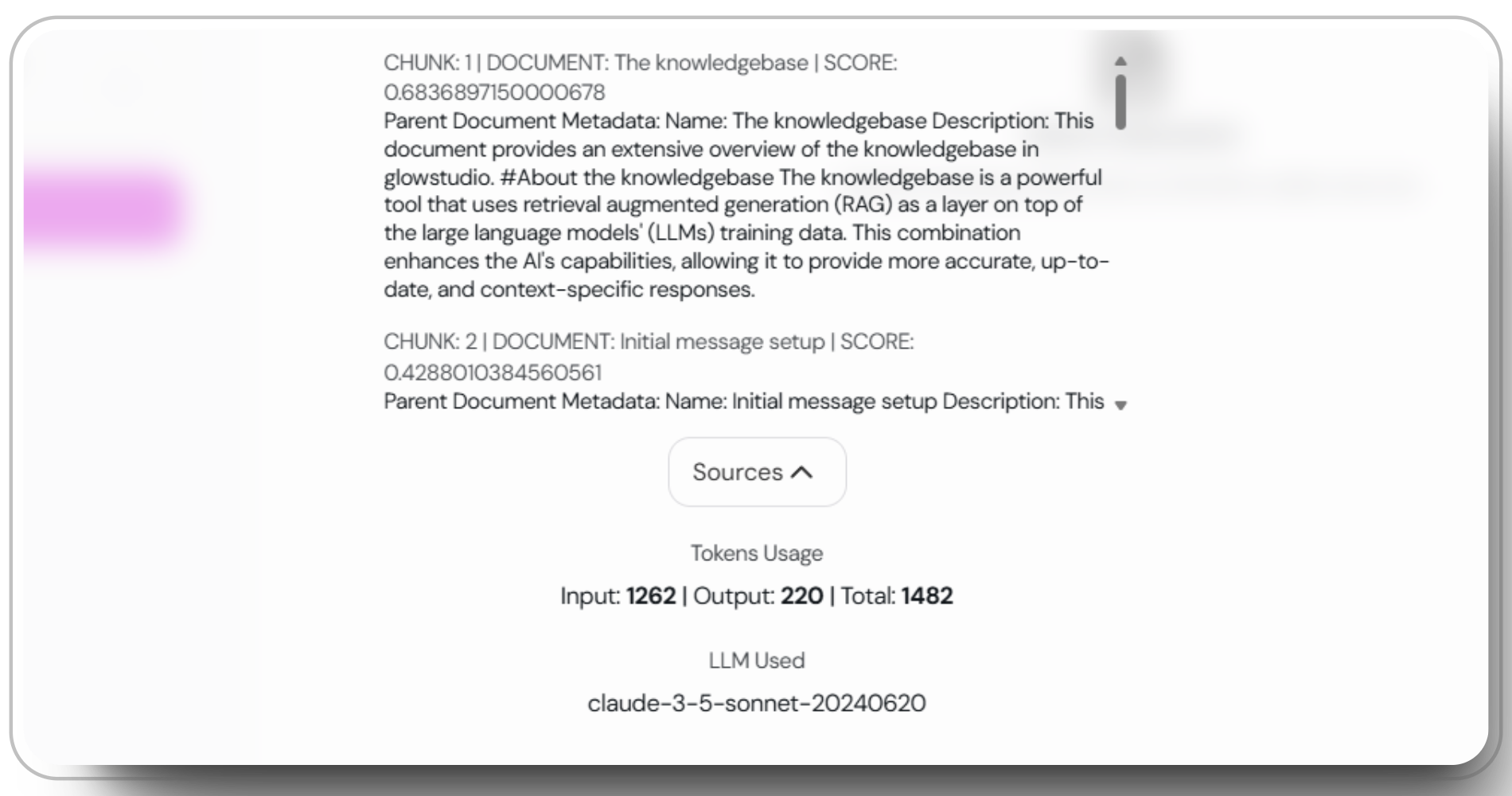 > *Screenshot of chunks, similarity score, LLM used and tokens usage.*
#
Monitoring token usage is especially important for cost-sensitive clients aiming to minimize credit and token consumption.
By leveraging the Preview KB feature and understanding the debug screen, you can fine-tune your agent's knowledge base for enhanced accuracy and cost-effectiveness. This is considered an **advanced** feature, new users and agencies typically do not need to utilize this until they have gained more experience or their use cases become more complex.
### Related docs:
> *Screenshot of chunks, similarity score, LLM used and tokens usage.*
#
Monitoring token usage is especially important for cost-sensitive clients aiming to minimize credit and token consumption.
By leveraging the Preview KB feature and understanding the debug screen, you can fine-tune your agent's knowledge base for enhanced accuracy and cost-effectiveness. This is considered an **advanced** feature, new users and agencies typically do not need to utilize this until they have gained more experience or their use cases become more complex.
### Related docs: