> ## Documentation Index
> Fetch the complete documentation index at: https://docs.convocore.ai/llms.txt
> Use this file to discover all available pages before exploring further.
# Adding data
> Description of your new file.
## Adding Data to the Knowledge Base
Convocore offers multiple methods to populate your knowledge base with data:
#
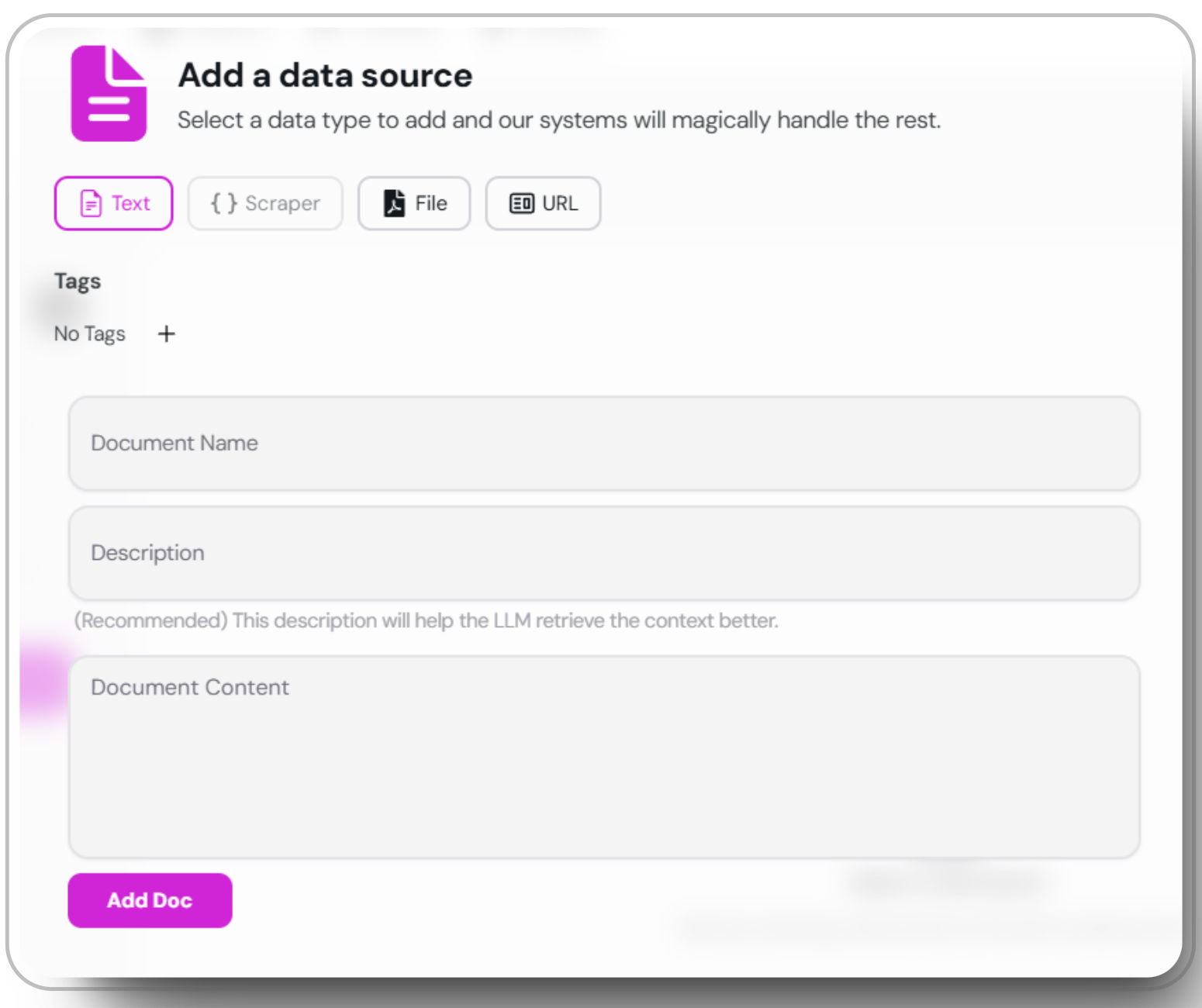
1. **Direct Text Entry:**
* Navigate to the `Knowledge` section of your agent
* Click on `Add source` in the upper right.
* Write or paste your content directly into the `Document Content` input field.
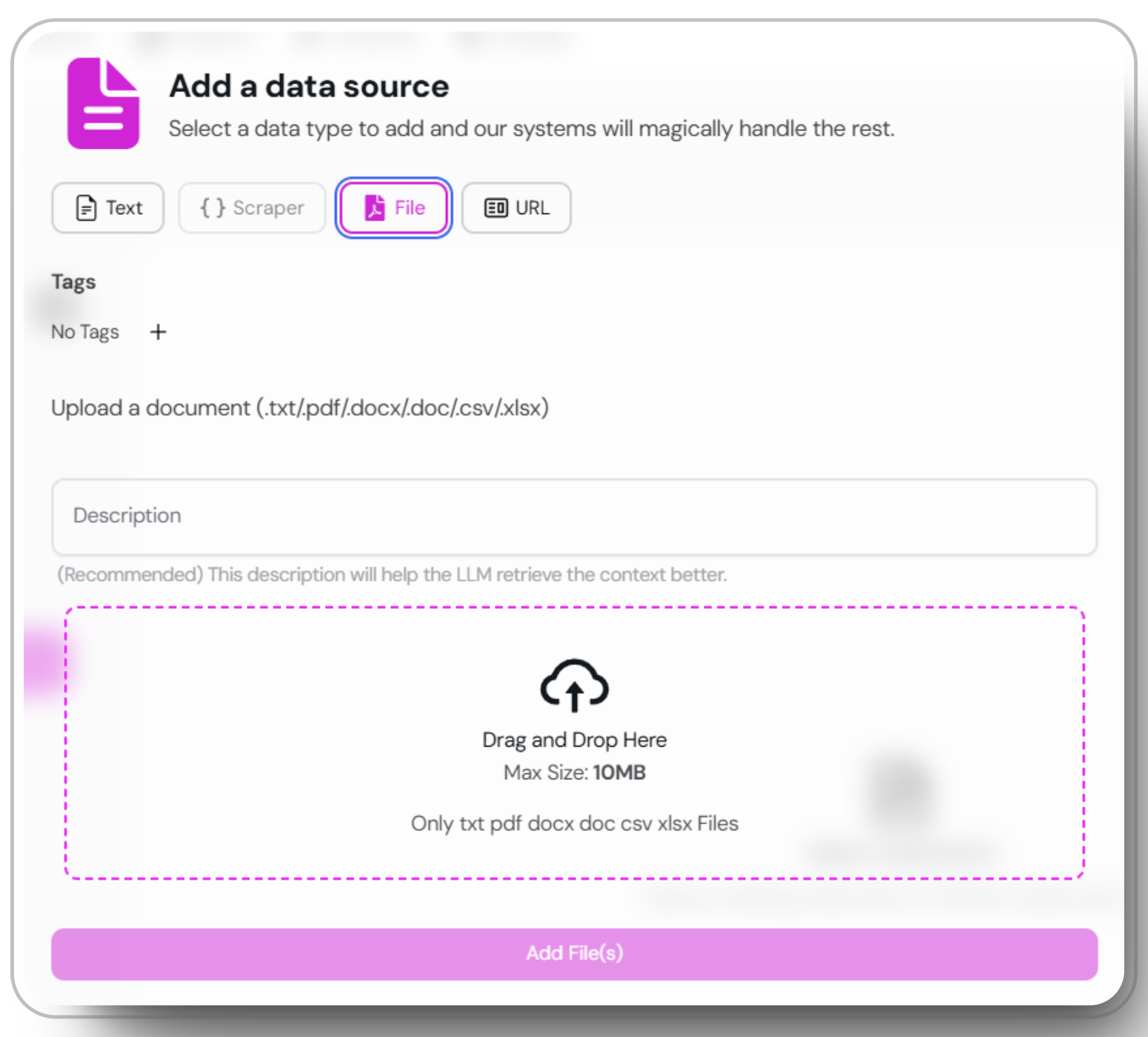
 2. **File Upload:**
* In the `add data source` window, select "File"
* Choose your document(s) from your local system
* Supported formats: .txt, .pdf, .docx, .doc, .csv, .xlsx
2. **File Upload:**
* In the `add data source` window, select "File"
* Choose your document(s) from your local system
* Supported formats: .txt, .pdf, .docx, .doc, .csv, .xlsx
 3. **URL:**
* Use our built-in URL scraper to add data from websites
* In the `add data source` window, select "URL"
* Enter the URL or sitemap you want to scrape. Remember to press `fetch` before scraping, to retrieve and look through the sitemap from the xml file.
* When the ULRs are scraped and added they will be saved as individual documents. **We recommend** scrolling through each and removing unwanted information.
3. **URL:**
* Use our built-in URL scraper to add data from websites
* In the `add data source` window, select "URL"
* Enter the URL or sitemap you want to scrape. Remember to press `fetch` before scraping, to retrieve and look through the sitemap from the xml file.
* When the ULRs are scraped and added they will be saved as individual documents. **We recommend** scrolling through each and removing unwanted information.
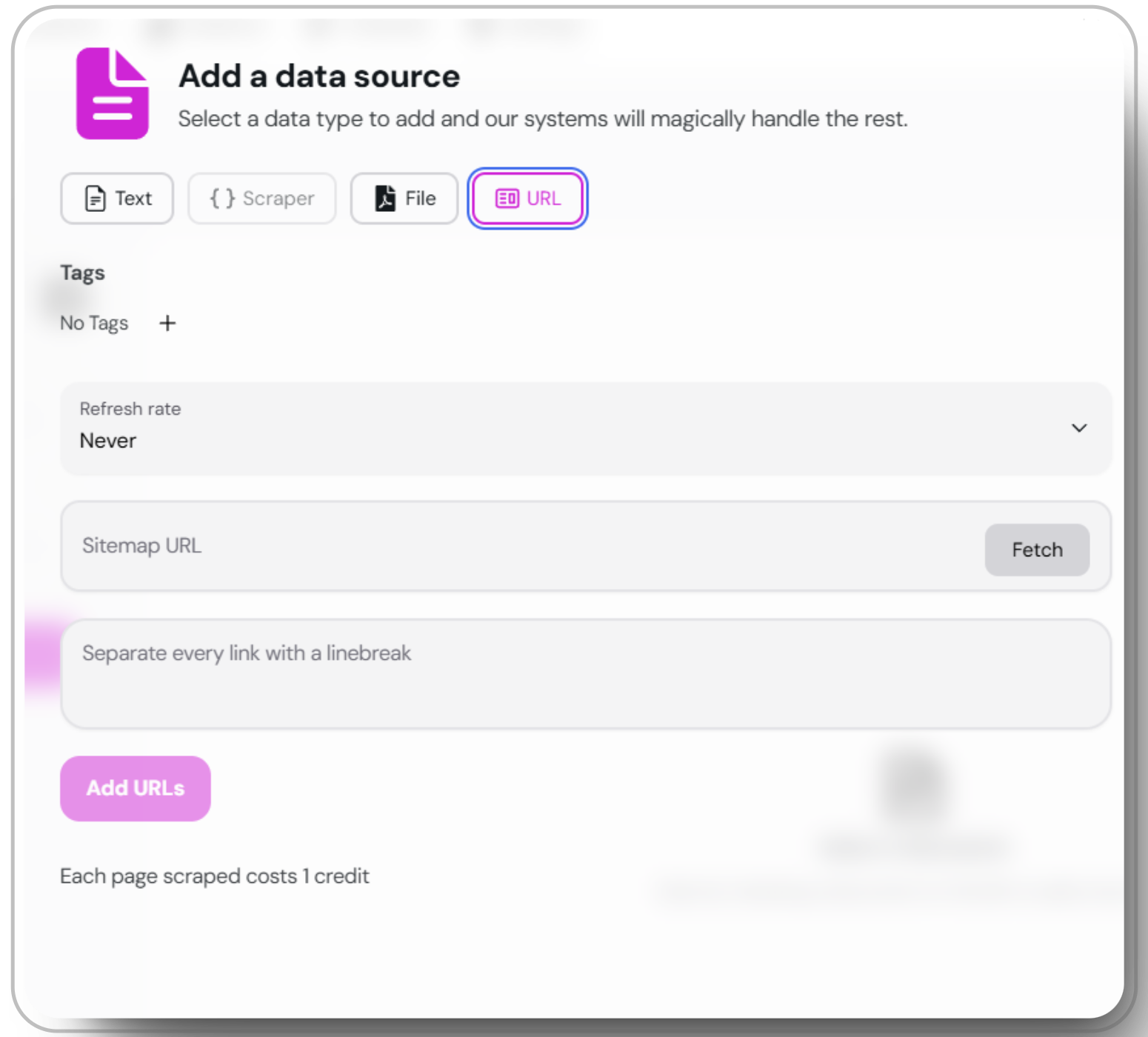 Using the URL scraper will use X credits per page. Please ensure your account has sufficient credits.
#
## Adding Data to the Knowledge Base
Convocore offers multiple methods to populate your knowledge base with data. Follow the steps below for each method:
### Direct Text Entry
Direct text entry is ideal for quickly adding or editing content within the platform.
* Quickly add or edit content directly within the platform.
* Ideal for real-time updates.
Go to your agent dashboard and click on the `Knowledge` section.
Locate the button in the upper right corner of the page and click on it.
Write or paste your content directly into the `Document Content` input field.
Direct text entry allows for immediate updates. Make sure to review your content for accuracy before saving to ensure high-quality data.
### File Upload
Easily upload various document formats to populate your knowledge base.
Open the `add data source` window and choose the "File" option.
Select the documents you want to upload from your local system. Supported formats include .txt, .pdf, .docx, .doc, .csv, and .xlsx.
Click the upload button to add your selected documents to the knowledge base.
* Supports multiple formats: .txt, .pdf, .docx, .doc, .csv, .xlsx.
* Ideal for bulk uploads.
Ensure your files are well-formatted and free of errors to maintain optimal knowledge base performance.
### URL Scraping
Use our built-in URL scraper to automatically extract data from websites.
Open the `add data source` window and choose the "URL" option.
Input the URL or sitemap you want to scrape. Press `fetch` to retrieve and review the sitemap from the XML file.
Once the URLs are fetched, scrape the data and save it as individual documents. Scroll through and remove any unwanted information to ensure relevance.
* Automatically extracts data from websites.
* Ensures relevant and updated content.
Using the URL scraper will use X credits per page. Please ensure your account has sufficient credits.
Regularly check the extracted data for relevance and accuracy to maintain a high-quality knowledge base.
Using the URL scraper will use X credits per page. Please ensure your account has sufficient credits.
#
## Adding Data to the Knowledge Base
Convocore offers multiple methods to populate your knowledge base with data. Follow the steps below for each method:
### Direct Text Entry
Direct text entry is ideal for quickly adding or editing content within the platform.
* Quickly add or edit content directly within the platform.
* Ideal for real-time updates.
Go to your agent dashboard and click on the `Knowledge` section.
Locate the button in the upper right corner of the page and click on it.
Write or paste your content directly into the `Document Content` input field.
Direct text entry allows for immediate updates. Make sure to review your content for accuracy before saving to ensure high-quality data.
### File Upload
Easily upload various document formats to populate your knowledge base.
Open the `add data source` window and choose the "File" option.
Select the documents you want to upload from your local system. Supported formats include .txt, .pdf, .docx, .doc, .csv, and .xlsx.
Click the upload button to add your selected documents to the knowledge base.
* Supports multiple formats: .txt, .pdf, .docx, .doc, .csv, .xlsx.
* Ideal for bulk uploads.
Ensure your files are well-formatted and free of errors to maintain optimal knowledge base performance.
### URL Scraping
Use our built-in URL scraper to automatically extract data from websites.
Open the `add data source` window and choose the "URL" option.
Input the URL or sitemap you want to scrape. Press `fetch` to retrieve and review the sitemap from the XML file.
Once the URLs are fetched, scrape the data and save it as individual documents. Scroll through and remove any unwanted information to ensure relevance.
* Automatically extracts data from websites.
* Ensures relevant and updated content.
Using the URL scraper will use X credits per page. Please ensure your account has sufficient credits.
Regularly check the extracted data for relevance and accuracy to maintain a high-quality knowledge base.