> ## Documentation Index
> Fetch the complete documentation index at: https://docs.convocore.ai/llms.txt
> Use this file to discover all available pages before exploring further.
# Initial message
## Overview
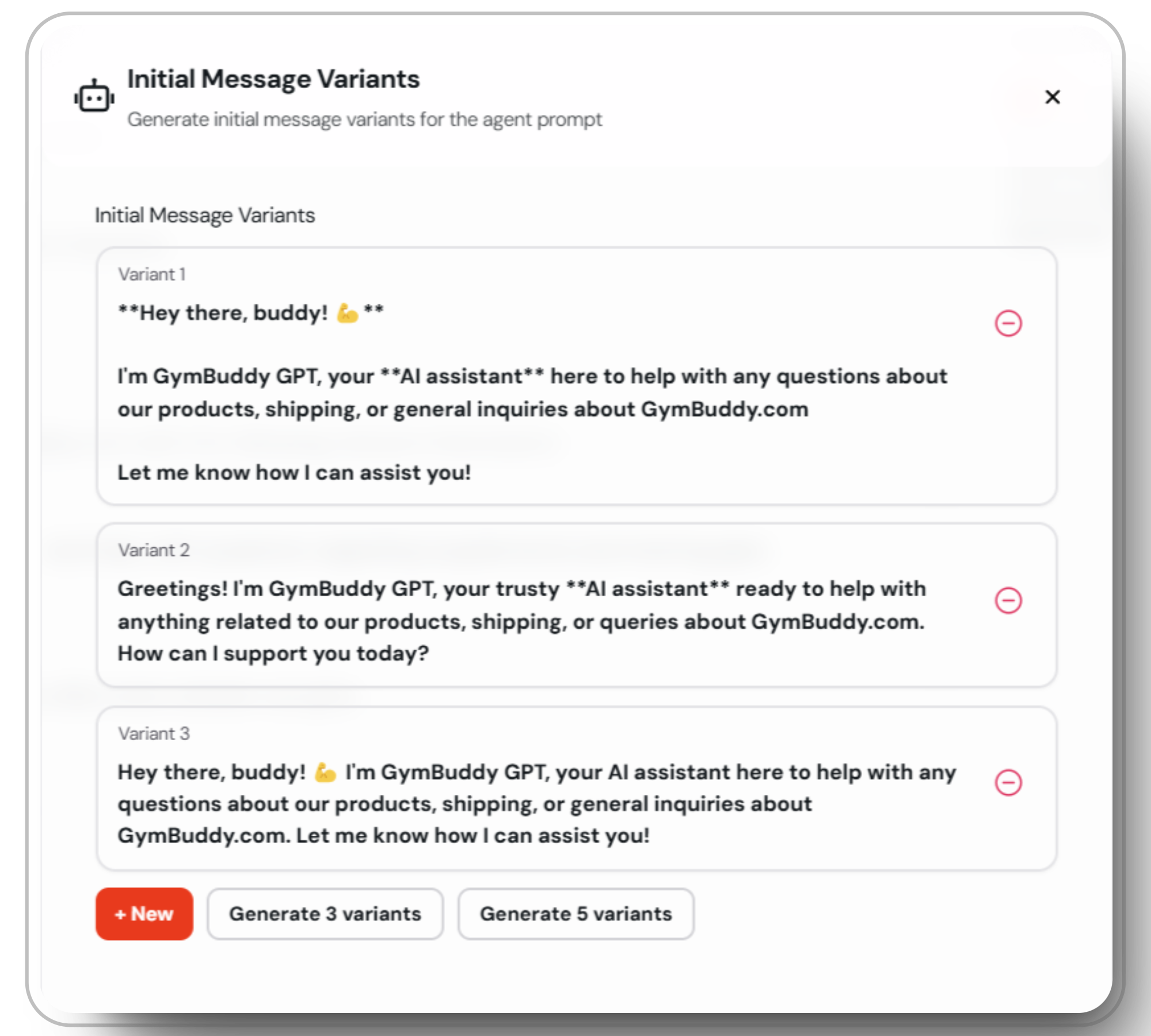
The initial message in Convocore allows you to set predefined starter messages that your AI agent sends every time a new user interacts with the widget. These messages help set the tone and provide initial guidance to users.
You can add multiple variants of the initial message, and a random variant will be shown to the user each time for a **unique experience**. You also have the option to generate new variants using AI, which can save time and effort.
 #
#
## How to Add Initial Messages
***
Go to your agent's settings and locate the "Initial Message" section.
Click the "+ New" button to add a new initial message.
Write your own and Click "Generate 3 variants" or "Generate 5 variants" to create new variants using AI.
## Best Practices
Make sure your initial messages are easy to understand and set clear expectations for the user.
Use variants to keep the interaction fresh and personalized.
Always review the content generated by AI to ensure accuracy and relevance.
Ensure that all initial messages align with your or your clients brand and tone of voice.
## Example usage
Here’s an example of how the initial message setup might look:
```
Hi! I'm **Magic Marks**' own AI here to provide you with all the info you need about our magical AI agents.
You can also send in queries and I'll send it to one of our AI magicians, just ask!
What would you like to know? 🪄
```
```
Hello there! **Magic Marks** AI assistant at your service.
Ready to answer your questions and guide you through our offerings.
Just type in your question and I’ll take care of the rest!
How can I assist you today? ✨
```
```
Greetings! This is the **Magic Marks** AI assistant.
I'm here to help you with any information you need. Feel free to ask your questions and
I'll connect you with the right resources.
What do you need help with today? 🌟
```
#
#
## How to Add Initial Messages
***
Go to your agent's settings and locate the "Initial Message" section.
Click the "+ New" button to add a new initial message.
Write your own and Click "Generate 3 variants" or "Generate 5 variants" to create new variants using AI.
## Best Practices
Make sure your initial messages are easy to understand and set clear expectations for the user.
Use variants to keep the interaction fresh and personalized.
Always review the content generated by AI to ensure accuracy and relevance.
Ensure that all initial messages align with your or your clients brand and tone of voice.
## Example usage
Here’s an example of how the initial message setup might look:
```
Hi! I'm **Magic Marks**' own AI here to provide you with all the info you need about our magical AI agents.
You can also send in queries and I'll send it to one of our AI magicians, just ask!
What would you like to know? 🪄
```
```
Hello there! **Magic Marks** AI assistant at your service.
Ready to answer your questions and guide you through our offerings.
Just type in your question and I’ll take care of the rest!
How can I assist you today? ✨
```
```
Greetings! This is the **Magic Marks** AI assistant.
I'm here to help you with any information you need. Feel free to ask your questions and
I'll connect you with the right resources.
What do you need help with today? 🌟
```